

Managing documents across two platforms - Salesforce and Microsoft SharePoint is one of the most persistent operational challenges in modern enterprise teams. Sales reps live inside Salesforce. Contracts, compliance records, invoices, and collaborative files live inside SharePoint. Without a proper bridge, the result is duplicated data, broken workflows, and hours of lost productivity every week.
This is a quick guide to Salesforce SharePoint integration: how it works, the native options and where they fall short, alternatives, and how purpose-built tools solve the problem at scale. For more details, check out The Ultimate Guide to Salesforce SharePoint Integration.
What is Salesforce SharePoint Integration?
Salesforce SharePoint integration is a solution that lets users access, manage, and organise Microsoft SharePoint files directly from within Salesforce records without switching between platforms. It connects Salesforce's CRM with SharePoint's document management capabilities, covering the entire document lifecycle tied to a customer relationship, from onboarding paperwork and proposals to contracts, compliance audits, and post-sale handoffs.
Without integration, both tools create friction, teams duplicate files, lose version control, and manually shuttle documents between systems.
Related: Salesforce CRM Content Explained: Admin, Architect & Developer Guide
Why Integrate Salesforce with SharePoint?
The case for connecting Salesforce and SharePoint is primarily practical, driven by how enterprise teams actually work. Here are the most common drivers:
Salesforce file storage is expensive
Salesforce charges $5/GB per month for additional file storage. Organisations that store large volumes of documents - contracts, proposals, compliance records - can accumulate high costs fast. Offloading document storage to SharePoint, already bundled in most Microsoft 365 subscriptions, substantially reduces these costs.
Related: Saving Salesforce storage costs with CloudFiles
Teams already use SharePoint
Many organisations have mature SharePoint environments with established folder structures, permission models, and governance policies. Forcing CRM users to duplicate files into Salesforce disrupts existing workflows and creates version-control issues.
Document context matters in CRM
Attaching a document to a Salesforce record - Account, Opportunity, Contact, or Case gives it business context. A compliance report linked to a client's Account record is easier to act on than a file buried in a SharePoint folder disconnected from the CRM.
Automation requires connected systems
Whether it's auto-creating folder structures when a new deal opens, generating proposals when a quote is approved, or triggering document review workflows, automation needs Salesforce data and SharePoint storage to work together.
Regulated industries demand structured document management
Financial services, healthcare, and legal organisations face strict document retention and audit requirements that demand accurate, traceable records across both systems.
How Salesforce SharePoint Integration Works
At a technical level, Salesforce connects to SharePoint through APIs. Microsoft SharePoint exposes its data via the Microsoft Graph API, which allows external applications to authenticate via OAuth 2.0, then read, write, and organise files in SharePoint document libraries.
From Salesforce's side, there are two primary integration architectures:
- Native integration (Files Connect): Salesforce's built-in connector uses SharePoint's APIs to surface external files within Salesforce records. Files appear in the Files tab and open in SharePoint via a browser redirect.
- AppExchange apps (third-party integrations): Managed packages installed in Salesforce that handle OAuth authentication, API communication, and Lightning UI components delivering a full document management experience inside Salesforce with far richer features than Files Connect.
In both cases, the actual files remain stored in SharePoint. The integration creates a reference layer that surfaces them in Salesforce without duplicating data.
What Is Salesforce Files Connect?
Salesforce Files Connect is Salesforce's built-in connector for external file repositories - including SharePoint, Google Drive, and OneDrive - that surfaces external files within Salesforce's native Files tab, allowing users to browse and open files without leaving the CRM.
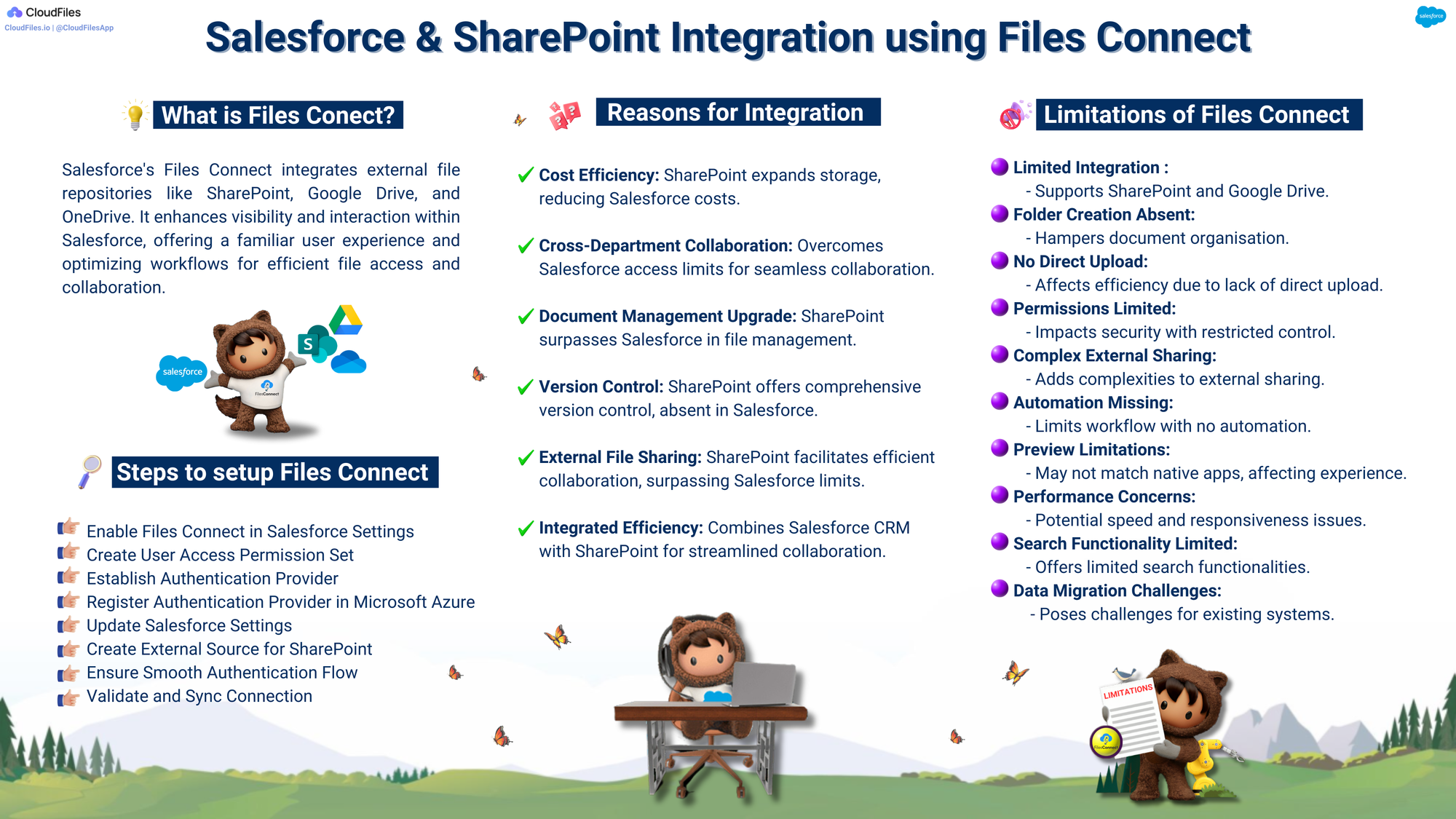
Salesforce Files Connect is included with Salesforce Enterprise editions and above, requiring no additional licensing. For organisations looking for a no-cost, low-friction starting point to surface SharePoint files in Salesforce, it is the logical first option to evaluate.
Why is Salesforce Files Connect limited?
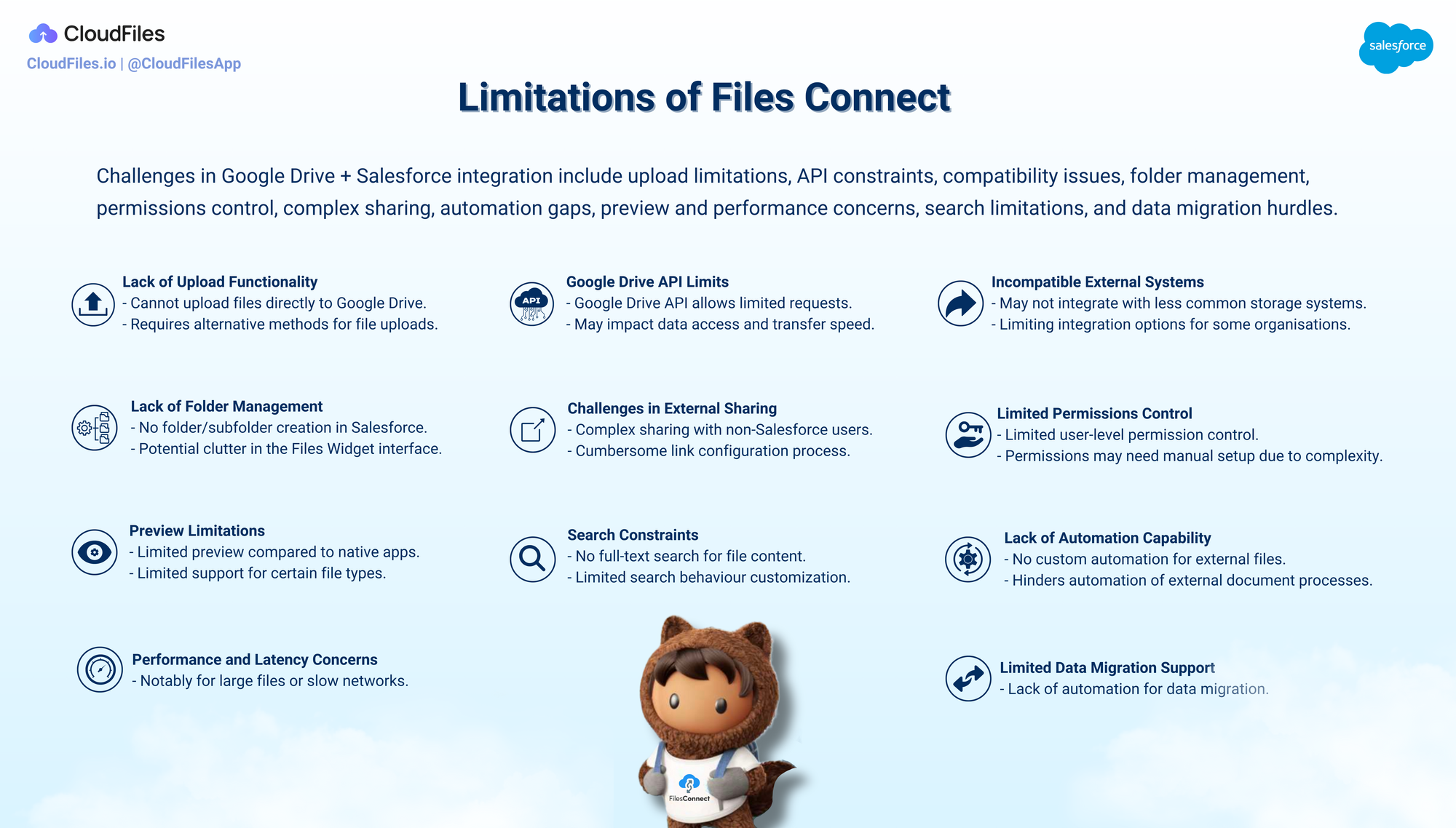
Files Connect works for basic file browsing, but it has structural limitations that prevent it from serving as a complete document management solution:
- No folder creation: Files Connect does not allow folder creation in SharePoint, making systematic document organisation difficult.
- No direct upload: Users cannot upload files from Salesforce directly into SharePoint via Files Connect.
- No automation: Files Connect does not integrate with Salesforce Flow, Process Builder, or Apex. You cannot auto-create folders on record creation, copy files on deal close, or trigger any document workflow automatically.
- Limited permission controls: Files Connect offers limited granularity over SharePoint permissions, which creates security and access management gaps.
- No document generation: Files Connect has no capability to generate documents from Salesforce data or templates.
- Preview limitations: File preview capabilities may not match those of native applications.
- Limited search: Finding files across connected SharePoint libraries is significantly constrained compared to native SharePoint search.
- External sharing complexity: Sharing files with non-Salesforce users through Files Connect is cumbersome and often requires direct SharePoint access.
- No AI processing: There is no capability to extract data from documents, classify files, or run any AI-driven document processing.
- Performance issues: Depending on SharePoint configuration and network conditions, Files Connect can experience latency that impacts user experience.
For small teams with low document volumes and no automation requirements, Files Connect may be sufficient. For most enterprise implementations, it is a starting point, not a destination.
Alternatives to Salesforce Files Connect
When Files Connect is not enough, organisations typically evaluate one of four approaches:
AppExchange-native document management apps are managed packages installed directly in Salesforce. They handle the SharePoint integration but also add workflow automation, document generation, template management, AI processing, and granular permission controls. For teams that want a complete document layer inside Salesforce, this is the most capable option.
Middleware platforms like MuleSoft, Workato, or Zapier connect Salesforce and SharePoint through event-based triggers and API calls. These are flexible but require technical setup and ongoing maintenance, and are better suited for specific integration scenarios than general document management.
Custom development using Salesforce Apex and the Microsoft Graph API offers maximum flexibility but comes with high development costs and ongoing maintenance. For specific use cases like moving case attachments, this guide on moving case attachments to SharePoint is a practical technical reference.
Microsoft Power Automate can trigger SharePoint actions based on Salesforce events, but this is one-directional and does not provide a unified in-Salesforce experience.
Comparing Salesforce SharePoint Integration Options
| Files Connect | Middleware (e.g. MuleSoft) | AppExchange App (e.g. CloudFiles) | |
|---|---|---|---|
| In-Salesforce file access | ✅ | ❌ | ✅ |
| Folder creation | ❌ | ✅ (custom) | ✅ |
| Direct upload from Salesforce | ❌ | ✅ (custom) | ✅ |
| Flow / automation support | ❌ | ✅ | ✅ |
| Document generation | ❌ | ❌ | ✅ |
| External sharing & tracking | ❌ | ❌ | ✅ |
| Setup complexity | Low | High | Low–Medium |
| Additional cost | None | High | Moderate |
For most organisations, a purpose-built AppExchange app provides the best balance of capability, deployment speed, and ongoing usability.
How CloudFiles Solves Salesforce SharePoint Integration Challenges
CloudFiles is a Salesforce-native document management platform available on the Salesforce AppExchange that builds a full document layer between Salesforce and external storage systems, including Microsoft SharePoint, OneDrive, Google Drive, and AWS S3.

Unlike Files Connect, CloudFiles provides live bidirectional access to SharePoint through direct API connections and real-time syncing. Users get full SharePoint functionality - file upload, folder creation, move, rename, search, preview, and share directly from Salesforce Lightning record pages without switching apps or tabs.
For a full comparison of how CloudFiles approaches the SharePoint connection versus other tools like sFiles, see the sFiles vs CloudFiles comparison.
Key Features of CloudFiles
CloudFiles' core capabilities span four functional areas: Access, Sharing, Automation, and Analytics.
Seamless access to external storage
CloudFiles offers a seamless integration that allows users to access external files from popular cloud storage platforms directly within Salesforce. Changes made to files in Salesforce or SharePoint are instantly synchronised, providing all team members with the latest version of documents. This removes the need to maintain duplicate copies in both systems.
Advanced file and folder operations
CloudFiles enables users to organise files, create folders, and perform bulk actions such as mass uploads and downloads, streamlining file management processes. Users can upload, preview, and edit files without switching between platforms. CloudFiles also respects SharePoint permissions, ensuring secure file access throughout.
Automation-friendly architecture
CloudFiles includes a variety of automation components, such as modular flow actions, which enable users to streamline workflows and match custom sales processes. Users can create folders, connect records, generate sharing links, and manage permissions directly within Salesforce Flow.
Sharing and analytics
CloudFiles allows users to create secure and trackable links for files and folders without exposing internal storage access. The built-in analytics feature provides real-time insights on document views, downloads, time spent per page, and other file engagement metrics within Salesforce.
Security and compliance
Data security at CloudFiles is backed by SOC-2 Type II and ISO 27001 certifications. Data encryption at rest and in transit, GDPR compliance, and automated threat detection and response ensure data protection across all connected storage systems.
Advanced Capabilities of CloudFiles
Reporting and collateral dashboards
CloudFiles exposes custom Salesforce objects that feed into standard Salesforce reporting. Teams can build dashboards showing which documents have been shared, who accessed them, when, and how often - providing a layer of document intelligence directly inside Salesforce that neither Files Connect nor raw SharePoint offers.
Experience Cloud (Community) integration
CloudFiles widgets can be embedded in Salesforce Experience Cloud portals. This allows external users - clients, partners, and field agents to upload, preview, and download documents through the portal, with those files landing directly into the correct record-linked SharePoint folder. Internal teams see the uploads in real time without any sync delay or email attachment workflow.
Datarooms and file request flows
CloudFiles supports assembling datarooms - curated collections of files and folders from SharePoint and presenting them through a single governed sharing link. Recipients access a branded, secure viewer rather than raw SharePoint URLs. File requests can also be embedded within the same link, allowing external users to upload documents back into the correct SharePoint folder as part of a structured intake workflow.
Files Connect bridge
For organisations that have already deployed Salesforce Files Connect and want to add automation on top of it, CloudFiles can act as a complementary layer. CloudFiles flow actions can automate Files Connect link creation and folder organisation, bridging the gap between Files Connect's visibility capabilities and the automation that enterprise document workflows require.
For a more detailed analysis of how CloudFiles helps in Salesforce-SharePoint integration, read this - Looking to Integrate Salesforce with SharePoint? Try CloudFiles
Conclusion
Connecting Salesforce and SharePoint is not just a technical convenience. For most enterprise teams, it is a prerequisite for running efficient, compliant, and scalable document workflows. Salesforce's native Files Connect provides a starting point, but its lack of automation, folder management, document generation, and AI processing leaves most organisations looking for more.
Purpose-built AppExchange solutions like CloudFiles close that gap by delivering a full document management layer that works natively within Salesforce while keeping files in SharePoint with the governance, automation, and compliance controls that enterprise teams require.
Ultimately, the right approach depends on your organisation's document volume, automation requirements, compliance obligations, and the maturity of your existing SharePoint environment. For teams handling significant document workflows in financial services, insurance, sales, or operations, a proper Salesforce-SharePoint integration can save time, reduce errors and ensure maintenance compliance.
Additional Content
If you wish to read more about Salesforce, SharePoint, or CloudFiles, feel free to explore the blogs listed below:
- The Ultimate Guide to Salesforce SharePoint Integration
- Looking to Integrate Salesforce with SharePoint? Try CloudFiles
- Salesforce SharePoint Integration with CloudFiles
- sFiles vs CloudFiles: A Deep-Dive Into Salesforce–SharePoint Connectors
- How BDA Partners Boosted Sales Productivity by 25% Using CloudFiles
- Move Case Attachments to SharePoint in Salesforce
- Salesforce CRM Content Explained: Admin, Architect & Developer Guide
- How to Save Salesforce Storage Costs with CloudFiles
Salesforce SharePoint Integration FAQs
Why are my Salesforce storage costs so high, and how can SharePoint help?
Salesforce charges $5 per GB per month for file storage, which accumulates fast for document-heavy teams. Since SharePoint is included in most Microsoft 365 subscriptions, storing files there and linking them to Salesforce records via an integration tool eliminates additional storage purchases without changing how reps work.
Why is Salesforce SharePoint integration needed?
Salesforce tracks relationships, opportunities, deals and customer activity; SharePoint, on the other hand, stores and manages documents. Both of them are entirely different but complementary. Without a proper connection between them, files are often duplicated, version control and file tracking become a real challenge and cause a lot of redundancies and inefficiencies. Having a good Salesforce SharePoint integration tool prevents all the chaos.
When should I use Files Connect for Salesforce SharePoint integration?
Files Connect would be best suited for teams that want a simple and basic tool to integrate SharePoint with Salesforce. It is ideal when you have low document volumes, no automation needs, and no requirement for folder creation or external sharing. In general, it serves as a good starting point. If your needs are complicated, then exploring other third-party options becomes a necessity.
Which third-party apps on the Salesforce AppExchange support SharePoint integration?
Several AppExchange apps extend Salesforce SharePoint integration beyond what Files Connect offers, adding capabilities like folder automation, document generation, external sharing, and analytics. The most commonly used options are CloudFiles, sFiles, 24Files, Document Extractor, and Files 365. Each takes a different approach
What is the best third-party app for Salesforce SharePoint integration?
The best app depends on your organisation's specific document workflows, automation needs, and compliance requirements. CloudFiles is the most comprehensive option for teams that need folder automation, document generation, external sharing with tracking, and compliance certifications like SOC-2 Type II, all deployable without custom code. sFiles and 24Files are strong alternatives for teams with simpler requirements. When evaluating any option, prioritise native Salesforce Flow support, SharePoint permission handling, AppExchange rating, and update frequency.
How is CloudFiles different from Files Connect?
CloudFiles provides bi-directional access, allows folder creation and automation via Salesforce Flows. In addition, it allows direct upload from record pages and provides external sharing with engagement analytics, all without leaving Salesforce.
Files Connect provides read-only access to SharePoint files from within Salesforce. Users can browse and open files, but cannot upload, create folders, automate workflows or share documents externally.