

Introduction
If you’ve ever searched “Salesforce CRM Content” and found half the answers talking about Salesforce Files, others about Notes & Attachments, and some still mentioning the Documents tab, you’re not alone. Salesforce didn’t build one file system - it built four, across different eras, to solve different problems. That’s why mature orgs today often run a hybrid of legacy and modern content tools.
Here’s the simple truth: CRM file management in Salesforce evolved over time. What started as basic record attachments became governed content libraries, and finally unified into modern Salesforce Files. But Salesforce CRM Content didn’t disappear...it stayed active for orgs that depend on its library-first governance.
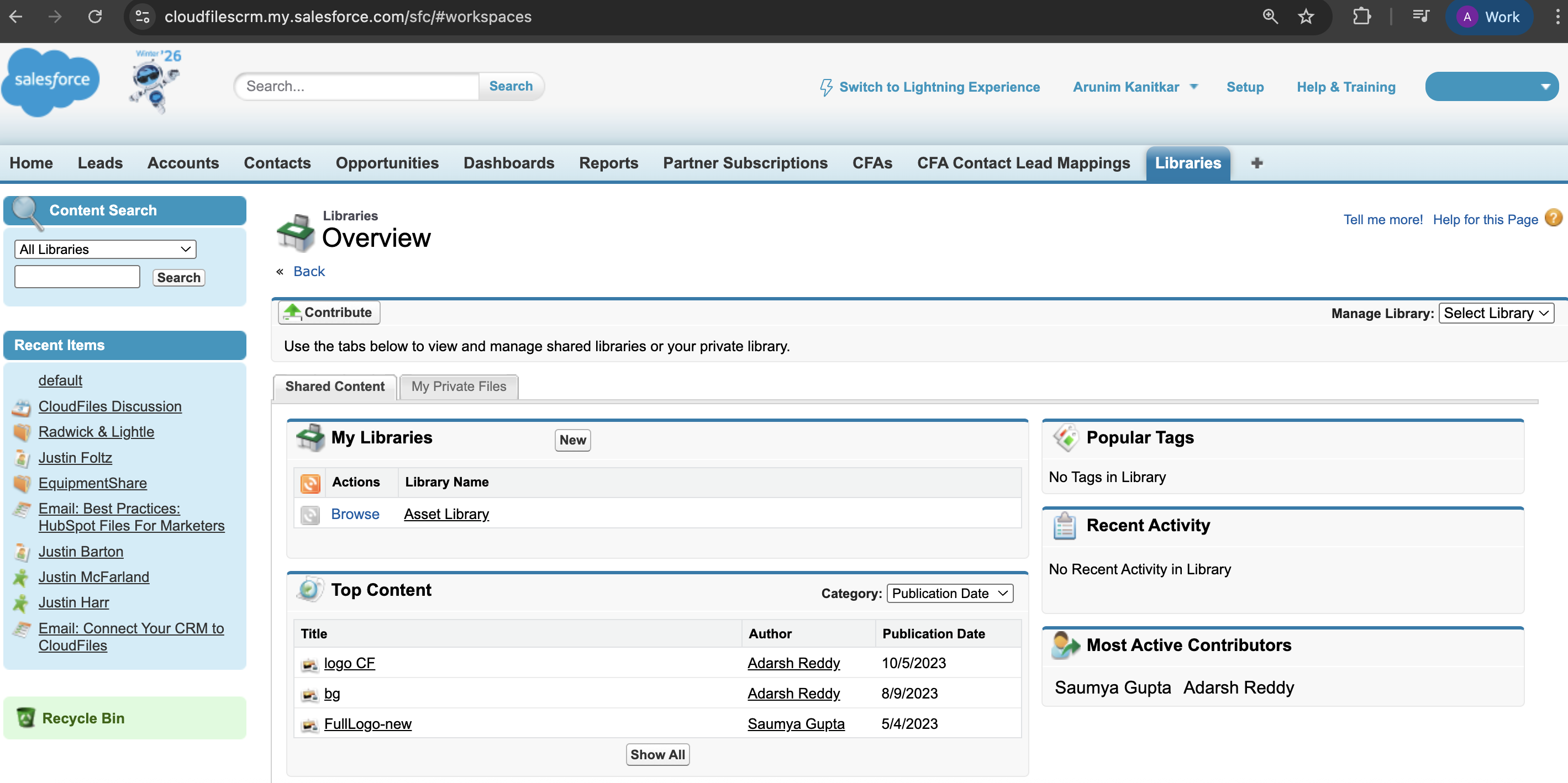
This blog gives you a clean framework for where CRM Content fits relative to Salesforce Files, Notes & Attachments, and Documents, and then goes deep into everything you need to know: libraries Salesforce users rely on, CRM Content User licensing, content delivery in Salesforce, content packs, architecture objects, setup, and developer considerations. Whether you’re an admin maintaining legacy libraries, an architect planning migration, or a developer integrating content through APIs - this is the complete map.
What to Expect in This Blog
In this blog, we’ll cover:
What Is Salesforce CRM Content? → A clear explanation of what CRM Content is, how it works, and what problem it was designed to solve.
Why CRM Content Exists, and Why It’s Still in Use → The historical gaps CRM Content filled and the real reasons many mature Salesforce orgs continue to rely on it today.
Where CRM Content Fits in Salesforce → How CRM Content compares at a high level to Salesforce Files, Notes & Attachments, and Documents.
Libraries in Salesforce: The Core of CRM Content → How libraries work, why they are foundational, and how ContentWorkspace powers library-first governance.
CRM Content Access in Salesforce → How licenses, permissions, visibility rules, and ContentWorkspaceMember roles control access.
How CRM Content Works Under the Hood → A simplified architecture breakdown covering ContentWorkspace, ContentVersion, ContentDocument, and related objects.
Key Features of CRM Content → The capabilities that made CRM Content an enterprise-grade solution, including versioning, governance, search, and sharing.
Using Salesforce CRM Content Effectively → Practical guidance on uploading, versioning, and sharing content in real-world scenarios.
Comparison: CRM Content vs. Files vs. Notes & Attachments vs. Documents → A side-by-side view of when each content model makes sense.
Migration & Coexistence Strategy → How organizations can modernize content while safely maintaining legacy libraries.
By the end of this blog, you’ll walk away with a clear mental model of Salesforce CRM Content, how it works, where it fits today, and how to make informed decisions about governance, coexistence, or migration within your Salesforce org.
What Is Salesforce CRM Content?
Salesforce CRM Content is a legacy but still supported enterprise content management system within Salesforce. It was designed to help organizations store, govern, and distribute business documents through curated libraries, rather than attaching files haphazardly to individual records.
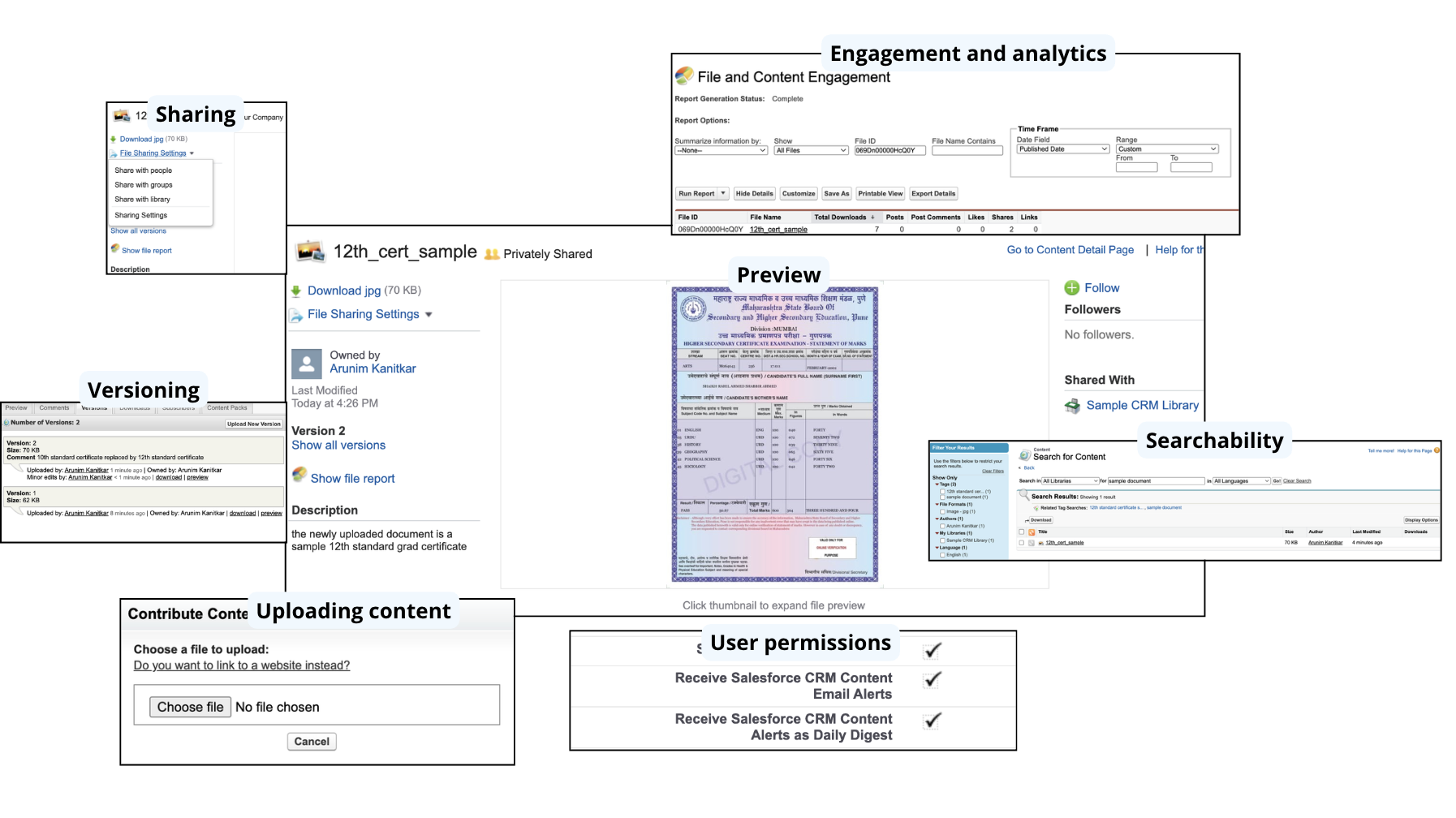
With CRM Content, teams can:
- Store documents in Salesforce content libraries
- Control access via role-based library permissions
- Maintain complete version history
- Improve discovery through tags, metadata, and search
- Publish externally through Content Deliveries
- Bundle documents using Content Packs
- Track engagement on shared content
In short: CRM Content is Salesforce’s library-first content platform from the pre-Files era. It supports standard file types like PDFs, Word docs, Excel sheets, images, and PowerPoint decks, which is why it became the default hub for sales collateral, marketing assets, training files, compliance documents, and operational templates.
Why CRM Content Exists, and Why It’s Still in Use
Before CRM Content, Salesforce offered only two ways to handle Salesforce content: the Documents tab and Notes & Attachments. Documents was a static folder store meant for org assets like logos and template images, not living business collateral. Notes & Attachments was record-centric; it worked for attaching a crm file to one Account or Opportunity, but it created chaos at scale: duplicates everywhere, no authoritative “approved version,” weak search, and no curated enablement hub.
Enterprises needed something those systems couldn’t provide: a single curated source of truth for approved collateral, role-based governance at the repository level (“Marketing uploads, Sales consumes”), real versioning without duplication, and safe external publishing with engagement tracking. CRM Content was Salesforce’s answer, and its core design (libraries + roles + versioning + publishing) is documented in Salesforce’s own implementation materials.
Why orgs still use CRM Content today
Even after Salesforce Files became the modern default, CRM Content is still very much alive in mature orgs, mostly because it’s woven into the way they govern and distribute content. The reasons are practical:
- Huge legacy library volume. Many enterprises have 10k–500k+ documents sitting in CRM Content libraries with years of version history. Migrating that safely isn’t a button click; it’s a full project.
- Library roles match real enablement governance. CRM Content’s “library + role” model mirrors how content is controlled in the real world: Marketing uploads and approves, Sales consumes only approved assets, and Compliance/Legal runs separate locked-down libraries. Files can replicate this, but not as natively or as simply out of the box.
- Business workflows are built on CRM Content. Older automations, integrations, enablement portals, and internal processes often reference libraries, workspace membership, Content Deliveries, or Content Packs. So replacing CRM Content means redesigning workflows, not just moving CRM files.
- Content Deliveries and Packs are still relied on. Sales teams continue to use Deliveries for trackable external sharing and Packs for bundling collateral, because those flows are embedded in day-to-day habits and reporting.
- Risk outweighs reward unless there’s a trigger. CRM Content is stable and supported. If it’s working, enterprises usually delay migration until a bigger initiative forces the change (modernization, compliance shift, consolidation, Experience Cloud rebuild, etc.).
So the short version: CRM Content sticks around because its libraries, roles, publishing flows, and history are deeply embedded - and moving off it at enterprise scale is expensive and risky unless done deliberately.
Where CRM Content Fits in Salesforce (Files vs Notes & Attachments vs Documents)
To understand CRM Content properly, you need to see how it fits into Salesforce’s four content systems:
| System | Era / Status | Content Model | Primary Purpose | Key Strengths | Key Limitations | Where you’ll still see it |
|---|---|---|---|---|---|---|
| Documents Tab | Legacy-legacy | Library / folder-centric | Store static org assets (logos, template images) | Simple shared storage | No versioning, weak search, no collaboration | Email templates, old branding folders |
| Notes & Attachments | Legacy | Record-centric | Attach files directly to records | Easy record-level storage | No real versioning, weak discovery, poor scale | Classic org layouts, old integrations |
| Salesforce CRM Content | Legacy but active | Library-centric (ContentWorkspace) | Governed enterprise content libraries | Roles, versioning, subscriptions, deliveries, packs | Older model, licensing required, not net-new default | Enablement/compliance hubs in mature orgs |
| Salesforce Files | Modern standard | Record-centric + platform-wide | Unified file system everywhere | Best sharing, automation, previews, cross-record linking | Less library-first curation out of box | Every modern Lightning org |
CRM Content sits between Documents and Files. It’s the enterprise “library governance” system Salesforce built before Files became the modern standard.
Libraries in Salesforce: The Core of CRM Content
Libraries are the heart and soul of CRM Content. They are the organized containers where content lives, grouped by purpose or team: Sales Library, Marketing Library, Training Library, Compliance Library, etc. Every Library in CRM Content is powered by the ContentWorkspace object, making it a formal, permission-managed repository.
Each Library supports a hierarchy of roles:
- Viewers – can read and download files
- Contributors (Authors) – can upload, update, and version files
- Library Administrators – manage membership, structure, permissions, and content lifecycle
Admins commonly add Public Groups to Libraries to simplify governance, for example, “Sales Team (All)” as Viewers, “Marketing Managers” as Authors, and “Sales Ops” as Library Admins. This structured approach makes Libraries extremely powerful for curated, authoritative content repositories.
Once you understand that CRM Content is library-first, everything else becomes easier to place. Libraries are not a nice-to-have layer in CRM Content - they are the system. In fact, when people search libraries Salesforce, library in Salesforce, or library Salesforce, they’re almost always referring to these CRM Content libraries.
A Salesforce content library is a governed workspace where teams store curated, business-ready assets - a Sales Enablement library for decks and brochures, a Marketing library for collateral, a Training library for onboarding content, or a Compliance library for regulated templates. Each library in Salesforce exists as a formal Salesforce object called ContentWorkspace, which is why Salesforce libraries are much more than folders. They’re treated like permission-managed repositories with their own membership model.
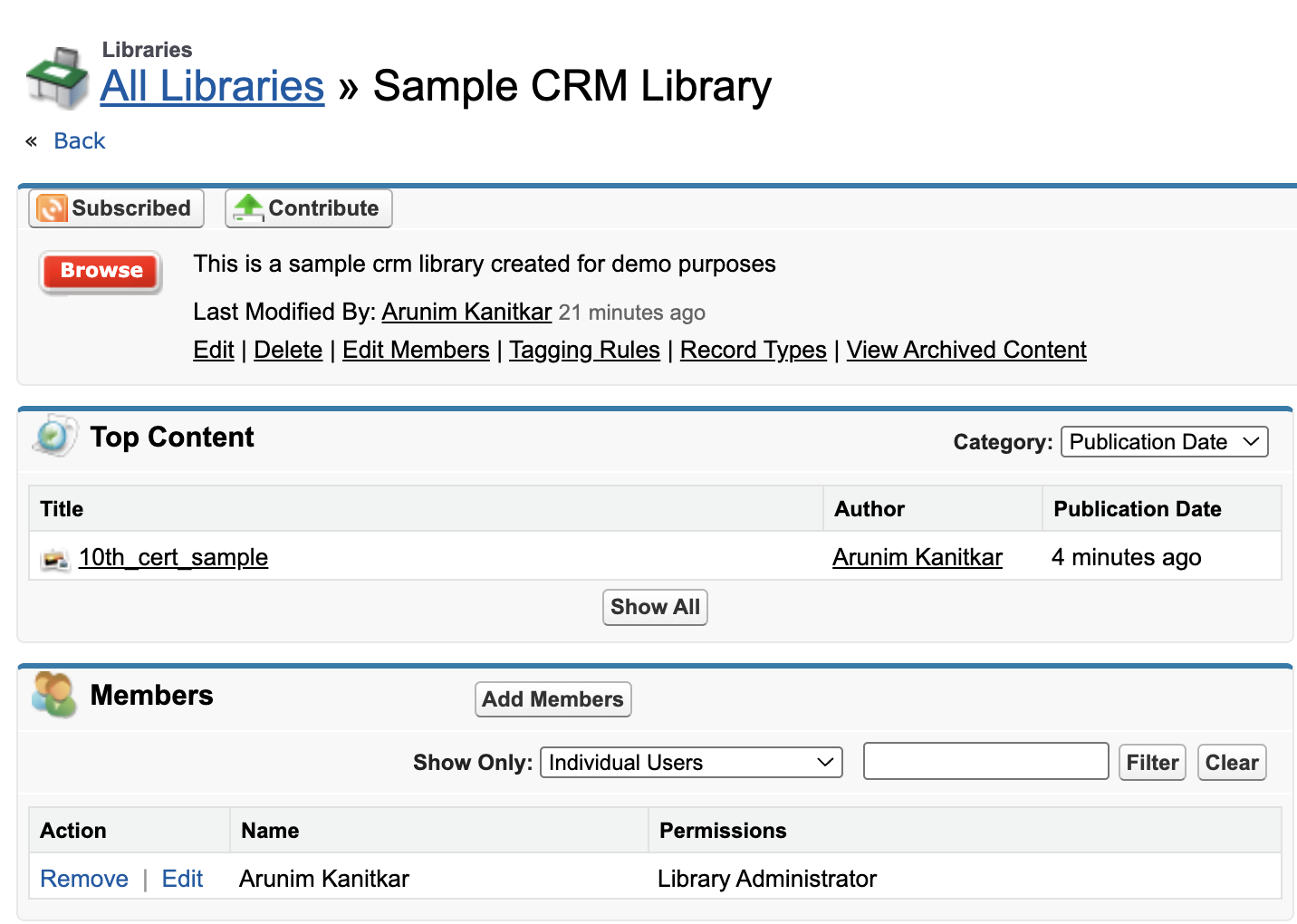
The object behind a library: ContentWorkspace
Every Salesforce library is powered by ContentWorkspace - a formal repository, not a simple folder. Salesforce’s implementation guide and setup docs explicitly tie access and organization to libraries.
Library roles: ContentWorkspaceMember
Access is controlled through ContentWorkspaceMember, which assigns roles:
- Viewer — read/download only
- Contributor (Author) — upload and version CRM files
- Library Administrator — manage members, permissions, publishing rules, lifecycle
Admin best practice: Add Public Groups to libraries instead of each Salesforce CRM content user individually. Salesforce recommends this for scalable governance.
Library types: Personal vs Shared
- Personal Libraries: private to each user (drafts).
- Shared Libraries: visible to teams/groups by role.
Shared libraries are where production collateral lives.
CRM Content Access in Salesforce: Licenses, Permissions, and Visibility Rules
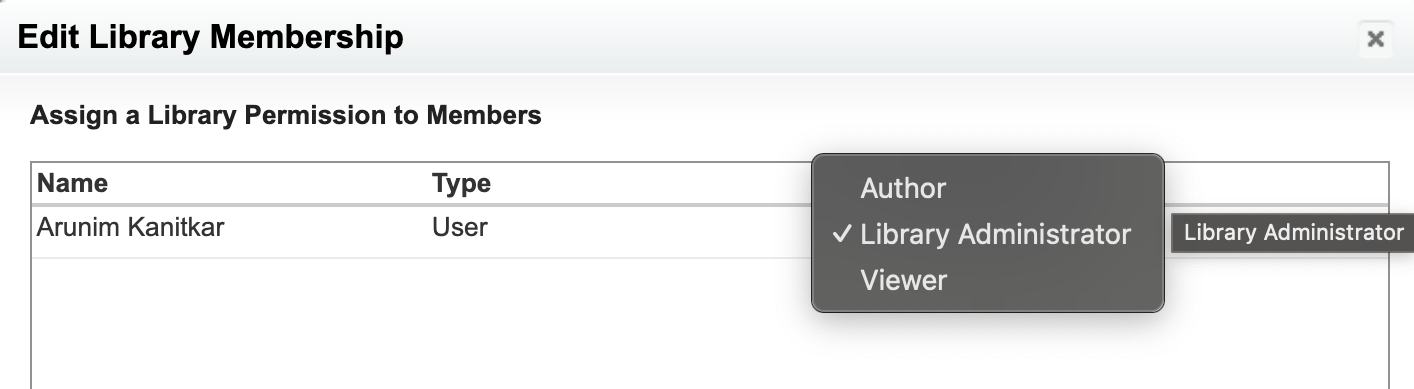
Since Salesforce libraries are central to CRM Content, access depends on two things: licensing and library membership. CRM Content is licensed, so to fully participate in shared libraries, many users need the CRM Content User Salesforce feature license (shown in Setup as Salesforce CRM Content User). In practical terms, anyone who uploads or manages library files, acts as a Contributor or Library Admin, publishes content delivery in Salesforce links, or creates Content Packs typically needs this license. Without it, salesforce CRM content users may be able to view some libraries but get blocked the moment they try to upload, version, or publish content.
After licensing, the next control point is the library role assigned through ContentWorkspaceMember. If the role is wrong, access still fails even with the license. Finally, admins validate supporting permissions like Create Libraries, Manage Content Permissions, and Deliver Content (especially if external publishing is needed). So when someone says “CRM Content isn’t working for me,” the clean troubleshooting path is: license → library role → permissions.
How CRM Content Works Under the Hood (Architecture Breakdown)
Now that you’ve seen how Salesforce
libraries and access are structured, the object model makes intuitive sense. CRM Content uses the same file core as Salesforce Files, but wraps it in a library governance layer. The key objects are:
- ContentWorkspace — the library itself
- ContentWorkspaceMember — who belongs to the library and with what role
- ContentWorkspaceDoc — the join that places a file inside a library
- ContentDocument — the parent identity for a file
- ContentVersion — each uploaded version of that file
When someone uploads a document into a library, Salesforce creates a ContentVersion, associates that version to a ContentDocument, and then links the ContentDocument into the library using ContentWorkspaceDoc. That last step is the defining CRM Content behavior: files belong to libraries first, and governance flows from that library membership.
This is also the cleanest way to understand how CRM Content differs from Salesforce Files. Files uses ContentDocumentLink to connect one CRM file to many records across the platform. CRM Content uses ContentWorkspaceDoc to connect files into libraries. So:
CRM Content is library-first; Files is record-first and platform-wide.
Key Features of CRM Content
CRM Content provides a robust, structured way to store and manage business documents. Below is a deeper look at its most important capabilities, expanded with more detail and practical nuance.
1. Library-Based Organization
CRM Content uses Libraries (Content Workspaces) to group similar types of documents. These libraries help teams maintain control over who can upload, update, or distribute files. Unlike simple attachments, CRM Content’s workspace model ensures that each document is placed in a controlled environment where access rules are consistent and easy to audit. Companies often create libraries like Marketing Collateral, Contracts, Technical Documentation, or Support Templates.
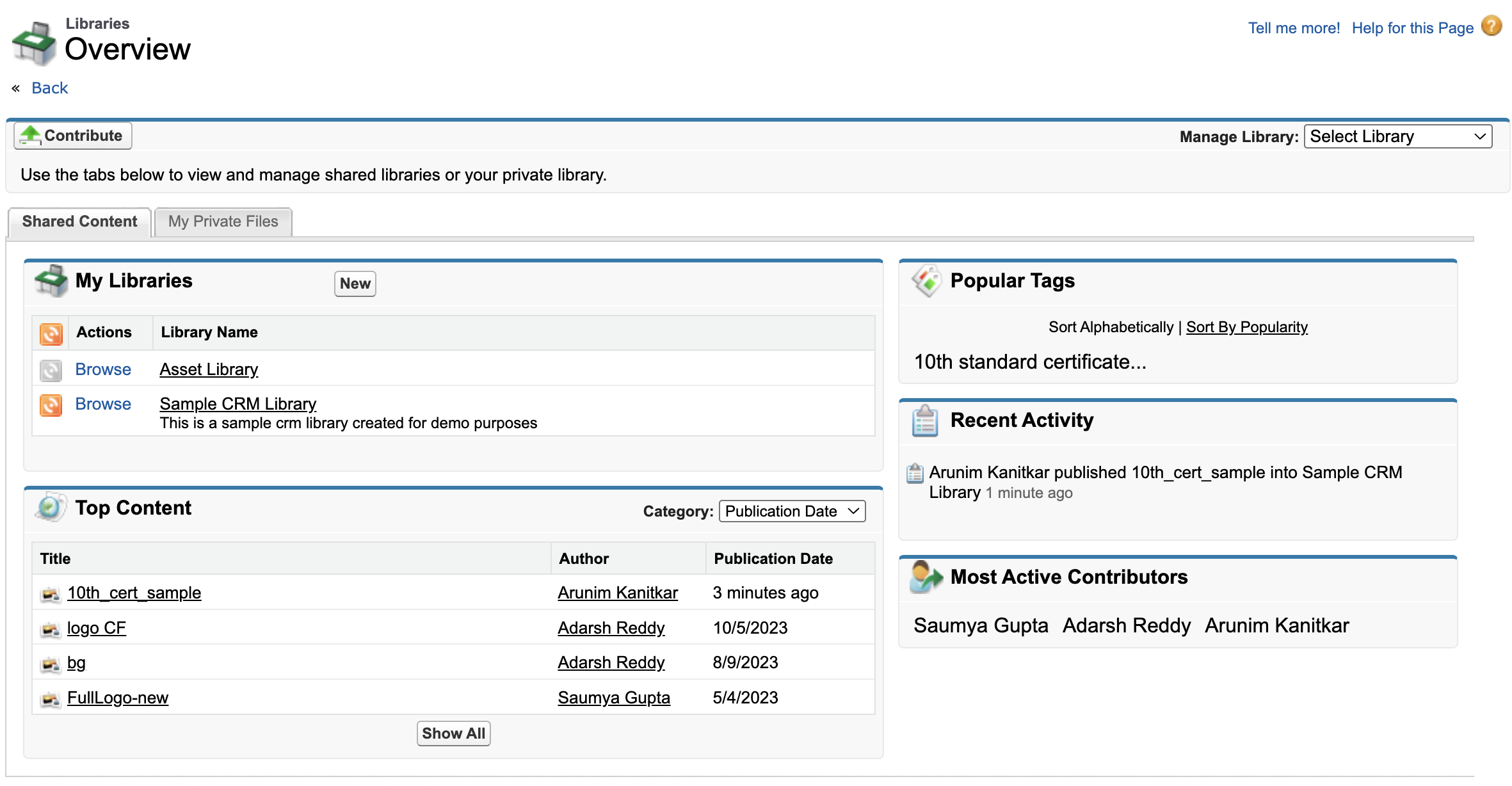
2. Advanced Permissions & Content Roles
CRM Content offers more granular permissions than classic attachments or Files. Access is controlled through the ContentWorkspaceMember object, which assigns each user a specific role within a library in Salesforce. These roles determine exactly what a member can do:
- Viewer – Can read and download content
- Collaborator – Can upload and update documents
- Administrator – Can manage library membership and permissions
Because permissions are enforced at the library-member level, admins can shape access to match real team structures. A Marketing library might allow everyone to view assets but restrict uploads to marketing staff, while a Contracts library may limit publishing or version updates exclusively to legal users.
3. Versioning & Document Lifecycle Management
CRM Content supports multiple versions of a document with full history tracking. Each version is stored as a ContentVersion record, and teams can easily revert or review older iterations. This is particularly important for regulated industries that require auditability.
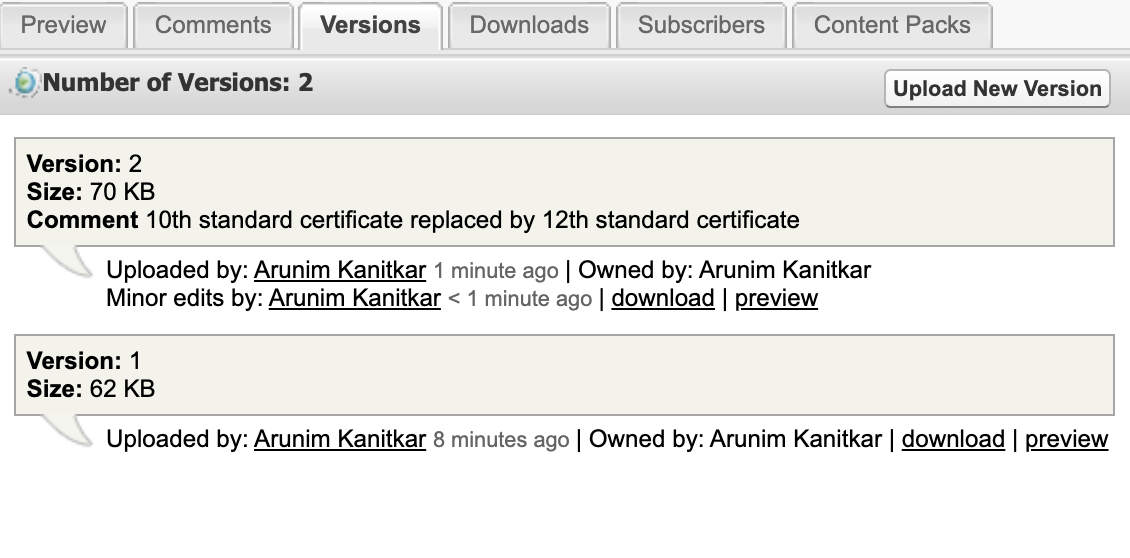
When uploading a new version, salesforce CRM content users simply open the file record and select the upload option provided. The process doesn’t create a new document entry in the Salesforce library; instead, it updates the existing document while preserving previous iterations for reference. This workflow keeps file structures clean and reduces clutter across large teams.
4. Subscriptions & Notifications
Users can subscribe to documents or entire libraries. Whenever a file gets updated, subscribers receive an email notification. This is particularly helpful for sales teams relying on the latest brochures or legal teams who must stay aligned on updated templates.
5. Search, Tagging & Filters
CRM Content includes a search engine capable of reading text inside documents. Users can tag documents with keywords and apply file-level metadata, making it easy to retrieve materials without relying solely on naming conventions.
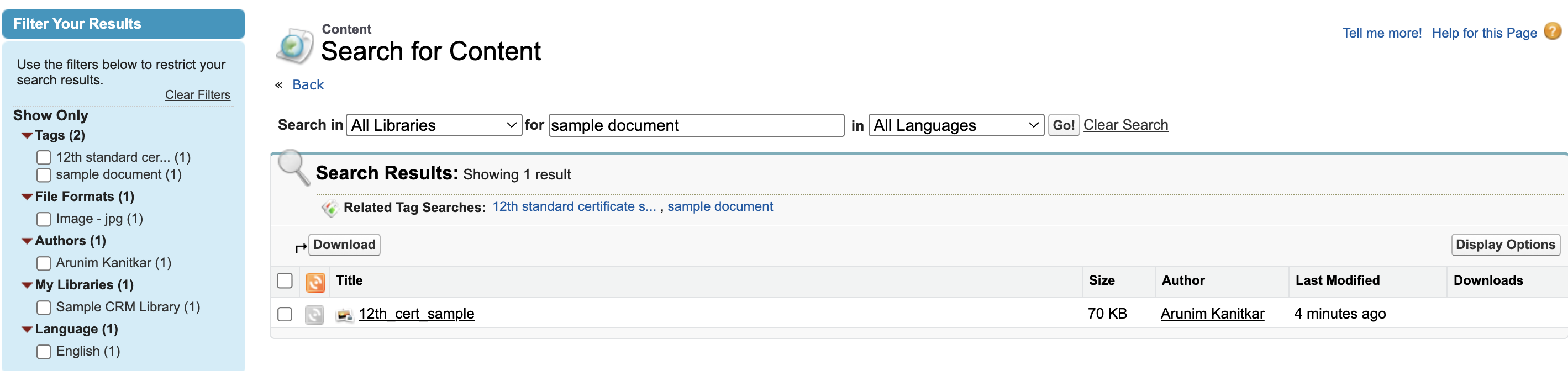
6. Publishing & Sharing Content
Sharing is one of CRM Content’s strongest areas. Admins and users can publish documents to public links, distribute them within the organization, or provide targeted access to individuals. When a file is published, users can accompany it with metadata, expiration rules, and optional passwords. The publishing model supports internal use cases like sending proposals or datasheets to prospects directly from Salesforce.
7. Enabling CRM Content and Setting Permissions
To use CRM Content, Salesforce admins must enable it in Setup by turning on Salesforce CRM Content and configuring library permissions. Once enabled, admins create Libraries and assign users or public groups as Library Members. Each member receives a role - Viewer, Author, or Library Admin - which controls their capabilities within that library in Salesforce.
Enabling external sharing or content deliveries requires turning on Content Deliveries. This lets users generate secure links for public or external consumption. The combination of permissions, roles, and library-level governance ensures organizations have structured and secure access to their most important CRM files.

Using Salesforce CRM Content Content Effectively
With that foundation, the day-to-day experience is simple.
How to Upload Content
Uploading content into CRM Content is straightforward. Users start by navigating to the relevant workspace library, where they can click the “Add/Contribute Content” action. This opens an upload interface that allows selection of the file from the user’s computer. During upload, the Salesforce CRM content user can add tags, categories, and descriptions to make the document searchable and identifiable later. Once the upload is complete, Salesforce automatically indexes the file, adds it to the chosen library, and assigns permissions based on the user’s library role.
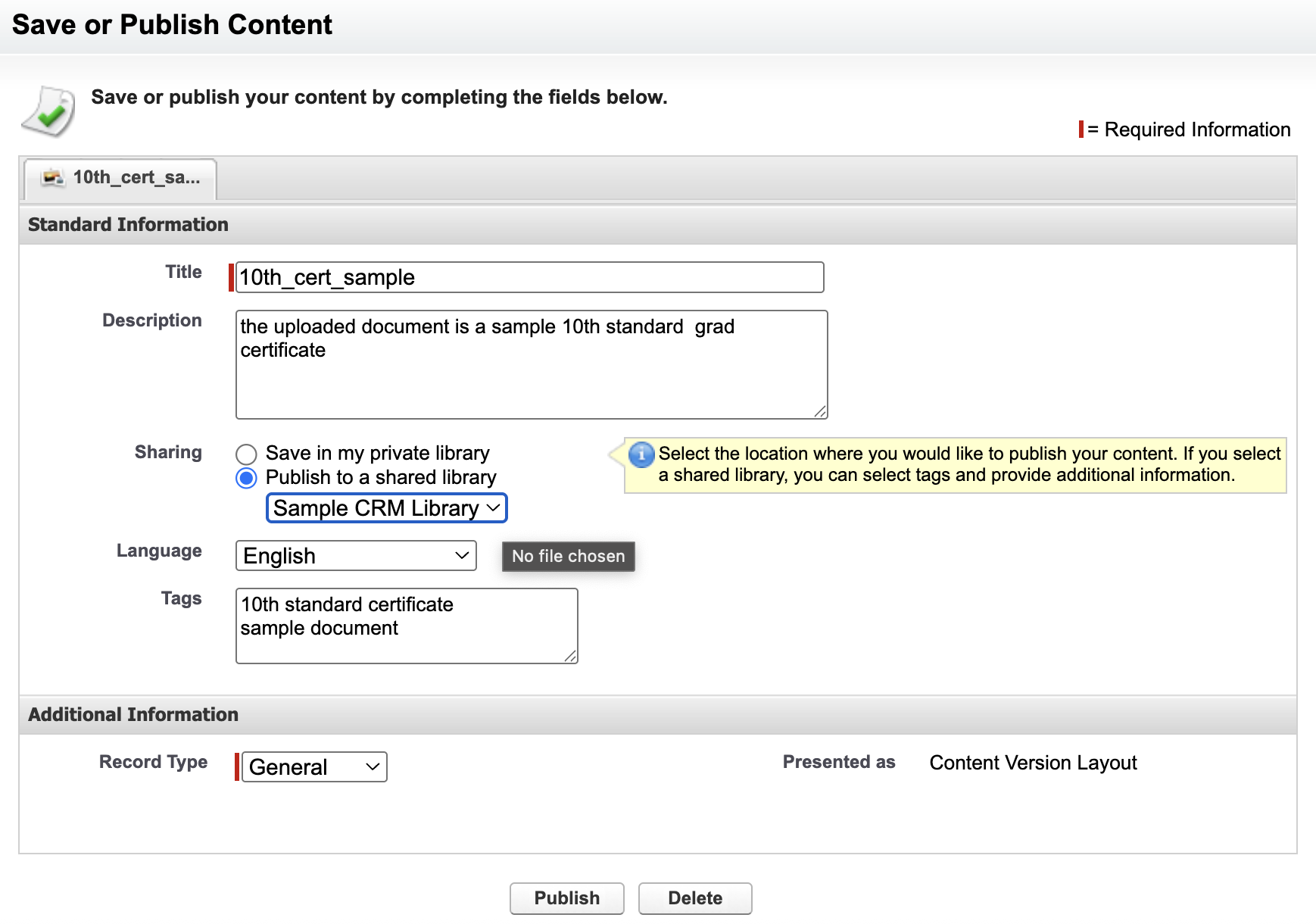
How to Upload a New Version
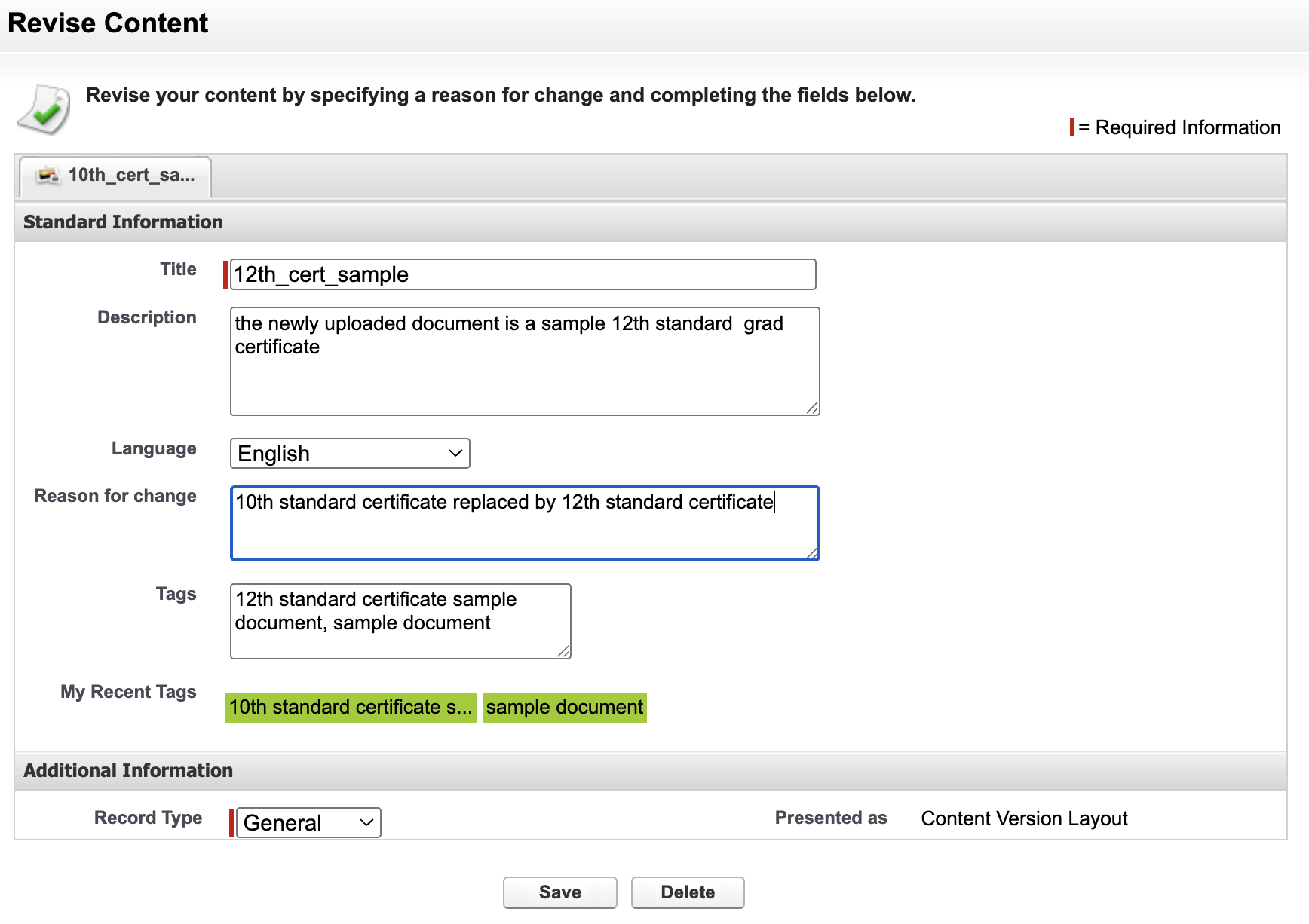
To upload a new version of a document, users open the file record within the CRM Content library and choose the option to add a new version. They then upload the latest file, and Salesforce automatically layers it on top of the existing version history. The previous versions remain preserved and accessible, ensuring a full audit trail. This lets teams update documents frequently without cluttering the library with multiple copies.
How to Share CRM Content
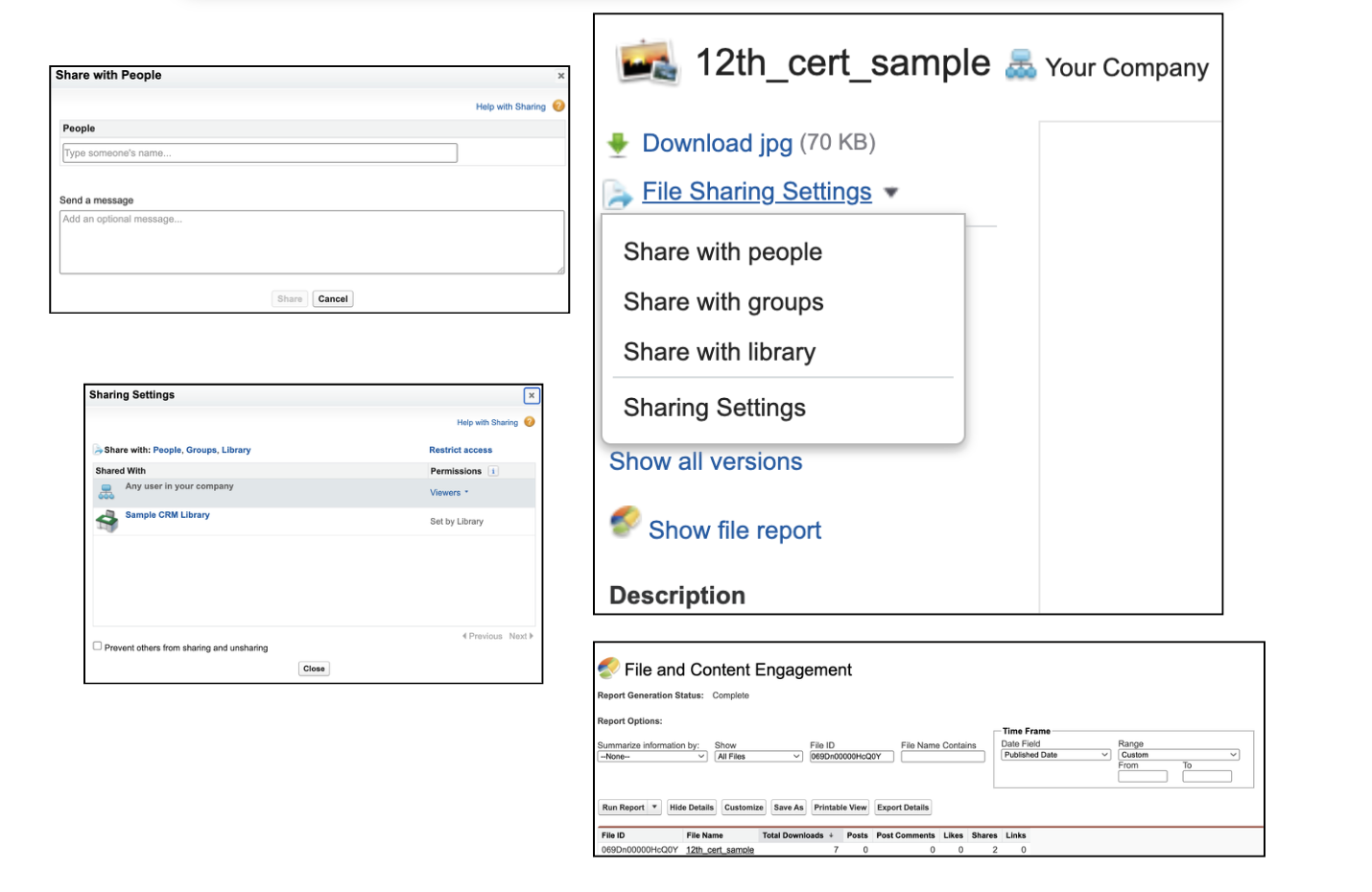
Sharing CRM Content involves opening the document and choosing the sharing or publishing option available within the file record. Users can create a content delivery link, set an expiration date, and optionally add access restrictions such as passwords. Once published, the link can be sent to prospects, internal team members, or customers. CRM Content tracks engagement so users can see when recipients view the materials. Internal sharing is managed through library permissions, which allow teams to distribute files only to those with the appropriate role.
Content Delivery in Salesforce (External Sharing)
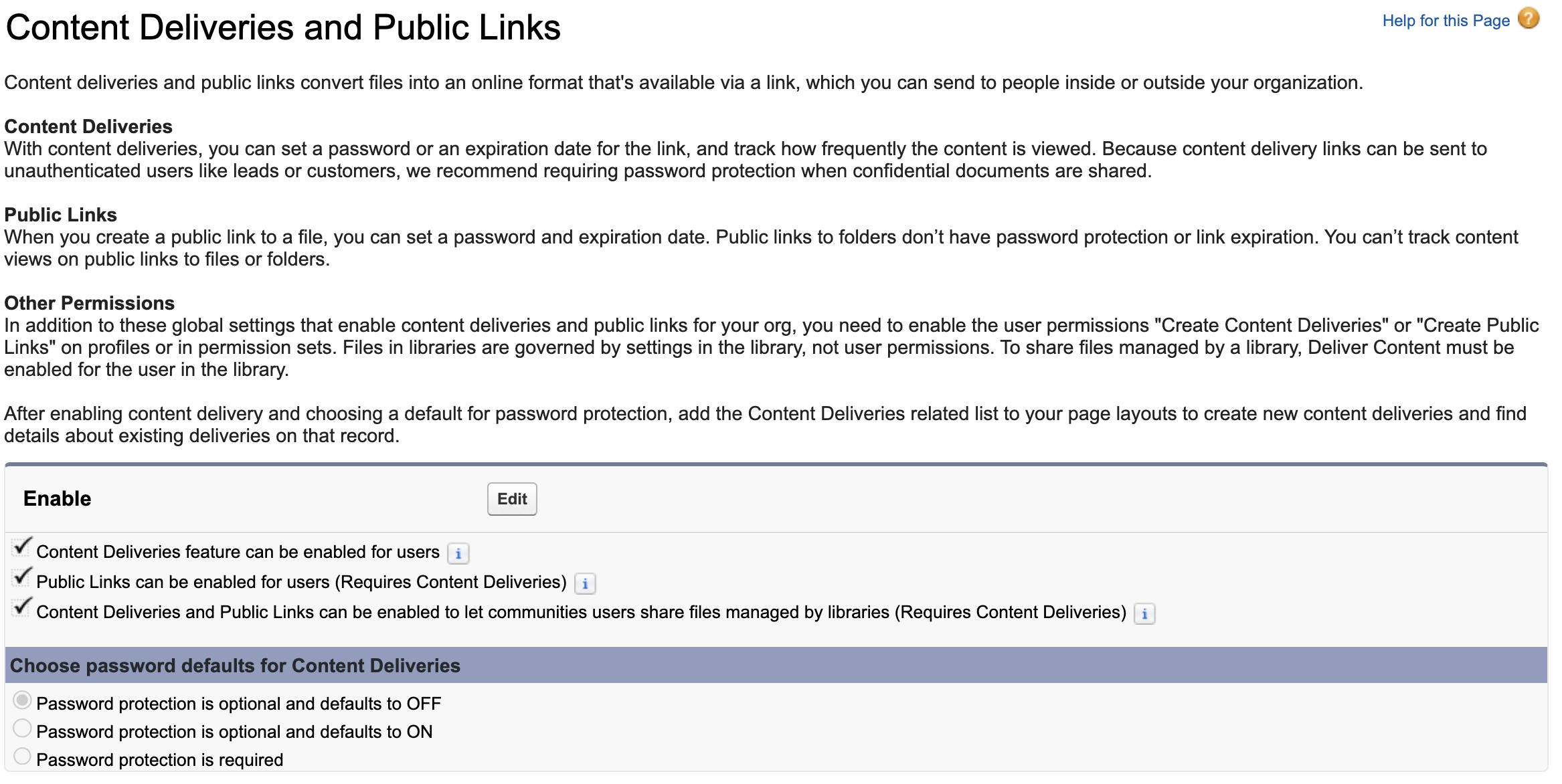
A big reason people still search CRM Content is external sharing. In CRM Content, external sharing is done via Content Deliveries, stored as ContentDistribution. This object represents a document shared externally through a secure link, and it supports tracking views/downloads.
Deliveries let teams send a single link to prospects or partners, apply expiration and security rules, and still keep the master file governed inside the library. Salesforce notes that Content Deliveries are a Classic feature, but Lightning users can still generate delivery-based links through Lightning Email when they have the right access.
Comparison: CRM Content vs. Files vs. Notes & Attachments vs. Documents
| Feature / System | Documents (Legacy) | Notes & Attachments | CRM Content | Salesforce Files (Modern) |
|---|---|---|---|---|
| Primary Purpose | Store static assets like logos, email template images | Attach basic files/notes directly to records | Structured, governed content libraries | Unified, modern file management across Salesforce |
| Storage Model | Folder-based, no versioning | Attached to individual records | Library-based (ContentWorkspace) | Centralized Files (ContentDocument) accessible everywhere |
| Version Control | ❌ None | ❌ None | ✅ Yes, full versioning | ✅ Yes, robust versioning |
| Search & Tagging | ❌ Limited | ❌ Very limited | ✅ Tagging, categories, indexed search | ✅ Intelligent global search |
| Permissions & Access Control | Very basic | Follows record permissions | Detailed Library roles (Viewer/Author/Admin) | Flexible sharing settings; link-based sharing |
| External Sharing | ❌ Not supported | ❌ Not supported | ✅ Public links & content deliveries | ✅ External links with expiration/settings |
| Ideal Use Case | Branding assets, template images | Quick record-level attachments | Curated, governed content repositories | All-purpose files across records, chatter, communities |
| Modern Status | Legacy | Legacy | Active but legacy-oriented | Salesforce’s recommended standard |
Limitations of CRM Content
CRM Content is not optimized for modern integrations or automation. It lacks flexible sharing mechanisms like ContentDocumentLink, has fewer API-friendly capabilities, and is not the recommended choice for new Salesforce orgs. Additionally, some newer Salesforce features, especially those related to AI or analytics, do not support CRM Content files.
Migration & Coexistence Strategy
CRM Content migration works best in phases, because you’re moving both data and governance. First, audit what you have: list all libraries, who has Viewer/Author/Admin access, how much content is inside, and which flows, emails, or integrations depend on those libraries. Next, export ContentDocument (file identity) and ContentVersion (full version history) so you don’t lose audit trails. Then migrate files in waves into Salesforce Files, usually starting with the most active libraries as a pilot. After that, recreate relationships using ContentDocumentLink (since Files links to records, not libraries) and update any automations that referenced libraries. Finally, rebuild governance using Files sharing, Public Groups, Permission Sets, or an Experience Cloud “content hub” so users still get a curated enablement experience.
Most enterprises keep coexistence for a while: CRM Content stays as the legacy source/archives, while all net-new content and automations move to Files. Over time, usage shifts to Files and CRM Content is retired gradually.
Conclusion
Salesforce CRM Content remains an important legacy content management framework used by thousands of organizations worldwide. Although modern platforms like Salesforce Files offer more flexibility, CRM Content still excels in structured library-based document governance, versioning, permissions, and controlled content distribution. Its architecture is rooted in older Salesforce paradigms, but its reliability has kept it relevant for enterprises that depend on stability and long-term document history. Whether your organization relies on CRM Content today or is considering migration strategies, understanding how it works and why it still matters, is crucial for maintaining a clean, compliant, and well-organized Salesforce environment.
Frequently Asked Questions (FAQs)
Is Salesforce CRM Content deprecated?
No. Salesforce CRM Content is legacy but still supported. Salesforce does not recommend it for net-new implementations, but existing orgs can continue to use CRM Content libraries, versioning, and Content Deliveries without risk of sudden removal. Many enterprise orgs actively rely on it today.
Should I use CRM Content or Salesforce Files for new content?
For new implementations, Salesforce Files is the recommended choice. Files offers better automation support, broader platform integration, and modern sharing models. CRM Content should typically be reserved for maintaining legacy libraries or specialized governance use cases where migration is not yet feasible.
Can CRM Content and Salesforce Files coexist in the same org?
Yes, and they often do. Many mature Salesforce orgs run a hybrid model where CRM Content holds legacy or compliance-driven libraries, while Salesforce Files is used for all net-new documents, automations, and record-based workflows.
Why do CRM Content users need a separate license?
CRM Content uses a feature license (Salesforce CRM Content User) to control who can contribute, version, publish, or create Content Deliveries. Viewing access may work without it, but uploading, updating, and sharing content usually requires the license plus the correct library role.
What is the difference between a CRM Content library and a Salesforce Files folder?
A CRM Content library is a permission-managed repository built on ContentWorkspace with explicit roles and governance. Salesforce Files folders are organizational aids only; they do not enforce access. Governance in Files comes from sharing rules, permissions, and record links, not folders.
Are Content Deliveries still supported in Lightning Experience?
Yes, though they are considered a Classic-era feature. Lightning users can still generate Content Deliveries (ContentDistribution records), especially via Lightning Email or APIs, provided the right permissions and licenses are in place.
Can CRM Content be exposed in Experience Cloud (Communities)?
Yes. CRM Content has historically been used to publish documents to Partner and Customer Communities, especially for knowledge bases, onboarding assets, and shared collateral. Many legacy portals still rely on CRM Content libraries for external access.
Is CRM Content suitable for automation or AI-driven use cases?
Not ideally. CRM Content has limited support for modern automation patterns and newer Salesforce AI features. If automation, AI, or large-scale integrations are a priority, Salesforce Files - or a hybrid Files + external storage model - is usually a better fit.
What makes CRM Content hard to migrate?
Migration is complex because you’re not just moving files, you’re migrating:
- Libraries and their roles
- Version history (ContentVersion)
- External sharing links (Content Deliveries)
- Embedded workflows and user habits
That’s why most enterprises migrate in phases or maintain coexistence for long periods.
📌 Salesforce Official Documentation
If you want to explore Salesforce CRM Content directly from Salesforce’s official sources, these are the most relevant guides and references:
- Salesforce CRM Content Overview — High-level explanation of CRM Content, its purpose, and how it fits into Salesforce’s content ecosystem.
- CRM Content Initial Setup — Step-by-step instructions for enabling CRM Content and configuring it in your Salesforce org.
- Content Libraries in Salesforce — Admin-focused guide on creating, managing, and governing CRM Content libraries.
- Content Deliveries (External Sharing) — Official documentation on publishing CRM Content externally using secure delivery links.
- ContentVersion Object Reference — Detailed technical documentation for document versions, previews, and file data storage.
- ContentWorkspace Object Reference — Technical reference for CRM Content libraries, including structure and governance fields.
- ContentWorkspaceMember Object Reference — Defines library membership, roles, and permission assignments within CRM Content.
📌 CloudFiles Knowledge Hub - Recommended Reads
- The Ultimate Guide to Salesforce Files: Architecture, Features Walk-Through, & Real-World Best Practices — A practical Salesforce Files guide covering architecture, UI walkthrough, sharing rules, versioning, Files Connect, APIs, and reporting for efficient file management.
- Salesforce Files vs Documents: The Ultimate Guide for Admins & Architects — A full breakdown of object differences, limitations, and why Salesforce standardized on the ContentDocument model for scalability and sharing control.
- Salesforce Files vs Notes & Attachments Explained — Ideal for legacy orgs transitioning from Attachments and Notes to Salesforce Files, with practical migration considerations.
- The Ultimate Guide to Salesforce SharePoint Integration — Covers secure external file storage with bi-directional sync and permission mapping.
- Salesforce Google Drive Integration Made Easy — Deep dive into cloud storage use cases for sales, service, and partner portals.