

Most Salesforce teams hit the same walls: storage limits that cost a fortune to expand, files that live in SharePoint but can't be accessed from a Salesforce record, folder structures that have to be created manually every time a new deal is opened, and no way to know if a client ever opened the proposal you sent. These aren't edge cases - they're daily friction for sales, operations, and IT teams running both platforms.
Salesforce is the system of record for your customer relationships. SharePoint is the system of record for your documents. This guide covers everything you need to know to connect them properly - from Salesforce's native Files Connect and its limitations, to the third-party AppExchange connectors that handle the workflows Files Connect cannot, to a full feature-by-feature comparison of every meaningful option available in 2026.
Whether you're an admin evaluating options for the first time, a team that's already on Files Connect and wondering why it isn't working, or an architect planning a document automation strategy inside Salesforce — this guide is built for you.
Which Salesforce SharePoint Integration Is Right for You?
| Your situation | Recommended approach |
|---|---|
| You only need to browse and reference existing SharePoint files from within Salesforce records, no uploads or automation needed | Salesforce Files Connect - free, native, no extra license required |
| You need to upload files, auto-create folders, sync documents, and manage SharePoint from within Salesforce records | A third-party AppExchange connector - see all the options |
| You need external document sharing with engagement tracking, document generation, e-signatures, AI-powered document processing, and the strongest security certifications in the category | CloudFiles - 220+ AppExchange reviews at 4.9 stars, leading Salesforce SharePoint connector since 2022 |
Not sure which connector fits your workflows?
CloudFiles is the only AppExchange connector that covers file management, automation, external sharing with analytics, document generation, and e-signatures — all in one app.
See CloudFiles on AppExchange → Book a 30-min demo →
What to expect in this guide?
This blog serves as a comprehensive guide to help you understand the intricacies of the SharePoint Salesforce integration process, along with the various connector options available. It will assist you in narrowing down your precise needs and requirements, enabling you to make an informed decision that aligns perfectly with your business.
Feel free to navigate through the guide freely or directly jump to the specific sections of interest using the links below
- Why integrate Salesforce with SharePoint? Storage costs, file size limits, access gaps, and the four problems the integration solves.
- What SharePoint brings to Salesforce? Collaboration, version control, security, compliance, and document management capabilities native Salesforce storage cannot match.
- Salesforce SharePoint integration checklist Seven things to get right before you go live.
- What is Files Connect? - How Salesforce's native integration works, what it's designed for, and where it stops.
- What are the Use-Cases of Files Connect? Three scenarios where Files Connect is genuinely the right tool.
- Setting up Files Connect between Salesforce and SharePoint in 6 Easy Steps - Step-by-step setup guide with screenshots and a video walkthrough.
- What are the Limitations of Files Connect? - Ten specific things Files Connect cannot do, and when that matters.
- Best Files Connect alternatives on AppExchange (2026) - Full breakdown of every third-party connector worth considering: CloudFiles, sFiles, 24Files, Share Connect, Egnyte, and Collaboration Butler. All six connectors compared side by side across every capability that matters.
- Why CloudFiles is the best Salesforce SharePoint connector in 2026? - Why 220+ teams at 4.9 stars choose CloudFiles over every alternative in this category.Now that we have an outline of what lies ahead, let's begin our journey.
- Summary The short version if you want the answer without reading the full guide.
- FAQ The questions teams actually ask before making a decision.
Why is Salesforce SharePoint Integration required?
Salesforce is the system of record for customer relationships. SharePoint is the system of record for documents. Most organizations use both - but without integration, teams waste time switching between platforms, files get duplicated, and non-Salesforce users lose visibility into critical documents. Here is why the integration matters.
1. Salesforce storage is expensive - SharePoint is not
Salesforce provides 10 GB of base file storage per org, plus up to 2 GB per Enterprise license. Once that fills up, additional storage costs add up fast. SharePoint provides 1 TB of base storage plus 10 GB per license purchased - over 40 times more storage than Salesforce - with additional storage available at $0.20/GB/month. For organizations storing proposals, contracts, presentations, and product documentation, keeping files in SharePoint instead of Salesforce can reduce storage costs significantly without changing how users access those files from within the CRM.
2. Salesforce has strict file size and file type limits
Salesforce caps individual file uploads at 2 GB and restricts a range of file types. SharePoint supports files up to 250 GB per file, up to 30 million files per document library, and handles a far wider range of formats that Salesforce does not support natively.
File types SharePoint supports that Salesforce does not include:
| Category | Supported in SharePoint, not Salesforce |
|---|---|
| Documents | Microsoft Project (.mpp), OpenDocument (.odt, .ods, .odp), SQL files (.sql) |
| Images | Adobe Illustrator (.ai), SVG (.svg), AutoCAD (.dwg), Visio (.vsdx) |
| Audio | AAC (.aac), FLAC (.flac), WMA (.wma) |
| Video | AVI (.avi), MKV (.mkv), WMV (.wmv), FLV (.flv) |
| Archives | RAR (.rar), TAR (.tar) |
| Code | Java Archive (.jar), Python (.py) |
For teams handling design files, engineering drawings, video assets, or large data exports, SharePoint removes the file management constraints Salesforce imposes.
3. Non-Salesforce users cannot access files stored in Salesforce
HR, finance, legal, and operations teams typically don't have Salesforce licenses - but they regularly need access to documents tied to deals, accounts, or cases. When files live inside Salesforce, those teams are locked out, leading to duplicate file storage across systems and broken collaboration workflows.
Integrating with SharePoint solves this at the root. Files stored in SharePoint are accessible to anyone with SharePoint permissions - Salesforce users access them from within the CRM, while non-Salesforce users access them directly in SharePoint. One source of truth, accessible to every team that needs it.
4. Salesforce lacks version control
Salesforce Files does not maintain version history. If a file is overwritten, the previous version is gone. SharePoint automatically saves every version of a document separately, with a full version history that any authorized user can browse, compare, or restore. For contracts, proposals, and compliance documents where audit trails matter, this is not a nice-to-have - it's a requirement.
5. Salesforce has limited external file sharing
Sharing a file with a client or partner who doesn't have a Salesforce login requires workarounds - downloading the file, emailing it, or generating a public link with no access controls. SharePoint provides purpose-built external sharing: password-protected links, expiry dates, view-only or edit access, and one-time passcode authentication for recipients without a Microsoft account.
When a third-party connector like CloudFiles is added on top, external sharing gains an additional layer - trackable links with page-level engagement analytics, no SharePoint URL exposed, and engagement data surfaced directly inside Salesforce records.
The bottom line
Salesforce and SharePoint serve different functions and are stronger together than either is alone. Salesforce drives the customer-facing workflow; SharePoint handles the document layer. Integration eliminates the storage costs, access silos, file limitations, and collaboration friction that come from treating them as separate systems.
Why Use SharePoint for Document Management with Salesforce
Salesforce is built for managing customer relationships - not for storing and managing documents at scale. SharePoint is purpose-built for exactly that. Integrating the two gives Salesforce users access to SharePoint's full document management layer without leaving their CRM.
Here is what that unlocks in practice.
1. Real-time collaboration across every team
SharePoint's co-authoring allows multiple users to edit the same document simultaneously. When integrated with Salesforce, changes made in SharePoint are instantly visible to anyone accessing that file from a Salesforce record. Sales, legal, marketing, and operations teams - whether they have Salesforce licenses or not - can work on the same documents with no version conflicts and no emailing files back and forth.
2. Seamless handover between teams
When a deal closes in Salesforce, related documents - contracts, proposals, onboarding materials - can be automatically synced to SharePoint and made accessible to the service or implementation team immediately. No manual file transfers, no duplicating information across systems. The handover happens in the background.
3. Granular document security
SharePoint provides permission controls that go well beyond what Salesforce offers natively - role-based access, team-level permissions, file-level access controls, expiration dates on shared links, and one-time passcode authentication for external users. Sensitive documents like contracts and financial records can be restricted to specific individuals while remaining accessible from within Salesforce to authorized users.
4. Document analytics and reporting
SharePoint's built-in reporting tools track which documents are accessed, by whom, and how often. When combined with Salesforce data, this gives sales and marketing teams visibility into which collateral - proposals, case studies, product sheets - actually influences deal outcomes. Marketing can identify what's working; sales can prioritize the right materials.
5. Advanced editing and document templates
SharePoint supports rich document editing, custom templates, and co-authoring directly in the browser via Microsoft 365. HR teams can standardize onboarding documents with SharePoint templates that auto-populate with Salesforce record data. Marketing teams can maintain a library of branded templates that sales reps access and customize directly from a Salesforce record.
6. External sharing with access controls
SharePoint provides password-protected links, link expiry settings, view-only vs. edit access, and one-time passcode authentication for external recipients. This gives organizations precise control over what clients, partners, and vendors can access — and for how long — without exposing internal storage or requiring the recipient to have any platform account.
7. Compliance and governance
SharePoint is built on Microsoft's enterprise compliance infrastructure, with audit trails, data loss prevention, retention policies, and support for HIPAA, GDPR, and PCI DSS. For regulated industries - healthcare, financial services, legal - this means document governance requirements are met at the storage layer, with Salesforce serving as the access and workflow layer on top.
Salesforce SharePoint Integration Checklist
Use this checklist before and during your integration to avoid the most common implementation pitfalls.
1. Define what you actually need the integration to do
Before evaluating any tool, get specific. Do you need to reduce Salesforce storage costs? Auto-create SharePoint folders when records are created? Share documents externally with tracking? Automate document generation? The answer determines whether Files Connect is sufficient or whether a third-party connector is required - and which one fits best.
2. Gather requirements from the people who use Salesforce daily
Sales reps, support agents, and operations teams know exactly where the friction is. Interview them before configuring anything. Common requests: access SharePoint files from a record without switching tabs, auto-create folders on deal creation, one-click file sharing with clients. Build the integration around these workflows, not the other way around.
3. Lock down security and permissions before going live
Decide how permissions will work between Salesforce and SharePoint - per-user authentication or a service account, which teams can access which libraries, and how external sharing will be controlled. Involve IT, Legal, and Security early. This is significantly harder to retrofit after deployment than to configure correctly from the start.
4. Plan for scale, not just your current team size
Consider how the integration will perform as record volume grows, more users are added, and file libraries expand. Evaluate storage capacity, network bandwidth, and whether your chosen connector handles bulk operations and large file volumes without performance degradation.
5. Assign a dedicated setup and maintenance owner
Someone needs to own this — configuring the connector, mapping folder structures to record types, managing SharePoint site connections, and handling issues when something breaks. Define that ownership before go-live, not after the first support ticket.
6. Test against real workflows before full deployment
Run the integration against actual Salesforce records and real SharePoint libraries - not just sandbox data. Test folder creation, file uploads, permission inheritance, external sharing links, and any Flow automations you've built. Involve end users in testing and capture their feedback before rolling out org-wide.
7. Train users and communicate what's changing
Even a well-configured integration fails if users don't know how to use it or why it exists. Run a short training session, document the key workflows, and make it clear what users should do differently from day one. The faster users adopt the new process, the faster the integration delivers value.
What is Salesforce Files Connect?
Salesforce Files Connect is a native Salesforce feature that connects external file storage systems - including SharePoint Online, Google Drive, and OneDrive - directly to the Salesforce environment. Once configured, files stored in those external systems become visible inside Salesforce's Files widget, allowing users to view, reference, and attach external documents to Salesforce records without leaving the CRM.
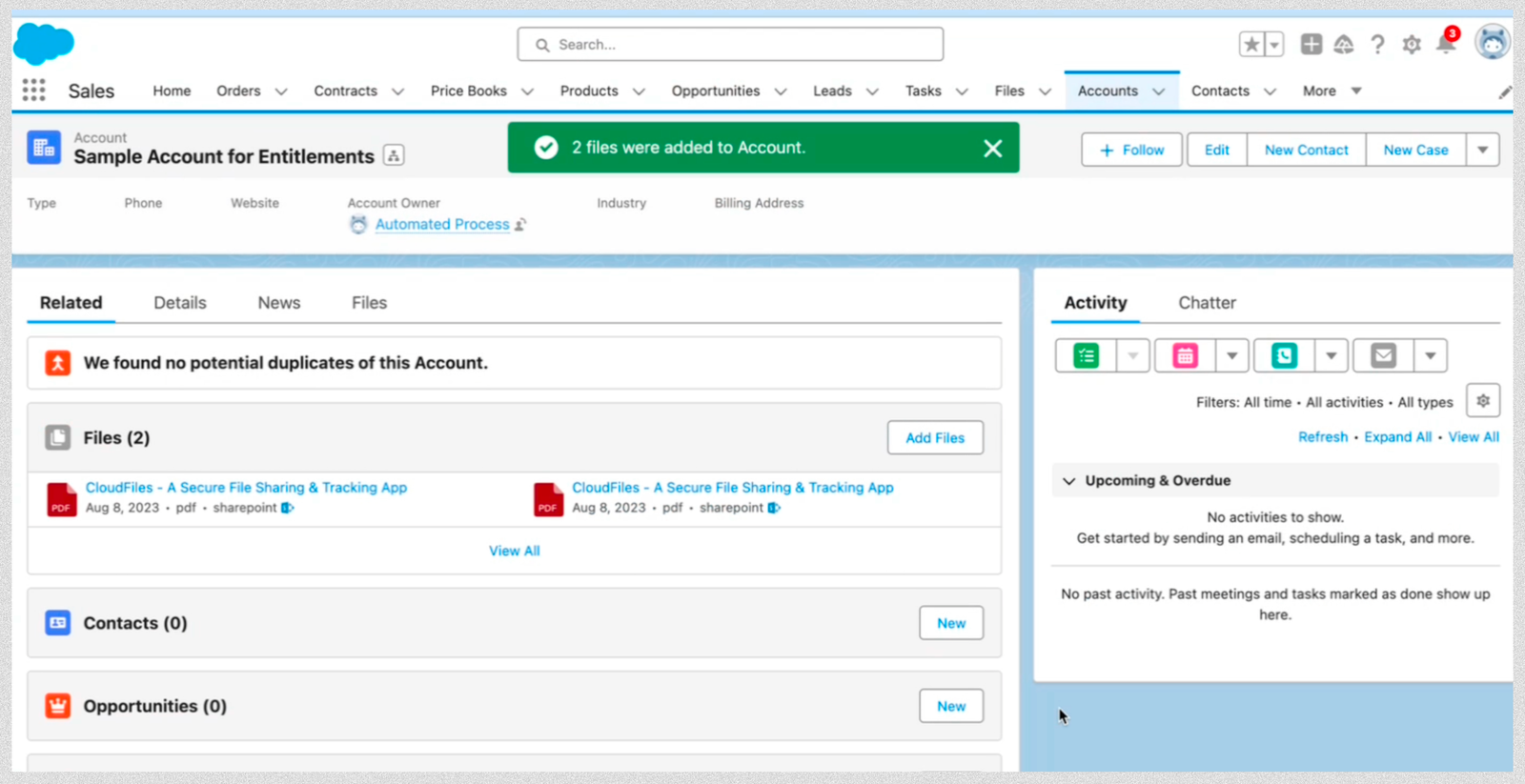
Files Connect is built and maintained by Salesforce, which means it installs with no additional managed package, follows Salesforce's standard security model, and is included at no extra license cost for most Salesforce editions.
In practical terms, Files Connect extends Salesforce's native Notes & Attachments functionality beyond Salesforce storage. Instead of uploading files into Salesforce directly — consuming expensive Salesforce storage — teams can keep files in SharePoint or Google Drive and surface them inside Salesforce records through a linked reference. The file stays in the external system as the source of truth; Salesforce provides the access point.
What Files Connect is designed for: read and reference access to external files from within Salesforce - browsing SharePoint libraries, linking existing documents to records, and reducing reliance on Salesforce's internal file storage.
What Files Connect is not designed for: uploading files, creating folder structures, automating document workflows, managing permissions at a user level, sharing files externally with tracking, or migrating existing Salesforce files to external storage. For those use cases, a third-party AppExchange connector is required.
What are the Use-Cases of Files Connect?
In this section, we explore various use cases - problems and solutions - of how Files Connect can facilitate the way teams work with documents and files. Below is a summary of the use cases.
1. Reducing Salesforce Storage Costs
Problem: Salesforce storage is expensive — once an org hits its limit, the only options are paying for more storage or finding an alternative. Large files like presentations, PDFs, and product documentation consume storage quickly.
Solution: Files Connect lets teams link files stored in SharePoint directly to Salesforce records — opportunities, cases, accounts — without those files ever touching Salesforce storage. Sales teams can attach proposals and product brochures stored in SharePoint to opportunity records; support teams can associate documentation with cases. The files live in SharePoint, the links surface in Salesforce, and Salesforce storage usage stays flat.
2. Accessing the Full SharePoint Library from Within Salesforce
Problem: Switching between Salesforce and SharePoint to find documents breaks workflow. When a team manages large SharePoint libraries, the back-and-forth becomes a daily productivity drain.
Solution: Files Connect surfaces the SharePoint library directly inside Salesforce, so users can browse and reference documents without leaving the CRM. For teams that primarily need visibility into SharePoint content — not active file management — this removes the context-switching entirely.
3. Associating External Files to Salesforce Records
Problem: Without a direct link between SharePoint files and Salesforce records, users end up searching SharePoint manually, copying links into record notes, or duplicating files across systems — all of which waste time and create version inconsistencies.
Solution: Files Connect allows users to associate specific SharePoint files directly to Salesforce records, creating a reliable reference point without duplication. The file stays in SharePoint as the source of truth; the association in Salesforce tells every team member exactly where to find it.
Where Files Connect falls short
These use cases cover read and reference workflows well. The moment a team needs to upload files, auto-create folder structures, automate any part of the document workflow, share files externally with tracking, or manage permissions at a user level - Files Connect reaches its limit. For those needs, a third-party AppExchange connector is required. See the full comparison of Files Connect alternatives below.
Setting up Files Connect between Salesforce and SharePoint in 6 Easy Steps
This guide presents a comprehensive step-by-step process to set up Files Connect within your Salesforce environment. Presented below is a concise flowchart outlining the key steps. These steps will be comprehensively discussed in the subsequent sections.
Files Connect configuration will enable you to access your important files and documents from SharePoint directly within your Salesforce interface. Additionally, for further assistance or clarification at any point during the setup, an instructional video is provided below. This video offers a visual walkthrough that can be referred to in case of any difficulties or for a more detailed explanation of the process.
Let's now proceed to explore these straightforward 6 steps that will guide you through the process of setting up Files Connect.
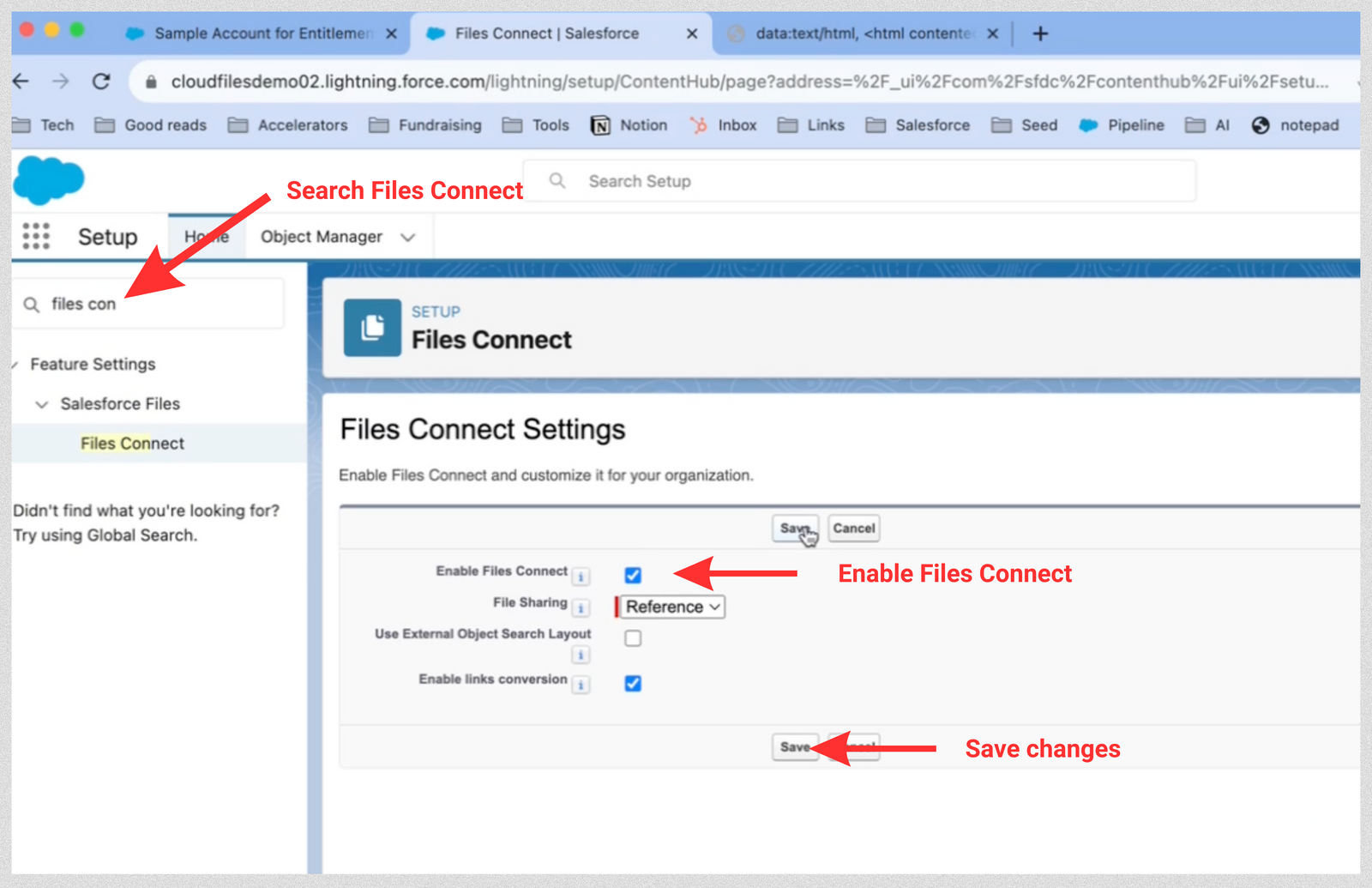
Step 1: Enable Files Connect
Files connect is not enabled by default in your Salesforce org. First let's enable it using these 4 steps -
- Access the Salesforce Setup menu.
- Search for "Files Connect" and navigate to the corresponding section.
- Activate Files Connect by toggling the setting to "On."
- Save the changes to enable the integration.
Step 2: Configure Permissions Set
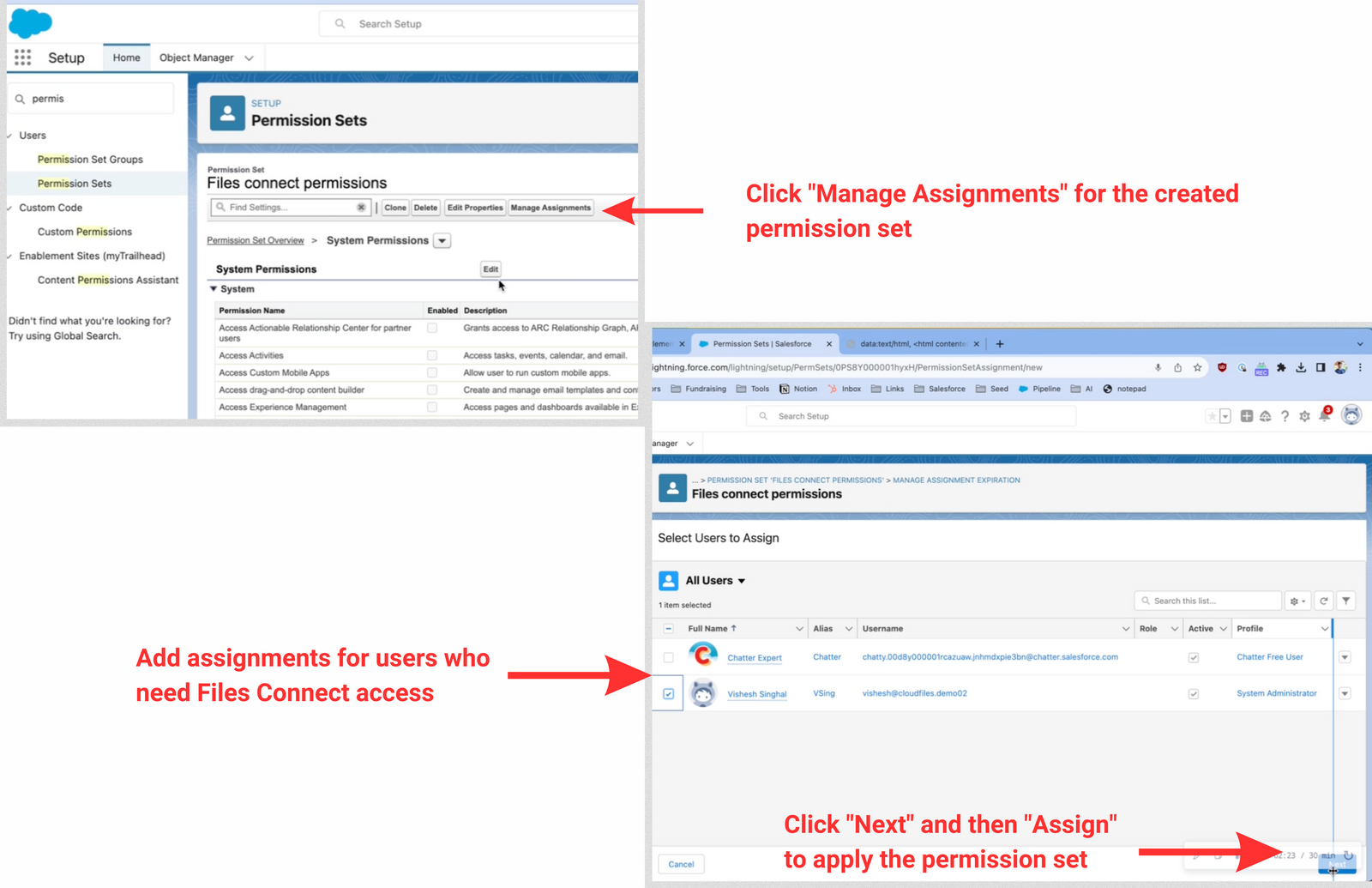
In this section, we will create the permission set, enable the files connect permission and assign the permission set to your own user. This way, as the admin, you can access the related files connect setup screens and set the whole thing up.
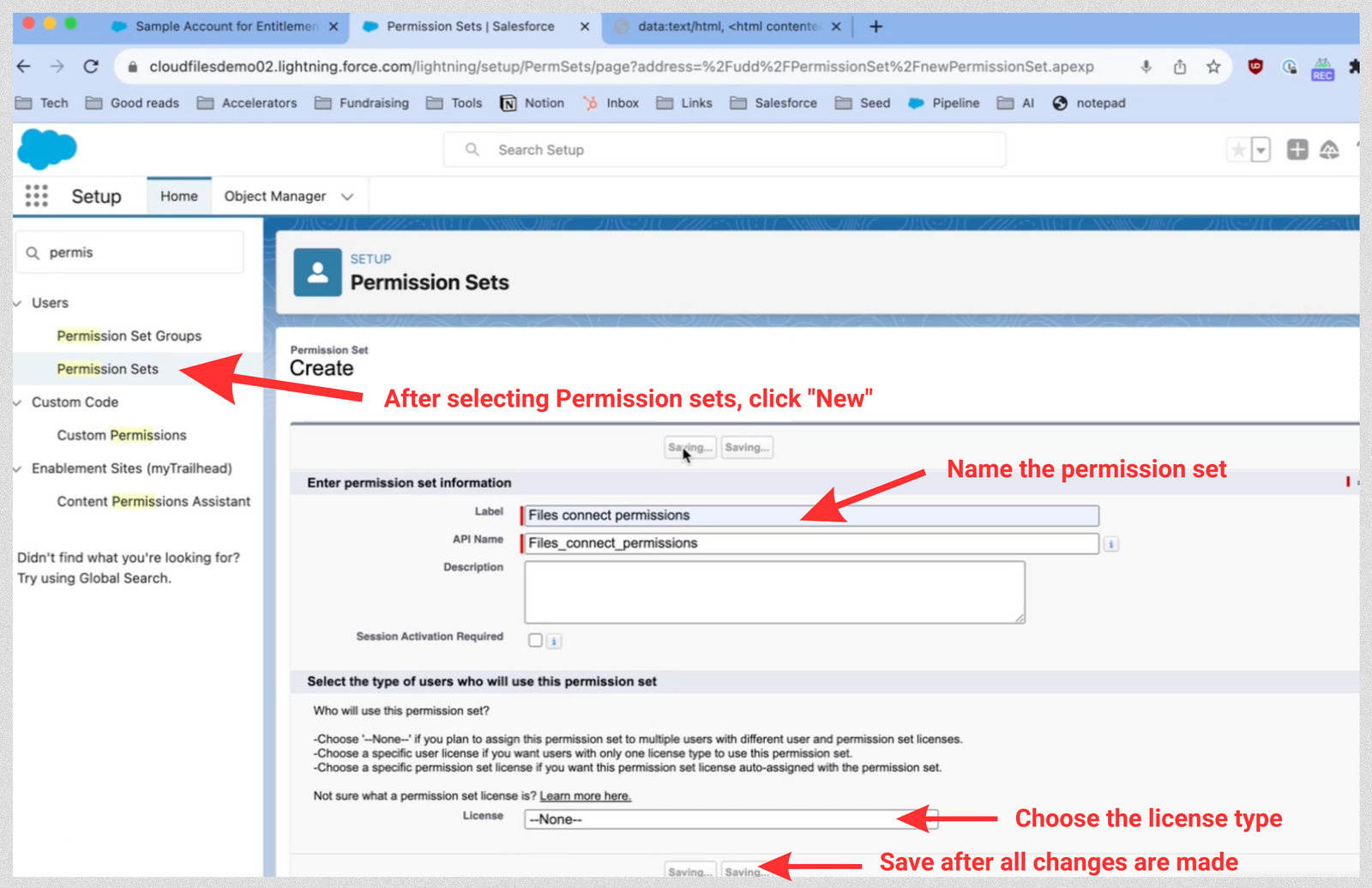
To create the permission set, follow the steps below -
- Click "New" in the Permission Set section.
- Name the permission set (e.g., "FilesConnect Permissions").
- Choose the license type (None or a specific license).
- Save the permission set.
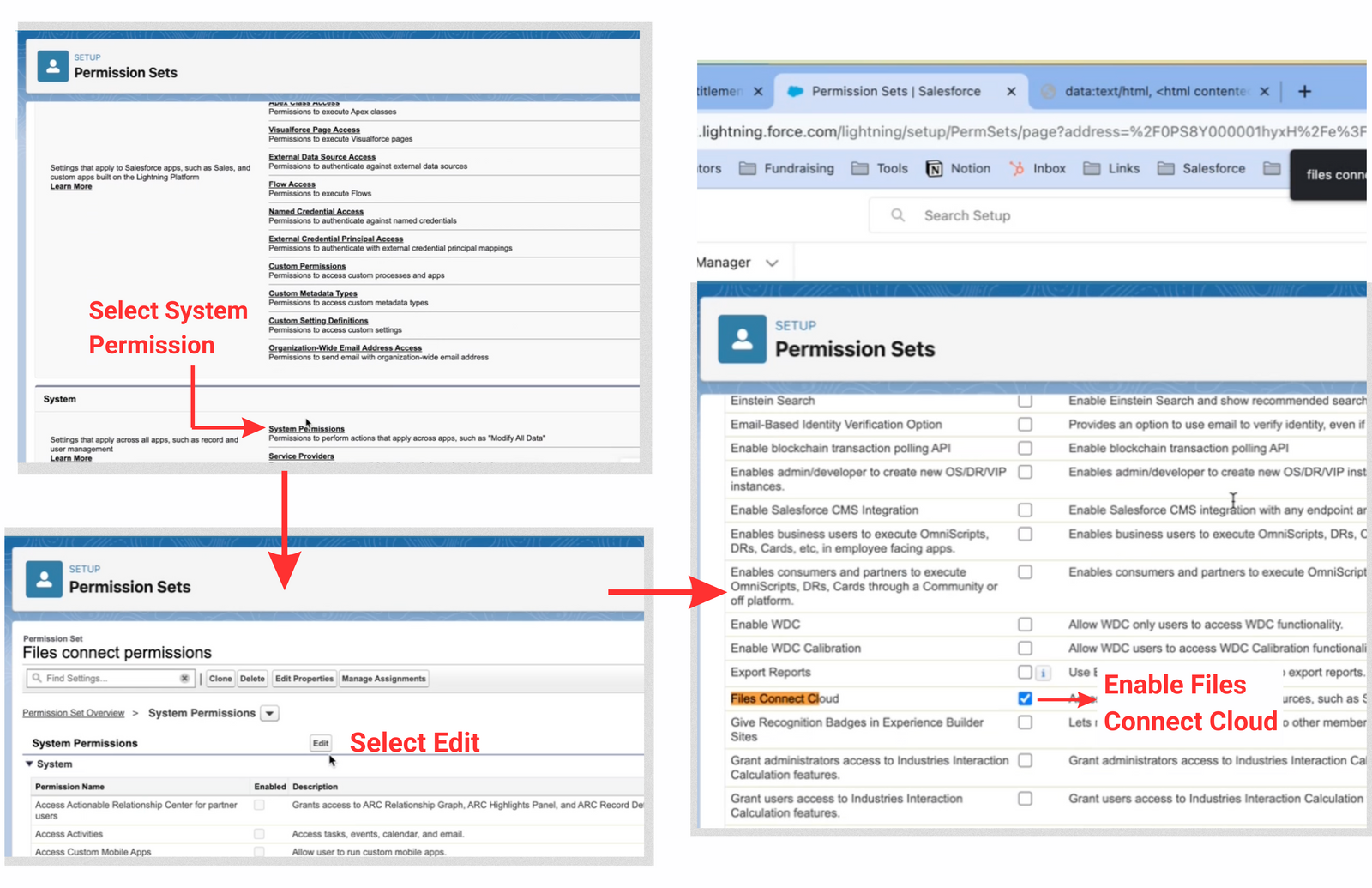
Next, we will enable the files connect setting in this permission set using the steps below -
- Select "System Permission" in Permission set
- Click on "Edit"
- In the given list, scroll to "Files Connect Cloud" and enable it
Finally, to assign the permission set to your own Salesforce user, follow the three steps below -
- Click "Manage Assignments" for the created permission set.
- Add assignments for users who need Files Connect access.
- Click "Next" and then "Assign" to apply the permission set.
Step 3: Create Authentication Provider for SharePoint Online via Azure
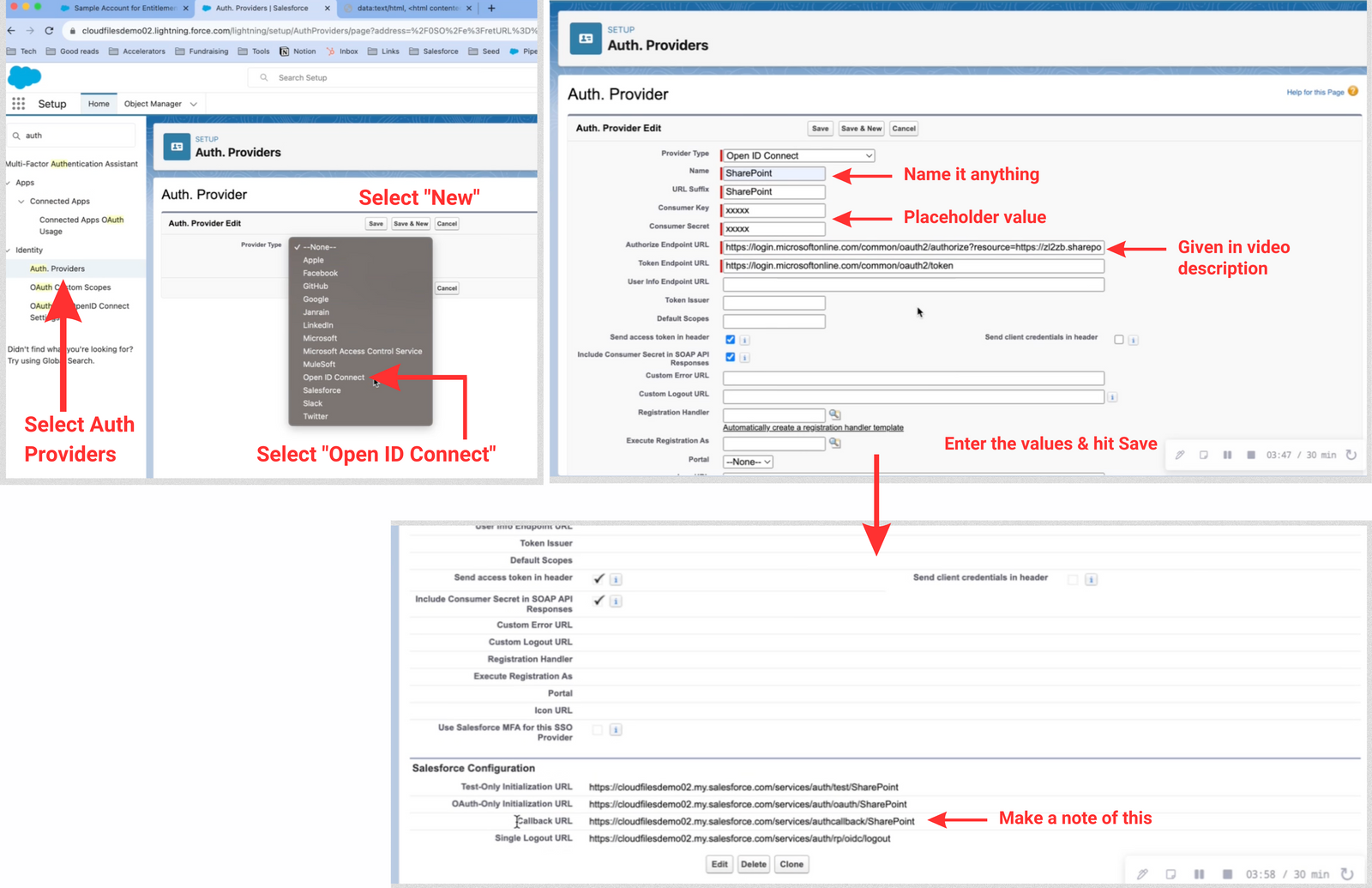
When integrating with a Microsoft cloud-based external data source, the optimal approach involves creating an authentication provider within Salesforce and subsequently registering it in a Microsoft Azure web application. Start by Crafting an Authentication Provider with Placeholder Values. Below is the step by step process to create the Auth provider-
- Search for "Auth Providers" and click on it.
- Click "New" to create a new authentication provider.
- Choose "OpenID Connect" as the provider type.
- Provide a name for the authentication provider (e.g., "SharePoint").
- For the Consumer Key, enter a placeholder value for now.
- For the Authorized Endpoint URL, input the URL with your SharePoint tenant ID. (Refer to your SharePoint URL to identify the tenant ID.)
- Enter the Token Endpoint URL (a universal value).
- Save the authentication provider
- Note the Callback URL provided by Salesforce.
Step 4: Register Authentication Provider in Microsoft Azure
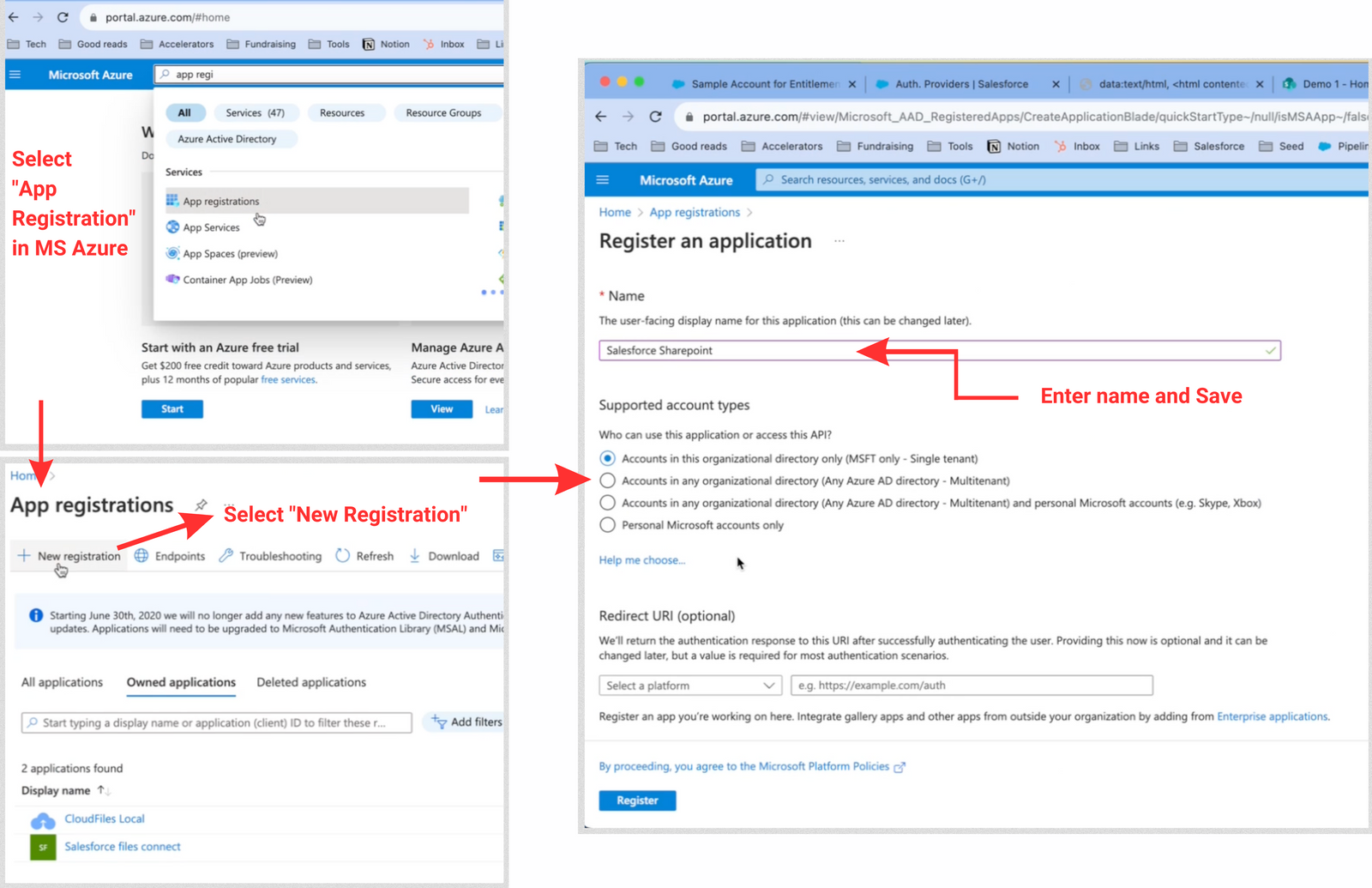
Once the authentication provider has been successfully created, proceed to the next step - Register Auth Provider through the Azure Management Console. This step includes multiple smaller steps, namely - Creating an application, adding a platform, API permissions, creating client secret and finally Replacing the placeholder values. Let's discuss each of them one by one -
Start by Creating a new application, below are the steps -
- Access portal.azure.com
- Log in using your Microsoft account credentials.
- Look for "App registrations"
- Proceed to create a new application, providing a meaningful name like "Salesforce SharePoint."
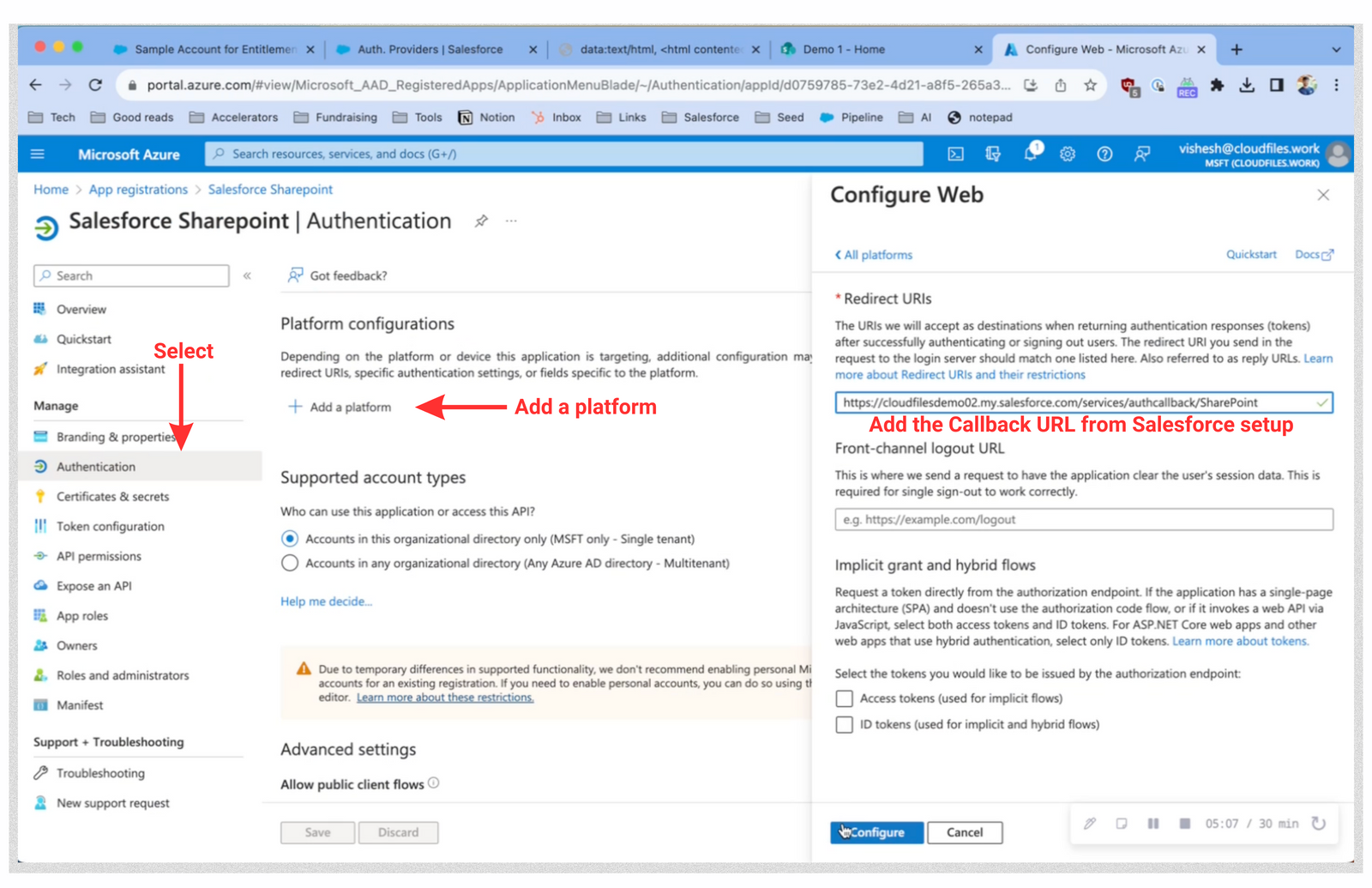
Under the newly created app registration, we need to add a platform -
- Go to "Authentication" under Manage section.
- Go to "Add a platform".
- Select configure web.
- Add the Callback URL from Salesforce setup.
Next we need to add the API permission. Follow the below steps -
- Go to "API Permissions" under manage section.
- Select "Add a permission"
- Select SharePoint from the list.
- Add the required permissions in the "Request API permission" section.
- Under "All sites," select "All sites full control."
- Under "Enterprise resource," select "Enterprise resource .right."
- Under "My files," select "My files .right."
- Under "Sites," select "Sites .search all."
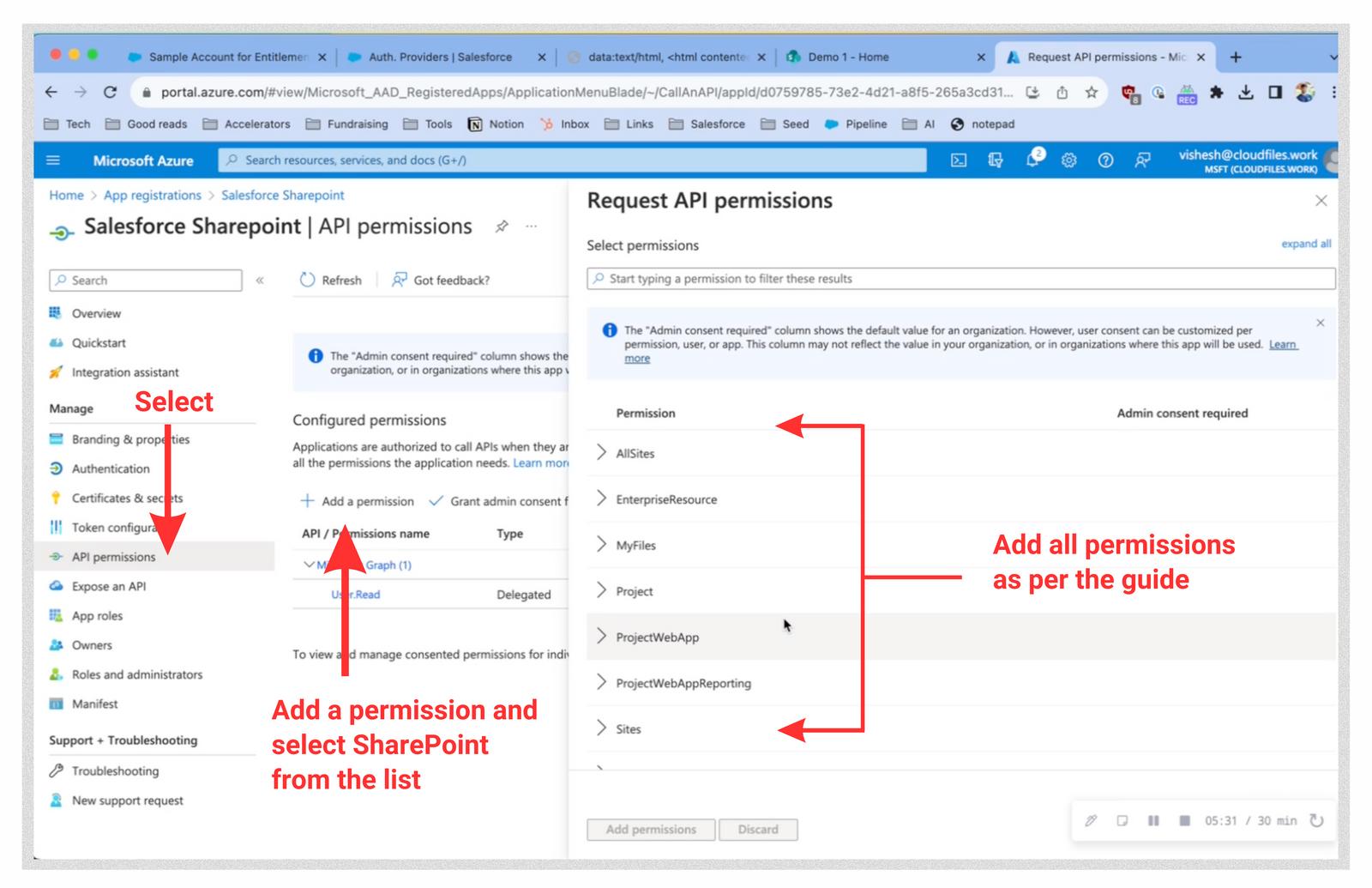
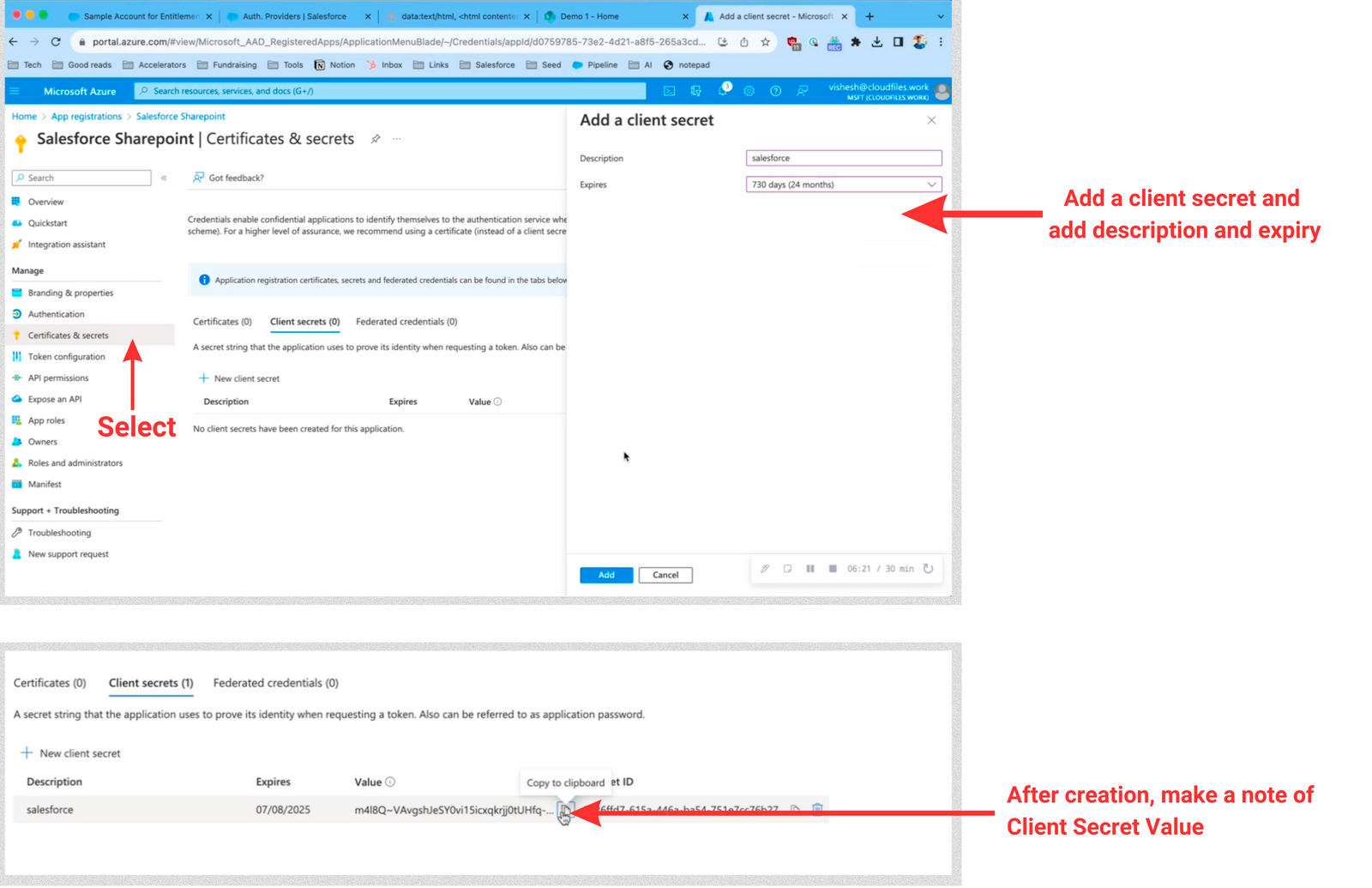
After the API permissions are added, we move to Creating new client secret. Follow the below steps-
- Go to "Certificates & secrets" under manage section.
- Select create a new client secret
- Add description, example "Salesfroce"
- Add expiry days, example "24 months"
- Note the Client Secret value.
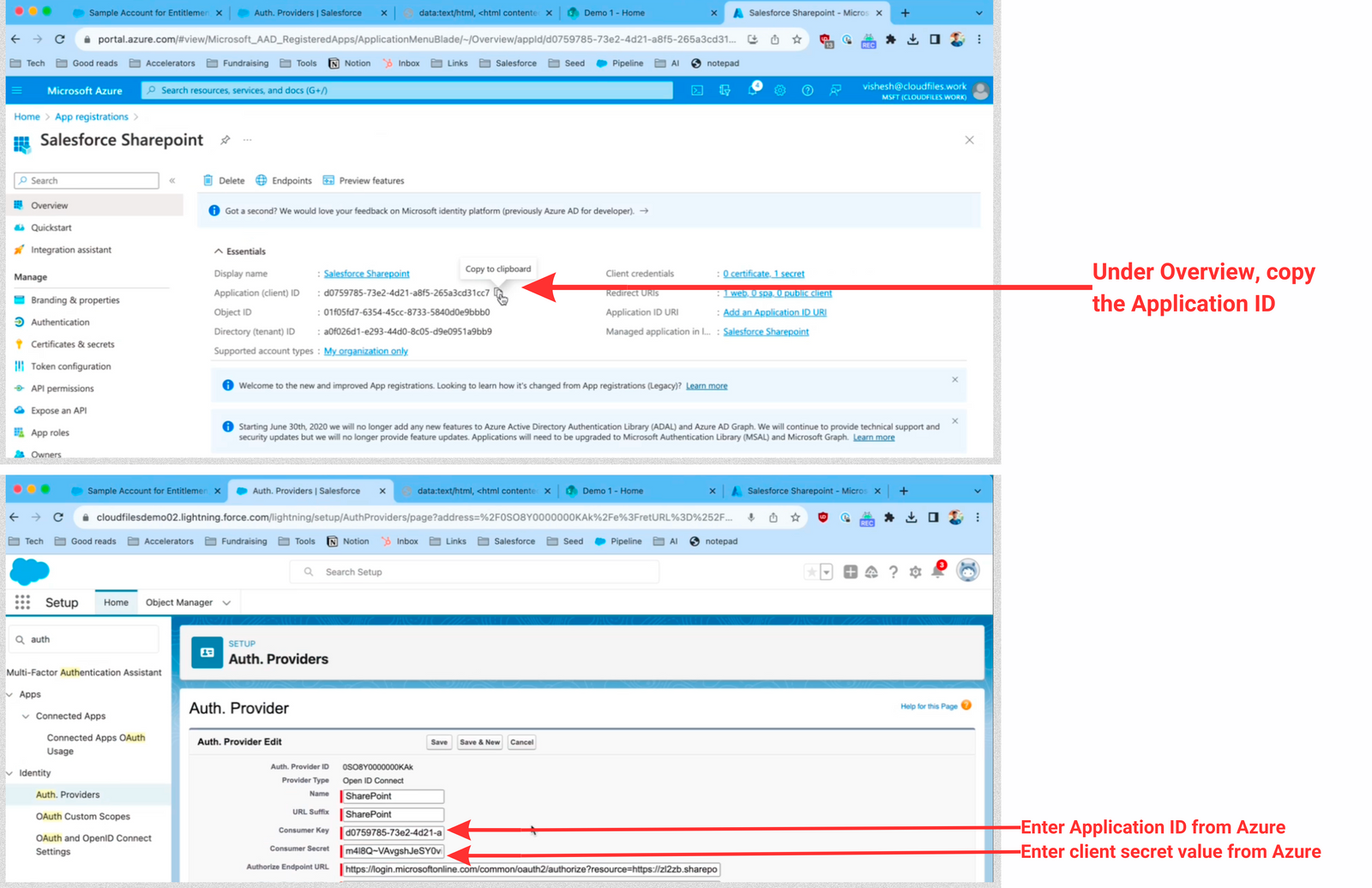
Go back to "Overview". Note the "Application ID" also called client ID>
Replace the placeholder values within your Salesforce authentication provider settings with the actual values obtained from Azure.
Step 5: Create an External Source
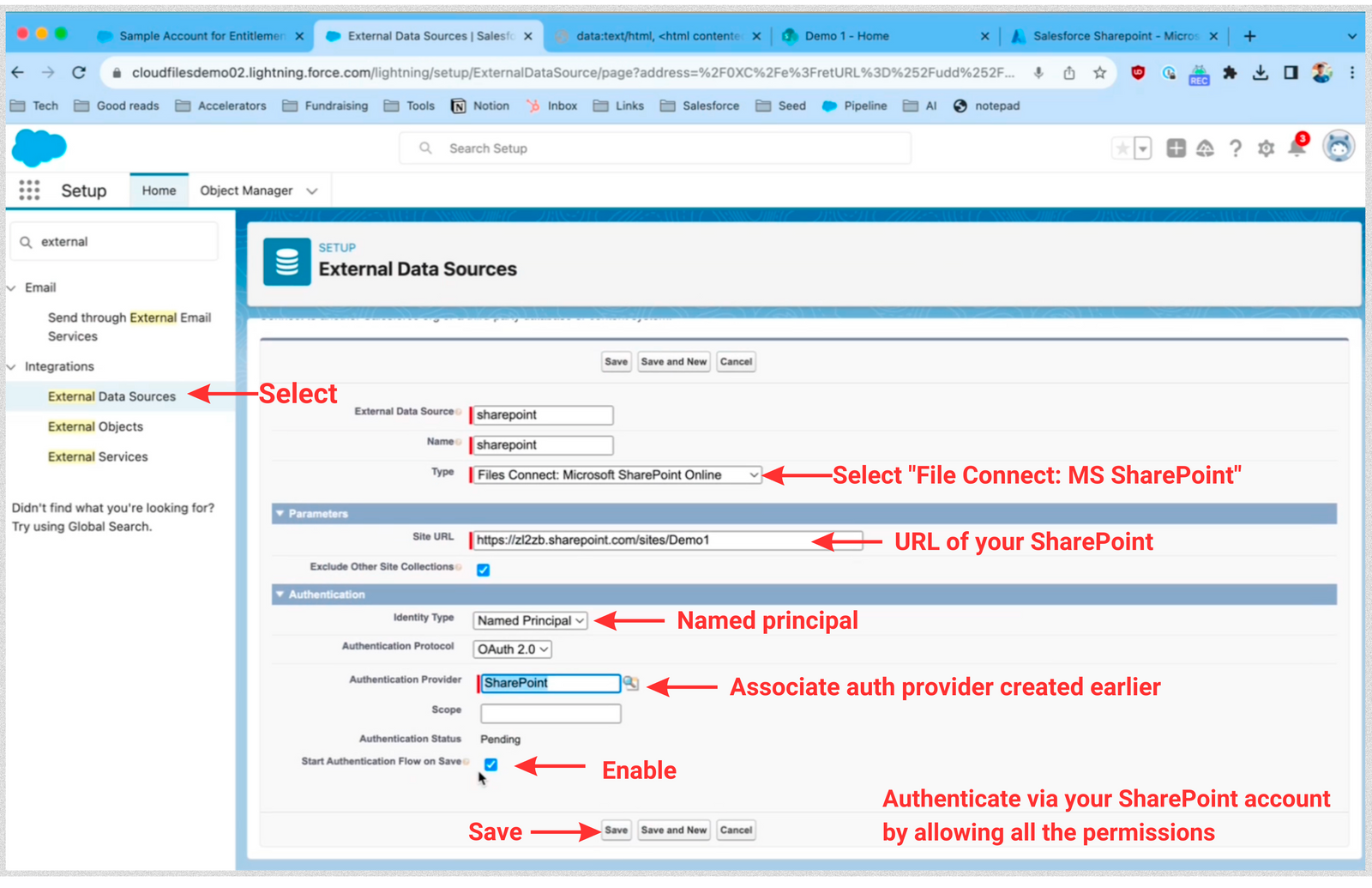
In this step, we'll create an external data source for seamless integration. Follow these instructions:
- Navigate to "external data sources" within the Salesforce setup menu and select "external data sources."
- Initiate the creation of a new external data source, choosing "Files Connect Microsoft SharePoint Online" as the type.
- Input the URL of your SharePoint site in the provided field.
- Choose an identity type, such as "named principle," or select the "for user" option if each user will log in to their SharePoint.
- Associate the authentication provider you created earlier (e.g., "SharePoint").
- Ensure the "start authentication flow on save" checkbox is selected, and confirm by saving the settings.
- To complete this step, authenticate via your SharePoint account by following the prompted steps.
All the above steps are illustrated in the image below -
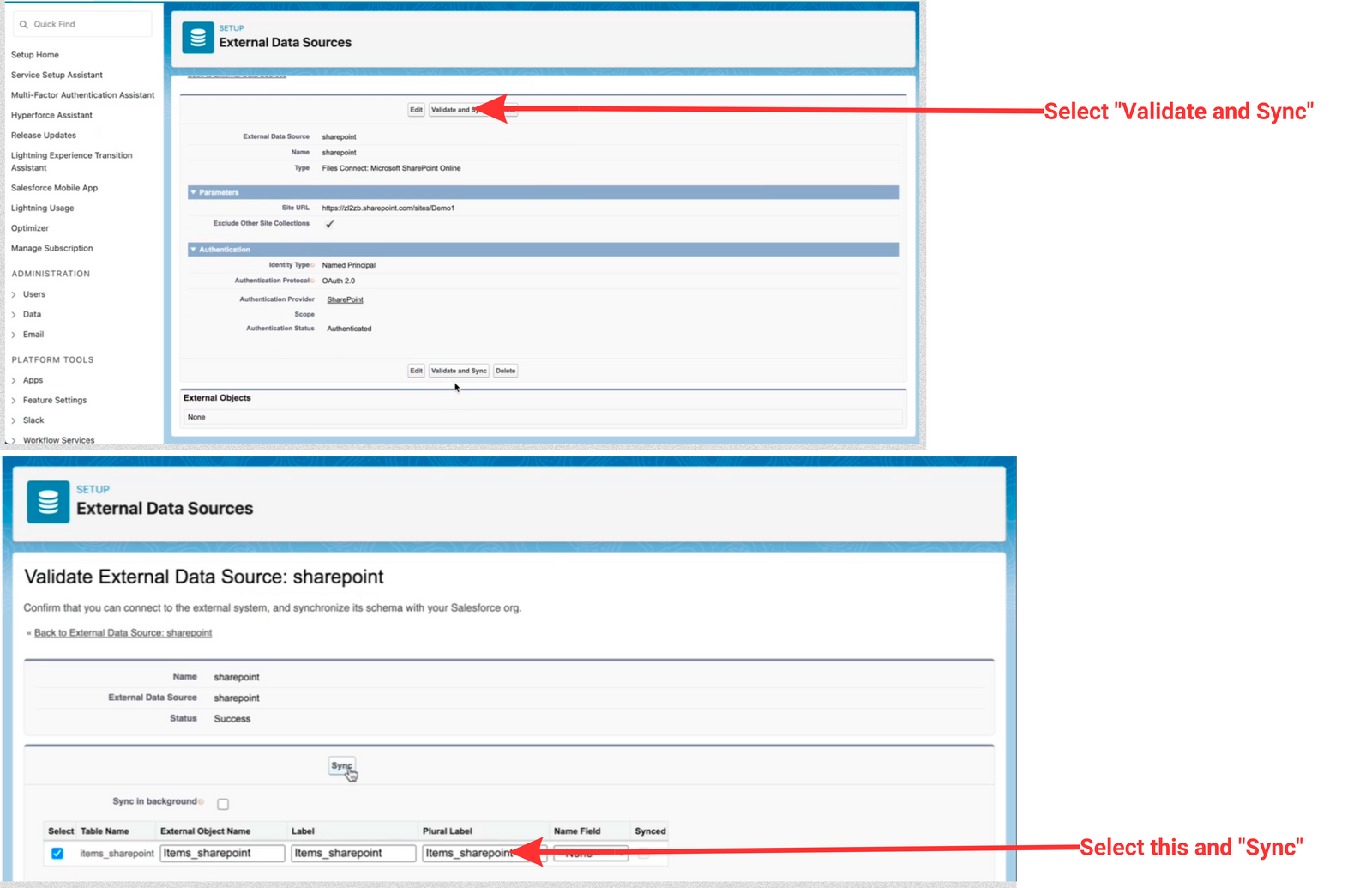
Step 6: Validate and Sync
In this last step, we ensure everything works smoothly by validating the setup and syncing data between Salesforce and SharePoint. This is important to maintain accurate and updated information across both platforms
- Within the Auth Provider settings, click "Validate and Sync."
- Select the SharePoint data source and initiate the sync process.
Add Files from SharePoint to Salesforce using Files Connect
Now that the setup is complete, let's witness the functionality of Files Connect in action. In this segment, we'll explore how to seamlessly add files from SharePoint to Salesforce using Files Connect.
- Open an Account in Salesforce.
- In the related list, click "Add Files."
- Under "Connected Sources," select the SharePoint data source.
- Browse or search for files in SharePoint from within Salesforce.
- Select files and click "Add" to associate them with the record.
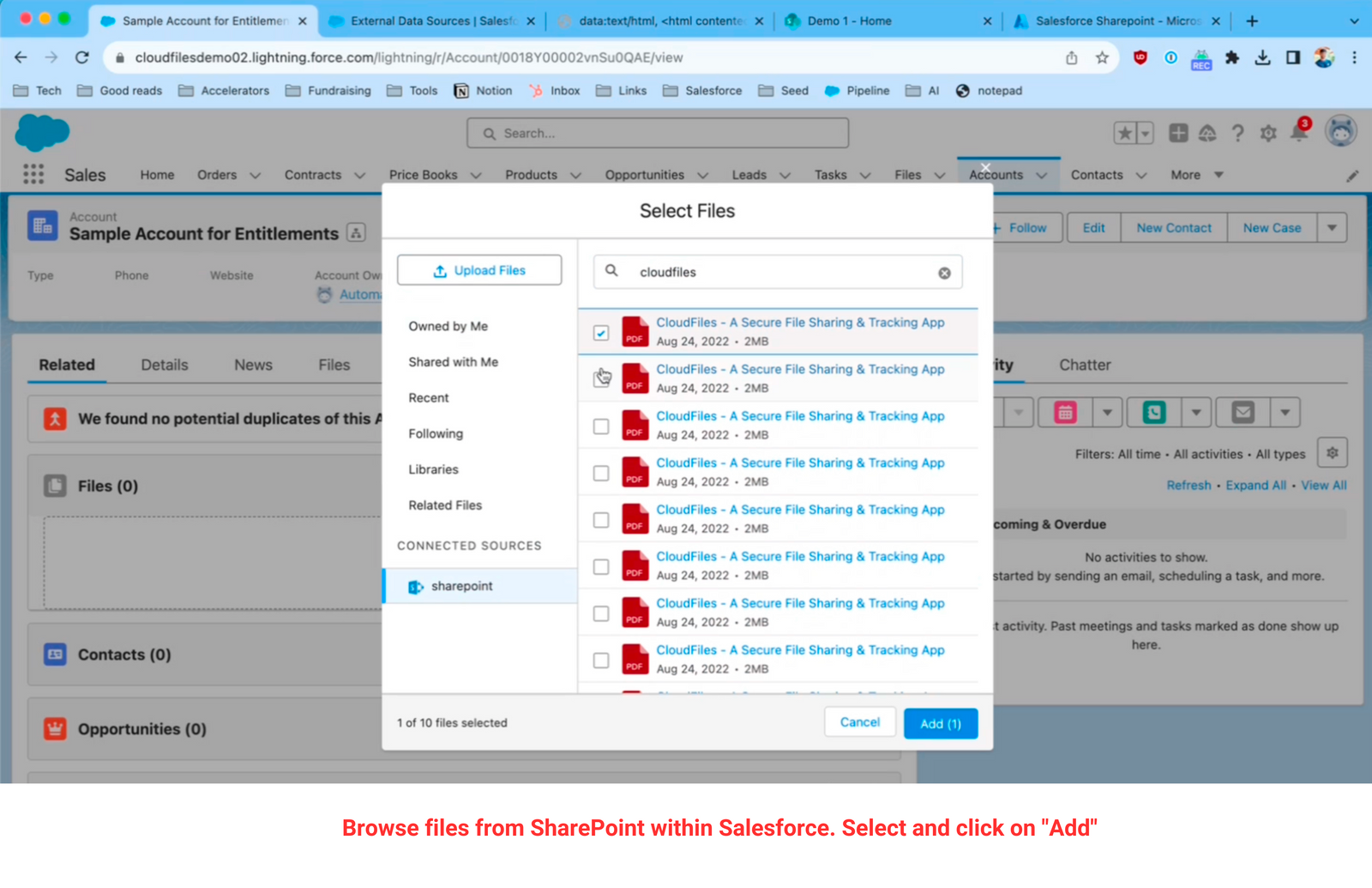
You have the flexibility to select multiple documents and effortlessly add them with a single click. These files become part of your related list's files component, remaining in SharePoint while being accessible here. Edits made in SharePoint reflect instantly here. Files Connect's identification is the adjacent data source name. File previews and direct access to SharePoint enhance usability, while downloading files and real-time synchronization aid in optimizing Salesforce storage utilization.
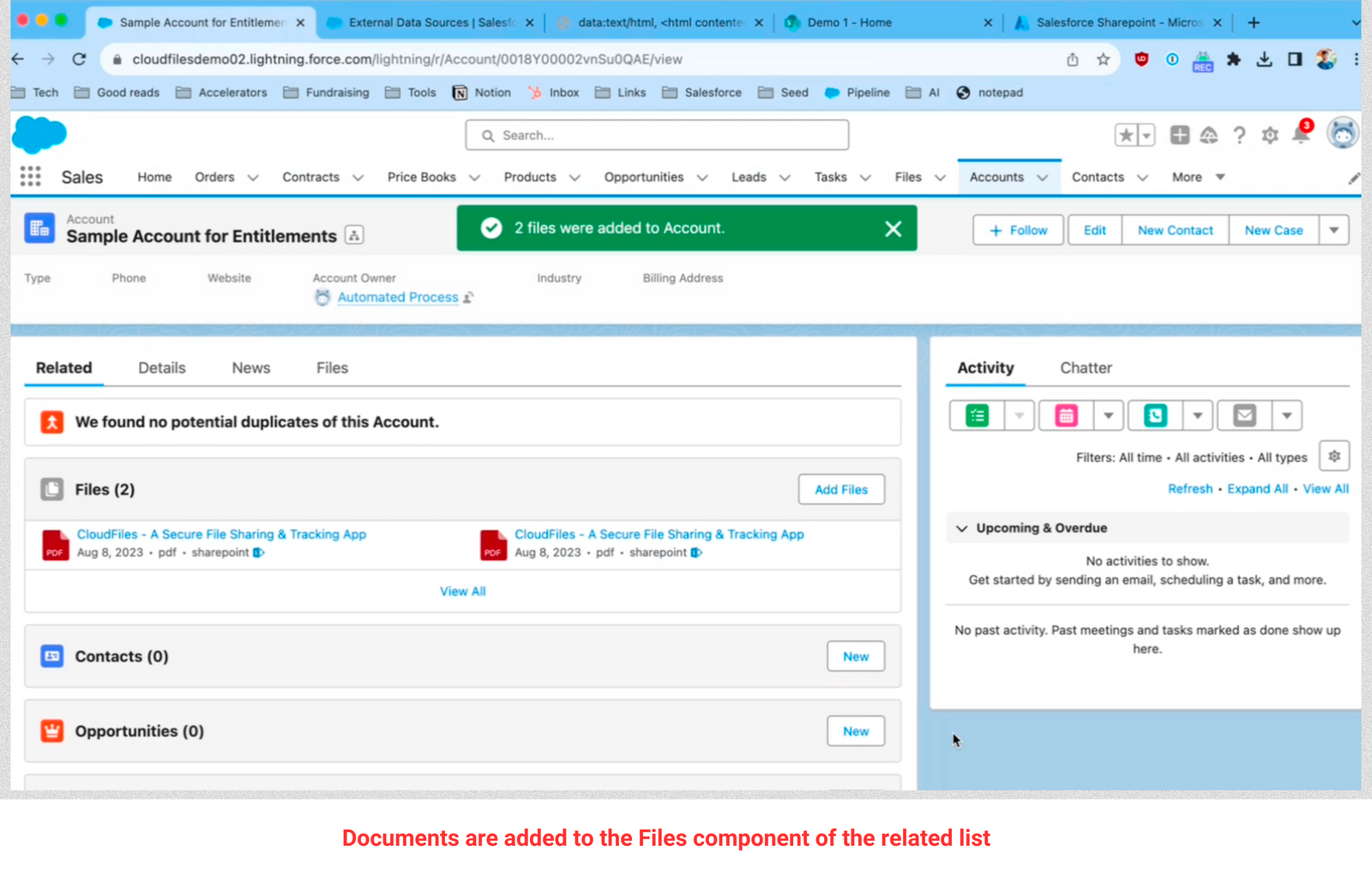
Congratulations! You have successfully set up Files Connect between Salesforce and SharePoint. This integration streamlines collaboration, improves efficiency, and empowers your teams to work cohesively across Salesforce and SharePoint environments.
Files Connect Setup Video Guide
Watch the instructional video for step-by-step guidance and deeper insights into Salesforce SharePoint integration using Files Connect. Whether you're a beginner or need clarification, this video has you covered.
Referencing the information covered in the video, please click on the respective links below to access the details:
- Authorized Endpoint URL: https://login.microsoftonline.com/common/oauth2/authorize?resource=<sharepoint_tenant_url>&prompt=login
- Token Endpoint URL: https://login.microsoftonline.com/common/oauth2/token
We are here to help you navigate the Files Connect setup effectively. We trust that we have addressed all your inquiries concerning the Files Connect setup. If you have any further questions, please don't hesitate to reach out to us.
What Are the Limitations of Salesforce Files Connect?
Files Connect is included with Salesforce at no extra cost, but it comes with significant limitations that affect most real-world document workflows. Here is what it cannot do.
1. No file uploads Files Connect is read-only access to external storage. Users can view and reference files that already exist in SharePoint or Google Drive, but cannot upload new files to external systems directly from Salesforce.
2. No folder creation or organization Folders cannot be created or managed from within Salesforce. You cannot associate a folder to the Files widget - every file inside a folder must be linked individually, which becomes unmanageable at scale.
3. No automation support Files Connect has no Salesforce Flow actions, no Apex integration, and no API surface for file operations. You cannot automatically create a SharePoint folder when a Salesforce record is created, auto-upload files on record events, or trigger any document workflow. Every action is manual.
4. No granular permissions control Files Connect uses a single integration user to access all SharePoint files, meaning every Salesforce user sees the same files regardless of their role. There is no user-level permission control — it's all or nothing.
5. External sharing is cumbersome Sharing files with external, non-Salesforce users requires navigating to SharePoint in a separate tab to configure links. There is no way to generate, manage, or update sharing links from within Salesforce, and no visibility into whether a shared file was ever opened.
6. Limited search capability Files Connect has no full-text search - it can only search file names and metadata. There is no federated search across content, and customization of search behavior is minimal compared to native Salesforce search.
7. No data migration support Files Connect does not move or offload existing Salesforce files to external storage. Salesforce storage usage stays unchanged. Organizations looking to reduce storage costs need a separate tool or manual process to migrate files.
8. Preview limitations File preview works for standard Office formats but is not comprehensive across all file types. Advanced formatting, embedded content, and certain file formats may not render correctly in Salesforce preview mode.
9. Performance and latency Accessing large files or operating in regions with slower connectivity can result in noticeable latency when retrieving files through Files Connect, since every file access is a live call to the external storage system.
10. SharePoint Online only Files Connect does not support SharePoint on-premises (2016, 2019). Organizations that have not fully migrated to SharePoint Online cannot use it at all.
The bottom line: Files Connect works for teams that only need to reference existing SharePoint documents from Salesforce records. The moment a team needs to upload files, automate folder creation, manage permissions, share documents externally, or reduce Salesforce storage costs - Files Connect is not the right tool. A third-party AppExchange connector is required.
What are Files Connect Alternatives on AppExchange for Salesforce SharePoint Integration?
Files Connect is included with Salesforce at no cost, and for teams that only need to browse existing SharePoint documents from within a record, it does that job. But it doesn't upload files, doesn't create folders, doesn't automate anything, doesn't move files out of Salesforce storage, and doesn't offer any external sharing. The moment your team needs to actually work with documents inside Salesforce - not just view them - you need a third-party connector.
The AppExchange has six options worth considering. Here's a research-backed, honest breakdown of each.
1. CloudFiles
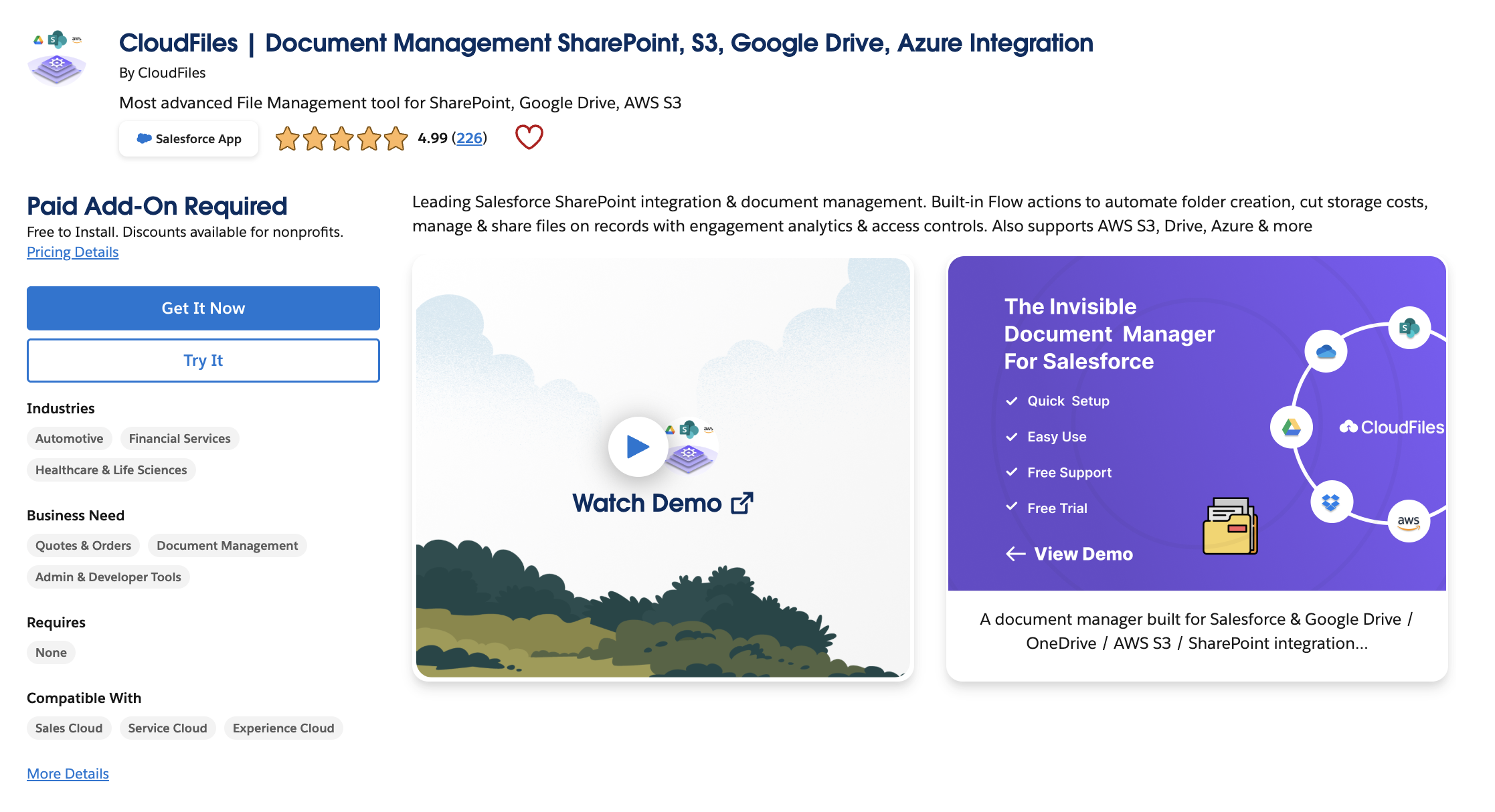
AppExchange listing · cloudfiles.io · Leading Salesforce SharePoint connector since 2022 · 4.9 stars · 220+ reviews · SOC-2 Type II + ISO 27001 + HIPAA Compliant + GDPR Complaint
CloudFiles has been the top-rated Salesforce SharePoint connector on the AppExchange since 2022 - 220+ reviews at 4.9 stars, the strongest review base of any connector in this category. It connects Salesforce to SharePoint, Google Drive, OneDrive, Box, Dropbox, and AWS S3 from a single Lightning Web Component embedded on any record page. That multi-cloud reach is unique in this category; every other connector here is SharePoint-only.
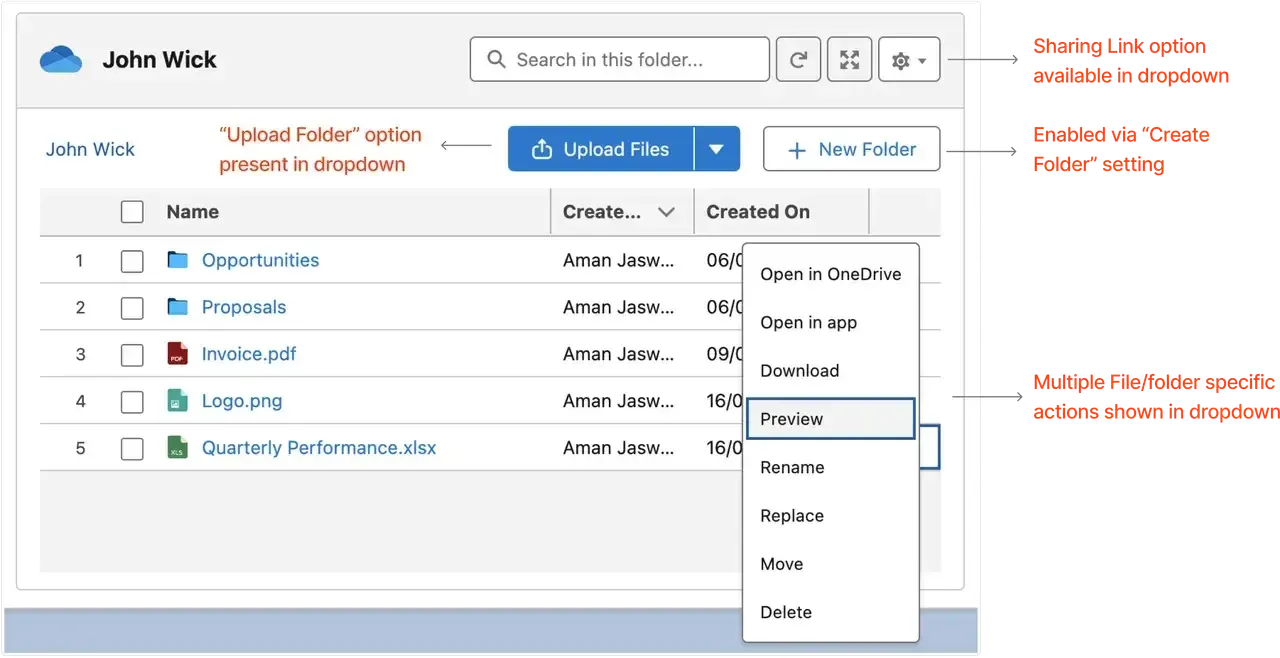
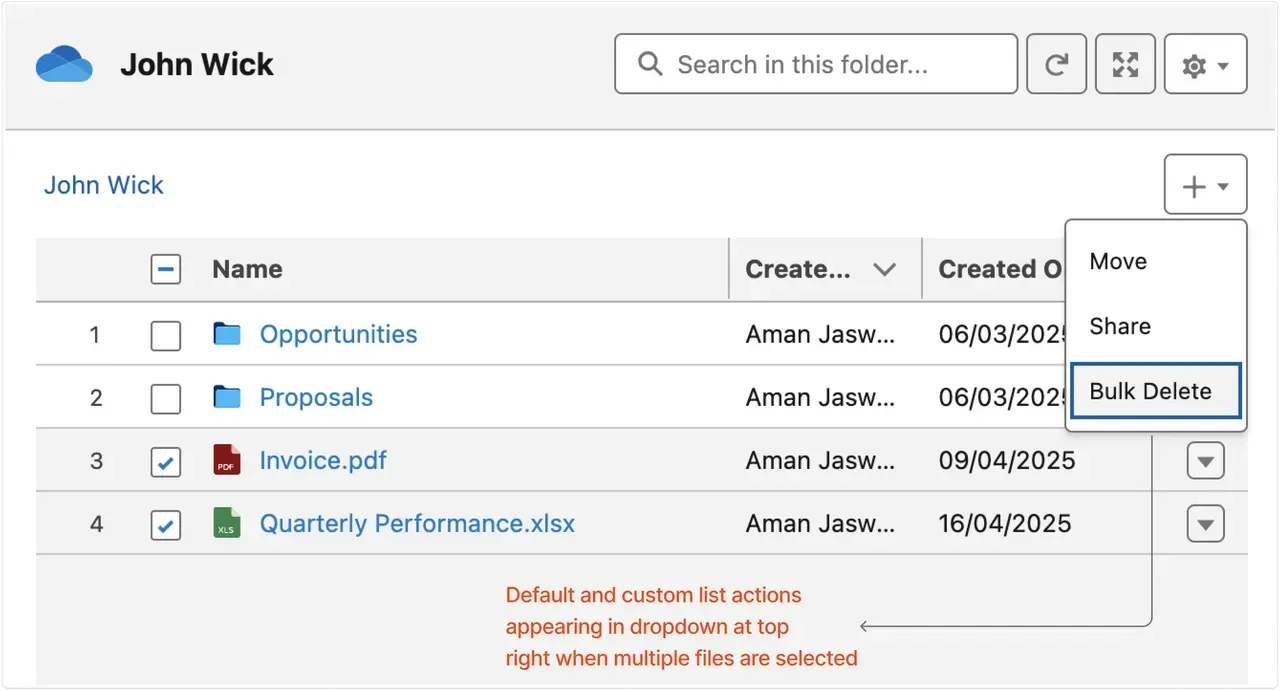
File and folder management: Users can upload, preview (in-dialog, without opening a new tab), rename, move, copy, and delete files directly from Salesforce records. Folder structures are created automatically when records are created, with dynamic naming using Salesforce record field values. Bulk operations - mass upload, mass download, mass rename - are fully supported. File thumbnails are visible inside Salesforce, something no other connector in this list offers.
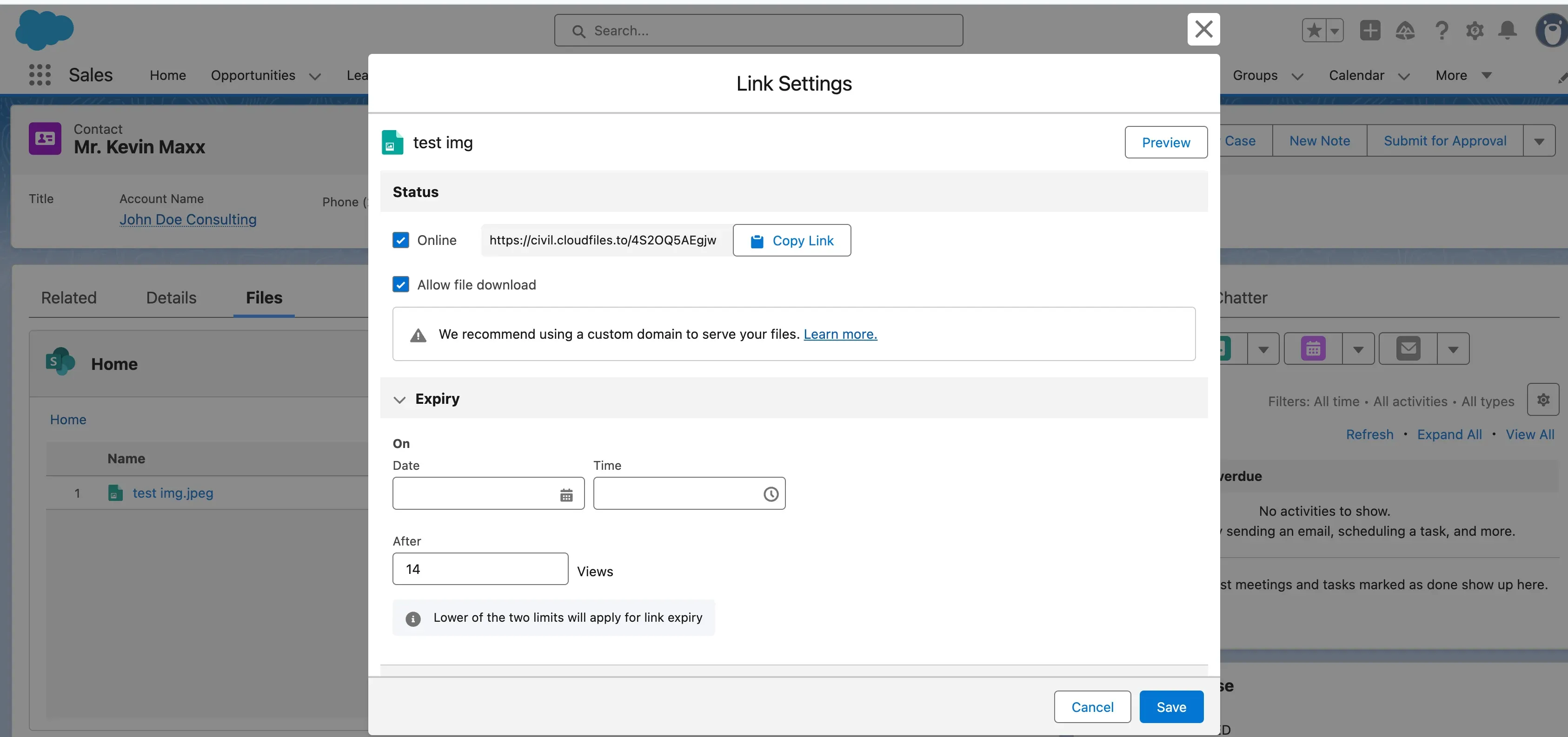
Automation: CloudFiles has the deepest automation coverage of any connector in this category. It offers a broad library of native Salesforce Flow actions - folder creation, file upload, sharing link generation, permission updates - as well as a full REST API and Apex support. Entire document workflows can be triggered by record events without writing custom code.
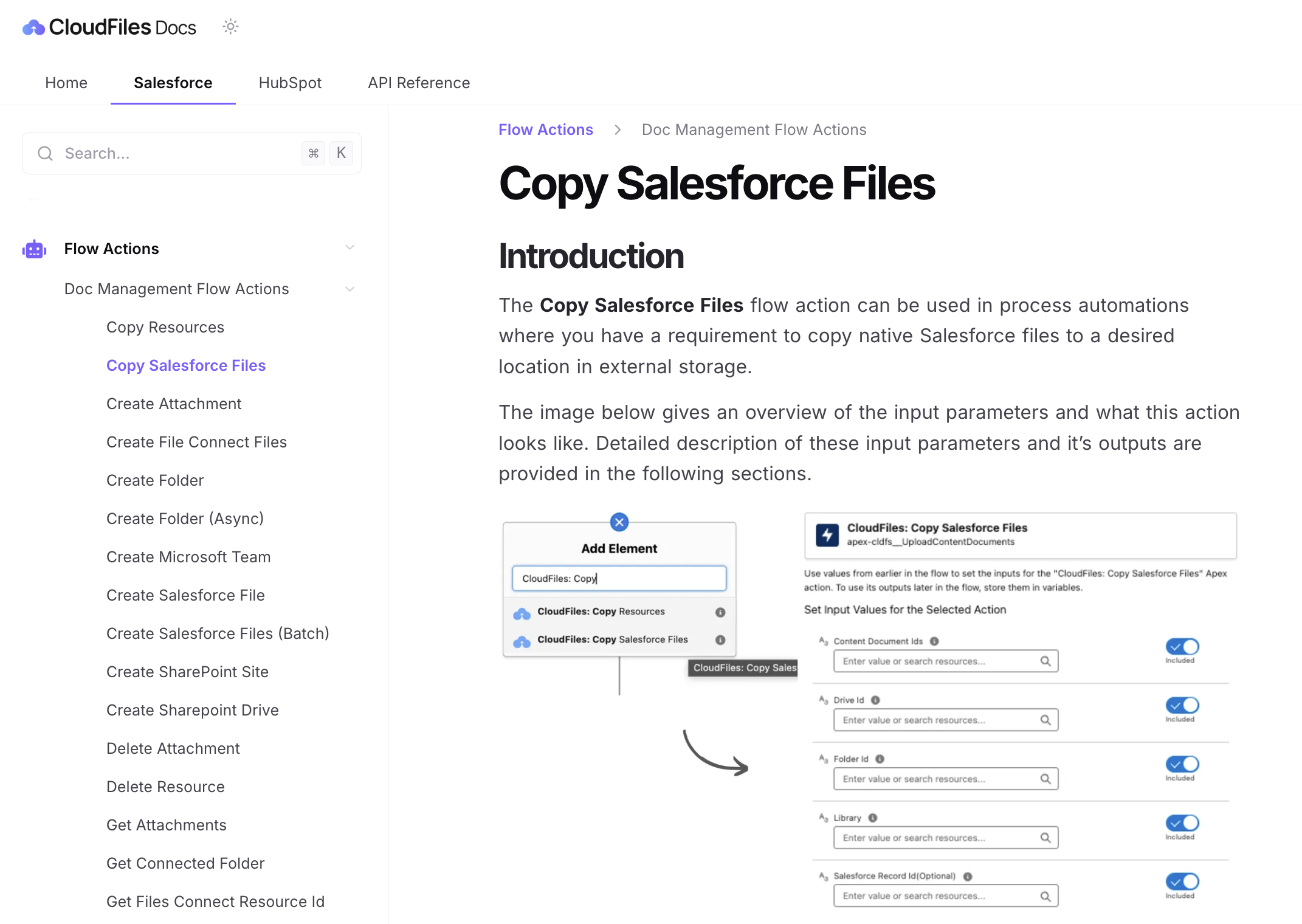
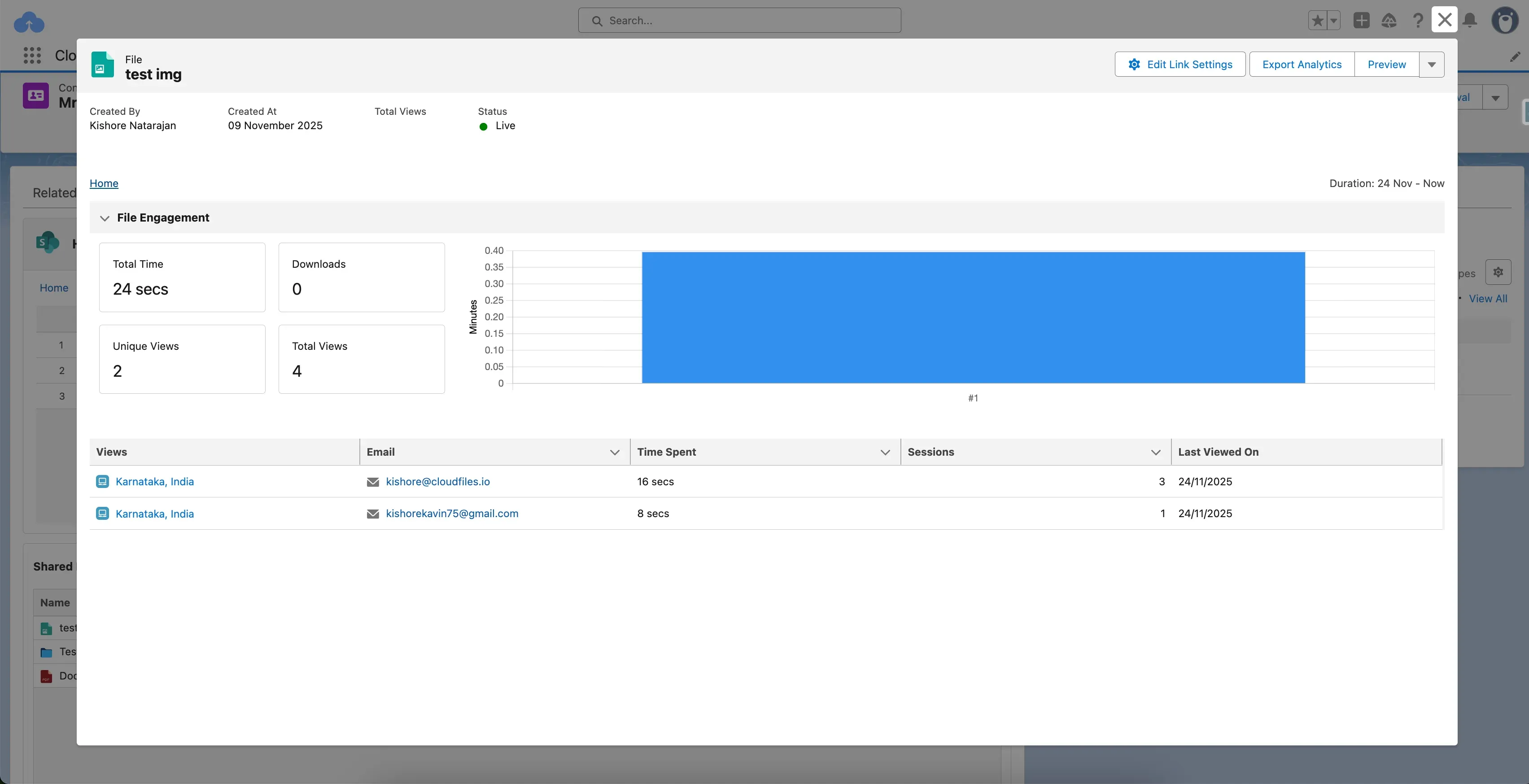
External sharing: Instead of passing through a raw SharePoint URL, CloudFiles generates secure links via its own proprietary viewer. The recipient never sees your SharePoint database. From within Salesforce, you can see who opened the file, how long they spent on each page, how many times it was downloaded - real-time engagement analytics on every document you send externally. No other connector in this category offers this.
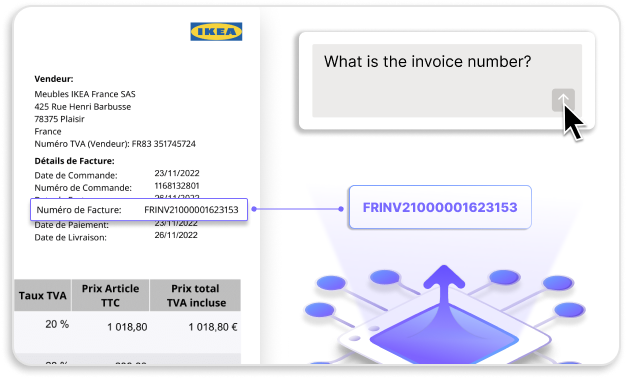
Document AI: CloudFiles has AI-powered intelligent processing across your entire connected storage from within Salesforce, with AI understanding content, not just filenames. This is already ahead of anything else available in this connector category.
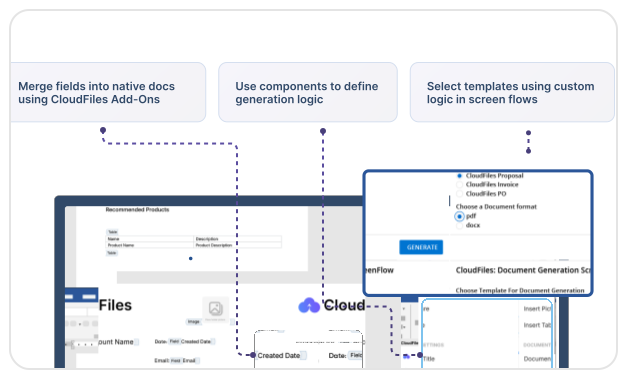
Document generation and e-signatures: CloudFiles' document generation and e-signature capabilities are one of the leading solutions. Teams can create on brand templates in MS Word, Google Docs etc,, send, sign, and store documents in SharePoint
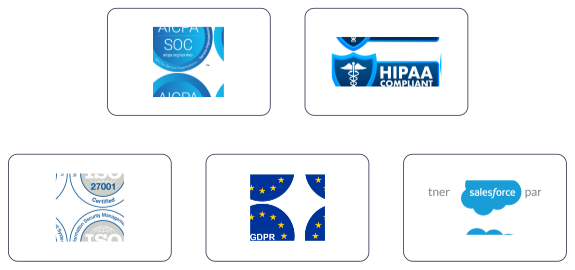
Security: SOC-2 Type II and ISO 27001 certified, GDPR compliant, encryption at rest and in transit, automated threat detection. Data residency is supported in the US, EU, UK, and AU. The strongest published compliance posture of any connector listed here.
Pricing: Pro, Business, and Enterprise tiers — flexible per-user plans with volume discounting. Scales from small teams to large enterprises. Free trial available.
Must Read - Salesforce SharePoint Integration Guide (2026)
2 - sFiles
AppExchange listing · 2008 · SharePoint Online only
sFiles is an established SharePoint connector on the AppExchange, with over 15 years of Salesforce-Microsoft integration experience behind it. Its strength is security architecture: rather than using middleware, sFiles uses Salesforce and SharePoint's native permission rules directly, which reduces attack surface and meets stricter enterprise compliance requirements. Folder structures in SharePoint are linked one-to-one to Salesforce records, and files can be uploaded, downloaded, edited, and renamed from within Salesforce with a single click.
The Enterprise plan adds an Apex API for custom file workflows. The knowledge base is comprehensive and well-maintained.
Limitations: Salesforce Flow support is limited compared to CloudFiles. No live chat support (email and phone only). Org-based pricing at $6,600/year for Standard makes it expensive for smaller teams. No published SOC-2 or ISO 27001 certification. SharePoint-only - no Google Drive, OneDrive, or multi-cloud support.
Pricing: Standard at $6,600/org/year; Enterprise at $16,500/org/year. No free trial.
Must read - sFiles vs CloudFiles: the evidence
3 - 24Files
AppExchange listing · Built by 24Flow · SharePoint Online only
24Files specializes in real-time bidirectional sync with granular metadata mapping between Salesforce and SharePoint. Its standout feature is dynamic folder naming: folder structures are automatically named and organized using Salesforce record field values, keeping SharePoint tidy without any manual effort. Users can define exactly which Salesforce fields map to which SharePoint metadata columns, and that mapping syncs in both directions in real time.
In-dialog file preview is supported, which puts it ahead of sFiles and Share Connect on the user experience side.
Limitations: No Salesforce Flow support at all. External sharing is SharePoint native links only - no tracking, no proprietary viewer. Support is email-only. The 20-user minimum on the entry plan rules it out for smaller teams. No published security certifications.
Pricing: $6/user/month (min. 20 users), or $7,950/org/year up to 250 users. Enterprise plan for 250+ users available. Free 14-day trial.
4 - Share Connect
AppExchange listing · Built by Appiphony · SharePoint Online only
Share Connect is a lightweight connector, whose primary value is speed of setup: configure your SharePoint domain, set default folder rules, place the Lightning component on any record page, and you're live in under an hour. It supports Salesforce Flow for automating folder creation and file uploads to SharePoint. SharePoint is exposed inside Salesforce through an interactive iframe — users can navigate, search, create folders, and upload files without switching tabs.
Appiphony also offers Drive Connect (Google Drive) using the same architecture, so teams that need both SharePoint and Google Drive — but nothing else - can use both products side-by-side.
Limitations: SharePoint-only. Sub-folder management and permissions control are basic. No external sharing analytics, no bulk file operations, no REST API, no document lifecycle features. Smaller user base means fewer published reviews and less community documentation than the top-tier options.
Pricing: Free 14-day trial; paid plans available (contact vendor for current pricing).
5 - Egnyte
AppExchange listing · egnyte.com · Cloud storage + Salesforce integration · From $20/user/month
Egnyte is not a pure SharePoint connector — it's a cloud content platform that integrates with both Salesforce and SharePoint, primarily for organizations that have adopted Egnyte as their document storage layer. If your organization already pays for Egnyte, the Salesforce integration gives you file access, folder browsing, and real-time upload/download from within Salesforce records via a Canvas App embedded in page layouts.
Egnyte's wider platform strengths — governance, data leak prevention, content classification, and file analytics — carry over into the Salesforce context, making it a reasonable option for highly regulated industries (legal, life sciences, financial services) where content governance requirements go beyond what a standard file connector provides.
Limitations: Requires an Egnyte subscription on top of Salesforce — it's not a standalone SharePoint connector. Starts at $20/user/month, making it the most expensive per-user option listed here. Folder management and automation features inside Salesforce are more basic than CloudFiles or sFiles. If you don't already use Egnyte as your storage layer, there's no reason to adopt it for this use case alone.
Pricing: Starting at $20/user/month. Requires a separate Egnyte platform subscription.
6 - Document Management by PDF Butler (Collboration Butler)
AppExchange listing · Built by CloudCrossing · SharePoint, Teams, OneDrive, and Google Drive
Collaboration Butler provides a 360° view of SharePoint document libraries and Google Drive files in the context of a Salesforce record, using Salesforce and SharePoint's native security model. Its differentiator is Microsoft Teams integration — it can surface Teams channels and conversations related to a Salesforce record alongside the documents, which is useful for organizations that run most internal collaboration through Teams.
It connects to SharePoint, OneDrive, Google Drive, and integrates with PDF Butler (CloudCrossing's document generation product) for teams that need both file access and document generation from the same vendor.
Limitations: Very few published AppExchange reviews, making it harder to assess real-world reliability at scale. Less automation coverage than CloudFiles or 24Files. The Teams integration, while notable, means it's a better fit for Teams-heavy orgs than as a general document connector. Support documentation is limited compared to the top-tier options.
Pricing: Contact vendor. No pricing published on AppExchange.
This comparison was written by the CloudFiles team. CloudFiles is our product and we have a commercial interest in this comparison. All Share Connect information is sourced from Appiphony's public documentation at appiphony.com/share-connect and appiphony.com/share-connect/pricing, verified April 27, 2025. ShareConnect is a product of Appiphony, LLC. CloudFiles is not affiliated with Appiphony. Verify features and pricing with each vendor before purchasing. If any information is inaccurate or has changed, contact support@cloudfiles.io and we'll update promptly.
| CloudFiles | sFiles | 24Files | Share Connect | Egnyte | Collaboration Butler | |
|---|---|---|---|---|---|---|
| Storage supported | SharePoint, AWS S3, Google Drive, OneDrive, Box, Dropbox, | SharePoint only | SharePoint only | SharePoint only | Egnyte platform (connects to SharePoint) | SharePoint, OneDrive, Google Drive, Teams |
| File preview in Salesforce | In-dialog - no new tab needed | New tab only via SharePoint editor | In-dialog and new tab | Interactive iframe - no new tab needed | Canvas App - embedded in page layout | Embedded view in Salesforce record |
| Bi-directional sync | ✅ Yes - changes in either platform reflect immediately | ✅ Yes - real-time sync on both sides | ✅ Yes - real-time sync on both sides | ✅ Yes - linked files stay in sync | ✅ Yes - via Egnyte platform sync | ✅ Yes — native security context maintained both ways |
| Salesforce Flow actions | ✅ Broad - folder creation, file upload, sharing links, permission updates, and more | ⚠️ Limited - basic folder and upload actions only | ❌ Not supported | Basic - folder creation and file upload via Flow | ❌ Not available | ⚠️ Limited |
| REST API / Apex | ✅ Full REST API + Apex - available on all plans | ⚠️ Apex API on Enterprise plan only ($16,500/yr) | ❌ Neither available | ❌ Neither available | ❌ Not published | ❌ Neither available |
| Automated folder creation | ✅ Yes - auto-created on record events, dynamic naming from record field values | ✅ Yes - linked to Salesforce record structure | ✅ Yes - dynamic folder naming is a core feature, field-value-based | ⚠️Yes - via Flow, basic folder rules | ❌ Not supported natively | ⚠️ Limited |
| Bulk file operations | ✅ Mass upload, download, rename, delete, custom operations supported | ⚠️ Partial - bulk upload supported, limited on other actions | ⚠️ Partial - limited bulk actions | ❌ Not supported | ⚠️ Partial - via Egnyte platform | ❌ Not supported |
| File thumbnails in Salesforce | ✅ Yes - visible directly on record | ❌ Not available | ❌ Not available | ❌ Not available | ❌ Not available | ❌ Not available |
| External sharing | ✅ Proprietary secure viewer - tracked links, engagement analytics (views, downloads, time-per-page), SharePoint URL never exposed | ⚠️ SharePoint native links only - recipient needs SharePoint access, no tracking | ⚠️ SharePoint native links only - no engagement tracking | ⚠️ SharePoint native links only - no tracking | ⚠️ Egnyte share links - some governance features but no Salesforce-native analytics | ❌ Not available |
| File engagement analytics | ✅ Yes - page-level views, download counts, time spent, all surfaced in Salesforce | ❌ Not available | ❌ Not available | ❌ Not available | ⚠️ Available in Egnyte platform, not inside Salesforce | ❌ Not available |
| Metadata management | ✅ Full - read, write, and update SharePoint metadata from Salesforce, map Salesforce fields to SharePoint columns, and auto-update on upload | ✅ Full - column management, update on upload, grid edit | ✅ Full - granular Salesforce-to-SharePoint field mapping, bidirectional | ❌ Not available | ✅ Available via Egnyte content classification | ⚠️ Limited |
| Permissions management | ✅ Full - folder and file-level permissions manageable directly from Salesforce, SharePoint permission rules respected and synced back to the record | ✅ Full - uses native SharePoint + Salesforce rules directly | ❌ Not supported | ❌ Not available | ✅ Full - via Egnyte governance layer | ✅ Yes - uses native Salesforce + SharePoint security |
| Security certifications & compliance | ✅ SOC-2 Type II, ISO 27001 certified · GDPR, HIPAA compliant | ❌ Not published | ❌ Not published | ❌ Not published | SOC-2, ISO 27001 (Egnyte platform) | ❌ Not published |
| AI-powered Processing | ✅ Yes - OCR, NLP powered queries | ❌ Not available | ❌ Not available | ❌ Not available | ✅ Available in Egnyte platform | ❌ Not available |
| Document Generation | ✅ Available along with e-signature | ❌ Not available | ❌ Not available | ❌ Not available | ❌ Not available | Via PDF Butler (separate CloudCrossing product) |
| Support | Live chat, email, Zoom, phone - fast response times | Email and phone only | Email only | ❌ Not published | Phone and email | Limited documentation |
| Free trial | Yes - 14 days (extendable) | Not available | Yes - 14 days | Yes - 14 days | ❌ Not published | ❌ Not published |
| Pricing model | Per-user - Pro, Business, Enterprise. Scales from small teams to enterprise Pricing | Per-org - $6,600/yr (Standard) or $16,500/yr (Enterprise) | Per-user from $6/month (min. 20 users), or $7,950/org/year | Contact vendor | From $20/user/month + Egnyte platform subscription | Contact vendor |
Why CloudFiles is the Best Salesforce SharePoint Connector in 2026?
Every connector in this list solves a piece of the problem. CloudFiles solves all of it, and has been doing so more comprehensively than any competitor since 2022.
The numbers speak first
220+ AppExchange reviews at 4.9 stars. No other connector in this category comes close to that review volume or that rating. In a category where most tools have fewer than 30 published reviews, 220+ gives procurement teams, admins, and executives the confidence of a genuinely proven solution, not a promising newcomer.
It goes deeper on SharePoint than any other connector
Most connectors give you a window into SharePoint from Salesforce - you can view files, upload, and create folders. CloudFiles goes several layers deeper. In-dialog file preview without leaving Salesforce. File thumbnails on records. Bulk rename, move, copy, and delete. Folder permissions management that respects SharePoint rules. Secure external sharing through a proprietary viewer - your SharePoint URL is never exposed to the recipient - with page-level engagement analytics surfaced inside the Salesforce record. AI-powered processing document generation and e-signatures that are category-leading, so the entire document lifecycle - from storing a file in SharePoint to generating a contract from Salesforce data to collecting a signature - happens in one app without stitching together multiple vendors. Every other connector in this category stops somewhere on that list. CloudFiles covers all of it.
CloudFiles has the deepest automation coverage in the category
Files Connect has zero automation. Most connectors in this list have partial or no Flow support. CloudFiles covers the full range: Salesforce Flow actions, a REST API, and Apex - folder creation on record events, automated file uploads, sharing link generation, permission updates - all triggerable without custom code. For admins building scalable document processes, the difference between "it works" and "it works at scale across thousands of records" is automation, and no connector here comes close to CloudFiles on this dimension.
External sharing is genuinely different in CloudFiles
Every other connector in this list generates a SharePoint native link for external sharing. That link exposes your SharePoint URL and internal storage structure to recipients, with no way to know if it was opened, how many times, or by whom.
CloudFiles generates links through its own proprietary viewer. Your SharePoint URL is never exposed. From inside a Salesforce record, you can see page-level engagement: who opened the file, how long they spent on each page, when they downloaded it, how many times. For sales teams, this is a direct CRM signal - knowing a prospect spent 12 minutes on your proposal changes how you follow up.
The security posture is the strongest in the category
CloudFiles holds SOC-2 Type II and ISO 27001 certifications, with GDPR compliance, HIPAA compliance, encryption at rest and in transit, and automated threat detection. Data residency is supported in the US, EU, UK, and AU. Your files stay in your own storage — CloudFiles never re-hosts them — and are not used to train our AI models. Among the connectors listed here, only Egnyte publishes equivalent certifications - and Egnyte requires a separate, more expensive platform subscription. For InfoSec review and enterprise procurement, these certifications are the baseline for approval. CloudFiles is the only purpose-built Salesforce SharePoint connector that clears that bar.
Access can be scoped to exactly what's needed
CloudFiles supports least-access SharePoint connections on both paths teams actually use.
- For end users - each person connects their own SharePoint account. CloudFiles never sees more than that person already has: no shared credential, and nothing to revoke separately when they leave.
- For automations - connect with a Service Principal and scope it to specific sites with Microsoft's
Sites.Selectedpermission. CloudFiles authenticates as its own application identity, with no human account behind it, no licensed seat consumed, and nothing that breaks on MFA or offboarding, reaching only the sites you've explicitly granted it.
This scoping is about identity, not capability: reading and writing files this way still needs more access than Files Connect's native, read-only link, since Files Connect on its own cannot upload files, automate folders, or manage permissions at all.
It's a complete document platform, not just a connector
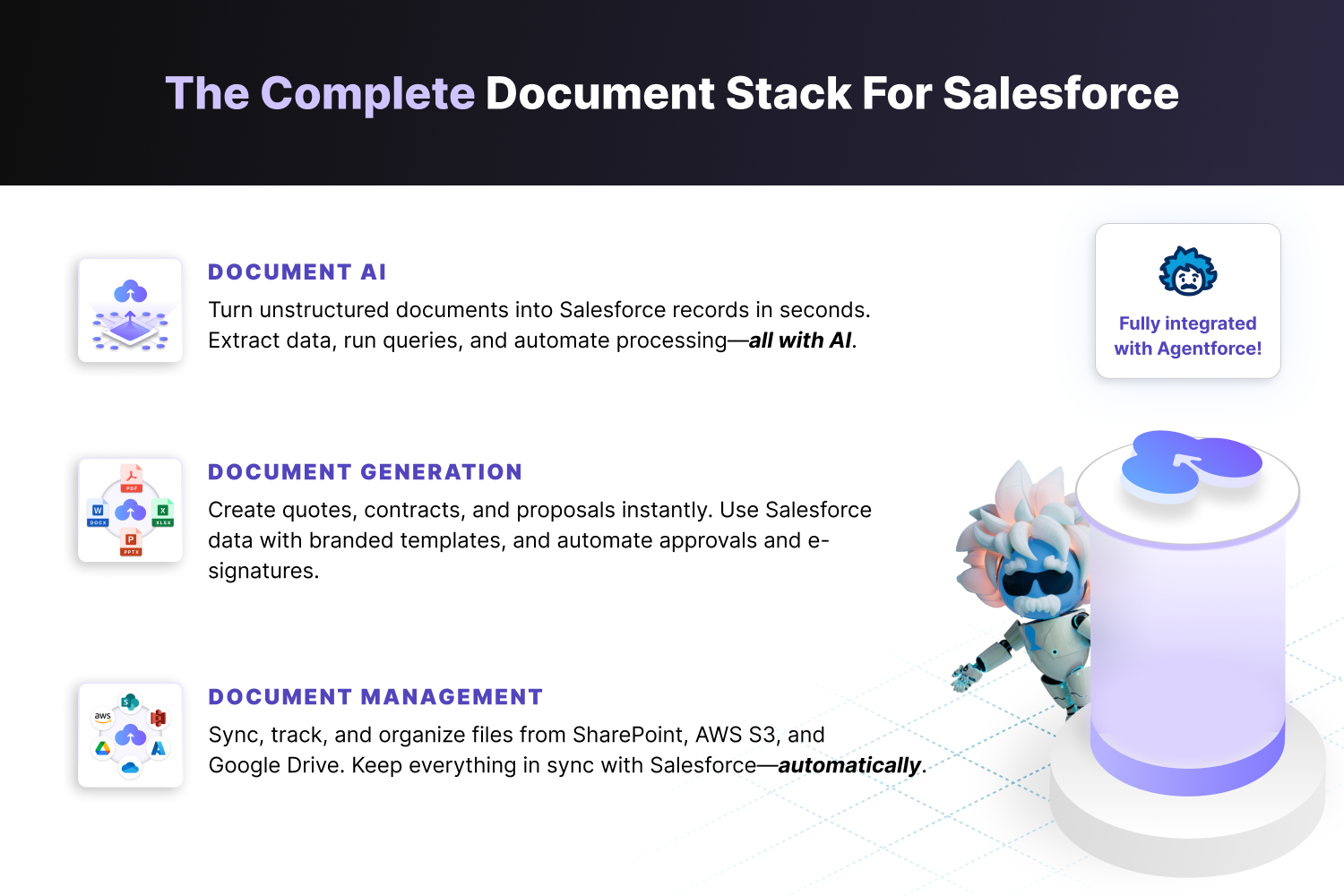
This is where CloudFiles separates itself from every other option in the category. The others are file connectors. CloudFiles is a full document platform, and every capability in that stack is already live:
- File storage and access - six cloud storage platforms from one Lightning component (SharePoint, Google Drive, OneDrive, Box, Dropbox, and AWS S3)
- External sharing with analytics - proprietary viewer, page-level engagement data, no SharePoint URL exposed
- Automation - broadest Flow and API coverage in the category
- Document AI - intelligent processing across all connected storage, understanding & processing documents.
- Document generation - one of the leading smart document generation tool with e-signature.
- Document archival - on the roadmap
Most organizations that start with "we need to connect SharePoint to Salesforce" find within 12–18 months that they also need trackable proposals, automated document creation, AI-assisted search, and managed approvals. With every other connector, that means adding more point tools and more vendors. With CloudFiles, it's one platform that already covers all of it.
The support is noticeably better
CloudFiles offers live chat with fast response times, email, Zoom, and phone support, dedicate account manager, POC support, alongside a comprehensive free knowledge base. sFiles offers email and phone. 24Files is email-only. Share Connect support is not formally published. For organizations that need responsive support during rollout or when something breaks, CloudFiles is the only connector here where you can reach a human in real time.
Pricing is built to scale
Unlike sFiles, fixed org-based pricing starting at $6,600/year regardless of team size; or Egnyte, which requires a separate platform subscription on top, CloudFiles offers flexible per-user tiers: Pro, Business, and Enterprise, with volume discounting. A 15-person team and a 500-person enterprise can both get the right plan without overpaying or being locked into a rigid structure.
Conclusion
Salesforce's native Files Connect provides read-only access to SharePoint files and nothing more - no uploads, no folder management, no automation, no storage cost reduction, no external sharing. For teams that actively work with documents inside Salesforce, a third-party AppExchange connector is the right move.
The connectors covered in this guide each solve a specific slice of the problem. Share Connect gets teams live in under an hour with basic Flow support. 24Files handles real-time bidirectional sync and Salesforce-to-SharePoint metadata mapping more granularly than most. sFiles is a reliable SharePoint connector with a strong native security model and 15+ years of Salesforce-Microsoft integration experience. Egnyte and Collaboration Butler serve specific environments - organizations already on the Egnyte platform, and Teams-heavy orgs respectively.
CloudFiles is in a different category entirely. With 220+ AppExchange reviews at 4.9 stars - the highest review volume of any connector here - it has been the proven standard for Salesforce SharePoint integration since 2022. Where every other connector stops at file access and basic folder management, CloudFiles adds the broadest Salesforce Flow and API automation in the category, secure external sharing with page-level engagement analytics (no SharePoint URL ever exposed), AI-powered document processing and automation (category leader), and one of the leading document Generation and e-signatures - all from a single Salesforce-native app. Teams that would previously need a file connector, OCR tool, DocuSign etc. can run all workflows in one place.
For teams that want SharePoint working properly inside Salesforce today, and a platform that grows with their document needs over time, CloudFiles is the clear choice.
Frequently Asked Questions
Q: Is Salesforce Files Connect good enough, or do I need a third-party connector?
A: Files Connect is good enough if all your team does is occasionally reference an existing SharePoint document from a Salesforce record. The moment anyone needs to upload files, create folders, automate document workflows, share files with a client, or reduce Salesforce storage costs - it falls short. It can't do any of those things. Most teams outgrow it within weeks of setting it up.
Q: How do I stop running out of Salesforce file storage?
A: The root problem is that Salesforce storage is expensive and limited - 10 GB base per org plus a small per-license allocation. The fix is offloading files to SharePoint so they no longer count against Salesforce storage limits. Third-party connectors like CloudFiles do this automatically - files uploaded to a Salesforce record are stored in SharePoint and linked back to the record, so users see no difference in their workflow but the file never touches Salesforce storage. Guide to Salesforce File Storage Costs & Cost-Saving Tips.
Q: How do I automatically create SharePoint folders when a Salesforce record is created?
A: This requires a third-party connector with Salesforce Flow support. CloudFiles has the most complete Flow action library in the category - you can trigger folder creation, set folder names using record field values (account name, opportunity number, case ID), and define sub-folder templates, all from a standard Flow with no Apex code. sFiles and Share Connect support basic versions of this. 24Files handles it well with dynamic naming. Files Connect cannot do this at all.
Q: Can people without a Salesforce license access files stored through the integration?
A: Yes. Files stored in SharePoint through a connector remain accessible to anyone with SharePoint access - HR, finance, legal, external partners - regardless of whether they have a Salesforce license. With CloudFiles specifically, you can also generate a secure trackable link for anyone outside your organization entirely, with no platform access required on their end.
Q: What happens when I share a document from Salesforce, can I see if it was opened?
A: With most connectors, no. sFiles, 24Files, and Share Connect all generate SharePoint native links - once sent, you have no visibility into whether the recipient opened it. CloudFiles is the only connector that generates links through its own proprietary viewer, giving you page-level engagement data inside the Salesforce record: who opened it, time spent per page, number of views, and downloads. For sales teams tracking proposals and contracts, this is a meaningful signal.
Q: Is there a Salesforce SharePoint connector that also does document generation and e-signatures?
A: Yes, CloudFiles. Most teams run three separate tools: a file connector, something like Conga for document generation, and DocuSign for e-signatures. CloudFiles has all three live in one Salesforce-native app, with document generation and e-signatures integration with DocuSign. It's the only connector in this category where the entire document lifecycle - storage, generation, signing, and processing - happens in one place.
Q: How is CloudFiles different from sFiles?
A: sFiles is a solid SharePoint-only connector with strong native security - a reliable choice if all you need is SharePoint linked to Salesforce records. CloudFiles covers everything sFiles does and goes significantly further: broader Flow automation, a full REST API, in-dialog file preview, file thumbnails, external sharing with engagement analytics, AI-powered document processing, document generation, and e-signatures - all live. sFiles starts at $6,600/org/year with no free trial. CloudFiles offers flexible per-user pricing and a free trial.
Q: How is CloudFiles different from Share Connect?
Share Connect is a lightweight connector that gets SharePoint linked to Salesforce records quickly - folder creation via Flow and basic file linking are its strengths, and for teams with minimal requirements it gets the job done fast. CloudFiles covers everything Share Connect does and goes significantly further: in-dialog file preview, file thumbnails, bulk file operations, folder permissions management, a full REST API and Apex support alongside broader Flow actions, secure external sharing with page-level engagement analytics (views, time spent, downloads - all inside Salesforce), AI-powered document processing, document generation, and e-signatures. Share Connect has no published security certifications and no live chat support. CloudFiles holds SOC-2 Type II and ISO 27001, offers live chat, and has 220+ AppExchange reviews at 4.9 stars. Both offer a free trial, but the gap in capability becomes clear within the first week of use.
Q: What's the best rated Salesforce SharePoint connector on AppExchange/AgentExchange?
A: CloudFiles - 220+ reviews at 4.9 stars, the highest review volume of any dedicated file connector on the AppExchange. It has been the leading solution for Salesforce SharePoint integration since 2022.
Q:Can CloudFiles search inside SharePoint documents from Salesforce?
A: Yes. CloudFiles has AI-powered document processing live - it searches across your connected SharePoint content from within Salesforce, understanding document content rather than just filenames. No other connector in this category offers this.