

Introduction
Salesforce is where work happens. SharePoint is where documents live. And in most enterprises, those two realities collide every day. A Salesforce–SharePoint connector isn’t about “bringing files in.” It’s about keeping users inside Salesforce while documents follow the record lifecycle with the same governance, security, and scale your org expects. That’s why tools like CloudFiles and sFiles matter. Both connect Salesforce to SharePoint so record teams can work with external documents from inside Lightning. But they take very different approaches to what a connector should become at enterprise scale, and that’s exactly what this blog breaks down.
CloudFiles is an all-in-one Salesforce document platform that unifies Document Management, Document Generation, and Document AI. It connects Salesforce to external storage like SharePoint, OneDrive, Google Drive, Dropbox, Box, AWS S3, and Azure Blob, adding automation, sharing, and analytics on top. A leading Salesforce–SharePoint connector on AppExchange, it’s enterprise-grade by design: independently audited for SOC 2 Type II, certified to ISO 27001, and compliant with HIPAA and GDPR, with TLS 1.2+ in transit and AES-256 at rest, continuous security monitoring, and strong customer support.
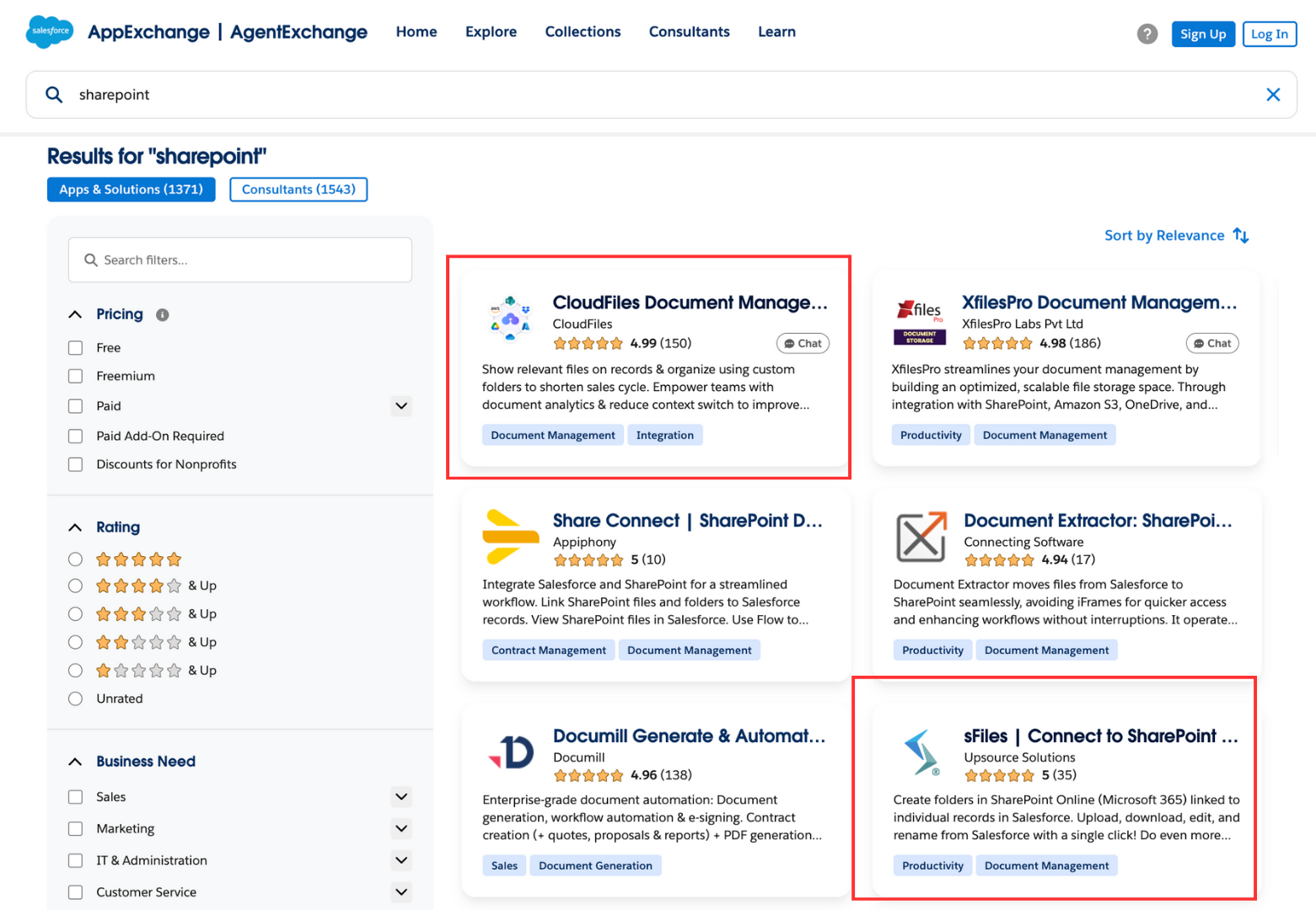
sFiles is a Salesforce–SharePoint Online connector that lives completely inside your Salesforce org and talks directly to Microsoft 365. Its job is very focused: create and link SharePoint folders to Salesforce records, let users upload/download/rename from Salesforce, and respect SharePoint/Salesforce permissions. It’s Lightning-native, FedRAMP compliant, and licensed per org with unlimited users.
In the sections ahead, we compare CloudFiles and sFiles feature-first, the way an enterprise admin or architect would evaluate them in a real SharePoint environment. We start from core file handling and in-record UX, move into folder automation and record-driven hierarchies, then cover external sharing, Experience Cloud, and analytics. After that, we look at what completes a modern document stack — multi-storage maturity where relevant, plus future-facing capabilities like native document generation and AI-driven document intake. We will also look into architecture, scalability and pricing.
Each section will call out what CloudFiles sets as the benchmark, where sFiles tops out, and what that means operationally at scale. We’ll close with a consolidated view of trade-offs so it’s clear which tool fits as a long-term document layer inside Salesforce, not just a connector you might outgrow later.
Editorial note: This document is produced by CloudFiles and reflects CloudFiles' own assessment of the two products. Readers should treat the feature comparisons and scoring matrix as the perspective of one of the vendors under review rather than independent analysis. Where possible, claims have been drawn from each product's own public documentation and AppExchange listings, which are linked throughout. We encourage prospective buyers to trial both products and consult independent reviews before making a decision.
1 - Features Deep Dive
We’re going to compare CloudFiles and sFiles the way an enterprise should: starting with concrete product features. The baseline is table stakes - both tools surface SharePoint inside Salesforce - so this deep dive focuses on where capability, workflow ownership, and admin control actually diverge.
We’ll evaluate them feature-first across the real layers that determine long-term fit: core in-record file management and UX, folder automation and record-driven hierarchies, external sharing and Experience Cloud readiness, analytics/visibility after sharing, and finally the extensions that complete modern document workflows - Document generation and Document AI. This structure keeps the comparison grounded in what each product can do inside Salesforce, at scale.
1.1 Core file management & user experience
At enterprise scale, core file UX is not about “showing a folder.” It’s about whether Salesforce becomes a true document workspace: record-accurate, action-complete, fast under volume, and admin-governable across objects and teams. The baseline includes correct record context, full daily actions upload/preview/rename/move/delete/subfolders), bulk handling, and Lightning-native placement. The differentiator is how far the UX goes beyond a storage browser.
CloudFiles (advanced, Salesforce-native workspace by default)
CloudFiles delivers core file management through its internal widgets - primarily the Internal Record Widget on records and the Content Library Widget for centralized browsing. Both are Lightning components that render the record-linked external folder (not a generic drive view) and are designed to be the internal workspace where files are prepared, governed, and acted on inside Salesforce.
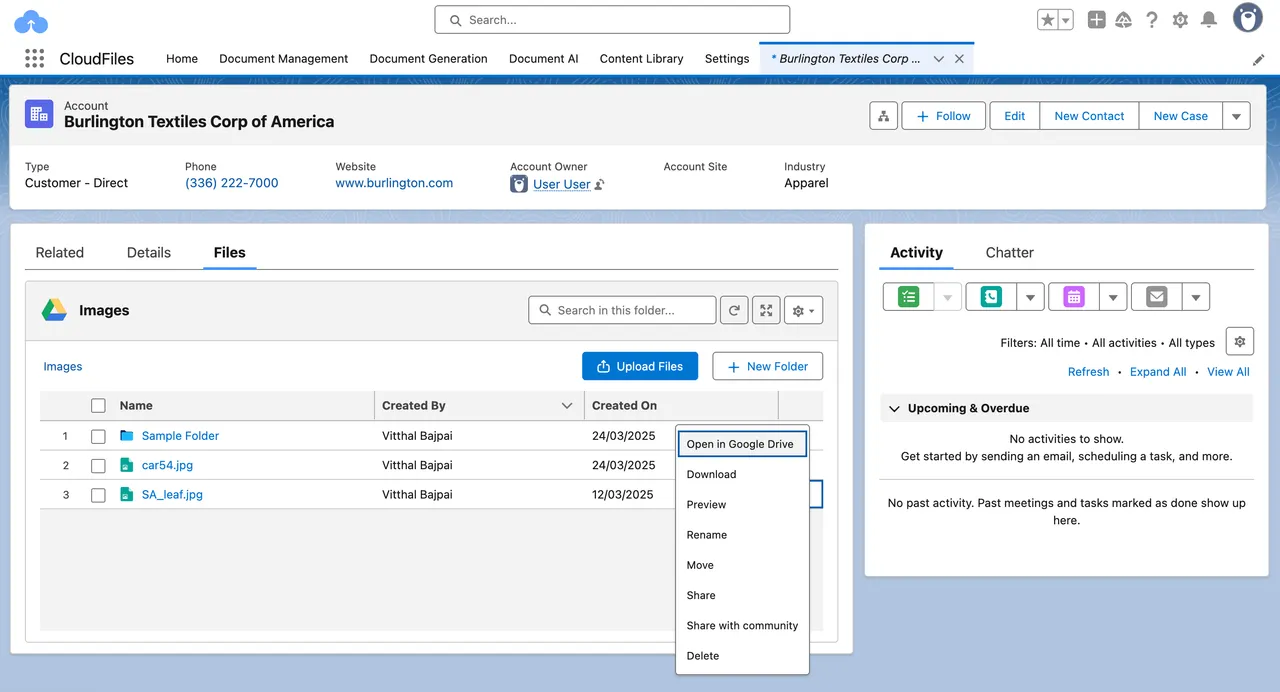
From a user-experience standpoint, CloudFiles supports the complete daily action stack directly in the widget:
- Uploads to external storage from Salesforce UI (including drag-and-drop in the internal widget)
- In-CRM preview and download of externally stored files
- Rename / delete files and folders from the record panel
- Folder navigation within the record-linked hierarchy (users operate inside the mapped folder tree, not outside record context)
What makes CloudFiles feel “enterprise-grade” in core UX is that the widget surface is also action-extensible without code. Admins can add Custom Resource Actions and Custom List Actions that appear as buttons inside the widget and trigger Salesforce Flows - enabling governed single-file actions or bulk actions (archive, move, share pack, request docs, etc.) right where users work.
So users don’t just “see SharePoint from Salesforce.” They get a Salesforce-owned document workspace: work on files in place, run admin-standardized actions in place, and rely on a consistent internal interface across records and teams.
sFiles (core UX ceiling + where enterprises hit friction)
sFiles’ core experience is explicitly a SharePoint browser embedded in record context. Its feature pages and AppExchange listing describe the component as a browser that links a SharePoint folder to a Salesforce record and exposes common tasks (view/edit/upload/delete/rename) from inside Salesforce.
That model works for baseline usage, but at enterprise scale it introduces structural UX limits:
At enterprise scale, the gaps are structural:
- Window, not workspace: UX stays SharePoint-semantic by design, so Salesforce can’t become a broader governed document layer.
- Advanced work = Apex path: deeper lifecycle/bulk logic is routed through the Enterprise Client API and Apex-led Custom Actions, so extensions become dev projects.
- Scale tied to SharePoint limits: large libraries and throughput behavior are bounded by Microsoft constraints, which can surface as CRM-side performance/ops planning.
- Unified UX requires stitching: higher-maturity use cases often rely on multiple sFiles components plus custom build to approximate a single governed workspace.
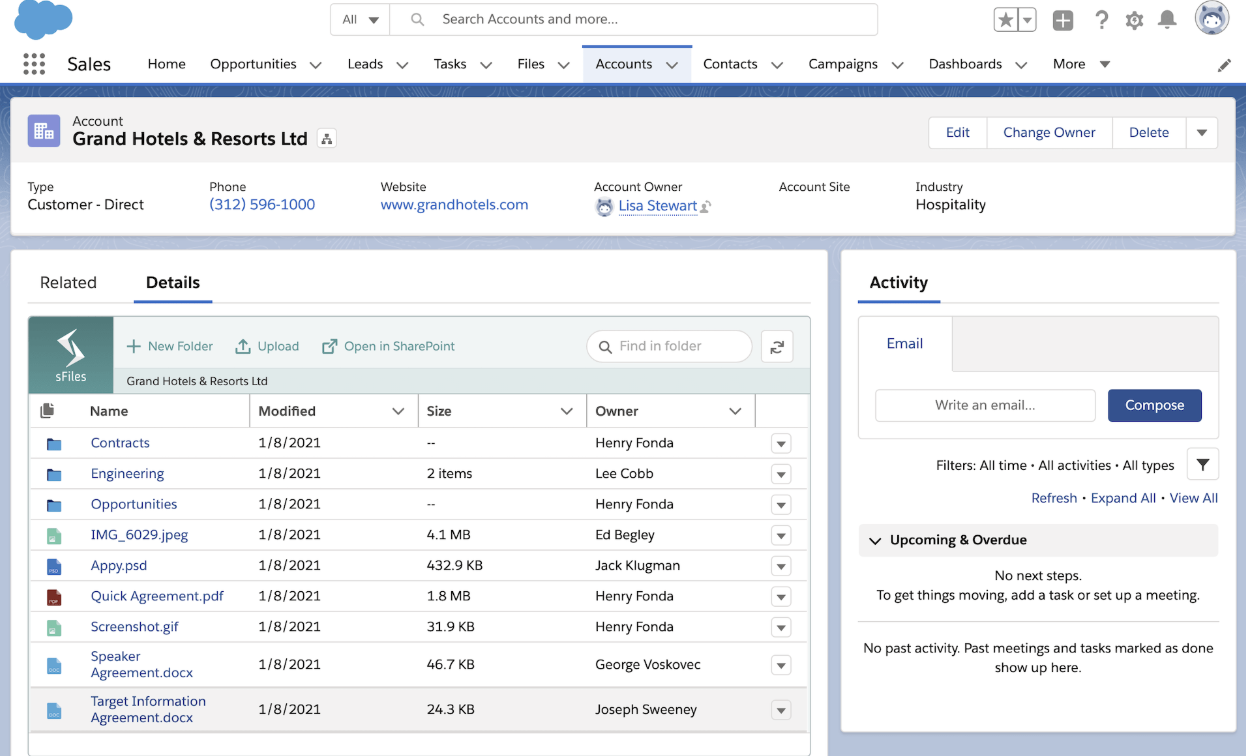
sFiles gives users a capable SharePoint panel in Salesforce, but the core UX tops out earlier - deeper workflow actions, bulk operations, or future storage neutrality don’t exist as native, admin-extensible functionality inside the same record widget surface.
1.2 Folder automation & Record-driven Hierarchies
Folder automation is the difference between “we connected SharePoint to Salesforce” and “we actually standardized documents at enterprise scale.” In a real org, the pain isn’t viewing files - it’s where those files should live, what they should be named, and how that structure stays consistent across thousands of records and teams. If folder logic isn’t record-driven and automatic, users fall back to manual folder creation, naming diverges by team, and your storage quickly turns into a parallel universe that Salesforce admins can’t govern.
CloudFiles is built around no-code, relationship-aware automation using Salesforce Flow as the control plane. Admins get a suite of dedicated Flow actions for document operations (create folder, attach/connect folder to record, move/copy files/folders, sync Salesforce files to external storage, etc.), so folder governance is a first-class Salesforce automation pattern, not a side feature.
What makes CloudFiles enterprise-grade is that it supports multi-level, object-relationship hierarchies out of the box. You can automatically create nested structures like Account → Opportunity → Contract where child folders are created inside the correct parent folder the moment related records are created, driven entirely by Flow logic. Key capabilities that set the benchmark:
- Flow-driven folder provisioning: Create folders/subfolders dynamically from any object and any trigger (record create, stage change, checkbox, etc.).
- Relationship-aware nesting: Auto-create child record folders inside parent record folders using lookup relationships (not just flat “one record = one folder”).
- Lifecycle actions without code: Move/copy/archive/restructure folders using Flow actions, so scale changes don’t require custom Apex.
- Consistent behavior across storages: The same hierarchy automation works regardless of which connected storage library the record uses.
sFiles automation is anchored to SharePoint Object Settings + Initial Folder Structure templates, which means hierarchy behavior is configuration-bounded to what’s defined in SharePoint settings metadata - not a broad, storage-neutral automation layer inside Salesforce.
When enterprises need logic beyond the template model (conditional hierarchies, bulk restructures, cross-object lifecycle moves, or custom metadata handling at scale), sFiles pushes admins into Apex/Client API and Custom Actions. Their own API documents describe folder setup, movement, and metadata updates as code-leveraged Enterprise features that rely on passing SharePoint context and IDs.
Even though sFiles has Flow-enabled Apex actions, they are still SharePoint-semantic operations; they don’t provide the same depth of relationship-aware, multi-level hierarchy automation as a first-class no-code pattern. Complex hierarchies require tight dependency on SharePoint configuration correctness and, in many cases, developer intervention to extend behavior.
On the other hand, CloudFiles makes hierarchy automation Flow-native and relationship-driven as the default admin path; sFiles’ automation ceiling is reached faster, and enterprise folder governance typically expands through Apex/API rather than staying fully admin-owned.
1.3 Sharing + Analytics
Sharing in a Salesforce–SharePoint rollout has three layers admins care about: internal collaboration in-record, external sharing/collection, and what Salesforce can measure after a document leaves the org. CloudFiles and sFiles both cover the baseline internal access to SharePoint, but they diverge in how much of the sharing lifecycle is Salesforce-native versus left to Microsoft 365.
CloudFiles: Governed Sharing as part of the Salesforce Document Workflow
CloudFiles’ sharing model is built as an end-to-end Salesforce document workflow. It starts with internal, in-record collaboration on external storage; extends into multiple governed external sharing and collection paths; and finishes with Salesforce-visible engagement analytics. In other words, SharePoint/Drive remains your storage system, but CloudFiles makes sharing and intake CRM-native artifacts rather than storage-native links.
1) Internal collaboration inside records
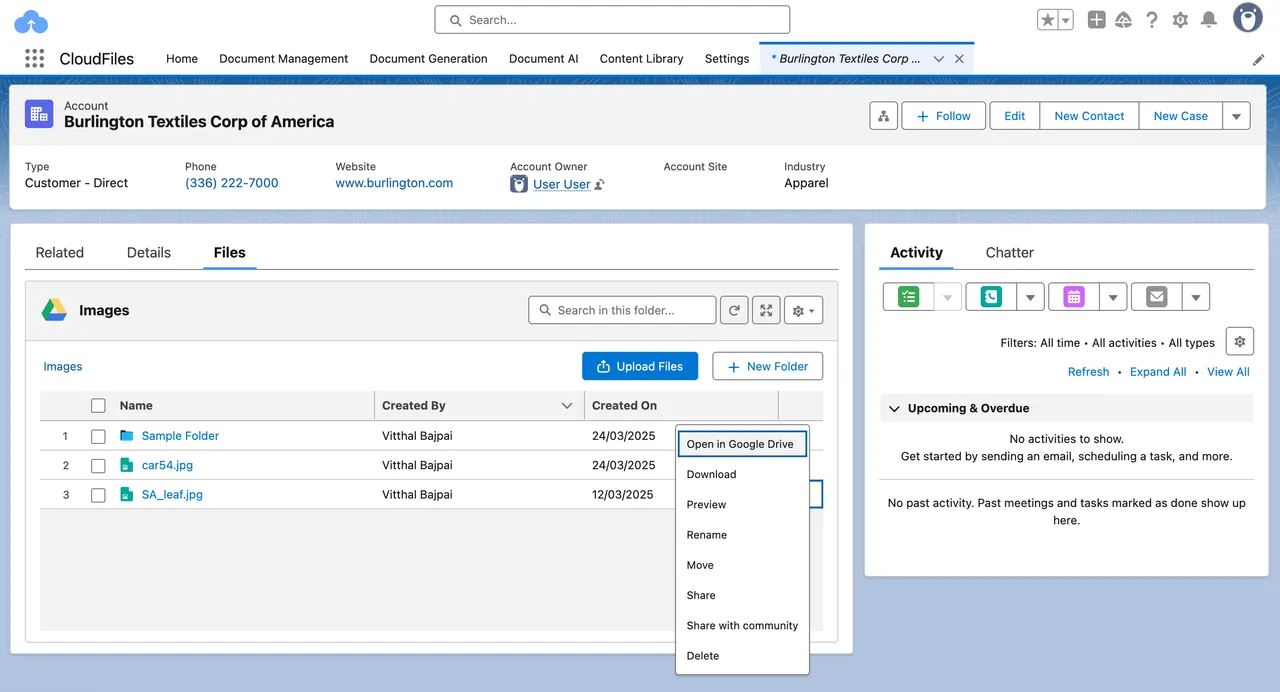
CloudFiles exposes record-linked external folders inside Salesforce through its widgets — Internal Record Widget and Content Library Widget — so users can upload, preview, move, rename, delete, and manage folders without leaving Lightning. These widgets are the internal workspace layer where files are organized and prepared for sharing.
The Internal Record Widget is placed directly on standard objects (Account, Opportunity, Case, Lead, etc.) or custom objects. It shows the external storage folder linked to that record and allows users to work on those files without leaving Lightning. The widget is record-aware: what you see is always the folder mapped to that record, not a generic storage browser. Users can manage documents and folders in the external storage layer with standard actions like: upload new files to the linked folder, preview files directly in Salesforce UI, download files, rename files/folders, move files/folders between subfolders, delete files/folders, navigate the linked folder hierarchy etc.
Share a single file/folder externally using CloudFiles Links
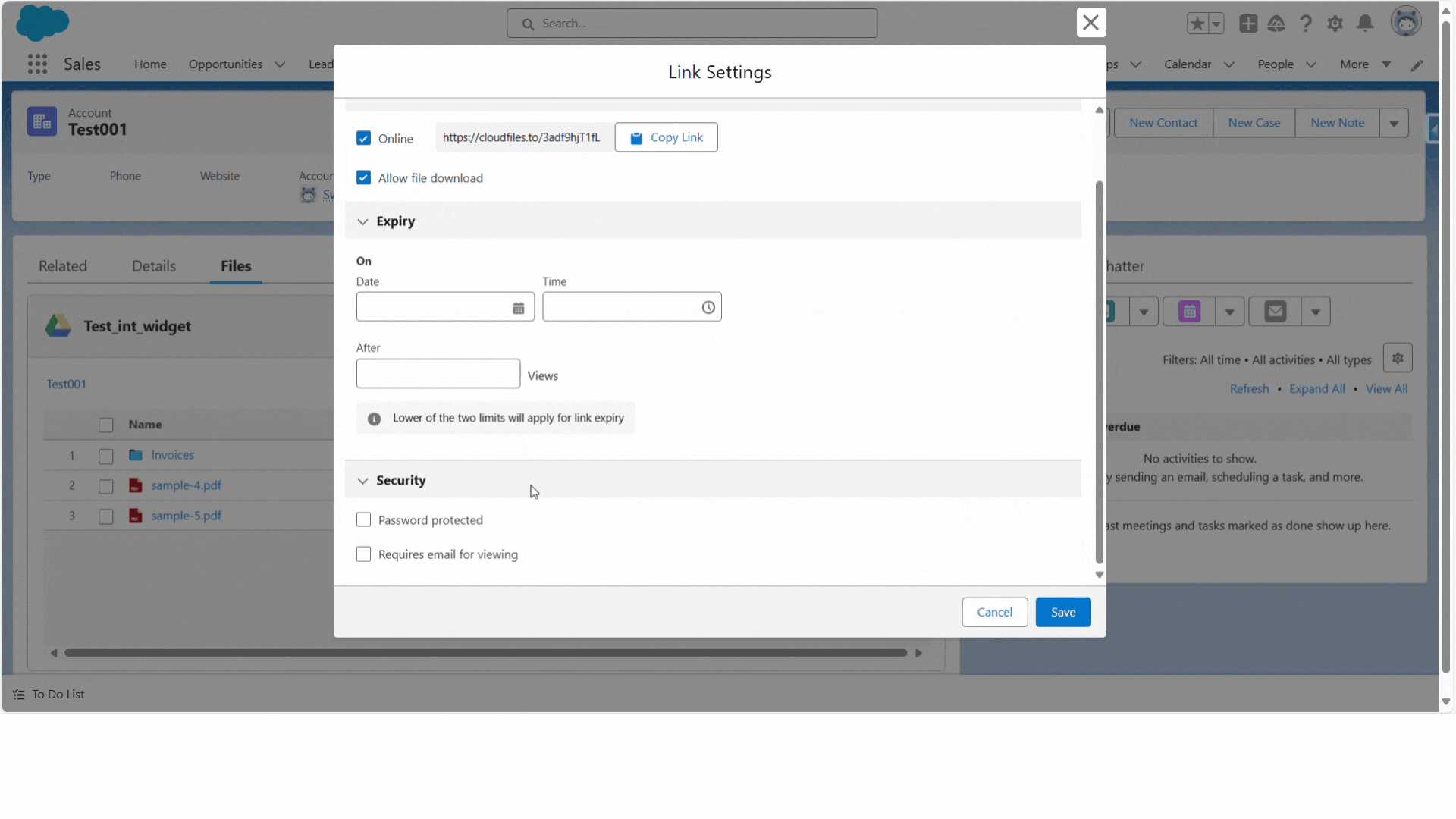
The widget exposes Create Sharing Link from the top-right settings dropdown. Users select a file or folder on the record → click Create Sharing Link → CloudFiles generates a CloudFiles URL (not a SharePoint URL). Creating the link opens the Link Settings modal right in Salesforce, where users configure the settings:
- Status controls: set Online/Offline, copy the URL, and decide whether downloads are allowed.
- Expiry controls: expire by date/time or by number of views (earliest rule wins if both set).
- Security controls: password protect, require email for viewing/verification, domain allow/deny, and recipient allow/block lists (depending on org policy).
Admins can also enforce org-wide Link Defaults so every user-created link inherits enterprise rules (e.g., “expiry 7 days + download off + email required”), while still allowing per-link overrides if desired.
CloudFiles also lets admins add Custom Actions to the Internal Record Widget that trigger Salesforce Flows: Resource Actions for single-item sharing tasks; List Actions for bulk sharing tasks (appear on multi-select) These actions show as buttons inside the widget, so teams can run governed sharing steps like “Send pack to customer,” “Create dataroom for stage,” or “Request missing documents” directly from the record UI
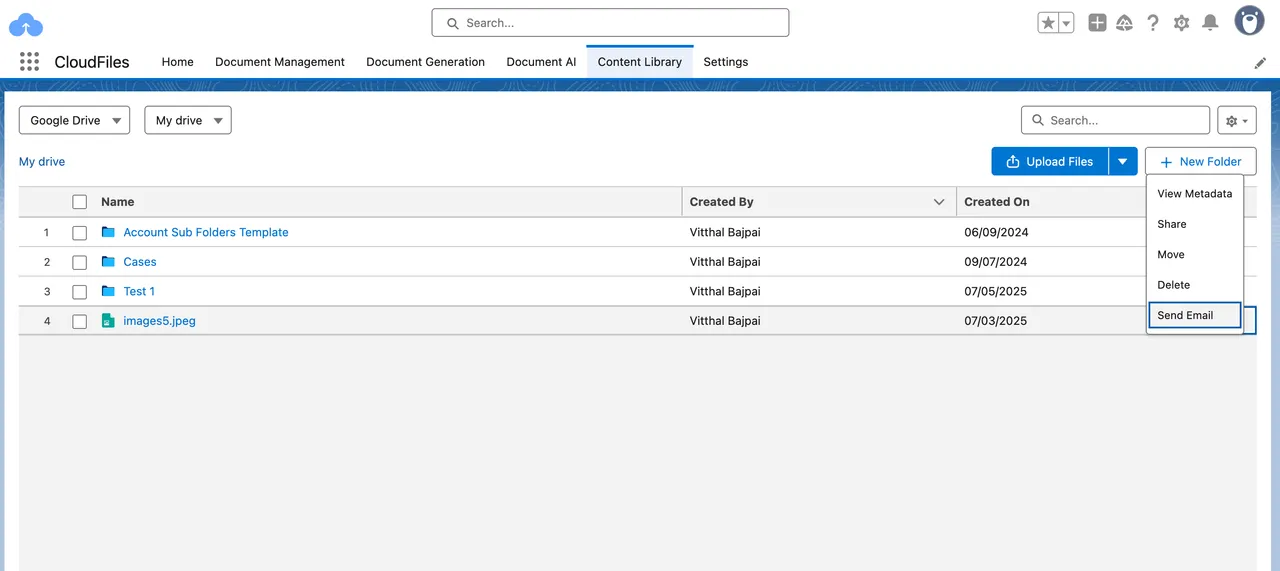
While the record widget is per-record, the Content Library Widget provides a centralized internal library tab in Salesforce. From a sharing lens, the Content Library is useful for:
- locating frequently reused assets
- generating sharing links for shared collateral without needing to open a specific record first
- collecting folders/files into Datarooms as curated external packs
So internal sharing doesn’t stay trapped inside one record - it scales across the org.
Internal governance that affects sharing quality
Both widgets respect Salesforce record access + storage permissions, so internal users can only share what they are allowed to see in storage and in Salesforce. Admins can also standardize internal folder structures using Flow-driven widget actions (example: auto-creating a fixed hierarchy per record), ensuring that what gets shared externally follows a predictable, compliant structure.
Note for Enterprise - For enterprises, internal sharing fails when people must jump to SharePoint to prep documents, fix structure, or create links - because governance fragments across tools. CloudFiles avoids that by making the Internal Record Widget the single internal surface where documents are prepared, governed, and shared outward, with per-object admin configuration and Flow-based standardization. That’s why CloudFiles internal sharing scales cleanly even when you have thousands of records and multiple teams sharing from the same storage foundation.
2) External Sharing & Collection
Once documents live in record-linked storage, CloudFiles gives you three external sharing surfaces - arranged from simplest to most enterprise-grade. All three are CRM-governed (not storage-governed), and all support both outbound sharing and inbound collection when needed.
You can think of the external layer like this:
- CloudFiles Links → share a single file/folder securely
- CloudFiles Datarooms + File Requests → share a curated pack and collect documents back
- Experience Cloud Widget → give ongoing portal access + high-volume intake tied to records
This progression matters because enterprise external workflows rarely stop at “send a link.” They usually require packaging, governance, collection, and ongoing access — and CloudFiles covers each step natively.
2.1) Share individual files/folders via CloudFiles Links
When a user shares a file or folder from Salesforce, CloudFiles generates a CloudFiles Link - a governed URL that wraps the underlying storage asset. The recipient doesn’t receive a raw SharePoint/Drive URL; they receive a CRM-controlled link surface with the rules of that share baked in. This is your simplest external share: one asset, one governed link, full Salesforce control. Unlike SharePoint-native connectors, CloudFiles generates a CloudFiles URL (not a SharePoint URL), so external recipients don’t see your SharePoint domain or internal directory structure. This is the default behavior across UI sharing and automation.
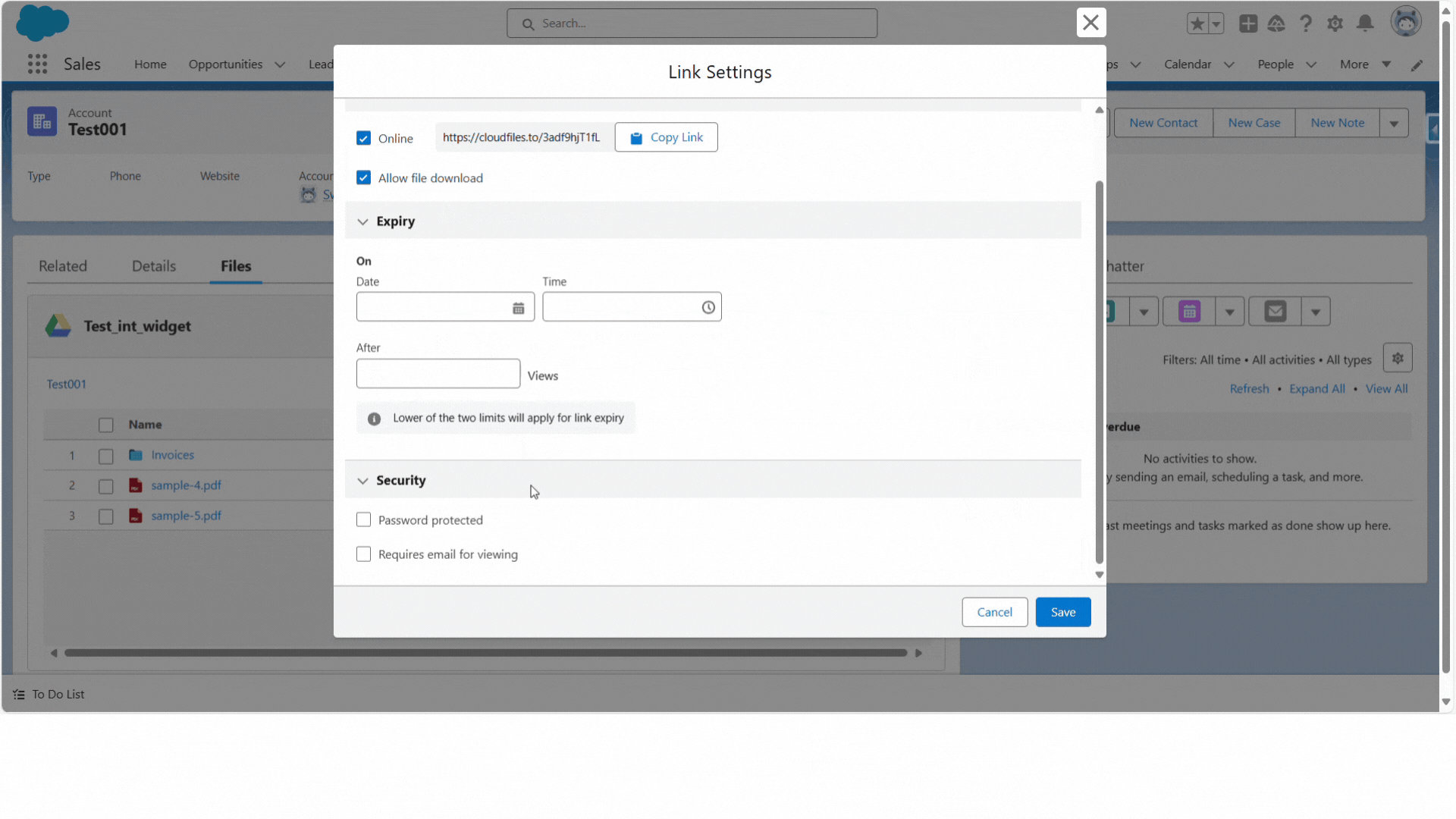
Links can be generated from the widget. Each link is treated as an independent sharing surface with its own security rules - changing one link doesn’t affect other links on the same file, giving admins per-share governance.
2.2) Share curated packs + collect uploads back via Datarooms)
When the workflow needs more than one file, CloudFiles moves from “link sharing” to workspace sharing using Datarooms. A dataroom bundles multiple files/folders into a single branded external space, published through one CloudFiles Link.
What makes datarooms enterprise-grade is that they support collection, not just distribution:
- File Request blocks let recipients upload required documents back
- uploads land directly into the correct record-linked folder
- access to the whole pack can be revoked from Salesforce with one action
So Datarooms cover the “share a pack, collect a pack” pattern that shows up in onboarding, due diligence, claims, audits, vendor management, etc.
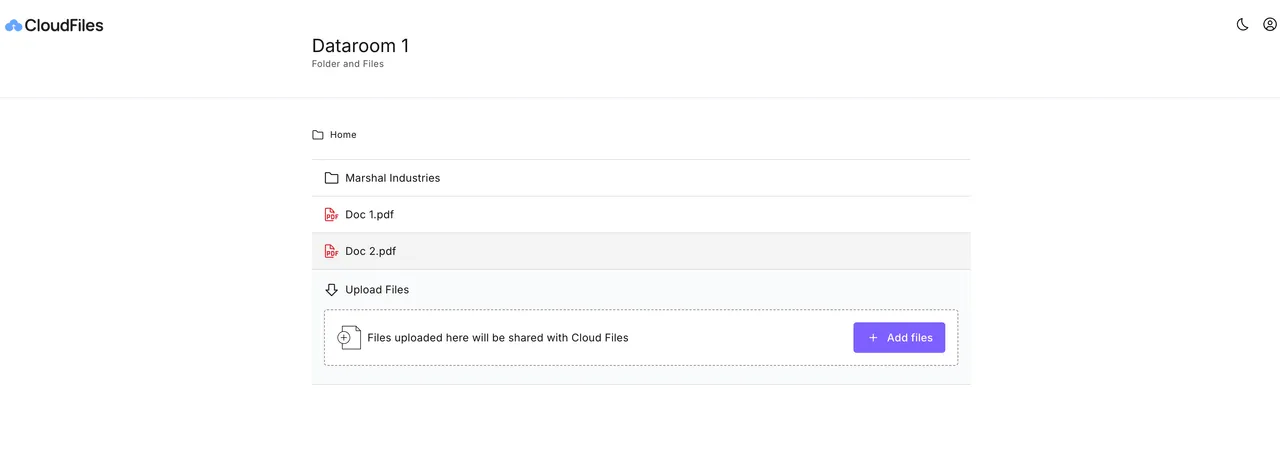
A dataroom lets you collect multiple files/folders into a single externally shareable space and publish one CloudFiles link for the whole bundle. Datarooms also support grouping/sections so packs stay structured for the recipient. Crucially, datarooms support File Request blocks - recipients can upload required documents back into the exact record-linked SharePoint folder, without needing SharePoint access or exposing storage paths.
2.3) Experience Cloud / portal sharing and intake
Standard Salesforce file components in Experience Cloud often hit storage limits, while giving external users direct access to SharePoint folders creates a licensing and security nightmare. CloudFiles treats Experience Cloud (Community) portal as a governed interface layer on top of your storage. You simply drop the CloudFiles component onto your community pages, and it acts as a native extension of the Salesforce record—handling uploads, downloads, and folder navigation while keeping the data securely in SharePoint.
The Architecture: How It Works
At the center is the CloudFiles Experience Cloud (community) widget. You drop the same CloudFiles component you use internally onto an Experience Cloud page, and it renders the record-linked folder contents for that external user. Portal users can preview, upload, download, search, and even replace files directly from the site, while the content actually lives in your connected storage (like SharePoint).
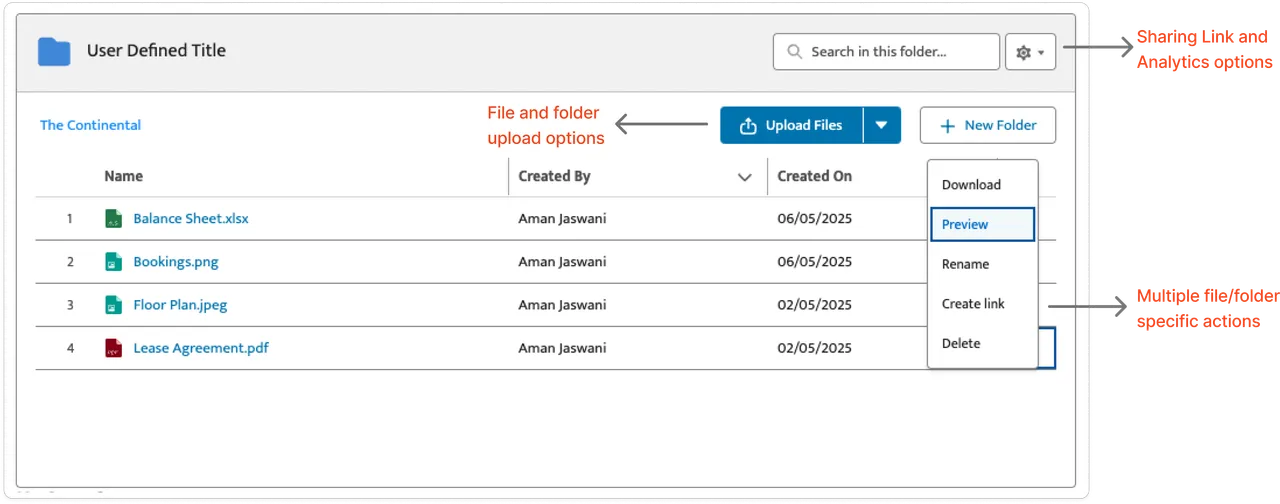
Once deployed, the Experience Cloud widget supports the same governed operations for external users that internal users get, including:
- Upload (drag-and-drop supported)
- Preview in the portal UI
- Download
- Search within the linked folder
- Folder navigation, and (if permitted) create/rename subfolders
- Replace/update files directly in storage
Setup at a glance
CloudFiles keeps portal rollout light and Salesforce-native: Connect storage + map folders to records using standard CloudFiles record-folder mapping. Drop the Experience Cloud Widget onto the community page in Experience Builder and bind to record context. Assign the CloudFiles External User Permission Set to portal users.
Permissions: Governance via Permission Sets
With CloudFiles, you do not need to manage SharePoint Guest users or worry about Microsoft licensing for your community. Access is defined strictly by the CloudFiles External User Permission Set.
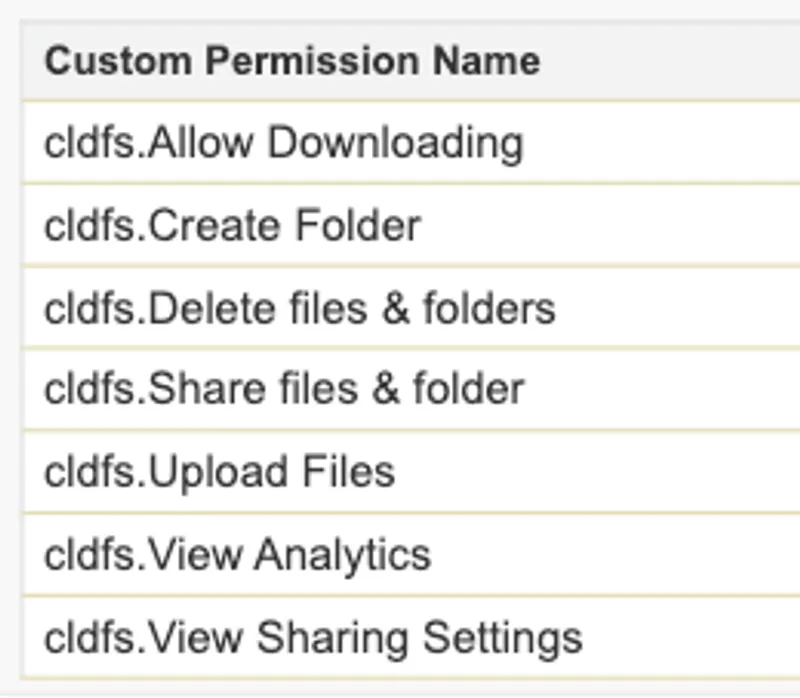
This permission set dictates exactly what the external user can do within that folder, regardless of their SharePoint status:
- View Only: Users can preview and download files but cannot make changes.
- Upload & Edit: Users can add new files, rename documents, and create sub-folders.
- Delete Control: You can grant or revoke the ability to delete files.
This keeps the governance model where it belongs: inside Salesforce Setup, managed by the Salesforce Admin, ensuring that your portal acts as a secure, functional workspace rather than just a list of links.
Real-time, single-folder collaboration
CloudFiles uses a single-folder, dual-audience architecture: the storage folder linked to a record is simultaneously visible to portal users via the Experience Cloud widget and to internal users via CloudFiles internal widgets. This delivers instant internal visibility of portal uploads without scheduled syncs.
Documents Intake - One of the important use case for this component is streamlining high-volume, even sensitive, documents collection like - identity documents, claims evidence, or onboarding forms.
- Drag-and-Drop Uploads: External users can drag large files directly onto the widget in your portal.
- Zero Storage Impact: These files bypass Salesforce storage entirely and stream directly into the mapped SharePoint folder.
- Instant Availability: Because internal teams view the same folder via the Internal Record Widget, they see the customer's uploads instantly. There is no sync delay and no need to check emails for attachments.
Why this is enterprise-right? The portal experience is CRM-governed, not storage-governed. You avoid Salesforce storage overages, avoid storage guest-user sprawl and licensing, keep access control auditable in Salesforce permission sets, and still give external users a full folder workspace tied to the record they’re working on. That combination - storage-native documents + Salesforce-native governance + real-time dual-audience access - is what makes Experience Cloud viable for enterprise intake and collaboration at scale.
Automate sharing through Salesforce Flows
You can automate the entire process of link creation, sharing, and governance using Salesforce Flow and CloudFiles flow actions. This shifts sharing from a manual, ad-hoc task to a structured, system-owned process.
The architectural distinction here is critical: CloudFiles Flow actions do not simply fetch a raw SharePoint URL. They generate CloudFiles Links — governed, branded, and trackable objects that open in the CloudFiles secure viewer. This means that every automated email sent by your system carries the same security and analytics DNA as a link manually created by a user.
What automation looks like in CloudFiles
CloudFiles exposes a set of Flow actions designed specifically around secure external distribution and collection:
A) Create a CloudFiles sharing link from Flow
Admins use the Create Link Flow action to generate a shareable link for a file, folder, or dataroom. The Flow passes the resource (file/folder/dataroom), record context, and storage reference; CloudFiles returns a CloudFiles Link ID + URL to store on the record or send via email/Experience Cloud automation. Beyond internal links, CloudFiles also supports automated portal access using Flow actions Share With Community User that lets a Flow explicitly grant a file/folder to Experience Cloud users or pages, so portal visibility is controlled from Salesforce process logic, not by exposing a storage directory.
B) Create a Dataroom automatically
Use Create Dataroom Flow action when you need a one-link “bundle” experience (proposal pack, onboarding kit, compliance checklist). The dataroom acts as the governed container that will later be shared via a single CloudFiles Link.
C) Add files/folders into the Dataroom via Flow
The Add Resource to Dataroom Flow action lets you programmatically add multiple record-linked folders or files into that dataroom. This is what makes “send the whole deal pack” repeatable without reps hand-selecting documents every time.
D) Add a File Request block for inbound collection
With Create File Request + Add File Request to Dataroom Flow actions, you can attach an intake step to the same shared link. External users upload through the CloudFiles viewer, and files land directly into the correct record-linked SharePoint folder.
E) Control link settings after generation (still in Flow)
After a link exists, it remains manageable in Salesforce: Flows can drive status, expiry, download policy, and security updates by updating link settings on the record-linked CloudFiles Link. The Manage Links + Security Control model is built so links stay editable and auditable from Salesforce, not from storage admin consoles.
Note for Enterprise: Since these links are first-class Salesforce artifacts, you can build automation patterns that stay CRM-aware instead of storage-aware, few examples
- Stage-based outbound packs: Record-triggered Flow creates a dataroom when an Opportunity hits a stage, adds the right folders (pricing, MSA, case studies), generates one CloudFiles Link, and emails it. Later, the same Flow can tighten rules (view-only, domain allow-list) if the deal moves into legal/procurement.
- Structured inbound document collection: For onboarding/KYC/claims, Flow creates a dataroom + file request blocks, sends a single governed link to the customer, and auto-files uploads back into record-linked storage.
- One-link experience instead of many links: Dataroom automation produces one controlled entry point even when multiple files/folders are involved - cleaner for customers, easier to revoke, and safer than distributing a list of storage links.
To sum up, CloudFiles’ Flow actions don’t just automate sharing. They automate the entire governed sharing lifecycle - create the right bundle, share through a single branded CloudFiles Link, collect files back, and keep link controls CRM-aware over time. That’s why this model holds up as document volume and process maturity grow across hundreds or thousands of records.
Analytics & Reporting
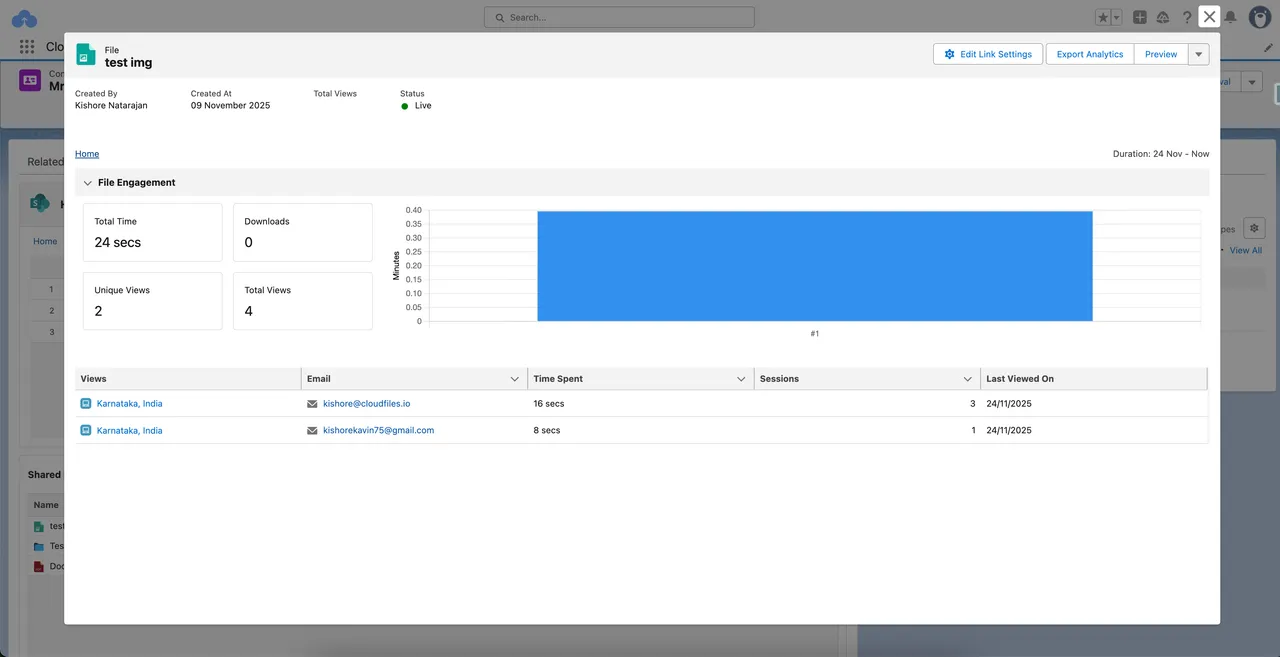
The usual problem with storage-native link sharing is that Salesforce can only tell you that a link was sent, not what happened after. CloudFiles closes that loop by making every external share a CloudFiles Link that opens in the CloudFiles viewer, and then writing the engagement back to Salesforce. In practice, once you create a link from the widget, you can open View Analytics right on the same record and see if the document is doing its job.
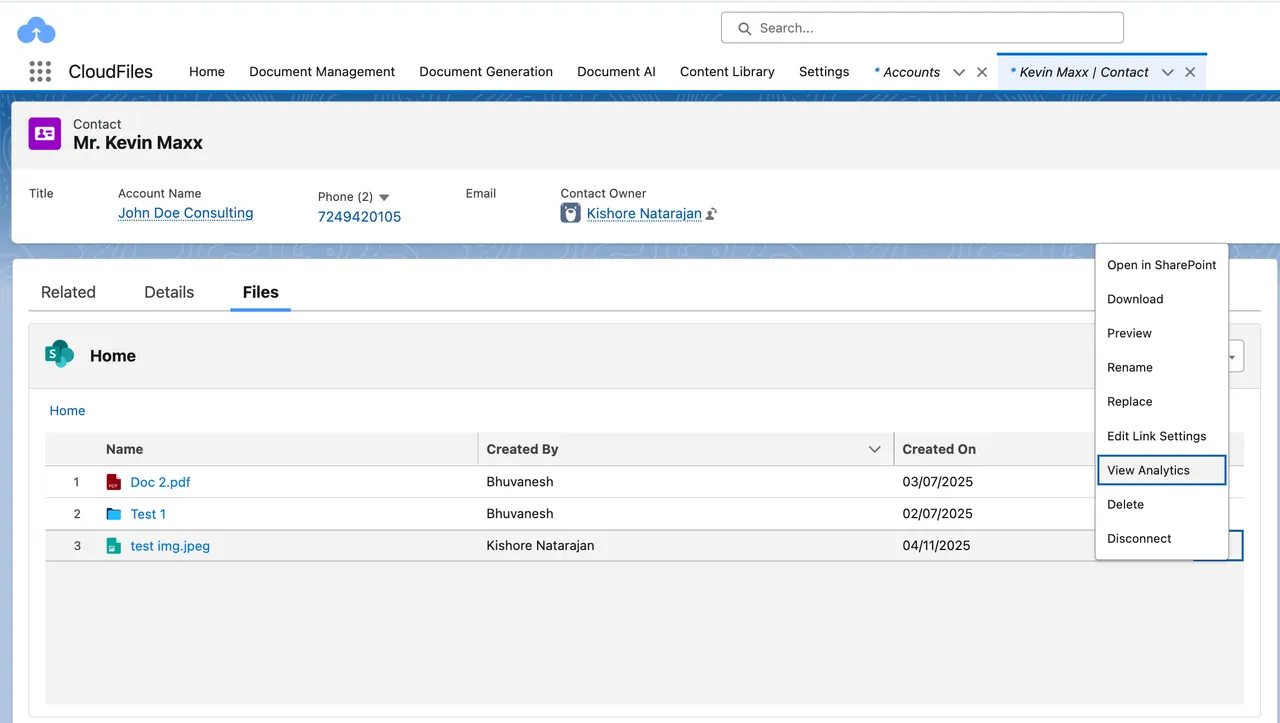
What CloudFiles tracks
Since the file is rendered through the CloudFiles viewer, the platform captures interaction events per link, not just at storage level. You get the standard engagement stack:
- Total + unique views, download count, total time spent. These are the headline metrics visible for every shared link.
- Page-wise engagement/time spent per page (PDFs). CloudFiles exposes page-level analytics so you can see where attention clustered or dropped off, not just “viewed once.”
- Viewer/session detail. Analytics drill down to per-viewer sessions, last viewed timestamps, and time per session, giving you a usable trail rather than a flat counter.
- Identity when gated. If you enable “Require Email” / verification in link settings, the views are tied to known emails (instead of anonymous traffic)
How those signals become Salesforce actions
CloudFiles doesn’t leave this data in a separate portal. The analytics window is accessed from the CloudFiles widgets on the record, so reps and admins see engagement in Salesforce context.
There are 2 practical outcomes come out of this -
1 - Flow-driven follow-ups. CloudFiles provides Flow actions around link creation and link-setting updates, so admins can automate sharing and then branch logic based on engagement thresholds (e.g., “if viewed twice / time spent > X, alert owner, update stage”).
2- CRM-native reporting. Since engagement is attached to links that live on records, teams can report on “most viewed proposals,” “assets opened per stage,” or “customers who haven’t accessed onboarding docs,” using normal Salesforce dashboards.
Note for enterprise teams: CloudFiles makes sharing a Salesforce-governed workflow, not a raw SharePoint export: links/datarooms are created from records or Flow with CRM-level controls. Since content opens in the CloudFiles viewer, engagement is captured per link (views, downloads, time, page-wise PDF attention) and written back to the record. Admins can automate follow-ups off these signals in Flow, and leaders can report on document impact in standard Salesforce dashboards.
To sum up, CloudFiles lets you manage and share external-storage documents from Salesforce end-to-end: internal widgets surface record-linked folders for collaboration, CloudFiles Links provide CRM-governed external sharing with strong security/expiry defaults, Datarooms + File Requests enable packaged sharing and intake, Experience Cloud extends this to portals, Flows automate it all, and engagement analytics write back to Salesforce.
sFiles — SharePoint-native sharing surfaced in Salesforce
sFiles follows a SharePoint-native sharing model. When users share externally from Salesforce, sFiles isn’t generating a governed CRM link layer - it simply calls Microsoft’s SharePoint sharing endpoints and returns a standard SharePoint Online URL. Even its automation is named accordingly (“Create SharePoint Sharing Link”), making the architecture clear: Salesforce is the surface, SharePoint stays the control plane. The result is clean, Microsoft-governed sharing inside Salesforce, but without a separate dataroom layer or Salesforce-native engagement analytics.
What the sFiles sharing process looks like
1 - Share individual files or folders via SharePoint links
sFiles allows users to generate a shareable link for a single file or folder directly from the sFiles component, but the link is always a native SharePoint Online sharing URL. To enable this, an admin must turn on the relevant feature permission in SharePoint Object Settings (sFiles documents this under Feature/Link Sharing permissions; once enabled, it exposes a Share button in the component header).
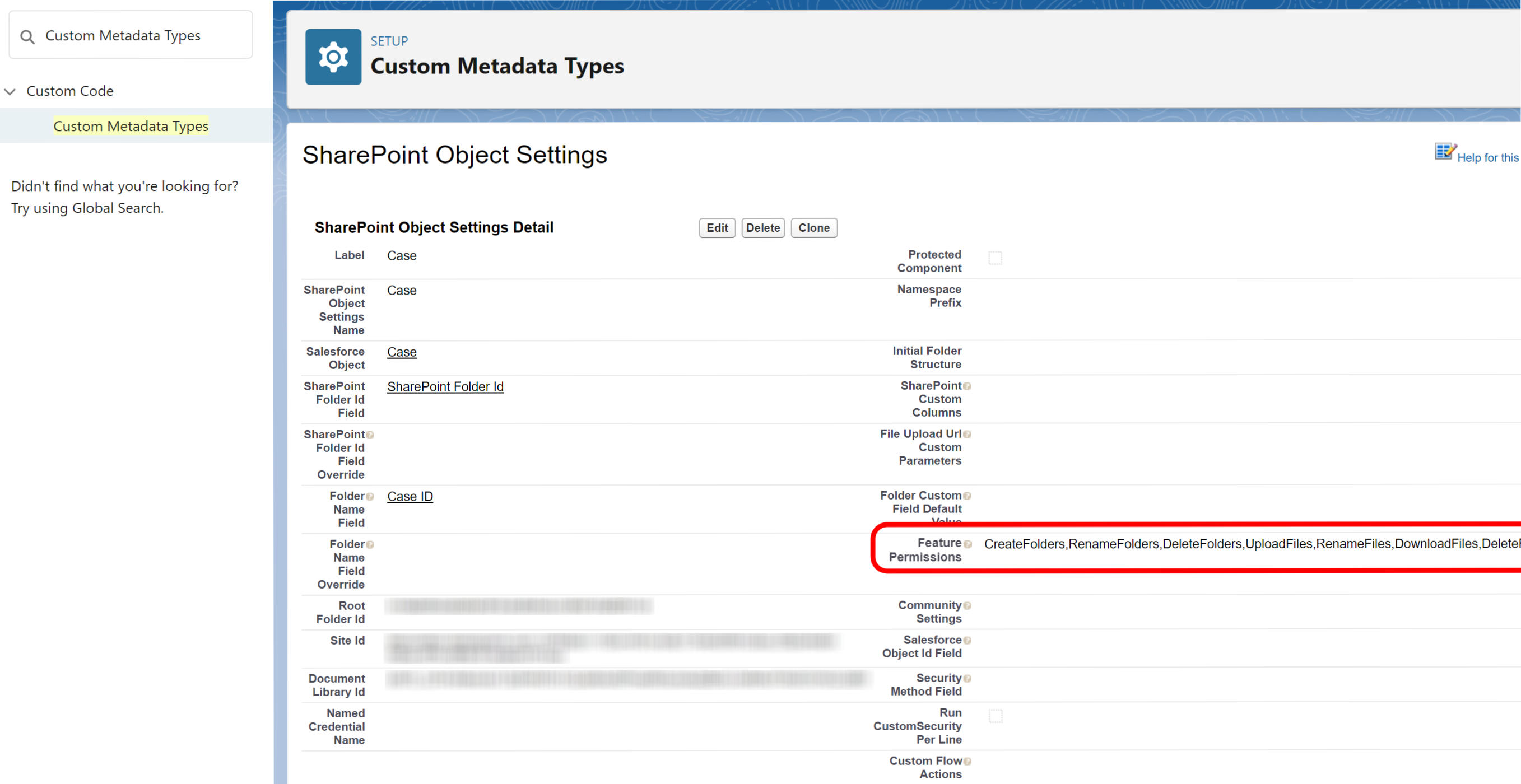
A user then opens the sFiles widget on a record, selects the specific file or folder, clicks Share → Create Link, and chooses the SharePoint link type they’re allowed to use (public/org/specific people, view/edit, etc., driven by Link Sharing Settings). sFiles calls Microsoft’s SharePoint link-creation endpoint via its connector layer and returns the generated SharePoint URL back into Salesforce for copying or pasting into an email or chatter post. Source
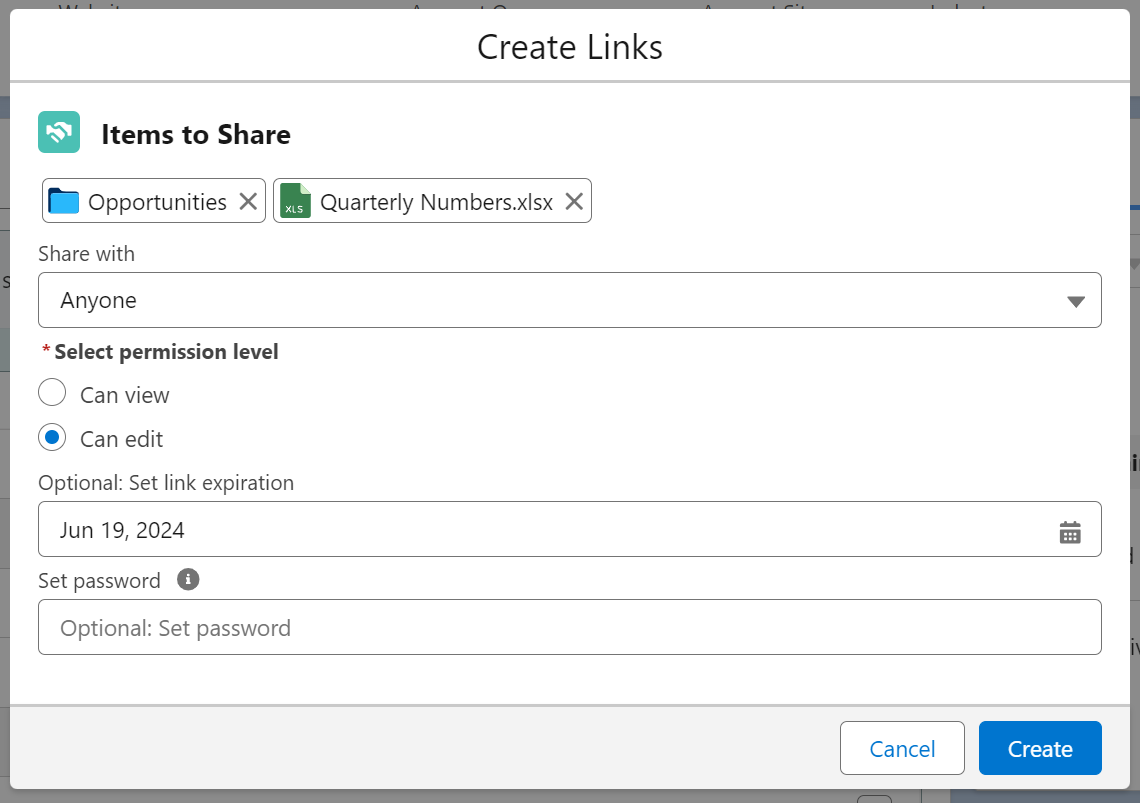
Enterprise shortcoming: Since the output is a raw SharePoint link, recipients see your SharePoint domain and often the underlying site/library/folder structure. Even with strong M365 security, many enterprises treat exposing internal directory context through external URLs as a governance and hygiene risk and sFiles has no alternate “masked” or CRM-governed link layer to avoid that.
2) Share multiple files/folders together via email (links)
sFiles Enterprise lets users share several SharePoint items at once straight from Salesforce. Once an admin enables the feature (via CreatePublicLink in SharePoint Object Settings), a Share button appears inside the sFiles component
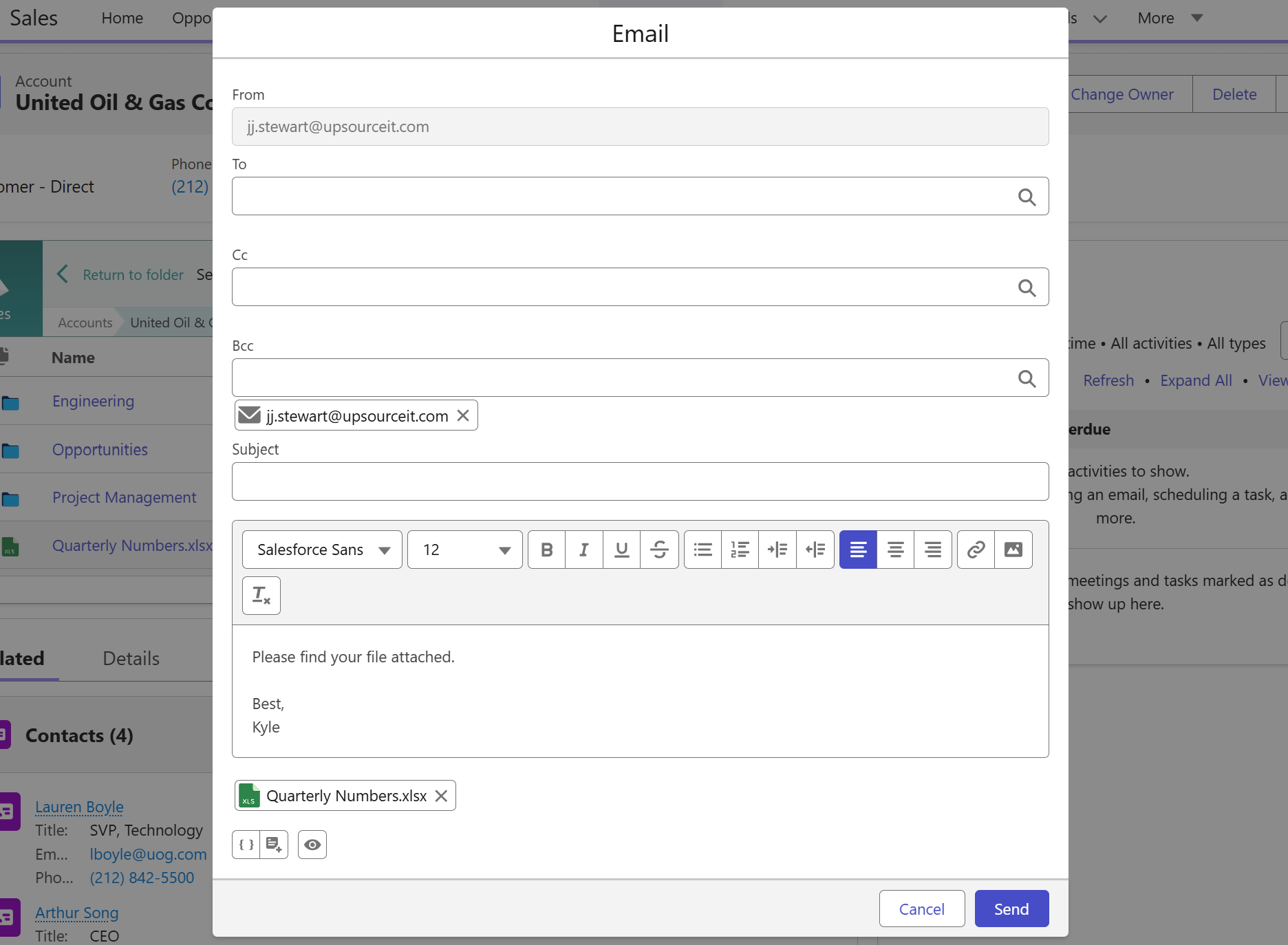
Users can checkbox-select multiple files or folders, click Email Links, and sFiles generates a separate SharePoint Online link for each selected item. A pop-up then lets the sender set recipients and apply SharePoint link options such as expiry date and password (only if those modes are allowed by tenant policy and Link Sharing Settings).
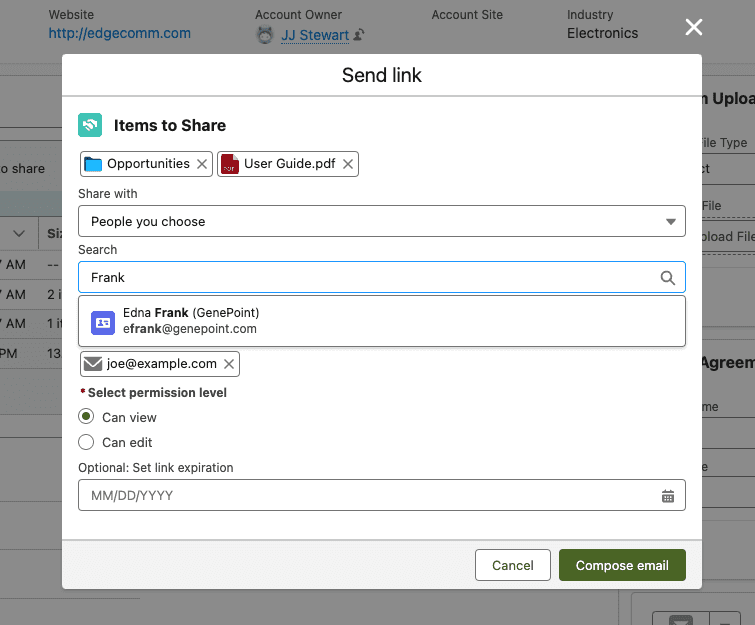
After that, sFiles opens the standard Salesforce email composer and injects the generated SharePoint URLs into the email body - either by replacing the merge token {{{SFILES_SHARELINKS}}} in a configured template or by dropping the links into a blank email.
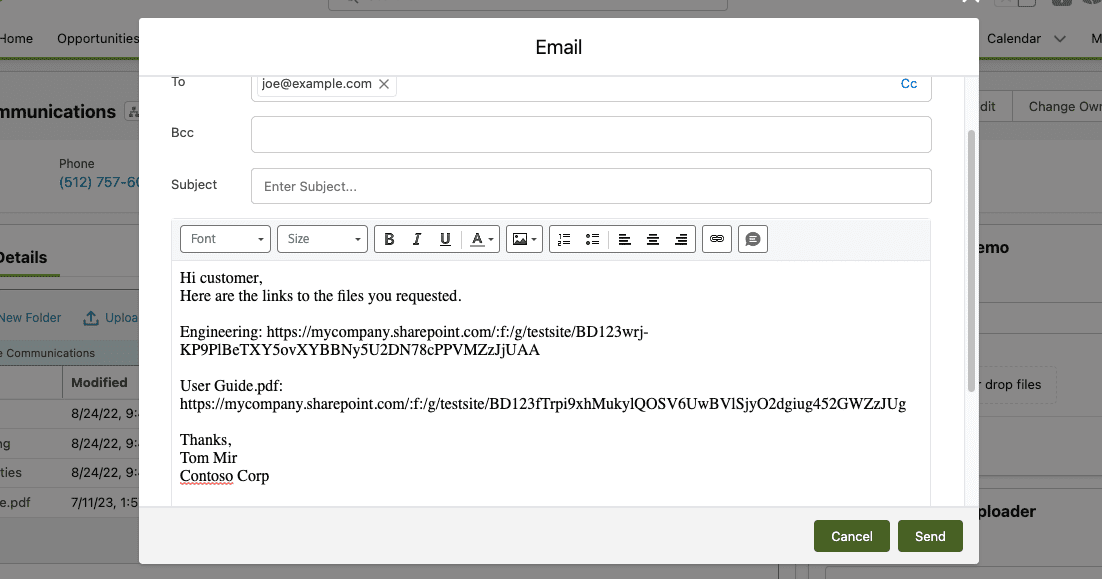
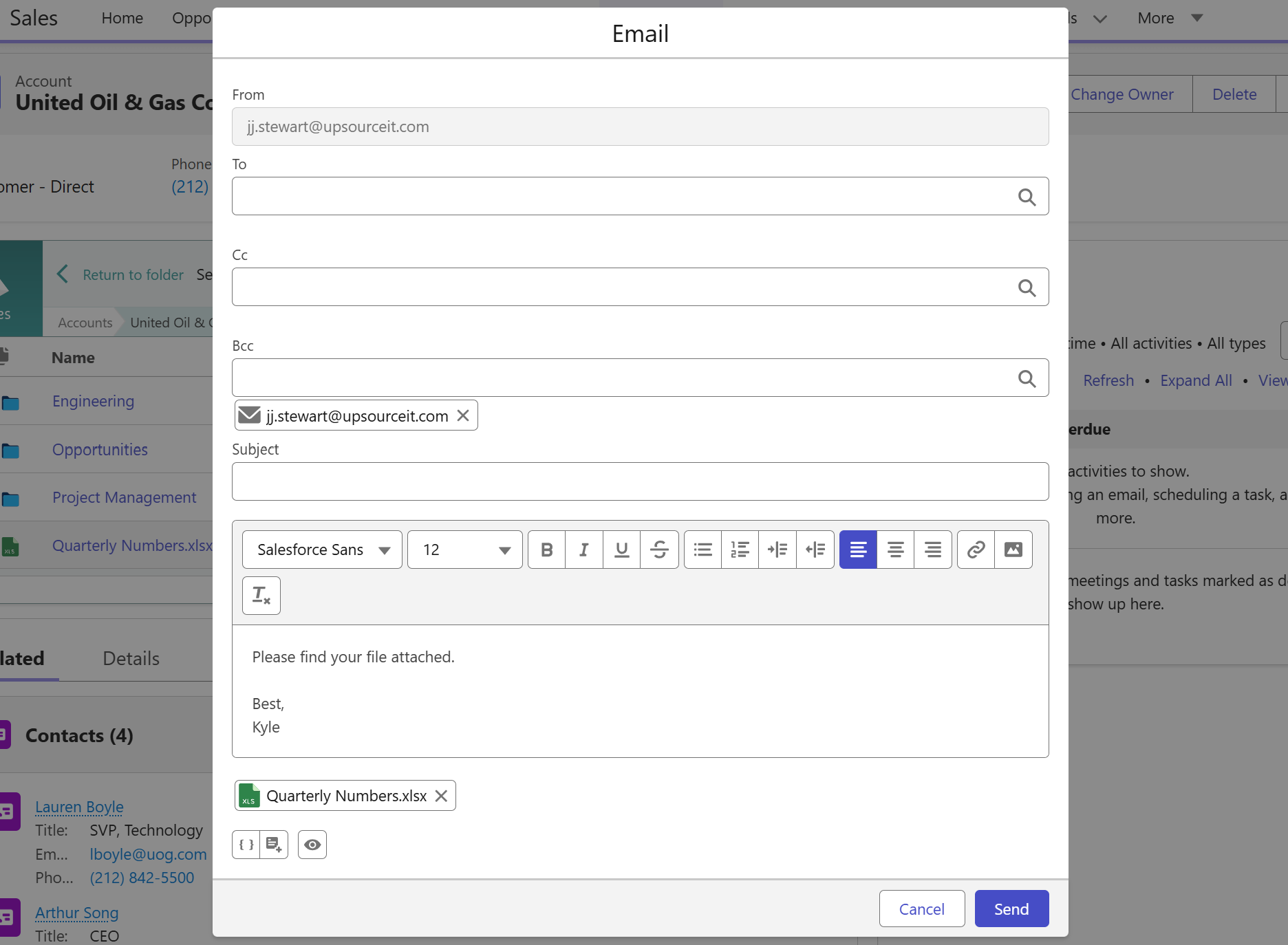
Why this is limiting for enterprise sharing:
- The recipient still receives a list of raw SharePoint links, not a single governed bundle or curated external workspace, so the experience is noisy and easy to forward out of context.
- Also, sFiles’ “Email Attachment” path is constrained: only files under 5MB can be attached, folders can’t be attached, and Salesforce’s own 25MB total email limit applies
- sFiles also notes emails can’t be sent until attachments finish preparing.
- Finally, sFiles confirms that Email Links aren’t supported on Salesforce mobile (mobile users can only send attachments).
Source: Share files or folders via Email
3) SharePoint link controls (expiry, password, permission level)
sFiles lets admins control link behavior by configuring Link Sharing Settings inside SharePoint Object Settings. These settings determine which SharePoint Online link types users can generate from Salesforce across Create Public Link, Create Sharing Links, and Share via Email. In practice, this gives you SharePoint’s core controls surfaced in sFiles: admins can lock or expose scope (Anonymous / Organization / Users), permissions (View vs Edit for files and folders), and expiration rules, and users can apply options like password + expiry when those are allowed by the tenant.
The key is that sFiles is not enforcing these rules itself, it’s passing the chosen settings to Microsoft 365, and SharePoint remains the authority for what’s permitted and how it’s enforced.
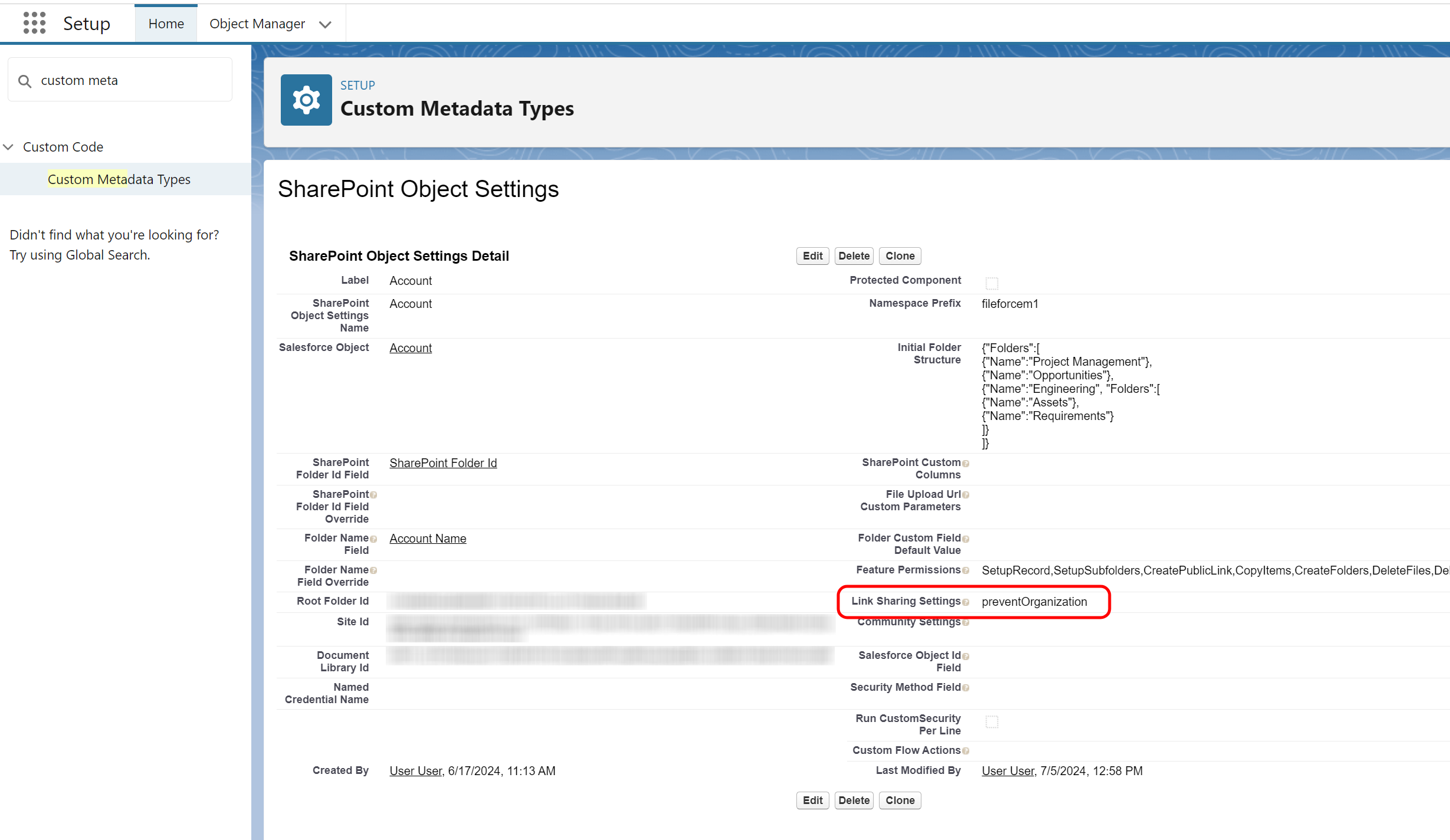
Why that’s not enough for many enterprises: because the control plane stays tenant-wide and storage-native. You can standardize SharePoint link modes, but you can’t make sharing “CRM-aware” (e.g., stricter rules for certain deal stages, domain allow/deny by record, identity gating steps, view-only toggles driven by Salesforce logic, or CRM-side revocation/monitoring). sFiles’ sharing settings only map to SharePoint’s link engine, so anything beyond what Microsoft allows globally needs separate policy or custom build.
4) Automate sharing links through Flow (still SharePoint links)
sFiles Enterprise lets admins automate external sharing using the Create SharePoint Sharing Link Flow action. In a Flow, you drop this action in, pass the target SharePoint file or folder (by ID/path via the object settings context), and choose the link mode using the same SharePoint options your tenant allows (permission level, expiry, password, etc.).
sFiles runs this action through its flow-enabled Apex layer and returns a SharePoint Online sharing URL back to the Flow for storage on a record or insertion into an email template. The key point is architectural: even when automated, the shared artifact is still a native SharePoint link, not a Salesforce-governed link surface.
sFiles’ own documents label the action explicitly as “Create SharePoint Sharing Link,” and their Link Sharing Settings clarify that all sharing paths (Create Public Link, Create Sharing Link, Share via Email) are configuring SharePoint’s link engine rather than introducing a separate layer.
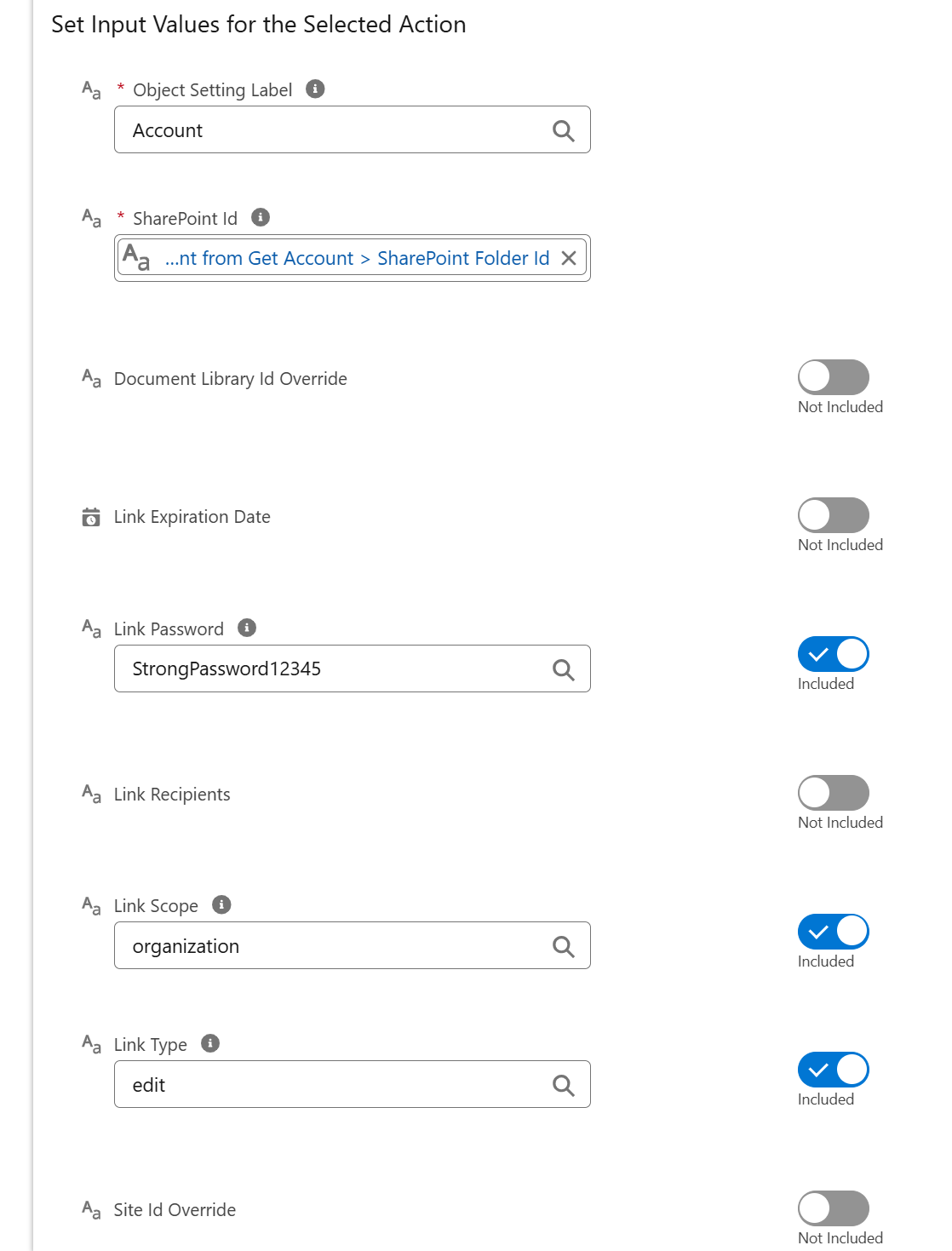
Enterprise implication: Flow automation makes sharing repeatable, but since the output remains a direct SharePoint URL, enterprises still don’t get a Salesforce-native governed sharing surface or a bundled, single-entry pack experience from automation.
6) Experience Cloud / portal sharing
Experience Cloud is an Enterprise-only capability in sFiles. In this plan, sFiles ships two community-specific LWCs: communityUploader and communityList. The uploader lets Experience Cloud users upload files directly into a record-linked SharePoint folder, and the list view shows all files/folders that user has permission to see, with downloads handled through “secure dynamically generated hyperlink[s]” to SharePoint. Both components are designed to run in record context.
- Create separate SharePoint Object Settings for community use and generate the encrypted settings key.
- Configure community auth (Named Principal or per-user).
- Drop the two components on the Experience Cloud record page with
recordId+ the encrypted key.
Behind the scenes, sFiles expects each SharePoint folder to carry a Salesforce Id (for example via custom columns and “Folder Custom Field Defaults”), so it can enforce Salesforce sharing rules when showing content to portal users. sFiles’ Experience Cloud documents also expose a Community_Event__e platform event you can subscribe to if you want to run custom logic after uploads/downloads. Source
Why this is not ideal for enterprises
From an enterprise lens, this model has some real constraints:
- The portal is essentially a SharePoint folder browser inside Experience Cloud, not a CRM-governed external workspace - no curated datarooms, no file-request flows, just upload/download into whatever folder is mapped.
- The whole setup depends on correct SharePoint metadata and configuration (Object Settings, encrypted keys, SalesforceId in each folder, Named Principal or per-user auth). sFiles’ own “Best Practices” and troubleshooting documents call these out as required prep, which makes rollout brittle at scale.
- Downloads are exposed through SharePoint-generated hyperlinks, so external collaboration is still storage-centric rather than being governed at the Salesforce layer.
- There is no built-in engagement analytics in Salesforce for portal file access - at best you get a platform event hook per upload/download and then must build your own reporting, while deeper consumption telemetry lives in Microsoft 365 audit logs.
So yes, sFiles Enterprise does “support Experience Cloud”, but what you really get is a way to surface record-linked SharePoint folders in portals - not a higher-level, Salesforce-native external sharing and intake model.
7) Analytics & Engagement tracking
In sFiles, whether a user shares via Email Links from the UI or generates a link through Create Sharing Links / Create SharePoint Sharing Link (Flow), the outcome is the same: sFiles produces a native SharePoint Online sharing URL and hands it back to Salesforce. The Salesforce side can log the act of sharing only when it happens through email (because Salesforce is sending the email and records that activity).
But once the recipient clicks the SharePoint link, any downstream engagement - opens, repeat views, downloads, or viewer identity - is governed and visible only in Microsoft 365/SharePoint audit layers, since the link itself is SharePoint-native and sFiles does not add a telemetry layer that writes engagement events back into Salesforce.
Salesforce teams can’t see whether assets were opened without checking SharePoint logs. That removes a key CRM signal for deal follow-ups, onboarding progress, or compliance verification.
To sum up, sFiles gives Salesforce users a straightforward way to share SharePoint content: create native SharePoint links for single files, multi-select links via email, and automate link creation through Flow — all governed by tenant SharePoint policies. That simplicity comes with trade-offs: external recipients receive raw SharePoint URLs, sharing can’t be CRM-aware beyond Microsoft’s global rules, and there’s no Salesforce-visible engagement tracking after links go out. Portals also surface SharePoint folders rather than a higher-level external collaboration layer.
Summary
CloudFiles and sFiles both surface SharePoint (or other storage) inside Salesforce for internal file access, but they diverge sharply in sharing lifecycle ownership. CloudFiles treats sharing and collection as Salesforce-governed artifacts: users create CloudFiles Links (masked URLs with CRM-side status/expiry/security controls), bundle content and collect uploads via Datarooms + File Requests, extend governed access into portals through an Experience Cloud Widget , automate the same objects with Flow actions, and getSalesforce-visible engagement analytics(views, downloads, time spent, page-level PDF attention) tied to each link.
sFiles, in contrast, follows a SharePoint-native sharing model : sharing from UI or Flow produces native SharePoint Online URLs, governed primarily by Microsoft 365 tenant sharing settings, with no CloudFiles-style CRM-governed link layer, no bundled dataroom/collection surface, and no Salesforce-side engagement telemetry once a link leaves the org.
| Layer / Capability | CloudFiles | sFiles |
|---|---|---|
| Internal in-record collaboration | Internal Record Widget + Content Library Widget surface record-linked storage inside Salesforce; prep/manage files in context. | sFiles component surfaces record-linked SharePoint folders inside Salesforce. (Baseline internal access.) |
| Single-asset external sharing | CloudFiles Links: creates a CloudFiles URL (not storage URL) from widget or Flow; governed in Salesforce. | SharePoint links only: UI “Create Sharing Links” and Flow “Create SharePoint Sharing Link” return native SharePoint URLs. |
| Link governance controls | CRM-side controls per link: status on/off, expiry by date or views, password, email gating/verification, domain allow/deny, allow/block lists; org-wide Link Defaults. | Governed by SharePoint link engine + tenant “Link Sharing Settings.” Salesforce just surfaces what Microsoft allows. |
| Pack / workspace sharing | Datarooms bundle multiple files/folders (even cross-storage) into one branded shareable space. | No first-class dataroom/workspace layer; multi-share = multiple SharePoint links (often via email). |
| External file collection / intake | File Request blocks in Datarooms enable governed upload-back into the exact record-linked folder. | No built-in collection surface equivalent to File Requests; intake relies on storage/flow patterns. |
| Experience Cloud / portals | Experience Cloud Widget gives ongoing governed portal access + high-volume intake without exposing SharePoint guest licensing. | Experience Cloud support uses SharePoint-native community components; still surfaces SharePoint links/folders. |
| Flow automation of sharing | Flow actions create CloudFiles Links / Datarooms / File Requests and can update link settings later (CRM-aware automation). | Flow actions create SharePoint Sharing Links (storage-aware automation). |
| Engagement analytics in Salesforce | Built-in link analytics written back to Salesforce: total/unique views, downloads, time spent, page-wise PDF engagement. | No Salesforce-side engagement tracking after link click; telemetry lives in Microsoft 365 audit layer. |
1.4 Multi-storage support & future-proofing
CloudFiles is built as a storage-agnostic document layer in Salesforce: SharePoint can stay your primary system today, but CloudFiles abstracts storage through Libraries so the same Salesforce workflow still works if storage expands or changes later (acquisitions, regional drives, new repositories).
On top of that, CloudFiles is a full document stack, not just a connector - it includes native Document Generation and Document AI products, so admins can build end-to-end lifecycles inside Salesforce (extract data/verify/classify via AI → generate from templates → store to any connected library → share/collect → automate with Flow) without stitching together multiple vendors.
sFiles is a SharePoint-centric connector that surfaces and manages SharePoint folders in record context and supports automation via Flow/Apex APIs, but it doesn’t provide a storage-neutral abstraction inside Salesforce and it doesn’t include native document generation or AI understanding as part of its product surface. In practice, that means long-term storage diversification or doc-lifecycle automation needs additional tools around sFiles (separate document generation, separate AI extraction etc), so Salesforce can’t stay a single governed document stack through sFiles alone.
2 - Security & Architecture: Direct vs. Intelligent Intermediary
Security is usually the deciding factor for storage connectors, not because one vendor is “secure” and the other isn’t, but because they trust different architectural approaches. The enterprise way to evaluate this is: where files live, whether any third party processes content, how permissions are enforced end-to-end, and what evidence backs compliance claims.
CloudFiles: Transparent, Governed intermediary (with auditable proof)
CloudFiles is upfront about its model: SharePoint Online remains the system of record, and CloudFiles acts as a secure orchestration layer between Salesforce and SharePoint to enable governed workflows. This transparency shows up in two places.
First, CloudFiles publishes its security program and makes compliance artifacts available through a Trust Portal. It is CloudFiles’ Trust Center where customers can review the security posture and request access to evidence like SOC 2 reports, ISO 27001 certificates, pentest summaries, and privacy/compliance documents. Second, CloudFiles documents how access is granted and scoped in SharePoint using OAuth and recommends integration users restricted to only approved sites/libraries, so automated actions can’t roam outside defined boundaries.
Technically, this intermediary model is stronger for enterprise governance because it allows controls around the connector, not just through it:
- Encryption + resilience (verified in Trust Vault). CloudFiles encrypts data in transit with TLS and at rest with AES-256, and stores platform data across multiple availability zones for fault tolerance. Learn more
- Audited compliance (reports available in Trust Vault). CloudFiles is certified to ISO 27001 and independently audited for SOC 2 Type II, with evidence accessible to customers via the Trust Portal.
- Certified compliance posture: ISO 27001 certification and SOC 2 program with ongoing monitoring.
- Permission continuity: CloudFiles operations honor SharePoint permissions via the connected account and Salesforce context, so users can’t see or act on folders they don’t have rights to in storage.
Since CloudFiles sits in the middle, it can also log, govern, and automate document actions securely (e.g., Flow-triggered foldering/filing and controlled external sharing) without changing where data lives.
sFiles: direct native connector with “no middleware.”
sFiles is a Salesforce-native app that positions itself as having no middleware in the file path: it acts as a window into SharePoint Online and does not store files outside SharePoint. It also emphasizes alignment for public-sector risk profiles (FedRAMP-aligned controls, Government Cloud support). In practice:
- Content residency: files stay in SharePoint Online; sFiles doesn’t persist content elsewhere.
- Security inheritance: permissions remain rooted in Salesforce + SharePoint native rules.
This is a clean architecture for organizations whose policy goal is minimize intermediaries. The trade-off is simply architectural: without an intermediary layer, the connector’s ability to offer governed automation/observability is narrower by design.
| Security/architecture lens | CloudFiles | sFiles |
|---|---|---|
| Where files live | SharePoint Online remains system of record; CloudFiles orchestrates workflows on top. | Files live only in SharePoint Online; sFiles is a window with no external storage. |
| Processing layer | Secure intermediary enables controlled automation + audit surface; controls are published. | “No middleware” direct path; minimal third-party processing. |
| Transparency & proof | Public security program + ISO 27001 + SOC 2 with Trust Portal evidence. | FedRAMP-aligned positioning and Govt Cloud support stated on product pages. |
| Enterprise fit signal | Built for orgs that want SharePoint security plus governed workflow automation and visibility in Salesforce. | Built for orgs that want the simplest direct SharePoint connector footprint. |
Real-World Risk Context: SharePoint Online vs. SharePoint Server (On-Prem)
The 2025 SharePoint attack wave targeted SharePoint Server deployments that are hosted on-premises, not Microsoft 365. Multiple zero-days (including CVE-2025-53770 / CVE-2025-53771 and related CVEs) were exploited against internet-facing on-prem SharePoint servers, enabling remote code execution and compromise. Microsoft and CISA were explicit that SharePoint Online (Microsoft 365) was not affected by these vulnerabilities, because the flaws exist in server editions and cloud tenants are patched/managed by Microsoft. Source
So for connector evaluation, the risk question isn’t “which connector protects SharePoint?”-both assume you’re on SharePoint Online, which benefits from Microsoft’s continuous patching. The real architectural decision is what you want on top of that foundation: a direct passthrough model or a governed intermediary layer that adds workflow control and visibility.
3 - Scalability: Data, Users, and Use Cases
Scalability is the quiet deal-breaker in SharePoint–Salesforce connectors. Almost every tool can “open a folder in Salesforce.” The real enterprise test is what happens when file volumes grow, when automation becomes non-negotiable, and when adoption spreads across teams. This section looks at scalability in three layers: (1) data and large files, (2) internal users and rollout shape, and (3) how use cases expand over time without creating technical debt.
CloudFiles is built for enterprise document operations inside Salesforce —> high-volume actions and repeatable workflows are native to admin configuration and scale without fragile code.
sFiles, on the other hand, is a Lightning-native SharePoint connector optimized for in-record browsing and simple folder provisioning, with automation primarily exposed through its API/Apex paths in Enterprise.
3.1 Data volume & file size
When enterprises evaluate SharePoint–Salesforce connectors, large files aren’t the real challenge - automation at scale is. SharePoint Online already supports extremely large files (up to 250 GB per file) for uploads through Microsoft 365, so both CloudFiles and sFiles inherit that capacity for human-driven uploads. But once document handling becomes automated, the connector’s architecture - and specifically whether it relies on Apex -determines whether it scales cleanly or hits technical ceilings.
CloudFiles — Built for high-volume operations without Apex limits
CloudFiles is designed so that repeated, heavy operations (mass upload, bulk move/copy, automated filing, record-driven folder creation) run through its Flow-native automation actions and widget operations, not Apex-based file handling. This matters because these operations call CloudFiles’ service layer rather than loading file blobs into Salesforce heap memory. As a result:
- Large-volume automations aren’t bound by Salesforce’s 6 MB synchronous / 12 MB asynchronous Apex heap limits, because Apex isn’t the component holding the file payload during these CloudFiles operations. Salesforce documents these heap caps and the resulting “Apex heap size too large” failure mode explicitly.
- Admins don’t have to design chunking patterns or constantly tune Apex just to move, copy, or file big documents at scale — CloudFiles’ automation & bulk actions are built for that.
- File automation works the same regardless of file size or frequency.
- Automation complexity stays admin-owned instead of becoming engineering overhead.
This is why CloudFiles remains stable when document work goes from “human uploads” to programmatic processes that run hundreds or thousands of times across records.
sFiles — Scales well for manual uploads, constrained in automated scenarios
sFiles streams large files directly from its UI to SharePoint, so humans can upload virtually anything without issue. But sFiles Enterprise automation runs through its API/Apex routes, and that’s where Salesforce’s heap limits become the bottleneck.
From sFiles’ own documentation:
- API uploads are capped at ~11 MB due to Salesforce’s Apex heap limit.
- Their large-file Flow action explicitly uploads files under 11 MB for the same reason.
- The API is intended for admins with Apex backend experience, reflecting the technical overhead.
This aligns with Salesforce’s core governor rules: 6 MB heap for synchronous Apex and 12 MB heap for asynchronous Apex Exceeding this produces “Apex heap size too large” errors.
When document processing becomes programmatic - automatic uploads, moves, approvals, foldering, or high-throughput operations - these limits require custom chunking frameworks, async orchestration, and careful Apex memory management. That creates a hard scalability ceiling for automation-heavy enterprises.
Enterprise takeaway: both tools comfortably handle large, day-to-day human uploads into SharePoint, but CloudFiles stays materially more scalable once documents become process infrastructure - i.e., when folders and files must be auto-created, bulk-moved/copied, filed, or shared across thousands of records through repeatable automation.
3.2 User Scalability & Licensing
User scalability is about adoption without operational friction. CloudFiles’ per-internal-user licensing is built for enterprise rollout patterns: start with the teams that create and process most documents, then expand. Commercially, CloudFiles supports volume discounts, annual commitments, enterprise invoicing/procurement, and even an org-based pricing option to remove license assignment overhead at scale. Check CloudFiles pricing here
sFiles scales through a flat per-org license. That keeps license management simple and predictable when you know the connector will be used broadly. The trade-off is that adoption concentration doesn’t change cost - a department-led rollout and an org-wide rollout start at the same license level. Check sFiles pricing here
Why this matters for enterprise: CloudFiles lets cost and rollout expand together; sFiles assumes org-wide usage from day one. Neither is wrong, but they fit different adoption realities.
3.3 Scaling Use-cases over time
This is where CloudFiles is positioned to feel less complicated over time, not more. Enterprises don’t want a connector that is easy on day one but brittle on day 180. CloudFiles typically starts with simple SharePoint access and then grows in the same UI and admin model into higher maturity: record-driven folder hierarchies, automated filing/moves/copies, controlled sharing, and repeatable document steps owned in Flow rather than rebuilt in code each time the process changes. That operating model is central to CloudFiles’ document management and automation feature set.
sFiles expands cleanly as long as the roadmap stays close to its design center - SharePoint access in-record, folder creation, metadata writeback, and API-assisted extensions in Enterprise. When document needs evolve into richer, ongoing automation, the path typically shifts to Apex/API engineering, which adds lifecycle maintenance and limits sensitivity. sFiles’ own API guidance frames this as an Apex-admin workflow.
| Scalability dimension | CloudFiles | sFiles |
|---|---|---|
| Large file handling | SharePoint-native scale + automation not dependent on Apex heap limits | UI uploads scale well; automation for large/high-volume files routes through Apex/API paths sensitive to heap limits |
| High-volume automation | Bulk operations + record-driven actions are Flow-native and repeatable at scale | Advanced automation requires sFiles Enterprise API/Apex work |
| Rollout scaling | Per-user adoption with enterprise levers (volume discounts, annual terms, org-based option) | Flat per-org license; predictable but not adoption-sensitive |
| Use-case expansion over time | Same UI + admin model scales from access → governed automation without new code patterns | Scales best when roadmap remains SharePoint-connector-centric; deeper automation shifts to Apex/API ownership |
| Enterprise risk profile | Fewer Salesforce execution ceilings in automation-heavy futures | Automation futures depend more on Salesforce limits and dev maintenance |
4 - Pricing Comparison: Not Just Who’s Cheaper
Pricing comparisons between CloudFiles and sFiles often go sideways because they don’t follow the same licensing logic.
- CloudFiles is priced per internal user, with tiered bundles.
- sFiles is priced per Salesforce org, with unlimited users.
These two models don’t compete on the same axis, so a flat “who is cheaper” view will always be incomplete. The only way to interpret cost is to map each model to how adoption and document work actually happen in your org.
CloudFiles uses a premium per-user pricing model for internal users. You pay per active Salesforce user who actually needs document workflows, with flexibility for enterprise through:
Business vs Enterprise that maps to rollout reality → Business for self-serve teams with standard/manual use cases; Enterprise when you need advanced automations, Flow/Apex extensions, Experience Cloud enablement, and hands-on setup/support.
Built to scale economically → Volume discounts as internal users grow, plus an org-based pricing option if you want to eliminate license-assignment overhead. Enterprise also supports community/Experience Cloud user packs so you don’t price external users one-by-one.
Flexible commercial structure → Monthly or yearly billing (15% saving on yearly), invoice billing for Enterprise, and bundle pricing across Document Management, Generation, and AI under one contract.
Enterprise rollout and governance → Migration assistance, implementation support, a dedicated account manager, Trust Portal access (SOC2/pentest docs), and procurement help including MSAs/security questionnaires.
sFiles’ org-based pricing can be attractive when the only requirement is broad, basic SharePoint access for a large Salesforce org, because the annual fee stays fixed as user count rises. The trade-off is that this model does not distinguish between light and heavy users, and advanced use cases often depend on extra build effort or additional tooling.
| CloudFiles | sFiles | |
|---|---|---|
| Licence unit | Per internal Salesforce user | Per Salesforce org (unlimited users) |
| Pricing structure | Business & Enterprise tiers, discounts & bundles for scale | Standard & Enterprise editions for orgs with <1,000 users |
| Indicative public list | No single “one price”; depends on tier, volume, term & bundle | Standard: $6,930/year per org; Enterprise: $17,325/year per org |
| Scale levers | Volume discounts, annual plans, bundling across products, custom enterprise deals | Discounts mainly for multiple orgs |
| Included value | Workflow automation, sharing controls, admin features, implementation & support options | SharePoint connectivity with Experience Cloud & API in Enterprise tier |
To sum up, sFiles’ pricing is a flat per-org licence for SharePoint connectivity, with its Enterprise tier adding Experience Cloud support, multi-library support, and API access - and its pricing page doesn’t position additional rollout services or governance layers as part of the commercial package. CloudFiles’ premium per-user pricing, by contrast, explicitly includes deeper in-Salesforce document capabilities plus enterprise rollout and risk-management support (implementation, migrations, trust/compliance access, account management, procurement and invoice billing), so the spend is tied to measurable workflow and governance outcomes rather than access alone.
Scoring Matrix: Choosing the Right Connector for Your Org
At a glance, CloudFiles is built as a full document layer inside Salesforce, not just a SharePoint viewer. It gives users a Salesforce-native workspace for files on records, Flow-first automation for foldering and bulk actions, CRM-governed external sharing (links, dataroom-style packs, intake), and in-Salesforce analytics on what happens after you share. On top of storage, it extends the stack with native Document Generation and Document AI so teams can run end-to-end lifecycles without stitching multiple vendors. It’s also positioned for enterprise risk and rollout with broad external-storage coverage and compliance baked in (SOC 2 Type II, ISO 27001, GDPR, HIPAA alignment, encryption in transit/at rest).
sFiles, in contrast, embeds a SharePoint browser in Salesforce and relies on SharePoint as the control plane for most advanced behavior. That design creates enterprise ceilings: Salesforce can’t become a storage-agnostic document workspace, external sharing remains raw SharePoint link–based (so governance and engagement visibility don’t live in CRM), deeper automations push quickly into Apex/API work, and automation scale is tied to Salesforce execution limits.
| Evaluation Factor | Weight (out of 100) | CloudFiles Score (1–5) | sFiles Score (1–5) | Why CloudFiles leads / where sFiles tops out |
|---|---|---|---|---|
| Core in-record UX / workspace | 20 | 5 | 4 | CloudFiles: Record-aware widgets act as a Salesforce document workspace, with full daily actions plus admin-added Flow buttons for governed single/bulk actions—users stay fully in Lightning. sFiles: UI is fundamentally a SharePoint folder browser embedded in a record; great for basic actions, but not a workspace surface you can extend/admin-standardize without dev. |
| Folder automation & hierarchies | 18 | 5 | 3 | CloudFiles: Flow-native foldering, relationship-aware multi-level hierarchies, and lifecycle moves/copies/archives without code across records. sFiles: Template-bound provisioning works for simple patterns, but complex hierarchies and lifecycle reshaping quickly require Apex/Client API, shifting ownership to dev and slowing change. |
| External sharing & Experience Cloud readiness | 18 | 5 | 3 | CloudFiles: CRM-governed links, bundled sharing/intake patterns, portal experience with Salesforce-managed permissions, and no exposure of raw storage paths. sFiles: Sharing outputs native SharePoint URLs; multi-file sharing becomes multiple links, portals remain folder-browser style, and governance stays storage-centric rather than CRM-centric. |
| Analytics / visibility after sharing | 10 | 5 | 3 | CloudFiles: Engagement is captured via the CloudFiles viewer and written back to Salesforce (views, downloads, time, PDF-page attention), enabling reporting and Flow follow-ups. sFiles: After a SharePoint link leaves Salesforce, engagement lives in M365 audit logs; Salesforce teams lose CRM-side visibility. |
| Architecture & operational model | 12 | 4 | 4 | CloudFiles: Secure intermediary adds a controlled orchestration layer, enabling governed automation and analytics without moving files. sFiles: Direct “no-middleware” window into SharePoint is clean and simple, but that simplicity is also why higher-level governance/observability features don’t exist natively. |
| Security & compliance proof | 12 | 5 | 4 | CloudFiles: Enterprise security program with SOC 2 Type II, ISO 27001, GDPR alignment, encryption in transit/at rest, continuous monitoring, and audit artifacts expected in risk reviews—strong evidence depth for security teams. sFiles: Solid direct-to-SharePoint model and FedRAMP-aligned/government-cloud posture, but provides less connector-layer governance and externally auditable security evidence compared to CloudFiles’ published program. |
| Scalability (data, automation throughput) | 10 | 5 | 3 | CloudFiles: High-volume/bulk operations and automation run through Flow/service layer, avoiding Apex heap ceilings, so scale stays admin-owned. sFiles: Manual uploads scale fine, but Enterprise automation routes through Apex/API, creating real limits for large/high-throughput automated use cases. |
| Pricing & TCO fit | 10 | 4 | 4 | CloudFiles: Higher unit price, but includes deeper in-Salesforce workflow value, rollout/help, and compliance posture—better long-term enterprise TCO when automation/sharing/visibility matter. sFiles: Flat org license is simple and predictable for access-only needs, but advanced workflows often add hidden build/maintenance cost outside the license. |
| Total weighted score (out of 500) | 100 | 478 | 354 | Final result: CloudFiles leads across the enterprise-critical categories. |
| Final rating (out of 5) | 5 | 4 |
To wrap it up: both CloudFiles and sFiles solve the baseline problem of working with SharePoint documents from inside Salesforce. But at enterprise scale, the baseline isn’t the decision point. The decision is whether your connector becomes a real document operating layer in Salesforce—one that keeps users in Lightning, automates foldering and file lifecycles without dev bottlenecks, supports secure external collaboration and portals, and gives you visibility after files leave the org.
Across every one of those lenses, CloudFiles sets the benchmark as salesforce-sharepoint connector that is enterprise grade. It behaves like a Salesforce-native document workspace on top of SharePoint, with Flow-first automation, CRM-governed sharing, engagement analytics in Salesforce, and a security/compliance posture designed to clear risk reviews during rollout.
sFiles is a great SharePoint-SharePoint connector, but loses points once you need scale, governed external workflows, or admin-owned extensibility.