
CloudFiles for staffing and recruiting
Recruiters chase resumes, certificates and onboarding forms by email, and one missing document holds up a start date. CloudFiles collects, checks and files candidate documents inside Salesforce, so recruiters fill roles sooner.
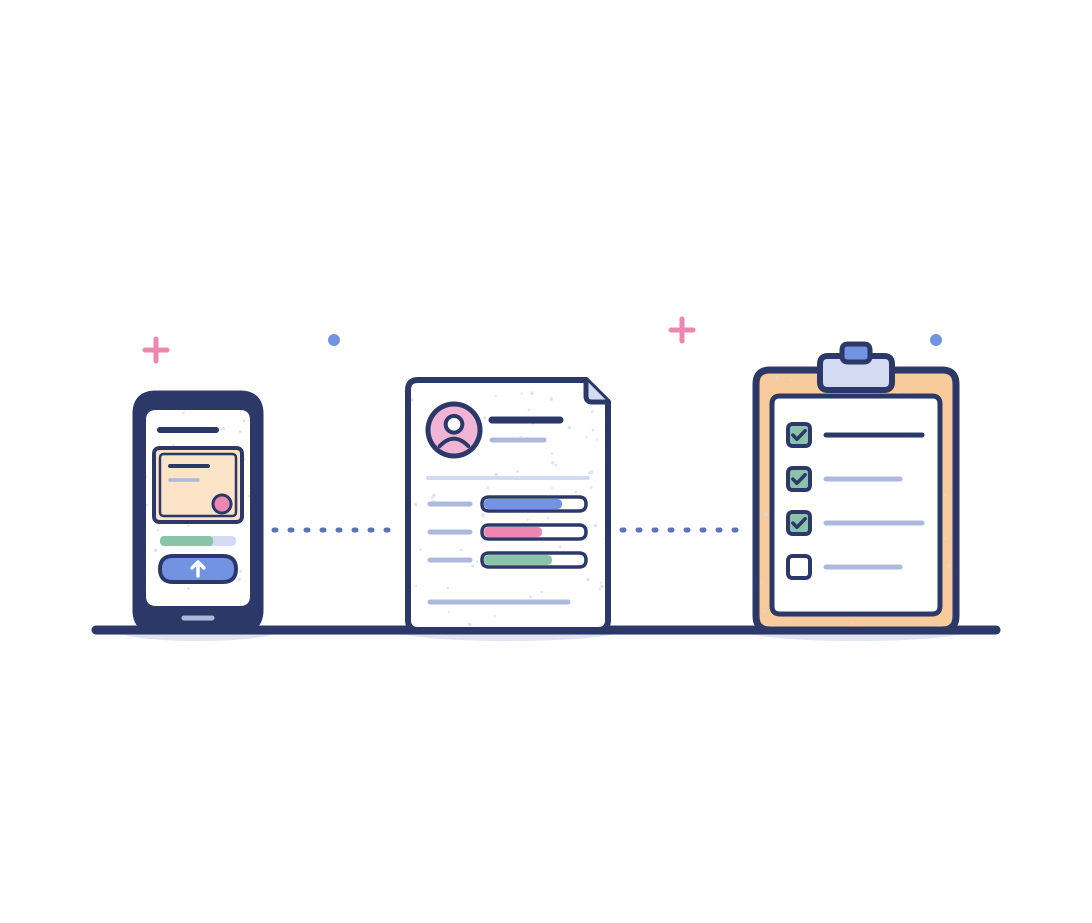

















From inbox attachments to a placement-ready candidate
Staffing firms run candidates, jobs and placements in Salesforce, but resumes, certificates and forms arrive by email and sit in inboxes. CloudFiles organizes, shares, reads and generates those documents on the candidate record.
The manual way
- Candidates email resumes and certificates to whichever recruiter they know. Files sit in personal inboxes, out of sight of the candidate record.
- Recruiters email reminders for missing forms one candidate at a time. Onboarding stalls, and start dates slip while documents trickle in.
- Compliance staff open every certificate to read its expiry date. A lapsed CPR certificate found after a start date puts the placement at risk.
- Recruiters build each client submission by pasting resumes and certificates into one email, so packs go out late or with the wrong files.
The CloudFiles way
- CloudFiles gives every candidate a folder in your storage, so recruiters open each resume and certificate straight from the candidate record.
- CloudFiles sends each candidate one secure upload link with no login. Every file lands in the candidate's folder as soon as it is uploaded.
- CloudFiles reads each certificate as it arrives and records its expiry date on the candidate, so a flow can alert recruiters before it lapses.
- CloudFiles builds the submission pack from the candidate record and merges the resume and certificates into one PDF, ready for the client.
Every candidate document, from application to placement
Six jobs staffing and recruiting firms automate on the contacts, candidates and placements they already use, all set up in Salesforce Flow.
Candidate folder automation
CloudFiles creates a folder for every candidate in your storage, so resumes, certificates and forms have one home.
- The folder is created as soon as the candidate record is saved
- Recruiters preview a resume on the record without downloading it
- Each placement can get its own subfolder inside the candidate's folder
Candidate document collection by upload link
CloudFiles sends candidates a secure link to upload missing documents, so recruiters stop chasing files by email.
- The link can go out automatically when onboarding starts
- Candidates upload from a phone or laptop with no Salesforce login
- A flow can tell the recruiter when a new file arrives
Onboarding document checklist
CloudFiles names each upload by type, and a flow ticks it off the candidate's checklist, so recruiters see what is missing.
- Certificates, tax forms and right-to-work documents are named by type
- A flow marks the matching checklist item as received
- A recruiter sees every open item across candidates in one list view
Certificate expiry tracking
CloudFiles reads each certificate and records its name and expiry date, so recruiters know before a certificate lapses.
- Reading starts as soon as the certificate is uploaded
- A recruiter confirms the values beside the document
- A flow can alert the recruiter before the expiry date
Resume parsing into Salesforce
CloudFiles reads each resume and fills in the candidate's fields, so recruiters stop retyping work history and skills.
- Name, contact details and skills fill in the candidate record
- Past roles can be added as separate work history records
- Recruiters review the values before they are saved
Client submission pack generation
CloudFiles builds submission packs from the candidate record, so a profile, resume and certificates reach the client together.
- The profile uses your firm's own Word template and branding
- The resume and certificates are merged behind it into one PDF
- The pack goes out to the client through a tracked link
Key documents we handle for staffing and recruiting
The files a staffing firm handles for every candidate it places. Timesheets, contracts and every other staffing document are handled in the same way.
Resumes and CVs
The candidate's work history, read into the candidate record and kept in their folder for every recruiter to open.
Certifications
Safety, CPR and trade certificates that a role requires, named by type with their expiry dates recorded on the candidate.
Onboarding forms
Tax, employment eligibility and direct deposit forms that every new hire completes, read into Salesforce and filed in their folder.
Right-to-work documents
Passports, visas and work permits that prove eligibility, collected by upload link and ticked off the candidate's checklist.
Offer letters and contracts
Offer letters and worker agreements built from the placement's data with your template and sent to the candidate to sign.
Client submission packs
What a hiring manager receives for each role: one PDF with the candidate's profile and documents, opened from a tracked link.
Stay industry compliant
CloudFiles is independently audited for SOC 2 Type II, certified to ISO 27001, and compliant with HIPAA and GDPR. Data residency is supported in the US, EU, UK and AU. Your files stay in your own storage. CloudFiles never re-hosts them, and they are not used to train our AI models.



Frequently asked questions
CloudFiles connects Salesforce to SharePoint, Google Drive, Azure Blob, Amazon S3 and other storage, and sets up a folder for each candidate there. Resumes and certificates stay in the firm's storage and open from the candidate record. On SharePoint and Google Drive, when each recruiter signs in with their own account, they see only the folders that their own account can open.
Yes. CloudFiles reads each completed onboarding form as it is uploaded, handwritten entries included, and fills in the matching fields on the candidate record in Salesforce. A recruiter checks the values beside the form and then saves them, so nobody retypes a form from a scan.
When the matching document is uploaded, CloudFiles recognizes its type and a flow marks that item on the candidate's checklist in Salesforce as received. Recruiters see what is still open on the candidate record, or across every candidate in a list view, and send one upload link for the rest instead of checking files by hand.
Yes. CloudFiles reads resumes, scanned ones included, and maps what it finds to the candidate's fields in Salesforce. Work history can fill its own related records. A recruiter approves the values side by side with the resume before anything is written, so the record is right the first time.
Yes. CloudFiles adds a search box to the candidate record that finds files by name in the candidate's folders, and a result opens the folder where it sits. Each file opens in a previewer from the same record, so the recruiter never leaves Salesforce to read it.
Yes. CloudFiles can copy files uploaded to a candidate into the candidate's folder in the firm's storage and can then remove the Salesforce copy. For candidates already in Salesforce, the CloudFiles team creates and links a folder for every record in bulk, so old and new candidates work in the same way.
Yes. When a recruiter shares a profile link from the candidate record, they are notified when the client opens it. With email required on the link, they also see each viewer's email, time on the file and number of visits, so follow-up calls land while the client is still reading.
Yes. CloudFiles installs from AppExchange and works on any Salesforce object, standard or custom, through Salesforce Flow. Contacts, candidates, jobs and placements all get the same folders, links and documents, whichever objects that your firm uses, and CloudFiles writes only to the fields that your admin chooses.
Bring one placement to a demo
Bring a candidate's resume and a certificate with names removed, and we will show both read and filed on a candidate record in Salesforce.