

Bidirectional integration means the flow goes both ways, not just Salesforce pushing files to SharePoint, but SharePoint changes are reflected in Salesforce immediately too. For standard objects, this is expected. For custom objects, it's rarer. Many tools support one-way sync at best, leaving SharePoint perpetually out of step with whatever your team updates in the field.
CloudFiles on AppExchange delivers true bidirectional SharePoint integration for every Salesforce custom object, identical to standard objects, with no limitations or special configuration.
What True Bidirectionality Looks Like for Custom Objects?
For a “Project__c” custom object connected via CloudFiles:
Salesforce → SharePoint (real-time):
- Upload a file to the Project record → in SharePoint within seconds
- Create a sub-folder on the record → created in SharePoint immediately
- Rename a file → SharePoint name updates instantly
SharePoint → Salesforce (real-time):
- Team member adds a file via Teams → appears on the Project record in Salesforce
- External system drops a file in the SharePoint path → appears immediately
- New sub-folder created in SharePoint → visible in the CloudFiles LWC on the record
There is no polling, no scheduled sync, no batch job. Changes are immediate. Teams using bidirectional sync report 60% fewer document version conflicts compared to unidirectional or manual sync approaches. Organizations using file upload triggers for custom object workflows report 40% faster document processing times compared to manual routing.
How Do I Configure Bidirectional Sync for Any Custom Object?
- Add CloudFiles LWC to custom object page layout via Lightning App Builder.
- Create Record-Triggered Flow with Create and Link Folder action
- Configure SharePoint file upload webhook for SharePoint→Salesforce direction
- Activate
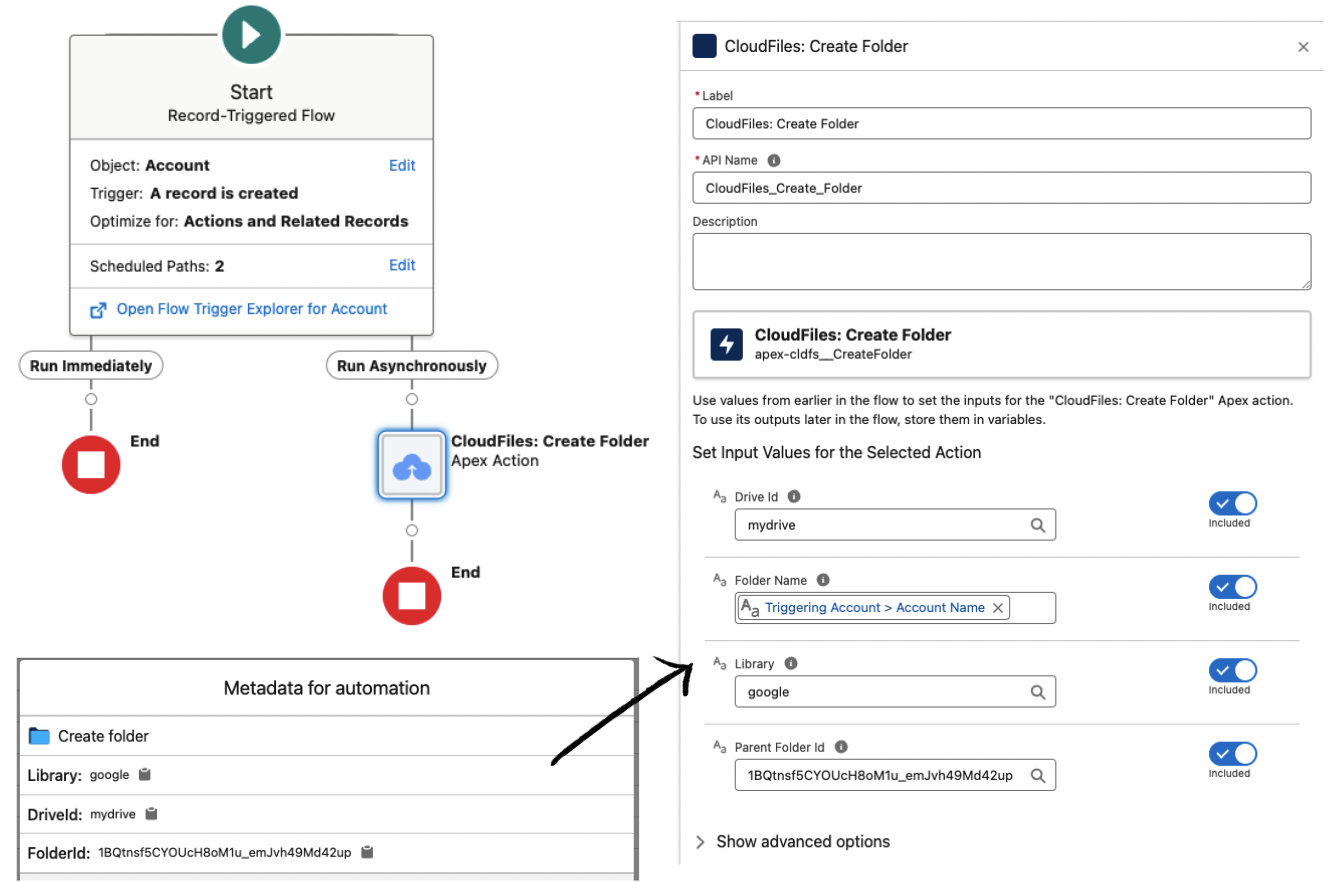
Most admins complete this in under 15 minutes. Quick start →
How Can SharePoint File Uploads Trigger Salesforce Automations?
When files arrive from outside Salesforce, from an external partner, automated pipeline, or non- Salesforce team member, CloudFiles SharePoint file upload events fire Salesforce Flows immediately. Your custom object workflow runs without any manual trigger.
How Do Nested Custom Object Hierarchies Work?
Child custom object folders live inside parent object folders in SharePoint, keeping the hierarchy consistent with your Salesforce data model.
Frequently Asked Questions
- Does CloudFiles support bidirectional SharePoint sync for custom Salesforce objects?
Yes. CloudFiles delivers true bidirectional sync for all custom Salesforce objects. Files uploaded in Salesforce appear in SharePoint in real time, and files added to SharePoint appear in Salesforce immediately. - How does bidirectional sync work for custom objects in CloudFiles?
CloudFiles uses the SharePoint Microsoft Graph API for SharePoint→Salesforce event detection and the CloudFiles LWC upload mechanism for Salesforce→SharePoint file routing. Both directions operate in real time without batch jobs or scheduled syncs. - Is there any lag in bidirectional sync for custom objects?
Files uploaded from Salesforce to SharePoint via the CloudFiles LWC appear in SharePoint within seconds. Files added to SharePoint directly trigger a near real time update in Salesforce when using the file uploaded event webhook. - Can SharePoint file uploads trigger Salesforce Flow automations for custom objects?
Yes. CloudFiles supports a SharePoint file upload trigger that fires Salesforce Flows when new files appear in a watched SharePoint folder. This enables automations for custom object records based on SharePoint activity. - Does bidirectional sync work across multiple SharePoint document libraries for one custom object?
Yes. A single custom object record can be linked to multiple SharePoint folders across different libraries. All syncing bidirectionally and visible in the CloudFiles LWC. - Can file operations in SharePoint (rename, delete) reflect in Salesforce for custom objects?
Yes. Renames in SharePoint are reflected in the CloudFiles LWC. Deletions in SharePoint remove the file from the LWC view. - What is the setup time for bidirectional SharePoint sync on a new custom object?
Most admins configure bidirectional sync for a new custom object in 15–30 minutes. Add LWC to the page layout, create the Record Triggered Flow, configure the SharePoint webhook, and activate. - Does bidirectional sync work for custom objects in Salesforce Experience Cloud?
Yes. The CloudFiles LWC is available for Experience Cloud pages, enabling bidirectional SharePoint sync for custom objects accessible through external portals. - Can custom objects use different SharePoint sites for bidirectional sync depending on record type?
Yes. Conditional Flow logic can route different record types or field values to different SharePoint sites or document libraries, each syncing bidirectionally. - Is bidirectional sync available for AppExchange installed custom objects?
Yes. CloudFiles works with any custom object in your Salesforce org. Whether built natively or installed from AppExchange, as long as it has a Lightning record page where the LWC can be added. - Why is bidirectional sync important for custom objects?
Custom objects often serve as hubs for cross team collaboration. Without bidirectional sync:
- Files added by non Salesforce team members in SharePoint never appear in Salesforce
- Reps must manually check SharePoint to see if documents arrived
- Version conflicts occur when both systems diverge
Teams with bidirectional sync on custom objects report 60% fewer version conflicts and 40% faster document processing times compared to unidirectional approaches.
- Can Apex code trigger bidirectional SharePoint sync for custom objects?
Yes. CloudFiles exposes Apex invocable methods for custom object folder creation. For the SharePoint→Salesforce direction, the file upload webhook can be invoked via any system that can send an HTTP request.