

If your organization already runs SharePoint, OneDrive, Google Drive, or AWS S3, the real question is not whether you need enterprise document management for Salesforce. It is whether that should mean moving your documents into a new content cloud, or managing them where they already live. That is the difference between CloudFiles and Box. CloudFiles is enterprise document management native to Salesforce that runs on the storage you already own and govern. Box is a company-wide content cloud, and its Salesforce integration centralizes your files inside Box.
This makes document management in Salesforce a governance decision before it is a feature decision. With CloudFiles, files stay in the storage your security team already approved, under the DLP (Data Loss Prevention), retention, and eDiscovery you already run, and Salesforce manages them in place. With Box, your documents move into a second content estate to secure, audit, and administer alongside the Microsoft 365, Google Workspace, or AWS storage you already operate. Everything below follows from that one choice, with a focus on the document management workflow itself.
TL;DR
- CloudFiles Document Management is enterprise document management inside Salesforce that runs on the storage you already own and govern: SharePoint, OneDrive, Google Drive, or AWS S3. It adds generation, managed file management, bulk migration, AI extraction, and engagement analytics without creating a second content repository. It is trusted by 1,200+ Salesforce teams and independently audited for SOC 2 Type II and certified to ISO 27001, and compliant with HIPAA and GDPR.
- Box is a company-wide content cloud. Its Salesforce integration centralizes files in Box, which means adopting Box as a parallel content estate to secure, govern, and audit alongside the storage you already run.
- Both platforms are independently certified for enterprise use, both generate documents from Salesforce data, and both include e-signature. For document management specifically, CloudFiles keeps your content in one governed estate, migrates existing Salesforce files out to your own storage, and writes AI-extracted data back into Salesforce fields. Box does none of these without making Box your repository.
What each tool is built for?
Before the feature-by-feature detail, here is the scope of each product side by side. CloudFiles is an enterprise document layer that sits natively inside Salesforce and runs on the storage estate you already have. Box is an enterprise content cloud that plugs into Salesforce through a connector.
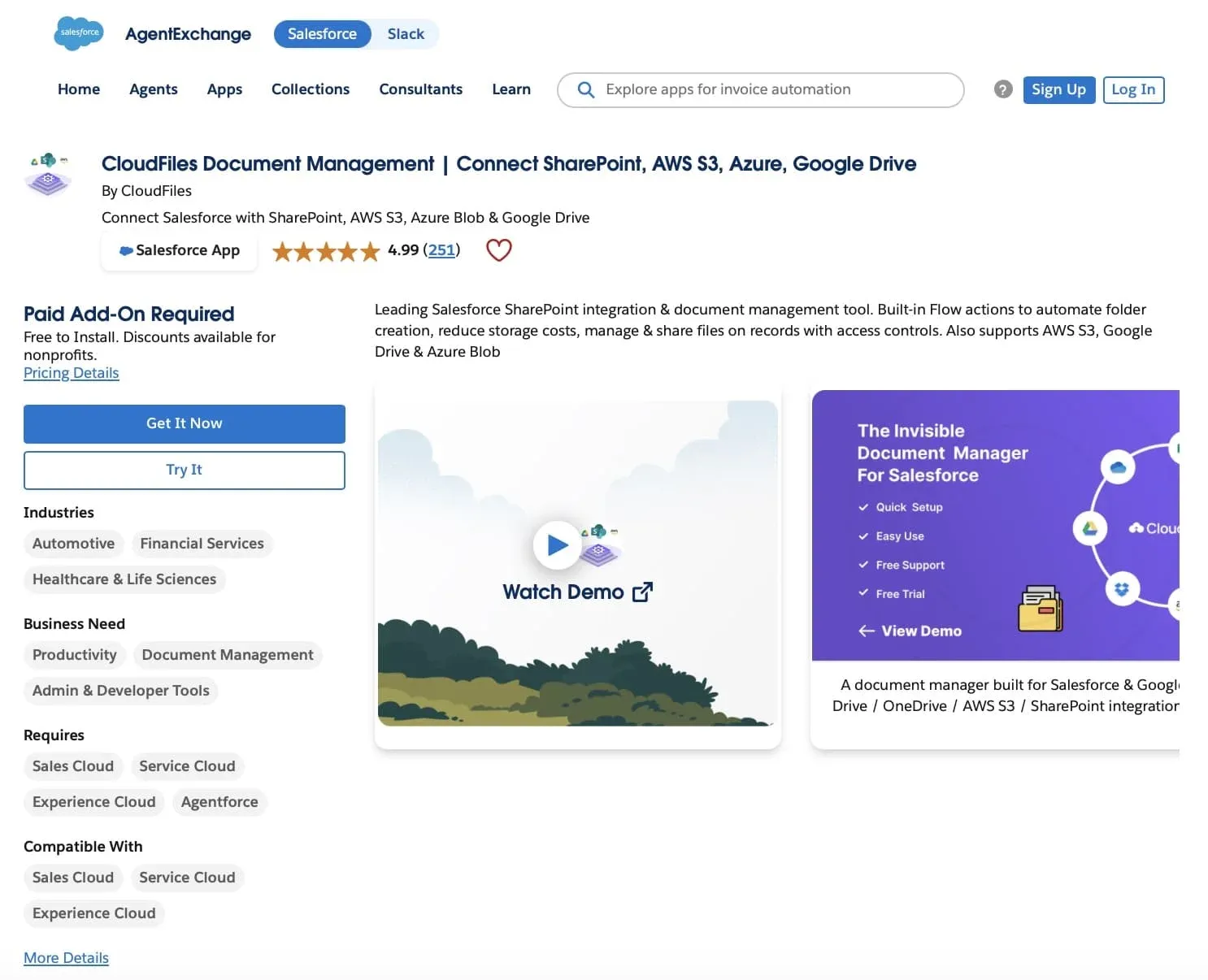
CloudFiles - Enterprise document management native to Salesforce, on your own storage
AppExchange: 4.9 stars, 1,200+ Salesforce teams
Focus: The full document workflow inside Salesforce (manage, generate, extract, migrate, share) across the storage you already govern
Storage: Native SharePoint, OneDrive, Google Drive, and AWS S3, your data stays in your estate
Automation: Flow actions, Apex, and REST API, plus native Agentforce actions (no-code first)
Compliance: SOC 2 Type II, ISO 27001, HIPAA, GDPR, with a public Trust Portal and US/EU/UK/AU data residency
Box for Salesforce - A Salesforce connector to Box's content cloud
AppExchange: Free managed package that embeds the Box UI into Salesforce records
Focus: Centralize files in Box, then access them from Salesforce; document generation, AI, and governance sit in the wider Box platform
Storage: Box's own content cloud, a separate repository from your existing storage
Automation: Box Relay, the Box for Salesforce Developer Toolkit, Box SDK, and custom Apex
Compliance: FedRAMP High, ITAR, GxP, HIPAA, SOC 1/2/3, ISO 27001, PCI DSS
Your storage, or a second content cloud to adopt
This is the decision underneath everything else. CloudFiles leaves your content in the enterprise storage you already run and adds the Salesforce management layer on top. Box asks you to make Box your content platform and move your files into it.
No second platform to run and maintain
Most enterprise Salesforce teams already operate Microsoft 365, Google Workspace, or AWS. CloudFiles manages documents inside that footprint. Box introduces a separate content platform to administer, secure, and standardize on.
Migration runs toward your storage, not away from it
Box migration moves content into Box, usually as a services engagement. CloudFiles migrates existing Salesforce files out to your own external storage, self-serve, which is what frees Salesforce storage and keeps content in the clouds you control.
AI that populates Salesforce, not just a content store
CloudFiles Document AI reads inbound documents and writes the extracted values straight into Salesforce fields, turning a document into CRM data. Box AI reads content that already lives in Box.
CloudFiles vs Box: full document management comparison
A like-for-like breakdown, led by the document management workflow itself: storage, governance, folders, migration, and sharing, then generation, AI, and security. Where Box genuinely delivers a capability, this table says so. The differences that matter are less about who has a feature and more about where your enterprise content sits and how many places you have to govern it.
| Capability | CloudFiles | Box for Salesforce |
|---|---|---|
| Storage, governance & file management | ||
| Where your files live: the core architectural choice | ✅ Your own governed cloud Files stay in the SharePoint, OneDrive, Google Drive, or S3 you already run. CloudFiles manages them in place; it does not host them. | ⚠️ Box cloud Content is centralized in Box's own storage, so Box becomes a content platform you adopt alongside your existing estate. |
| Fits your existing enterprise storage estate: one governed content layer | ✅ Yes Keeps enterprise content in the storage IT already secures, with your existing DLP, retention, and eDiscovery. No second repository. | ❌ No Requires standardizing on Box as the store, creating a parallel content estate to govern, secure, and audit. |
| Governance surface: how many content estates you audit | ✅ One estate Content stays under the governance, DLP, and retention you already run on your primary storage. Nothing new to audit. | ⚠️ Two estates Box adds a separate repository with its own permissions, retention, and audit trail to manage alongside your existing storage. |
| Record-mirrored folders: automatic folder structure per record | ✅ Yes Folders automatically mirror your Salesforce record hierarchy across all four clouds. | ⚠️ Limited in native package Box uses a defined folder structure with limited customization. Auto-creating folders at Account, Opportunity, or Contact level typically needs the Developer Toolkit or custom work. |
| Full file management from the record: upload, preview, move, rename, delete, share | ✅ Yes Manage any stored file across SharePoint, OneDrive, Google Drive, and S3 directly from the Salesforce record. | ✅ Yes, for Box files View, upload, and manage Box-hosted files through an embedded Box UI inside Salesforce. |
| Bulk migration of existing Salesforce files: direction matters | ✅ Out, self-serve Bulk-migrate your existing Salesforce file library out to your own external storage in one operation, freeing Salesforce storage. | ⚠️ Into Box, via services Migration moves content into Box, generally through Box Migration Services or Box Consulting, not a self-serve Salesforce action. |
| AI & automation | ||
| AI data extraction into Salesforce fields: inbound documents to CRM data | ✅ Yes Document AI reads invoices, KYC forms, contracts, and IDs, then writes the extracted values back into Salesforce fields. | ⚠️ On Box content Box AI and Box Extract pull structured data from content stored in Box and do not natively write the values back into Salesforce fields. |
| No-code Flow file actions: file operations without Apex | ✅ Yes Prebuilt Flow actions: create folder, move or copy file, attach a generated document, trigger AI extraction. | ⚠️ Via Box Relay or custom Automation runs through Box Relay and the Developer Toolkit or Apex, not prebuilt Salesforce Flow file actions. |
| Native Agentforce actions: Salesforce AI agents | ✅ Yes Native Agentforce actions across the document stack, no extra install. | ⚠️ Not native in package Box exposes AI through Box AI and an MCP server, but native Agentforce document actions are not part of the Box for Salesforce managed package. |
| Sharing & engagement analytics | ||
| Tracked links with engagement analytics: opens, views, time spent, in Salesforce | ✅ Yes Secure tracked links with password, expiry, and download control, plus per-link opens, views, time-spent, and downloads surfaced on the Salesforce record. | ⚠️ Access stats, in Box Box provides sharing controls and access stats, but per-link engagement analytics are viewed in Box rather than surfaced on the Salesforce record. |
| External portal access: clients without a Microsoft license | ✅ Yes External clients access and upload files through Experience Cloud with no Microsoft or SharePoint license. | ⚠️ Via Box External sharing runs through Box's own collaboration and access model. |
| Document generation & e-signature | ||
| Generate documents from Salesforce data: contracts, quotes, proposals, invoices | ✅ Yes, in base platform One-click generation from Word, Excel, and PowerPoint templates plus a native PDF builder. Output auto-saves to your own cloud and links back to the record. | ⚠️ Yes, into Box Box Doc Gen for Salesforce merges Salesforce data into Word templates and saves output to Box. Unlimited generation requires Box's top edition. |
| Author templates in Microsoft Office: Word, Excel, PowerPoint add-ins | ✅ Yes Native add-ins for Word, Excel, and PowerPoint, so teams reuse existing templates with no rebuild. | ⚠️ Word only Box Doc Gen Template Creator is a Word add-in. No native Excel or PowerPoint generation. |
| E-signature: integrated signing | ✅ Yes Built-in DocuSign e-signature, with fields defined in the template and recipients auto-assigned from record data. | ✅ Yes Built-in Box Sign, auto-populating up to 50 mapped Salesforce fields. Unlimited signing via Salesforce requires a higher Box edition. |
| Security & compliance | ||
| Certifications & compliance: both meet enterprise-grade standards | ✅ Yes Independently audited for SOC 2 Type II, certified to ISO 27001, and compliant with HIPAA and GDPR, with a public Trust Portal. Your documents stay inside the storage your security team already approved. | ✅ Yes Independently audited for SOC 2 Type II, certified to ISO 27001, and compliant with HIPAA and additional standards. Content lives in Box, a separate certified estate to govern in addition to your existing storage. |
| Data residency: region control | ✅ Yes US, EU, UK, and AU residency, plus whatever region your own storage already sits in. | ⚠️ Add-on Regional residency is available through Box Zones. |
| Setup & deployment | ||
| Setup and time to go live | ✅ Self-serve AppExchange install with free setup support. 98% of customers go live within their first week. | ⚠️ Basic embed is easy The no-code package embeds a Box folder view quickly. Tailored folder logic and deeper automation need the Developer Toolkit, custom API, or middleware. |
Where the difference is biggest?
Your storage, or a second content cloud to adopt
This is the decision underneath everything else. For document management, CloudFiles leaves your content in the enterprise storage you already run and adds the Salesforce management layer on top. Box asks you to make Box your content platform and move your files into it.
One governed estate, not two
Most enterprise Salesforce teams already secure Microsoft 365, Google Workspace, or AWS with DLP, retention, and eDiscovery. CloudFiles manages documents inside that footprint, so there is nothing new to audit. Box introduces a separate content estate with its own permissions, retention, and audit trail to administer.
Migration runs toward your storage, not away from it
Box migration moves content into Box, usually as a services engagement. CloudFiles migrates existing Salesforce files out to your own external storage, self-serve, which is what frees Salesforce storage and keeps content in the clouds you control.
AI that populates Salesforce, not just a content store
CloudFiles Document AI reads inbound documents and writes the extracted values straight into Salesforce fields, turning a document into CRM data. Box AI reads content that already lives in Box.
Which should you choose?
The honest split looks like this.
Choose CloudFiles if you need
- Enterprise document management that keeps files in your existing SharePoint, OneDrive, Google Drive, or S3
- To avoid running and administering a second content platform
- To bulk-migrate existing Salesforce files out to your own cloud and free Salesforce storage
- Folders that auto-mirror your Salesforce record hierarchy
- AI extraction that writes document data back into Salesforce fields
- Tracked sharing links with per-document engagement analytics inside Salesforce
- External client access via Experience Cloud with no Microsoft license
- Generation, management, migration, AI, and analytics in one enterprise platform
Consider Box if you need
- An organization-wide content cloud where Salesforce is one of many places you use it
- To standardize all content storage on Box regardless of which CRM you run
- Documents held inside Box's own storage rather than in the clouds you already operate
- A single content vendor for the whole company, and the resources to run it as a separate platform
Frequently asked questions
What is the main difference between CloudFiles and Box for Salesforce?
CloudFiles is enterprise document management native to Salesforce that manages your files inside the storage you already own, such as SharePoint, OneDrive, Google Drive, or AWS S3. Box is a separate content cloud that stores your files in Box and connects to Salesforce through a connector. With CloudFiles you keep documents in your existing storage and avoid adopting a second content platform.
Does Box for Salesforce store files in SharePoint or OneDrive?
No. Box for Salesforce stores content in Box's own cloud, and Salesforce accesses it through an embedded Box view. CloudFiles connects your existing SharePoint, OneDrive, Google Drive, or AWS S3, so files stay in the enterprise storage your organization already runs.
Can I migrate existing Salesforce files to my own storage with CloudFiles?
Yes. CloudFiles bulk-migrates existing Salesforce files out to your own SharePoint, OneDrive, Google Drive, or S3 in a self-serve operation, which frees Salesforce storage and keeps content in the clouds you control. Box migration works the other way, moving content into Box, typically as a services engagement.
Does CloudFiles generate documents from Salesforce data?
Yes. CloudFiles generates documents from Word, Excel, and PowerPoint templates plus a native PDF builder, with output auto-saved to your own storage and linked back to the record, as part of the core platform. Box Doc Gen for Salesforce also generates documents, from Word templates, and saves output into Box.
Which tool extracts document data into Salesforce fields?
CloudFiles. Document AI reads inbound documents such as invoices, contracts, and IDs and writes the extracted values directly into Salesforce fields. Box AI and Box Extract operate on content stored in Box and do not natively populate Salesforce fields.
Is CloudFiles enterprise-grade and secure?
Yes. CloudFiles is independently audited for SOC 2 Type II, certified to ISO 27001, and compliant with HIPAA and GDPR, with a public Trust Portal, and it keeps your documents inside your own certified enterprise storage rather than moving them into a third-party content cloud. Both CloudFiles and Box meet enterprise-grade security standards.
Does CloudFiles auto-create a folder for each Salesforce record?
Yes. CloudFiles automatically mirrors your Salesforce record hierarchy into folders across all connected clouds. The native Box for Salesforce package uses a defined folder structure with limited customization, and auto-creating folders at the Account, Opportunity, or Contact level generally requires the Developer Toolkit or custom development.
What can CloudFiles do that a separate content cloud cannot?
CloudFiles keeps your files in the SharePoint, OneDrive, Google Drive, or S3 you already own, migrates existing Salesforce files out to those clouds to free Salesforce storage, and writes AI-extracted document data back into Salesforce fields, all without adopting and running a second content platform.
Disclaimer: This comparison was written by the CloudFiles team and fact-checked against Box as of July 28, 2026. Product capabilities change; if anything here is out of date, tell us at marketing@cloudfiles.io and we will correct it.