
Introduction
For most teams across marketing, sales, and service, HubSpot is where campaigns, content, customer communication, and support workflows come together. But behind every landing page, sales document, service knowledge-base article, and campaign asset lies a lesser-known hero, the HubSpot File Manager. It's not just a storage space; it's HubSpot's content delivery backbone, ensuring every image, PDF, quote, playbook asset, and video is stored securely and loads instantly across all your HubSpot tools.
Studies show that teams with a centralised digital asset management system save an average of 5+ hours per week on file search and re-creation tasks. HubSpot File Manager is designed to be that centralised system, making it a foundational piece of any document management strategy inside HubSpot.
In this detailed guide, we’ll explore everything you need to know about the HubSpot File Manager, including how to upload and organise files, manage attachments, understand key features and limitations, and apply best practices that help your marketing, sales, and service teams stay fast, compliant, and on-brand while using HubSpot as their central file management system.
What to expect in this Blog?
In this blog, we will cover:
- What is HubSpot File Manager? - This section explains what HubSpot’s File Manager is, how to access it across HubSpot, and why it centralises all your assets. It also highlights its key features for organising, controlling, and managing files efficiently.
- HubSpot File Manager and Attachments: How They Work Together? - This section clarifies the difference between HubSpot File Manager and CRM Attachments and how each helps keep assets organised across HubSpot.
- What Are the 10 Core Features of HubSpot File Manager? - This section breaks down the core features of HubSpot File Manager and how each one supports organised, secure, and reusable asset management across your account.
- What Advanced Features Do Power Users Love? - This section highlights advanced HubSpot File Manager features—like custom domain hosting and SEO/accessibility optimisations that power users rely on for smarter, more professional asset management.
- Real World Marketing Use Cases: How Do Teams Use HubSpot File Manager? - This section shows how HubSpot File Manager supports real-world marketing needs, from brand consistency to SEO, campaign management, and cross-team collaboration.
- File Governance, Permissions & Compliance - This section covers how HubSpot File Manager handles governance, permissions, and compliance to keep your digital assets secure, controlled, and policy-aligned.
- Pro Tips & Best Practices: How Do You Keep HubSpot File Manager Organised at Scale? - This section shares practical tips and best practices to keep your HubSpot File Manager organised, searchable, and efficient as your asset library grows.
- What Are the Key Limitations of HubSpot File Manager?- This section highlights key limitations of HubSpot File Manager that teams should understand as their asset libraries and collaboration needs grow.
- How Does CloudFiles Extend HubSpot File Manager? - This section explains how CloudFiles extends HubSpot File Manager with powerful sharing, tracking, automation, and external storage capabilities.
What is HubSpot File Manager?
HubSpot File Manager is the built-in storage system where all files uploaded to your HubSpot account are kept. It stores images, documents, videos, and other assets used across landing pages, emails, blogs, and forms, as well as across sales and service tools such as quotes, playbooks, and knowledge base articles.
It supports over 15 file formats including JPG, PNG, GIF, PDF, MP4, DOCX, PPTX, XLSX, and CSV, with storage limits of up to 2 GB per file on paid plans thereby making it a practical, scalable digital asset library for growing teams.
How to Access the File Manager in HubSpot? (5 Ways)
HubSpot File Manager can be opened directly from the main navigation, but you’ll also come across it naturally while editing content throughout HubSpot. Since the same file library powers pages, blogs, emails, sales assets, service content, and other tools, you can insert or upload files without switching screens. Here are the primary ways you’ll access:
1. From the Main Navigation
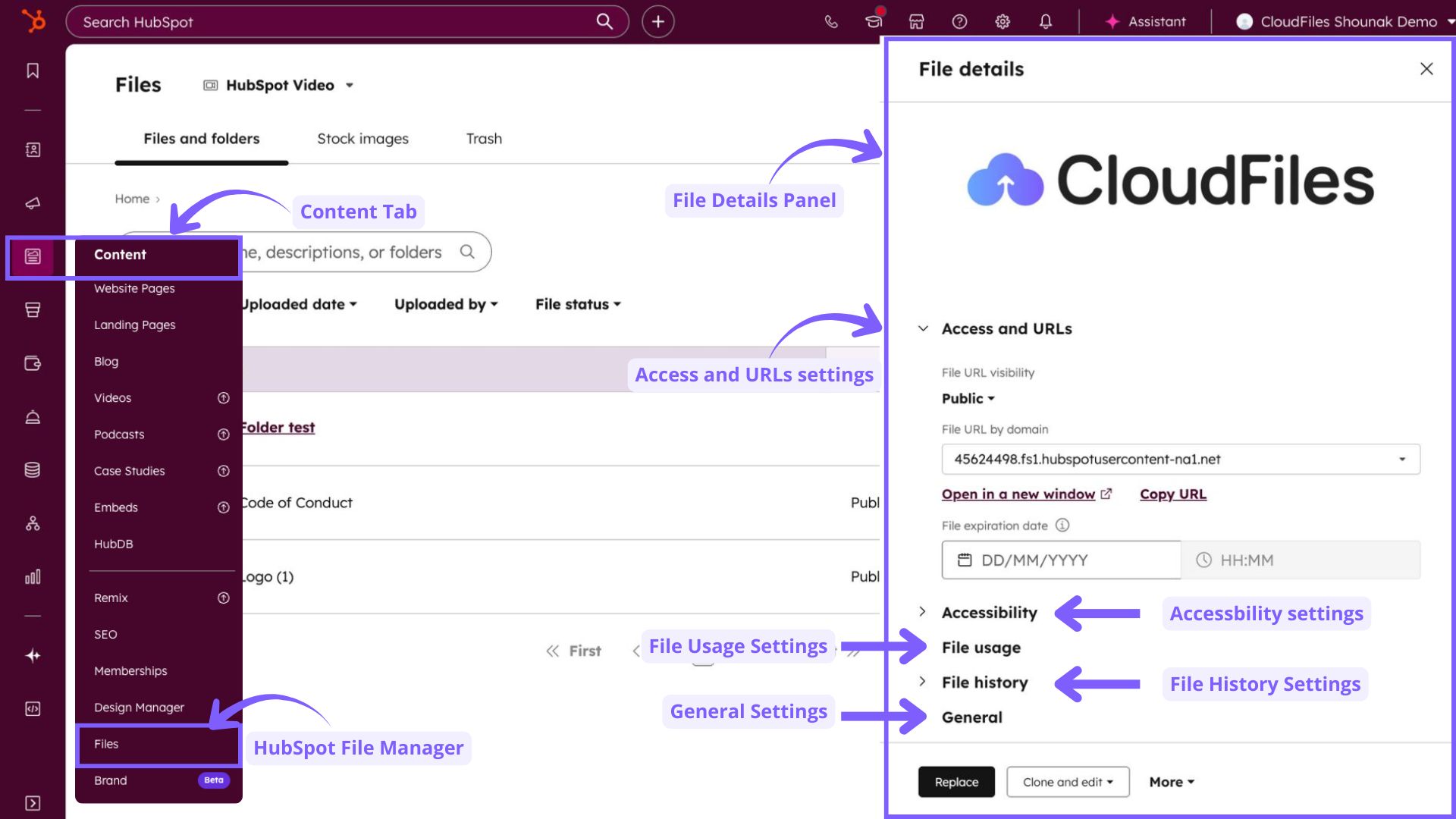
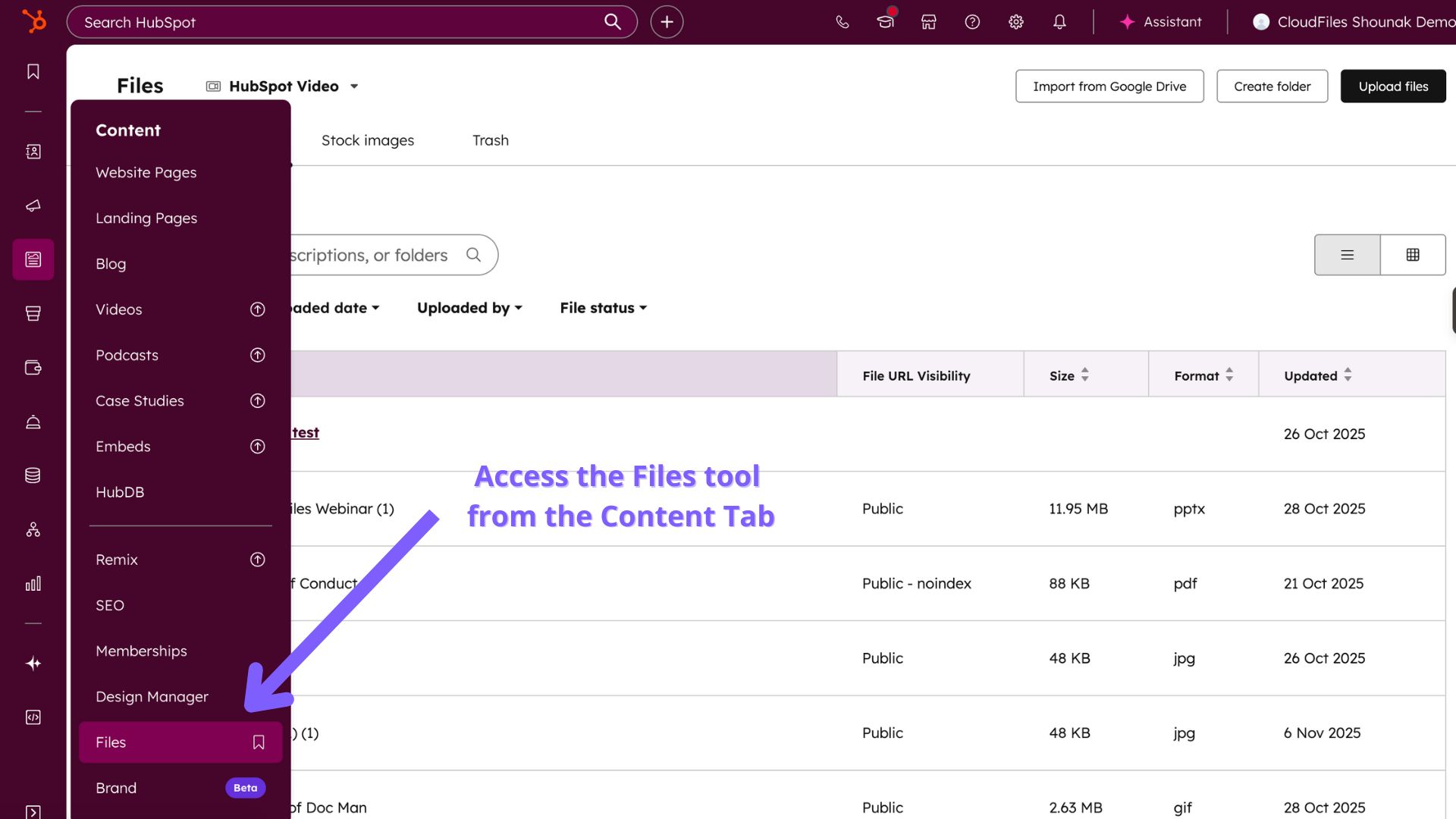
The most direct way to open the full HubSpot File Manager interface is through the main menu. You’ll find it under Content → Files. This is the central workspace for uploading files, organising folders, adjusting visibility, and reviewing details such as file usage and history across marketing, sales, and service assets.
2. While Editing Pages, Blogs, or Landing Pages
When working inside HubSpot’s editors for website pages, blog posts, or landing pages, HubSpot File Manager becomes available through any action that requires inserting or updating a media asset- similar to how sales teams access it while uploading collateral into templates or quotes, and service teams use it for knowledge base images or downloadable guides.
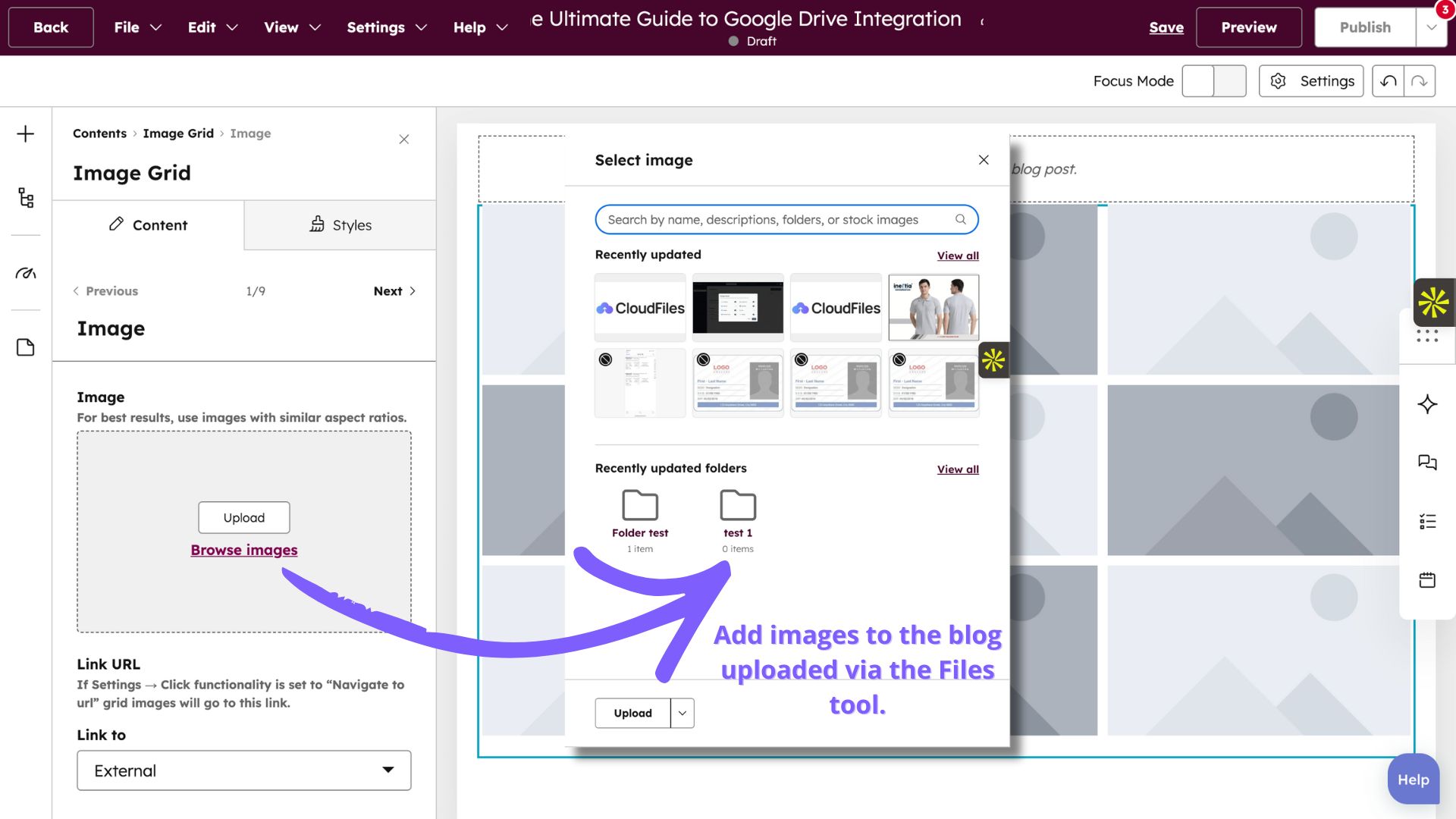
For example, when you add an image in a rich text module or replace an existing asset, the files tool opens automatically, thereby allowing you to choose an existing file or upload a new one on the spot.
3. From the Email Editor
Email creation works similarly. Whether you’re adding an image inside a drag-and-drop email or choosing a file to link in a marketing email, or when sales teams add documents to sales emails, the editor brings up the HubSpot File Manager picker immediately, ensuring teams reuse assets stored within HubSpot’s centralised cloud document management environment.
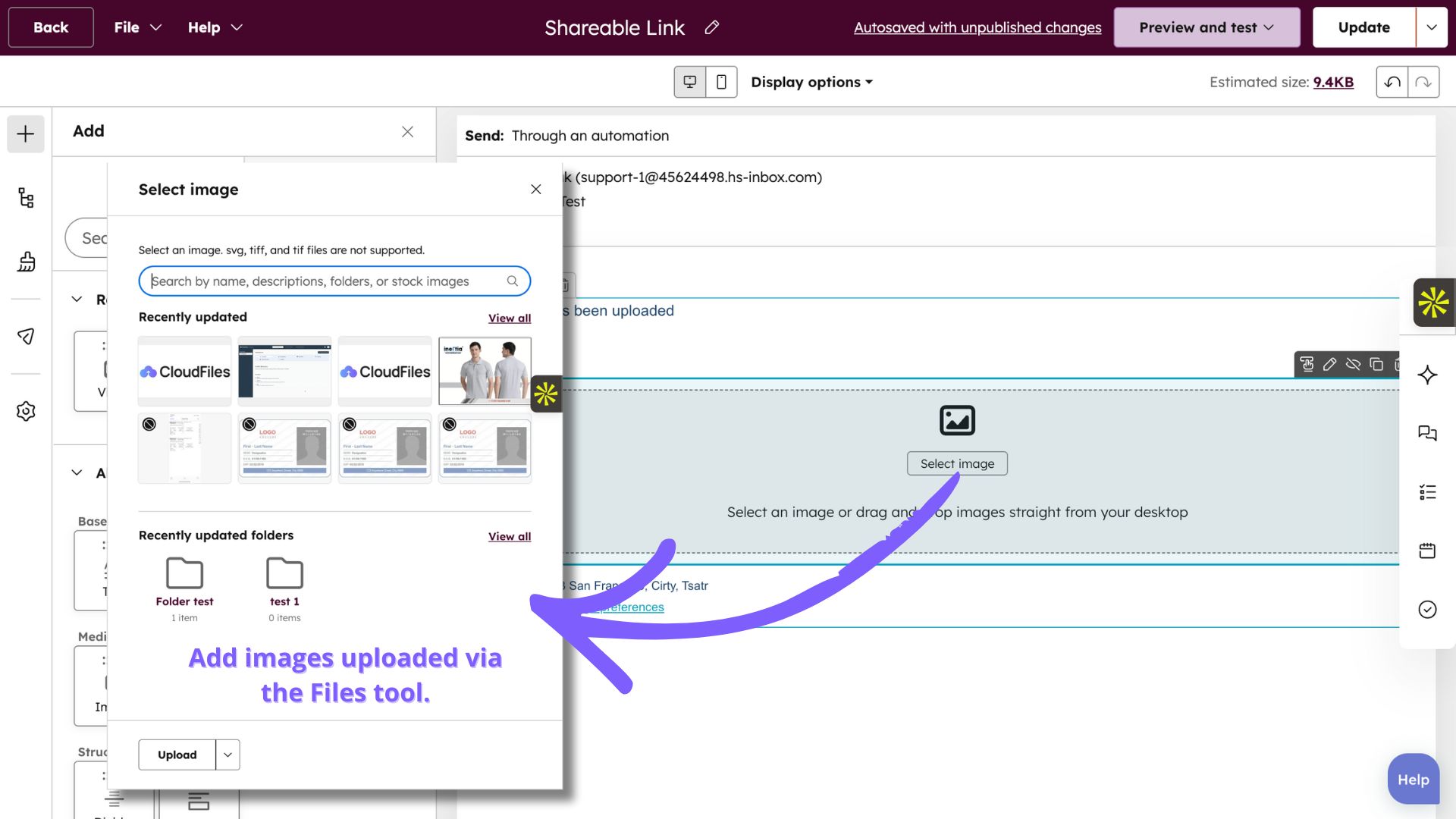
Since emails often reuse brand assets like banners, icons, brochures, sales decks, and service PDFs, this integration helps maintain consistency without requiring repeated uploads.
4. When Adding Videos
HubSpot’s video tools also connect directly to File Manager.
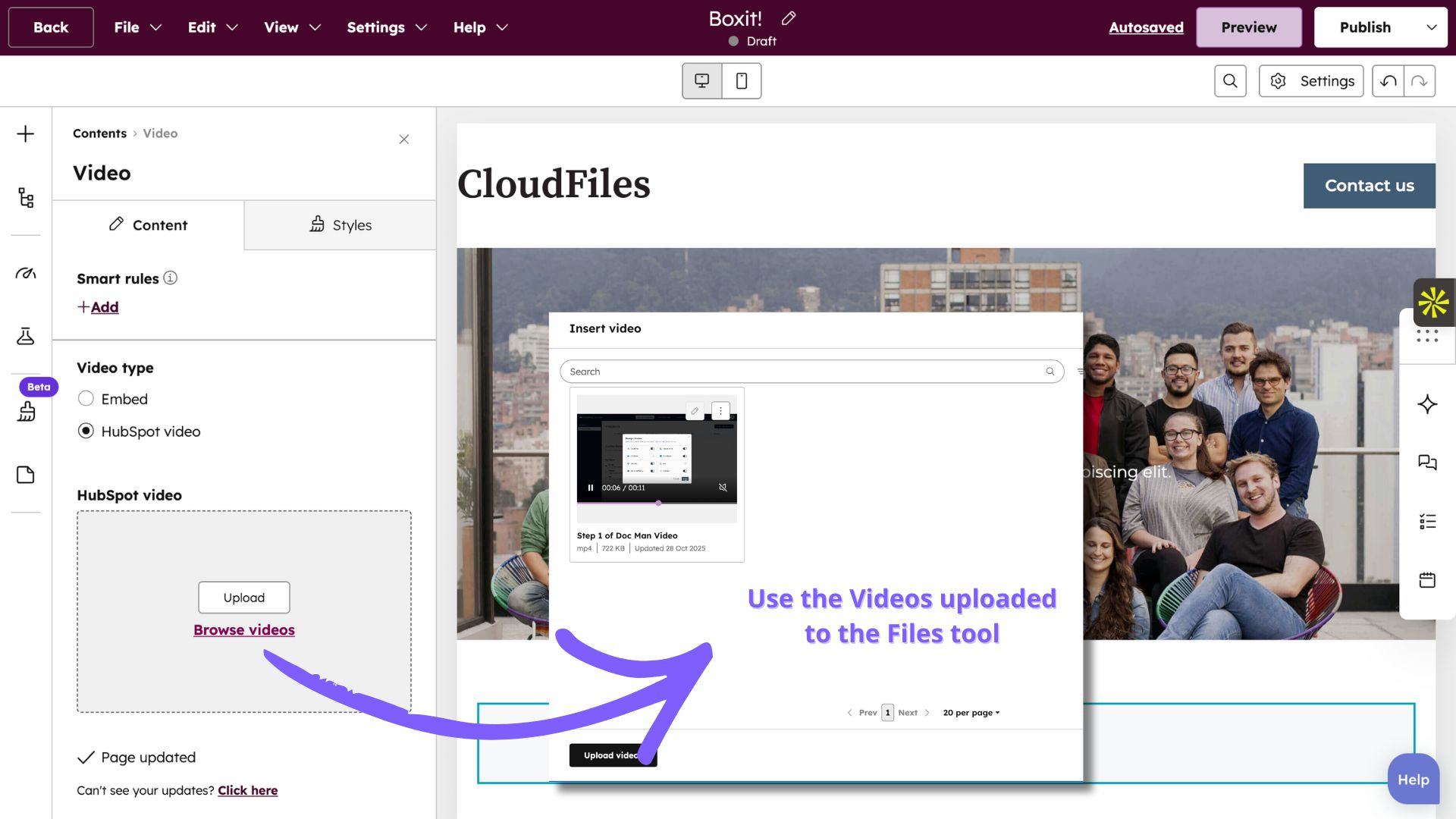
When you add or replace a video inside a page or blog post, the module opens the video selection window, which includes all video files stored in your library. You can upload new video files here as well, and they will automatically appear in the HubSpot File Manager for future use.
5. Through the Link Tools
Across HubSpot’s editors, the link insertion tools often point back to File Manager, thereby enabling marketing, sales, and service teams alike to upload explainer videos, product demos, training videos, and support recordings directly from a unified document management software workspace.
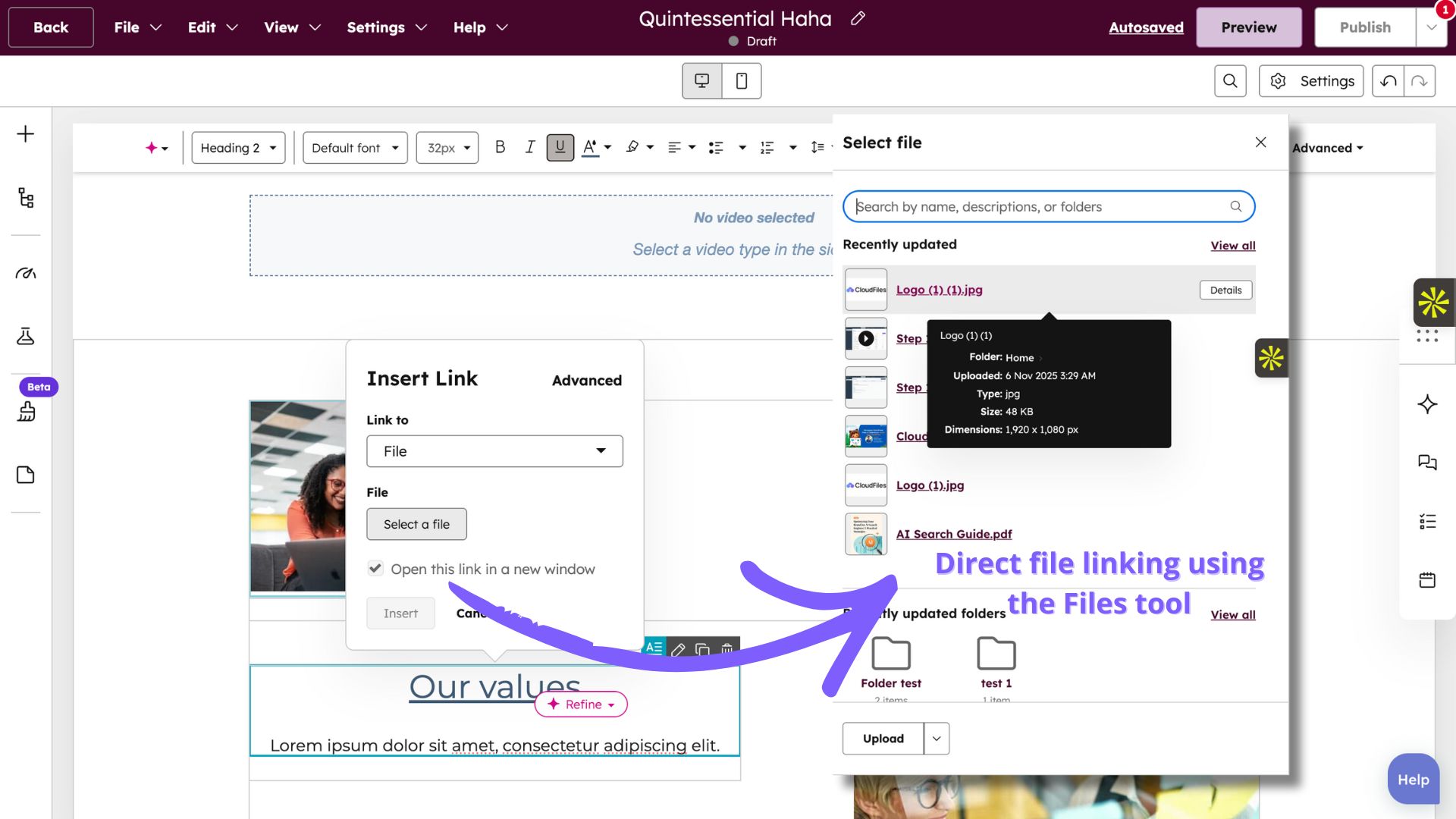
For example, when you insert a link to a PDF inside a blog or page, HubSpot doesn’t require you to paste a URL; it lets you pick a file directly from your files tool. Sales teams benefit from this when linking pricing sheets or proposals, and service teams use it for documentation PDFs or troubleshooting guides. This helps avoid outdated or incorrect file links and keeps all downloadable assets stored in a single location.
Why These Access Points Matter?
Being able to reach the HubSpot File Manager from multiple places reduces effort and prevents duplicate uploads.
Regardless of where you begin, be it an email, page, blog post, sales template, service article or the File Manager itself, all assets ultimately live in one unified repository. This supports cleaner governance and more reliable document storage solutions across teams.
Key Features of HubSpot File Manager
After opening the HubSpot File Manager, you’ll see a simple interface that lists all your uploaded assets. The tool includes several functions that support everyday file management tasks as well as more advanced options for organisation, visibility, and tracking used by marketing, sales, and service teams alike.
The list below provides a brief overview of the main features available in HubSpot’s File Manager and what each one does.
- Centralized Storage and Global Delivery: Store all files uploaded to your HubSpot account in one place and deliver them quickly through HubSpot’s global CDN for use in marketing, sales, and service content.
- Broad File Format Support: Compatible with common file formats such as JPG, PNG, GIF, PDF, MP4, and DOCX.
- Structured Library Management: Organise files into folders, filter results, and move multiple assets in bulk.
- File Visibility Controls: Set each file as Public, Public – Noindex, or Private to control accessibility and indexing.
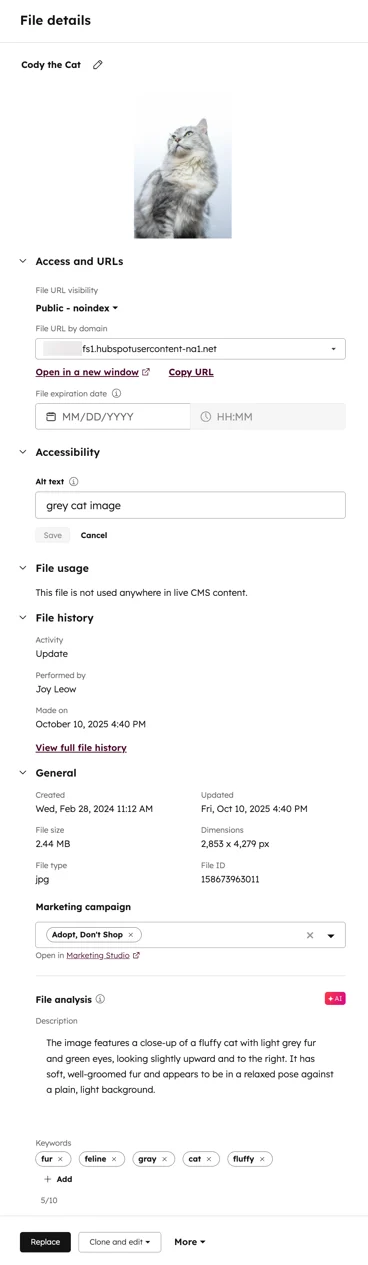
- File Details and Accessibility Insights: Preview files, add alt text or titles, and view where each asset is used across HubSpot.
- File Actions — Replace, Clone, and Download: Update, duplicate, or download files without disrupting existing URLs or workflows.
- File Lifecycle Management: Archive unused files, restore older versions, or permanently delete outdated assets.
- Video Hosting and Performance Analytics: Manage video assets with options for subtitles, thumbnails, and engagement tracking.
- AI Remix and Content Repurposing: Repurpose existing assets into new content formats using built-in AI tools.
- Integration with HubSpot Tools: Files can be used directly in marketing emails, landing pages, forms, sales templates, quotes, and service knowledge base articles.
- API Support: The HubSpot Files API enables uploading, managing, and deleting files programmatically.
Thus, HubSpot’s File Manager brings together the tools needed to store, organise, and manage digital assets in one location. By combining centralised storage, visibility settings, accessibility options, and integration with other HubSpot tools, it helps maintain consistency across all content types, whether created by marketing, sales, or service teams.
HubSpot File Manager and Attachments: How They Work Together?
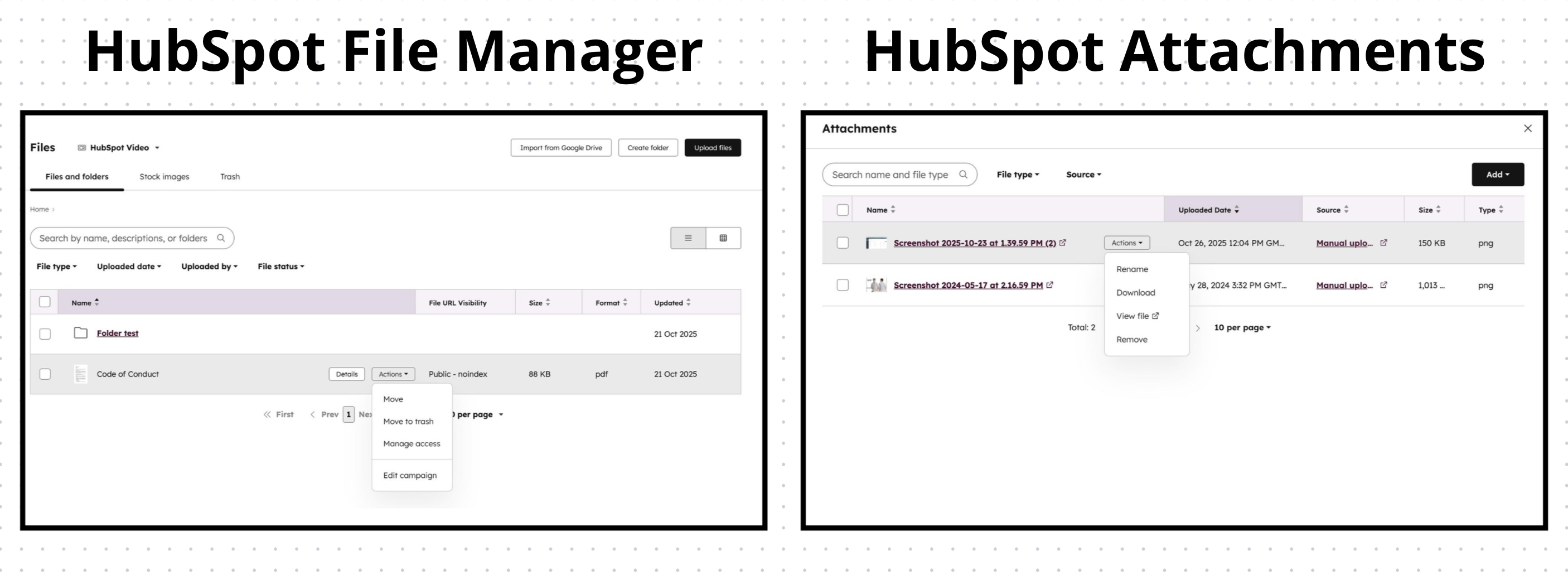
In HubSpot, files can appear in two main places - the File Manager and the Attachments section of CRM records. Although both involve file storage, they serve very different purposes and operate in separate areas of the platform. Understanding how they relate helps users organise content efficiently and avoid confusion when working across marketing, as well as sales and service activities.
What Are Attachments in HubSpot?
Attachments are files that are directly linked to CRM records, such as contacts, companies, deals, or tickets. They are used primarily by sales, service, or operations teams to keep record-specific documents accessible in one place, functioning as simple record-level document storage inside the CRM.
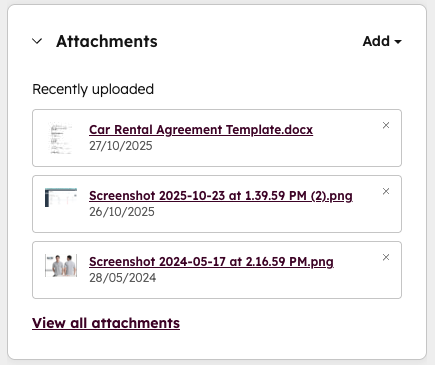
For example:
- A sales team might attach proposals, quotations, or signed contracts to deal records- common documents HubSpot users manage daily.
- A support team might attach reports, screenshots, or customer issue logs to tickets.
- A customer success team might attach onboarding documents to company or contact records.
These attachments are visible only within the record they are uploaded to and do not appear in the HubSpot File Manager.
How Are They Different from File Manager Files?
In HubSpot File Manager, files are designed for reusability across HubSpot’s marketing tools like emails, landing pages, and blog posts, as well as sales and service content, such as quotes, playbooks, and knowledge base articles. Attachments are context-specific and live only within the record where they were added. This reflects the difference between a reusable file management system and CRM-specific file handling.
Here’s how they differ:
| Feature | Attachments | Files / File Manager |
|---|---|---|
| Purpose | Used to store files directly linked to individual CRM records or activities. For example: attaching a signed contract to a Deal record or adding a meeting summary PDF under a Contact. | Acts as a central library for all marketing and website assets, supporting a scalable document management system. For example, uploading product images, PDFs, or videos that are reused across landing pages, blogs, emails, sales templates, and service documentation. |
| Where You Access It | From the record view: navigate to the “Attachments” card, upload from your computer or select an existing file in HubSpot. | From the Files tool: Content → Files → Upload (or import from Google Drive) → then insert the file into content, link it, or share it across marketing, sales, and service content as part of HubSpot document management. |
| Organisation & Structure | No folder system. Attachments stay tied to their specific record, visible only in that context. | Files live in the Files tool where you can create folders, move files between folders, filter/search, and organise by type. |
| Public Access / URL | Attachments show up under the record. Some attachments support “Share internal link” or “Share 24-hour link” for external download. | Files in the Files tool are hosted on HubSpot’s content delivery network (CDN) and typically have a public URL (by default) for reuse across different teams. |
| Actions on files | You can upload new files to a record or activity, choose existing files from HubSpot and perform actions like preview, rename, download, remove (delete/detach) attachments. | You can upload files from your computer or Google Drive, organise files into folders, search/filter, move files between folders (bulk or individual), export files/folders as ZIPs, rename, replace, download and manage access. |
How Do They Work Together?
Even though they exist separately, attachments and File Manager files can work in tandem:
- When uploading a file as an attachment, users can select an existing file from the HubSpot File Manager instead of re-uploading it from their device.
- This ensures brand-approved materials or official templates remain consistent across marketing as well as sales and service activities.
- Similarly, if a file uploaded through an attachment is later required for marketing or reused by sales or service teams, it can be downloaded and added to the HubSpot File Manager manually, keeping it aligned with broader document management workflows.
This relationship keeps HubSpot organized - the File Manager handles reusable marketing, sales, and service assets, while attachments store context-specific documents tied to customer interactions.
What Are the 10 Core Features of File Manager?
The HubSpot File Manager includes a range of functions that go beyond simple uploading. Each feature contributes to how files are stored, accessed, and maintained within HubSpot for marketing, sales, and service teams alike, thereby supporting centralised cloud document management.
In this section, we’ll look at these core features in detail, how they work, where to find them, and how they support consistent HubSpot document management across your account.
1. Centralised Storage and Global CDN Delivery
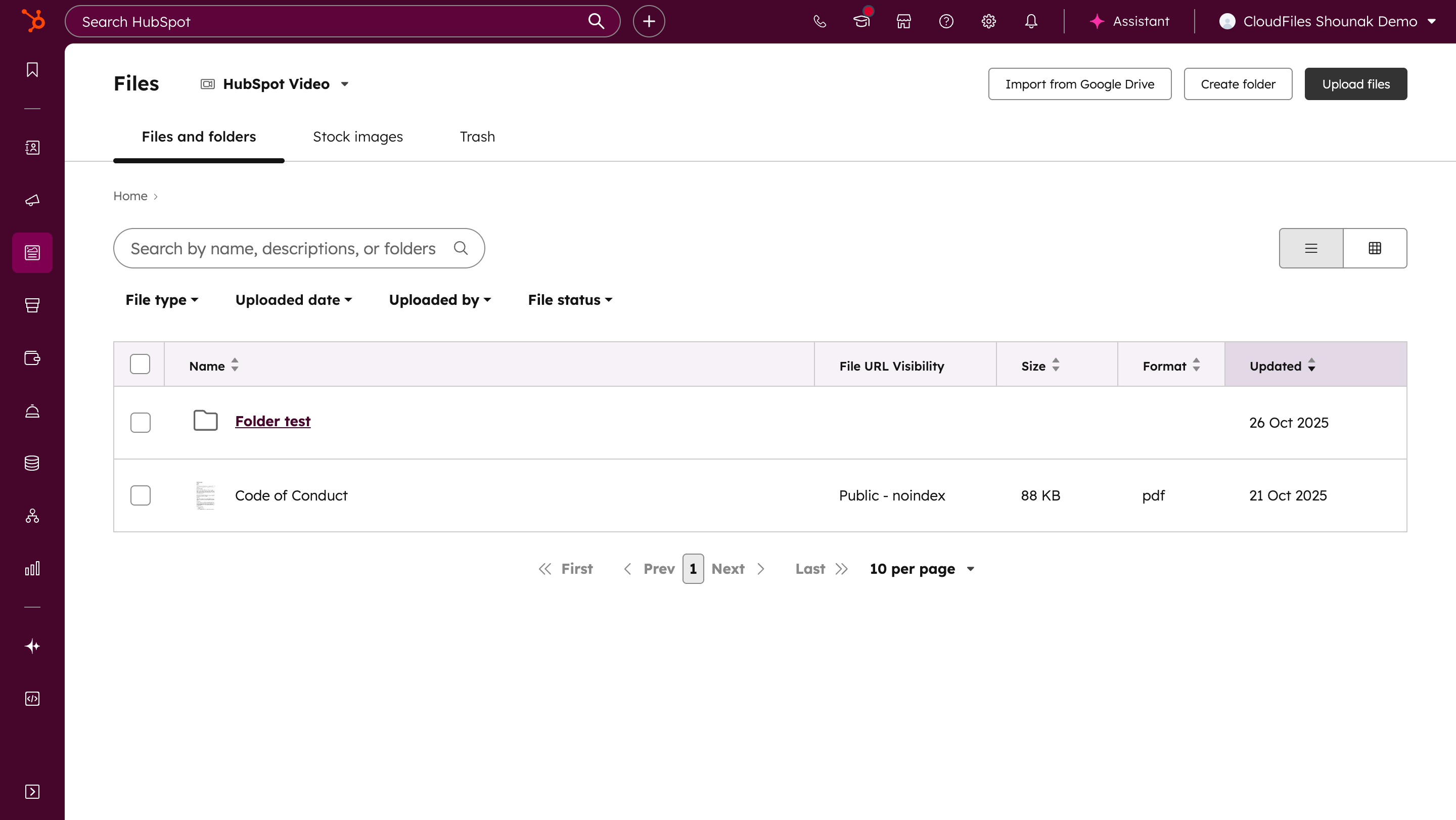
HubSpot’s File Manager acts as a single, centralised storage space for all files used across your HubSpot account, including images, documents, videos, and design assets that may be used by marketing, sales, or service teams.
Files can be uploaded directly by drag-and-drop, through the Upload files button, or imported directly from Google Drive. Every file uploaded is hosted on HubSpot’s global Content Delivery Network (CDN), ensuring fast and reliable access no matter where your visitors are located. This improves page load speed and maintains consistent file delivery performance worldwide as part of your central document storage solutions strategy.
2. Broad File Format Support (15+ Types)
HubSpot supports common and widely used file formats, including JPG, PNG, GIF, PDF, MP4, and DOCX, along with others such as PPTX, XLSX, and CSV. The File size limits in HubSpot’s Files tool are:
- If you’re using HubSpot’s free tools, you can upload files up to 20 MB.
- If you’re on a paid plan, the limit increases to 2 GB.
3. Structured Library Management (Folders + Bulk Actions)
HubSpot’s File Manager allows you to maintain a well-structured, easily navigable library of assets, similar to a focused file management system. You can create folders to group files by campaign, asset type, or purpose, helping teams quickly locate what they need. The breadcrumb navigation at the top of the screen helps you keep track of your current location within nested folders.
Filtering and sorting options let you quickly locate files by type, upload date, or uploaded by, making it easier to manage even extensive libraries used across multiple departments.
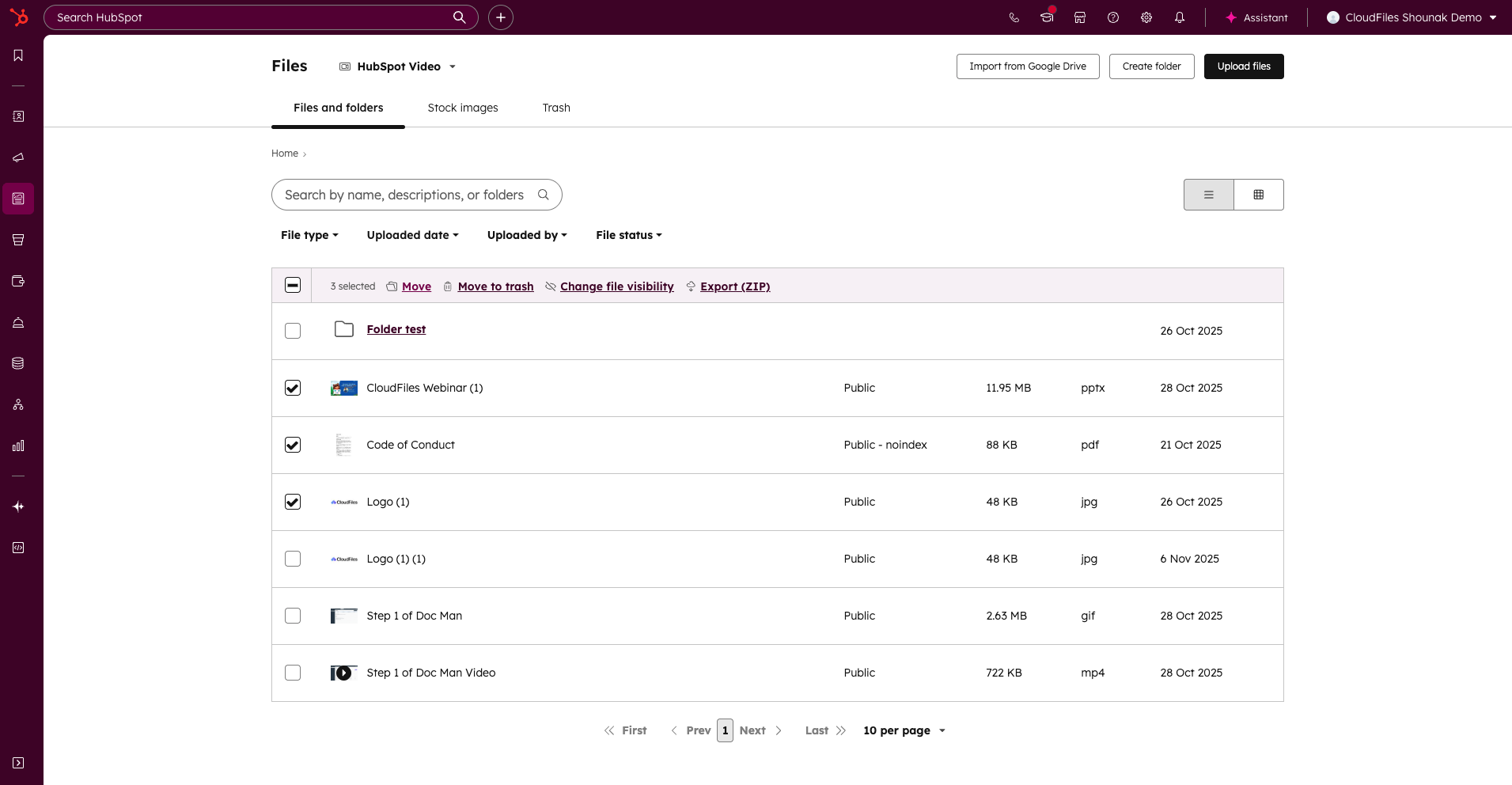
You can also select multiple files at once to perform bulk actions such as moving, downloading, or deleting. This makes it easy to reorganise your content or archive outdated materials efficiently across all functions.. To move multiple files, simply check their selection boxes and choose the folder in which you want to move them and click on the “Move” option from the dialogue box.
4. File Visibility Controls (3 Settings)
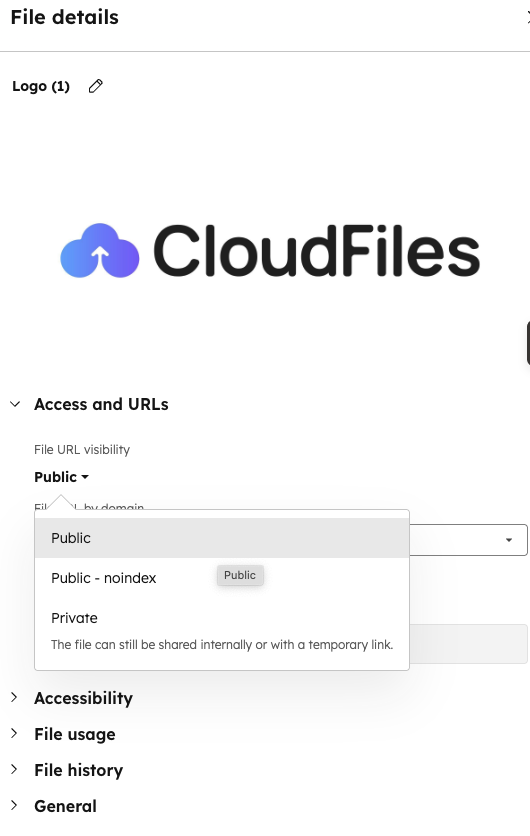
Every uploaded file in HubSpot File Manager can be assigned one of three visibility settings:
- Public: Accessible to anyone with the link and indexable by search engines. This works best for assets meant for public distribution such as product images or blog visuals or sales one-pagers intended for broad sharing.
- Public – Noindex: The file remains accessible through its link, but blocked from search engine indexing. This option is best for gated assets, campaign materials, or temporary resources used in sales or service workflows that shouldn’t appear in search results.
- Private: The file is hidden from both the public and search engines. Only users within your HubSpot account or people with a temporary 24-hour share link can access it for short-term collaboration. This setting is recommended for internal resources, confidential materials, or sales/service collateral not meant for external audiences. This in turn ensures secure document sharing.
You can also choose which domain serves your file, copy or disable URLs, and even set expiration dates for time-sensitive content. By default, uploads are Public, so regularly reviewing visibility settings is recommended for privacy and compliance within your document management system.
5. File Details, Accessibility Insights and Usage Tracking
When you select a file in HubSpot’s File Manager, a details panel appears on the right-hand side showing a complete overview of that asset. It includes the file’s preview, metadata, accessibility settings, and usage information, helping you treat HubSpot File Manager as a mini document tracking hub.
Usage Tracking
The details panel shows where a file appears across HubSpot - on pages, in emails, or within templates. This is useful not only for marketing teams but also for sales and service, ensuring shared resources aren’t mistakenly deleted. However, Usage tracking is currently available for image and video files only; other file types aren’t indexed. This helps prevent accidental deletion or modification of assets actively used in campaigns.
Accessibility and Metadata
To make content both accessible and searchable, HubSpot provides fields for alt text and title attributes:
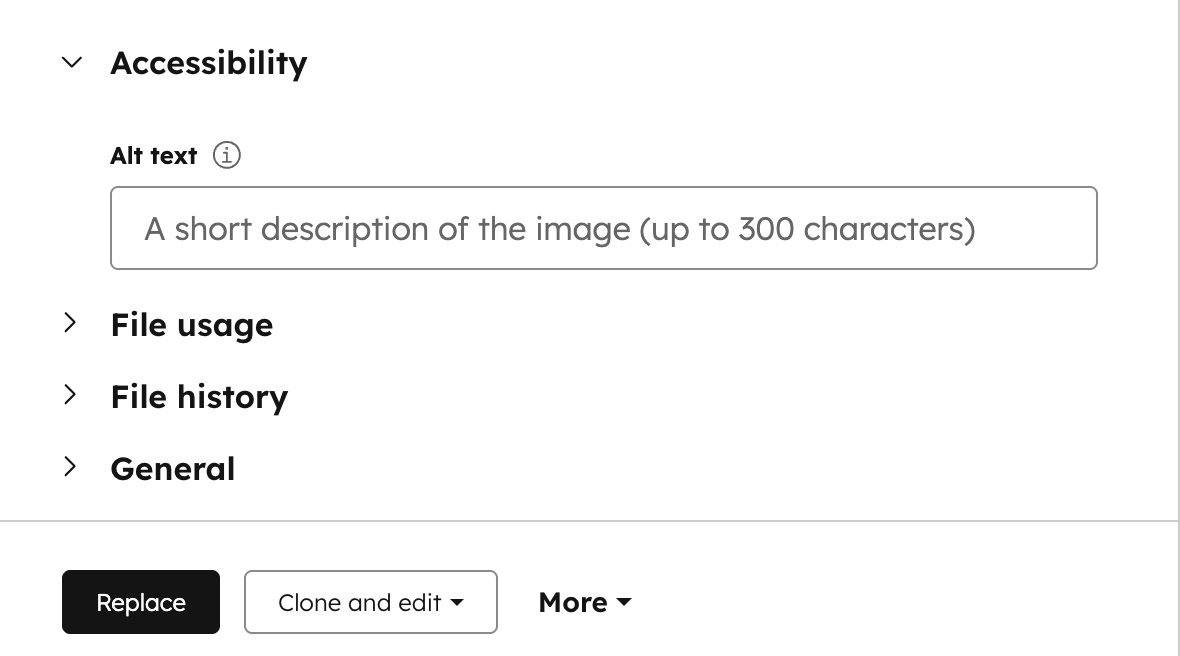
- Images: Add alt text to describe visuals for screen readers and improve SEO or to align with internal accessibility guidelines across departments.
- Videos: Add a title attribute to give context when playback isn’t available.
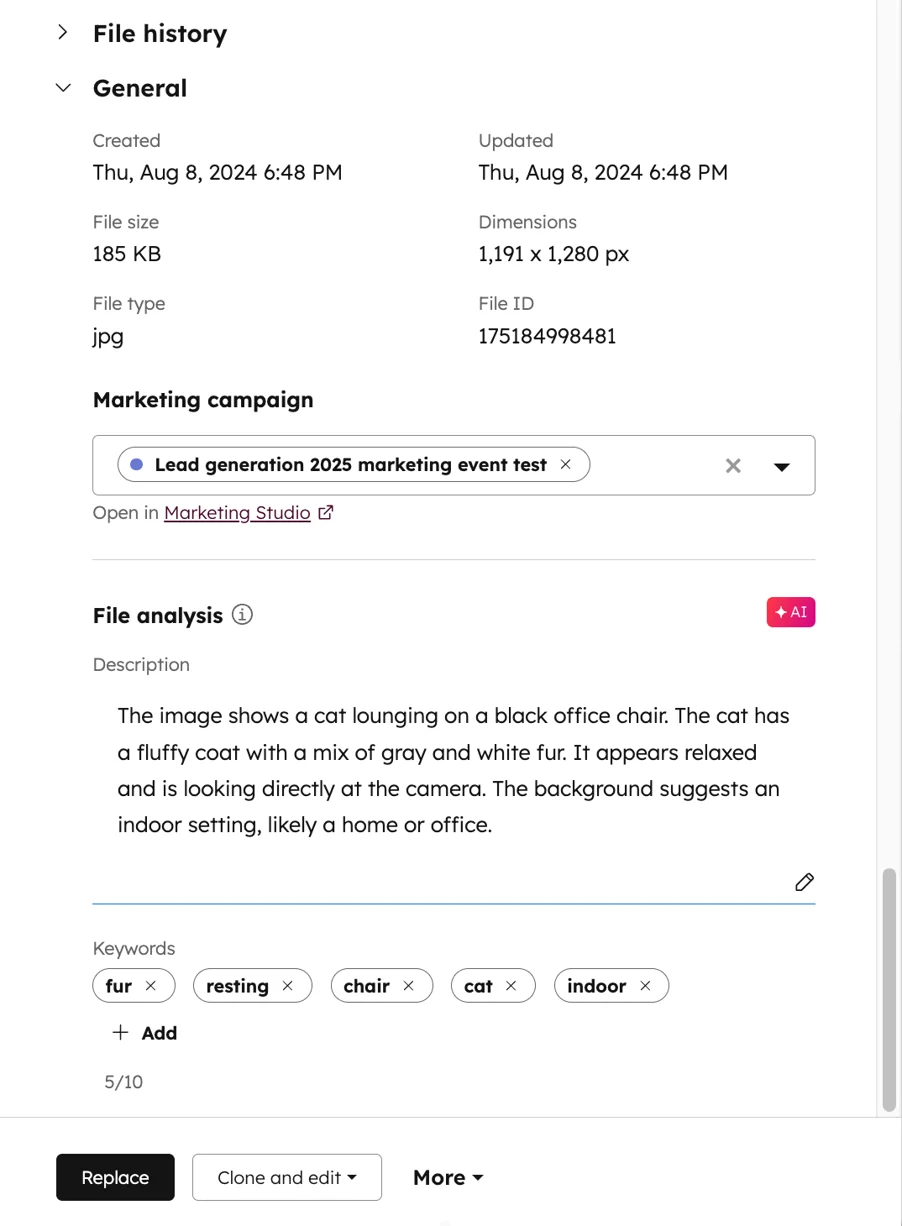
HubSpot also includes AI-powered analysis that generates a brief description and up to ten relevant keywords. You can edit these to match your team’s naming standards. This metadata improves internal search accuracy and helps locate files based on context, not just name, which is key in any scalable document management software setup.
File History
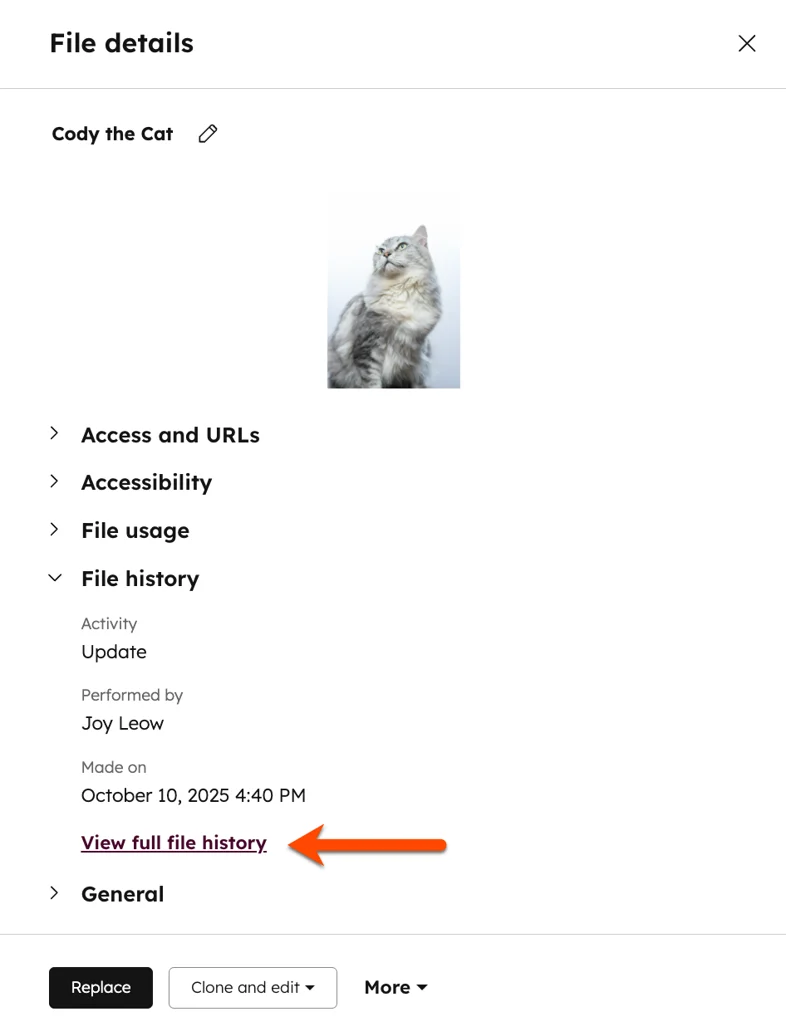
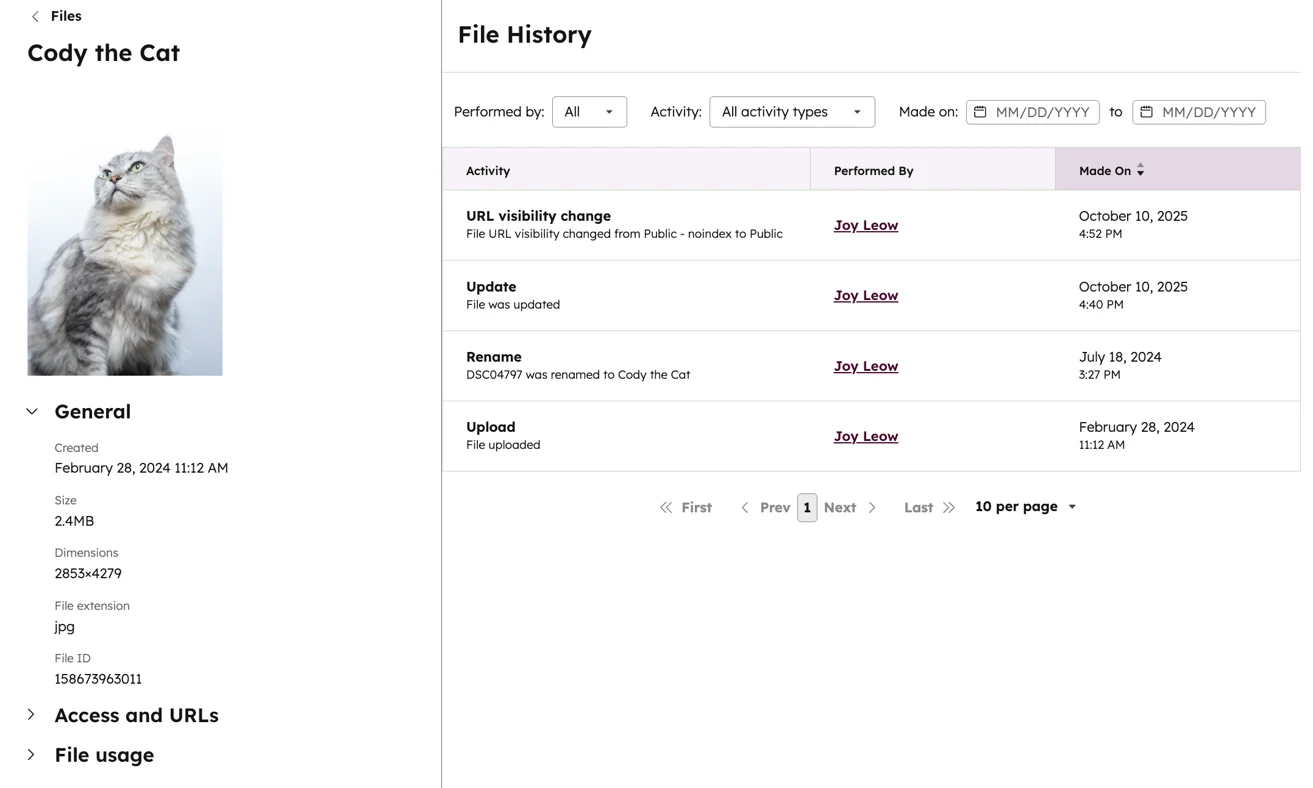
The File History feature in HubSpot allows you to track every significant change made to a file, helping maintain accountability and transparency in how assets are managed. From the File details panel, you can open a chronological log showing updates such as visibility changes, renames, deletions, and replacements.
The history panel lets you filter changes by:
- Performed by – to see which user made a specific update.
- Activity – to identify the type of change (e.g., rename, delete, visibility update,etc).
- Made on – to filter by the date when the change occurred.
This log provides a clear record of how a file has evolved over time, supporting version control, governance, and compliance efforts within your file management system.
6. File Actions: Replace, Clone, and Download
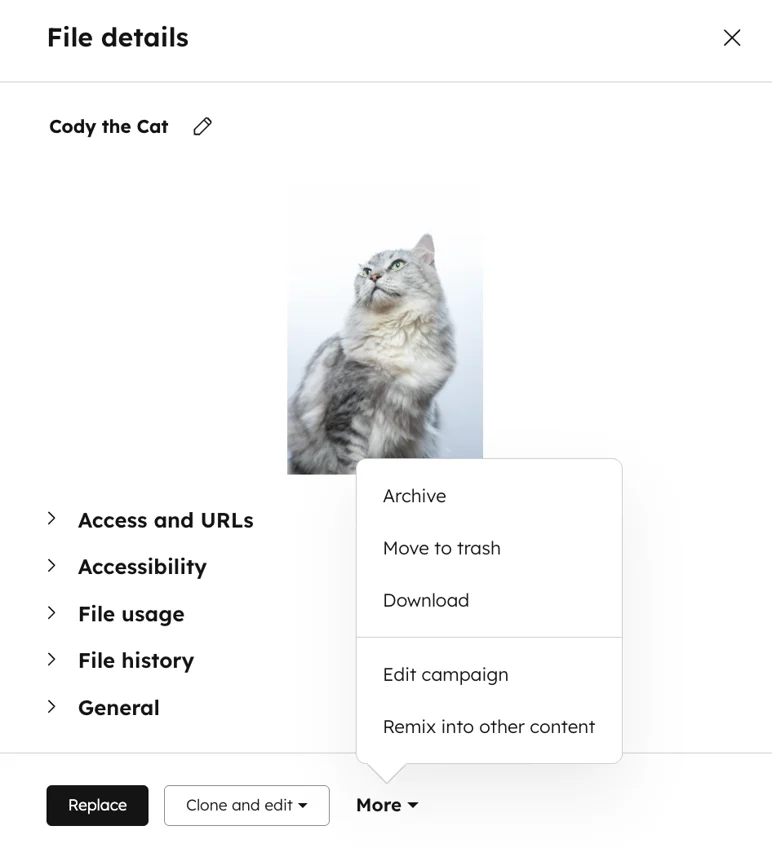
At the bottom of the details panel, you’ll find several actions you can perform on a file. HubSpot’s File Manager includes core tools that simplify asset management, which are Replace, Clone and Edit, and Download.
- Replace updates a file while keeping the same URL, so you can refresh PDFs, update images, or sales/service assets without breaking links. Since files are served through HubSpot’s CDN, updates may take a little time to appear everywhere due to caching.
- Clone and Edit is especially useful for images. It creates a copy of an image and lets you make changes using connected tools like Canva or Adobe Express.
- Download: Save files locally for offline work, backups, or sharing with external collaborators.
These controls make it easy to maintain consistency across files that evolve and align with broader document management system practices.
7. File Lifecycle Management
As your library grows, you can manage outdated assets using lifecycle controls:
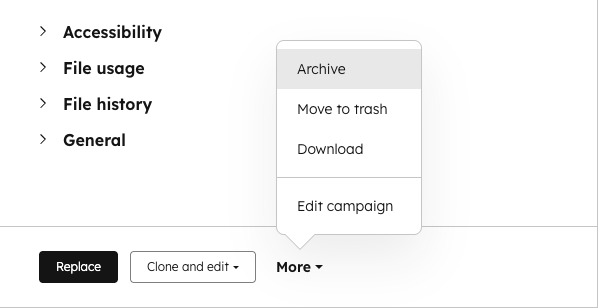
- Archive: Removes a file from the active view but keeps it recoverable anytime.
- Delete: Permanently removes the file after 30 days in trash.
- Restore: Brings back an archived or deleted file if needed.
These features ensure your File Manager stays clean and relevant without losing important historical assets, supporting long-term document lifecycle management.
/imag
8. Video Hosting and Performance Analytics
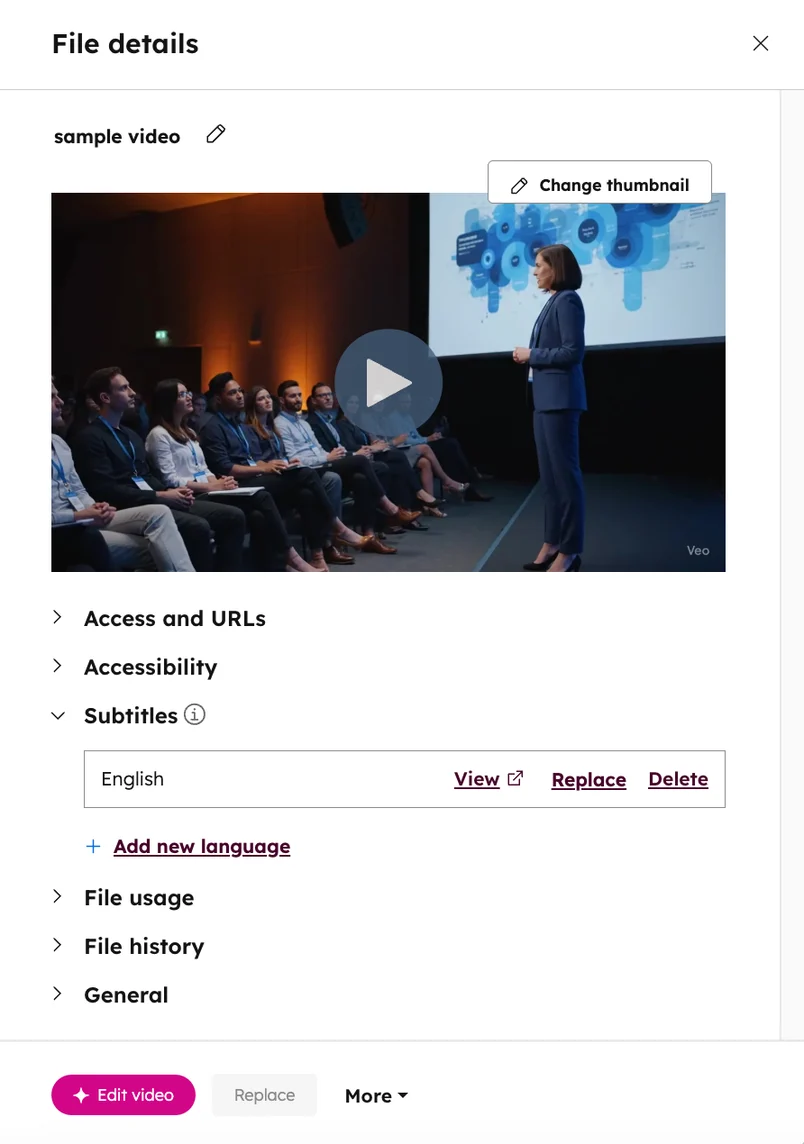
For video assets, HubSpot provides additional features like custom thumbnails, subtitles, embedded forms, and performance tracking (available on certain plans). These options make it easier to integrate video files into your content strategy while keeping engagement data connected to your marketing analytics, as well as for sales demos and service tutorials. Instead of being treated as static uploads, videos become measurable and interactive components of your campaigns.
9. AI Remix and Content Repurposing
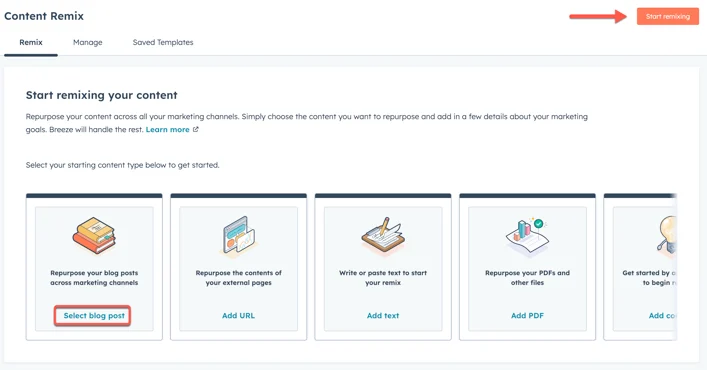
HubSpot’s Remix feature uses AI to repurpose existing content. For example, turning images into social posts or adapting video clips for different channels. This makes it easier to extend asset usability across campaigns without starting from scratch, promoting faster content production and consistent branding within your overall cloud document management setup.
10. Files API(v3) for Programmatic Access
HubSpot’s Files API (v3) allows teams to manage File Manager assets programmatically instead of through the interface. With it, developers can upload files, create folders, update metadata, set visibility levels, and delete assets when needed through automated workflows or external applications.
The API supports the same access levels used in HubSpot File Manager (Public, Public – Noindex, and Private) and lets you define where a file is stored, how long it remains available, and who can access it. It can also generate temporary signed URLs for private files, enabling secure sharing outside of HubSpot without changing visibility settings.
This API provides a flexible way to integrate file management into other systems, automate asset handling, or synchronise files between HubSpot and custom-built tools while following the same rules and permissions that apply in the HubSpot File Manager, effectively extending your CRM document management system beyond the UI.
Together, these core features define how HubSpot File Manager operates as the central hub for digital assets. They provide the structure, control, and flexibility needed to manage files efficiently and ensure that every asset remains organised, secure, and usable across all parts of your HubSpot environment as a practical document management system for your teams.
What Advanced Features Do Power Users Love?
As teams grow and content operations become more sophisticated, HubSpot’s File Manager becomes a powerful system for maintaining brand integrity, accessibility, and search performance. Beyond everyday uploading and organisation, there are a few advanced capabilities that experienced users rely on to make their file management smarter and more professional.
Two of the most impactful among them are Custom Domain File Hosting and SEO & Accessibility Optimisations within HubSpot’s broader document management system.
1. Custom Domain File Hosting
By default, files in HubSpot are hosted on HubSpot’s content delivery network (CDN) under a standard domain. While this setup is perfectly fine for most users, power users often take it a step further by linking their files to a custom subdomain. For example, files.yourcompany.com.
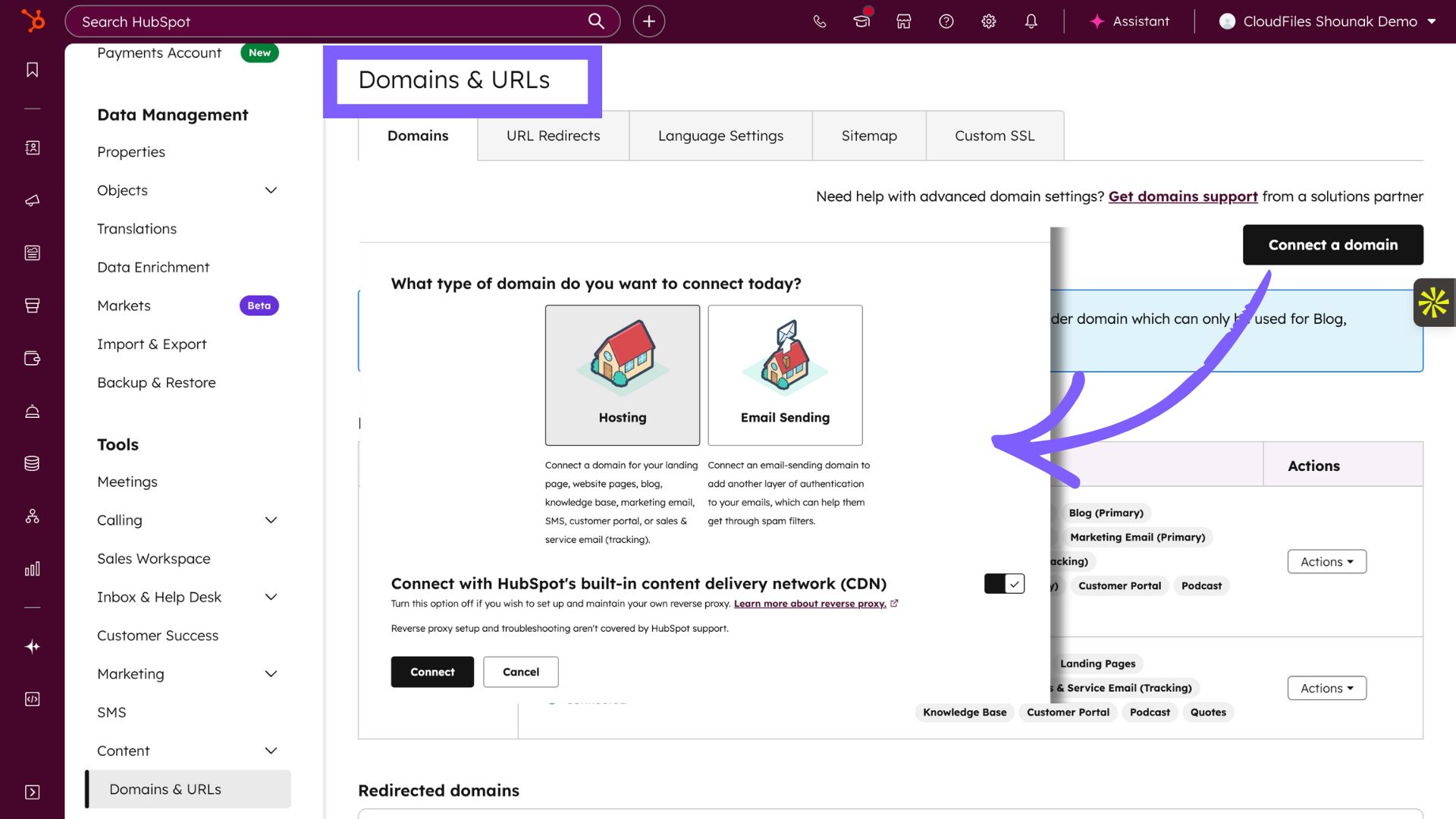
This setup allows all hosted assets like images, PDFs, videos, and downloads to appear under your company’s own verified domain. The underlying delivery still uses HubSpot’s fast CDN, but the public-facing link reflects your brand rather than HubSpot’s infrastructure.
Why do power users love it?
- It maintains branding consistency across all touchpoints, from emails to landing pages, to sales documents and service guides.
- It builds trust and professionalism, especially when sharing resources externally.
- It keeps file URLs aligned with your web ecosystem, which simplifies analytics and domain governance across all teams using HubSpot as a file management system.
2. SEO and Accessibility Optimisations
Search visibility and accessibility often depend on the smallest details, and HubSpot’s File Manager gives advanced users the tools to optimise both. Through thoughtful naming conventions and alt texts, you can make your assets more discoverable to search engines and more accessible to all audiences. HubSpot even encourages this practice in its own documentation and customer success blogs.
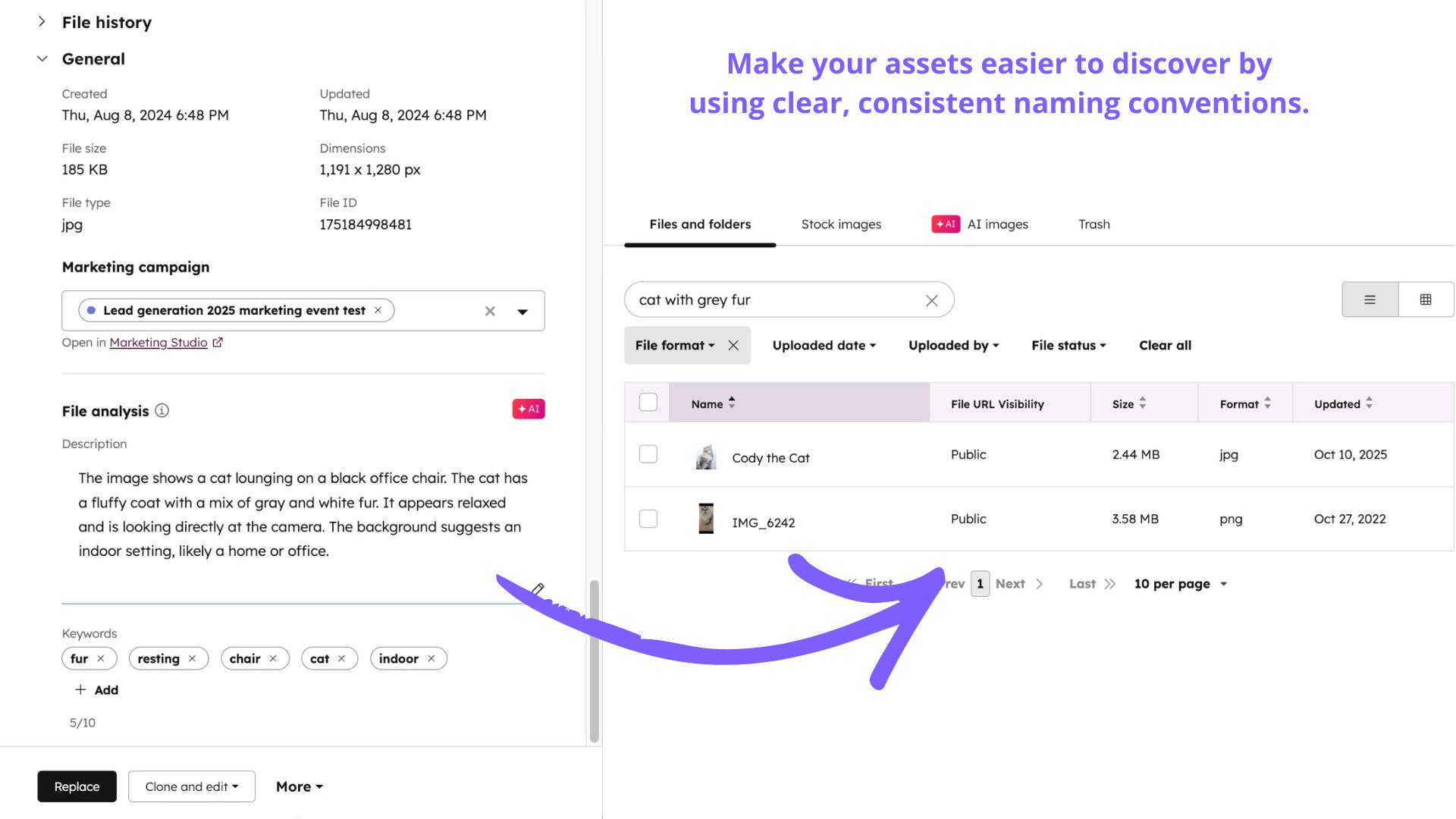
Why do power users love it?
- Descriptive file names improve how search engines interpret images and documents across publicly shared marketing, sales, and service assets.
- Adding alt text to images and title attributes to videos ensures compliance with accessibility standards and enhances screen-reader experiences.
- Clean, structured naming like
team-photo-2025.jpginstead ofIMG_1234.jpghelps both search engines and humans understand the file’s context. - Optimized metadata contributes to better content organisation, faster internal search, and higher-quality content delivery across HubSpot tools, supporting scalable cloud document management across teams.
These advanced features show how HubSpot’s File Manager goes beyond basic storage. Thus, custom domain hosting strengthens brand trust and alignment, while SEO and accessibility optimisations ensure that every file is properly structured, searchable, and usable for all audiences. This enhances the overall effectiveness of your document management system in HubSpot.
Real World Marketing Use Cases : How Do Teams Use HubSpot File Manager?
Knowing how the HubSpot File Manager works is one thing and understanding how it fits into everyday marketing operations is where its real value shows. For most marketing teams, it quietly supports three major goals: keeping brand assets consistent, improving SEO performance, and making campaign management smoother and more collaborative.
1. Maintaining Brand Integrity
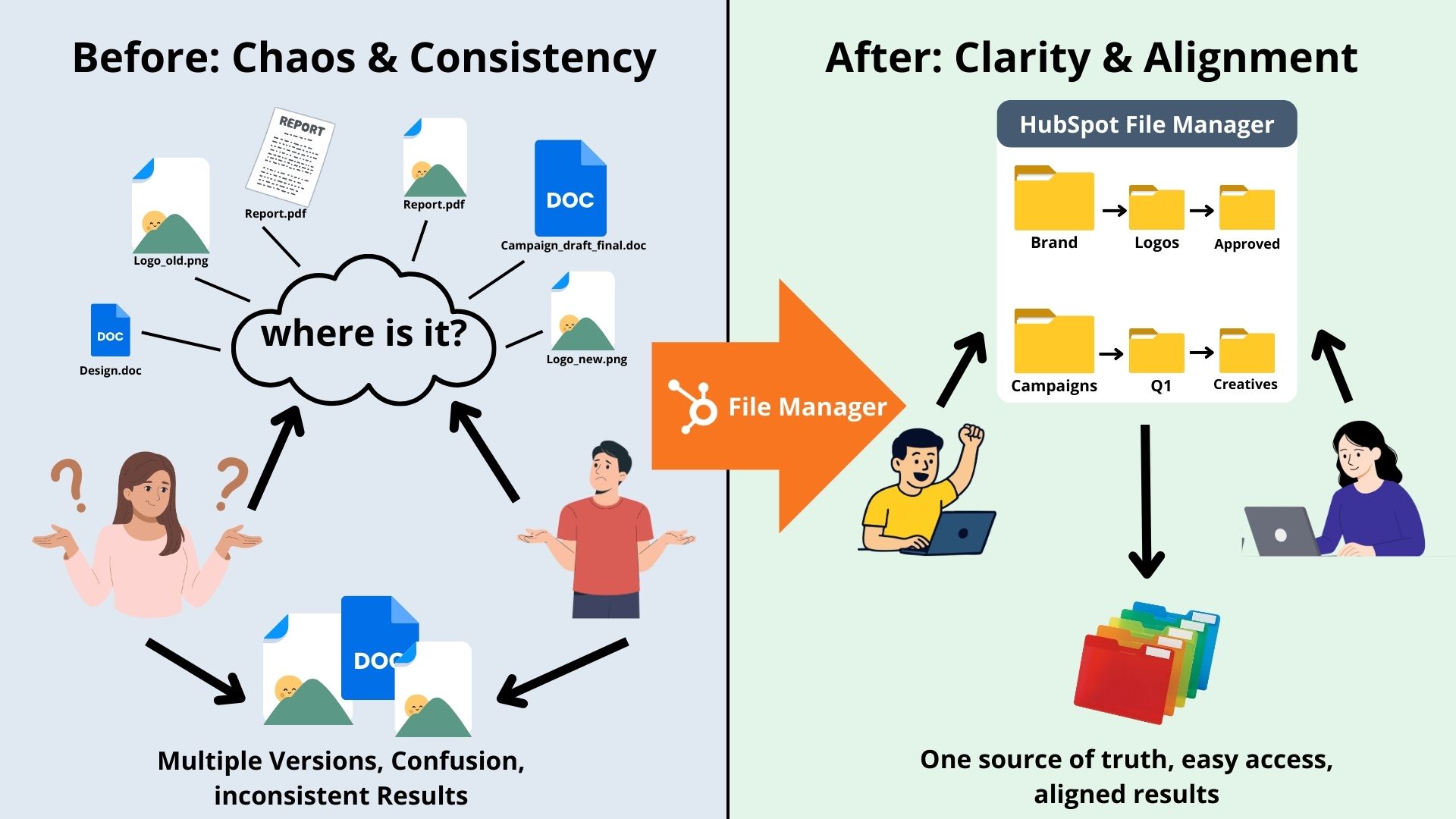
Brand consistency often breaks down as teams grow. Multiple versions of logos, outdated templates, and renamed folders are common pain points. 63.5% of brands report challenges with teams using outdated or incorrect versions of assets.
HubSpot File Manager helps fix this disconnect by centralizing approved visuals, design templates, and documents in one structured space. When your folder hierarchy is clear, for example, Brand → Logos → Approved or Campaigns → Q1 → Creatives - everyone knows exactly where to go for the latest version.
Instead of being just a storage area, the File Manager becomes your single reference point for every brand element, functioning like a focused file management system that supports consistency across all teams.
2. Strengthening SEO Control
A tidy file library doesn’t just make your work easier but also improves how search engines see your site. Every file uploaded to HubSpot generates its own URL, and how that URL is named and structured contributes to SEO performance - a benefit typically associated with strong document management software.
Descriptive filenames like “homepage-hero-banner.jpg” or “ebook-marketing-strategy.pdf” help search engines understand what the file represents, while generic names like “IMG_0024.jpg” add no context. Clean, lowercase names separated by hyphens are easier to index and look more professional when shared. The way you organise folders also matters. Logical paths such as “/images/blog/header-banner.jpg” produce clear, meaningful URLs that enhance both usability and SEO, unlike long, cluttered paths that bury content several levels deep.
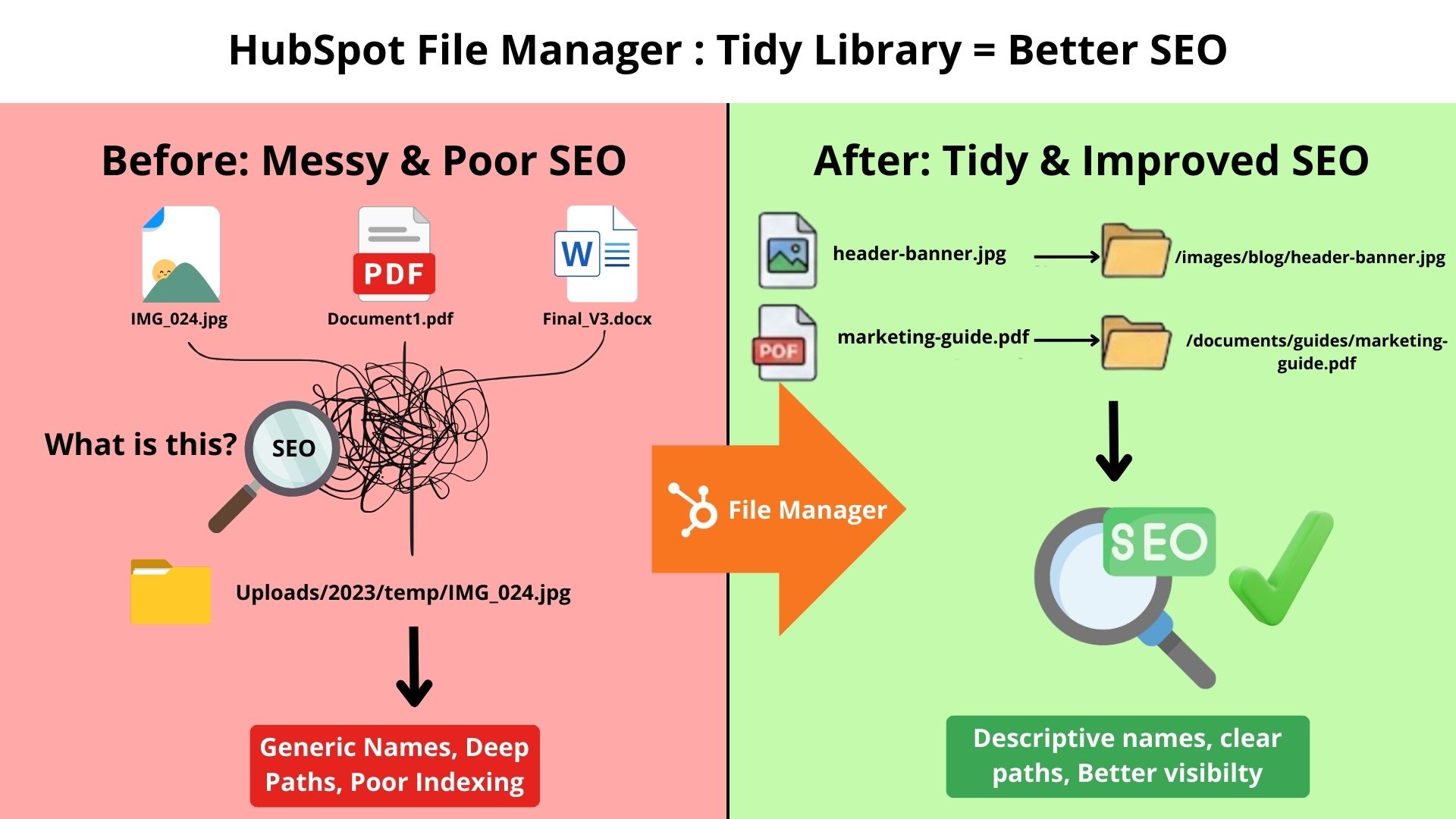
Visibility settings offer another layer of control. Public files are indexable and ideal for on-page visuals or downloadable content, while Public-Noindex keeps assets accessible without cluttering search results. Private files, meanwhile, stay completely hidden from search engines, perfect for internal or time-sensitive assets managed within your document storage solutions.
Together, these practices, smart naming, logical structure, and mindful visibility ensure your File Manager quietly supports better search performance without any extra work.
3. Managing Campaign Assets
Campaigns move fast, and they generate a lot of collateral. PDFs, landing-page banners, social graphics, and videos can pile up quickly. The HubSpot File Manager helps keep them under control by grouping related materials in one place as a part of your central cloud document management approach. Teams that archive past campaigns report 40% faster asset retrieval compared to teams that leave old files in the main library.
One of the key advantages is continuity. When a campaign asset like a banner image or eBook is updated in the HubSpot File Manager, the change reflects automatically wherever that file is used across HubSpot landing pages, emails, or ads. This ensures that campaigns stay consistent even as messaging evolves.
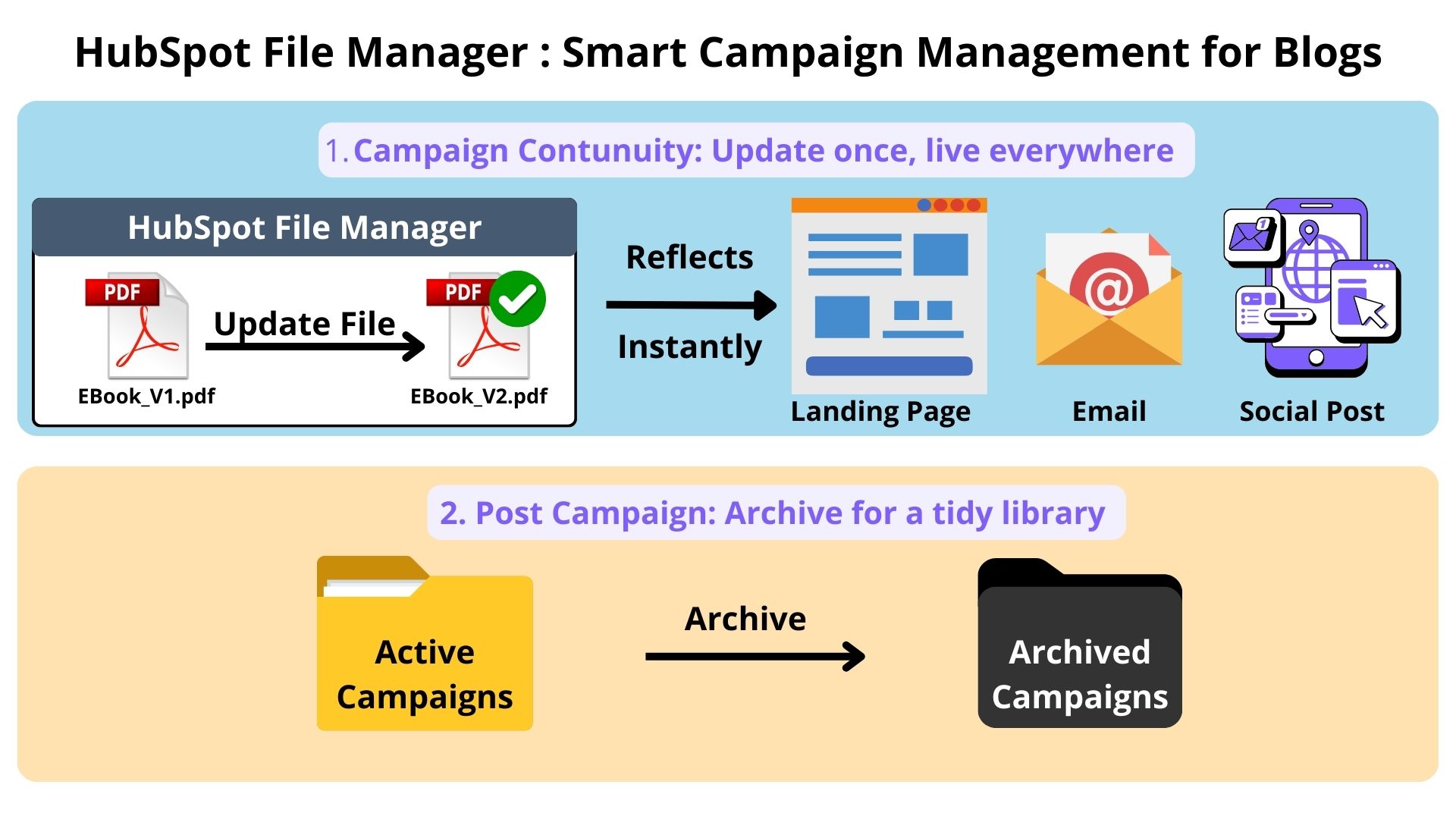
When a campaign ends, moving or archiving its folder helps keep your main library clean and focused. Over time, this discipline makes it easier to look back on past campaigns without digging through old or mislabeled files.
4. Supporting Cross-Team Collaboration
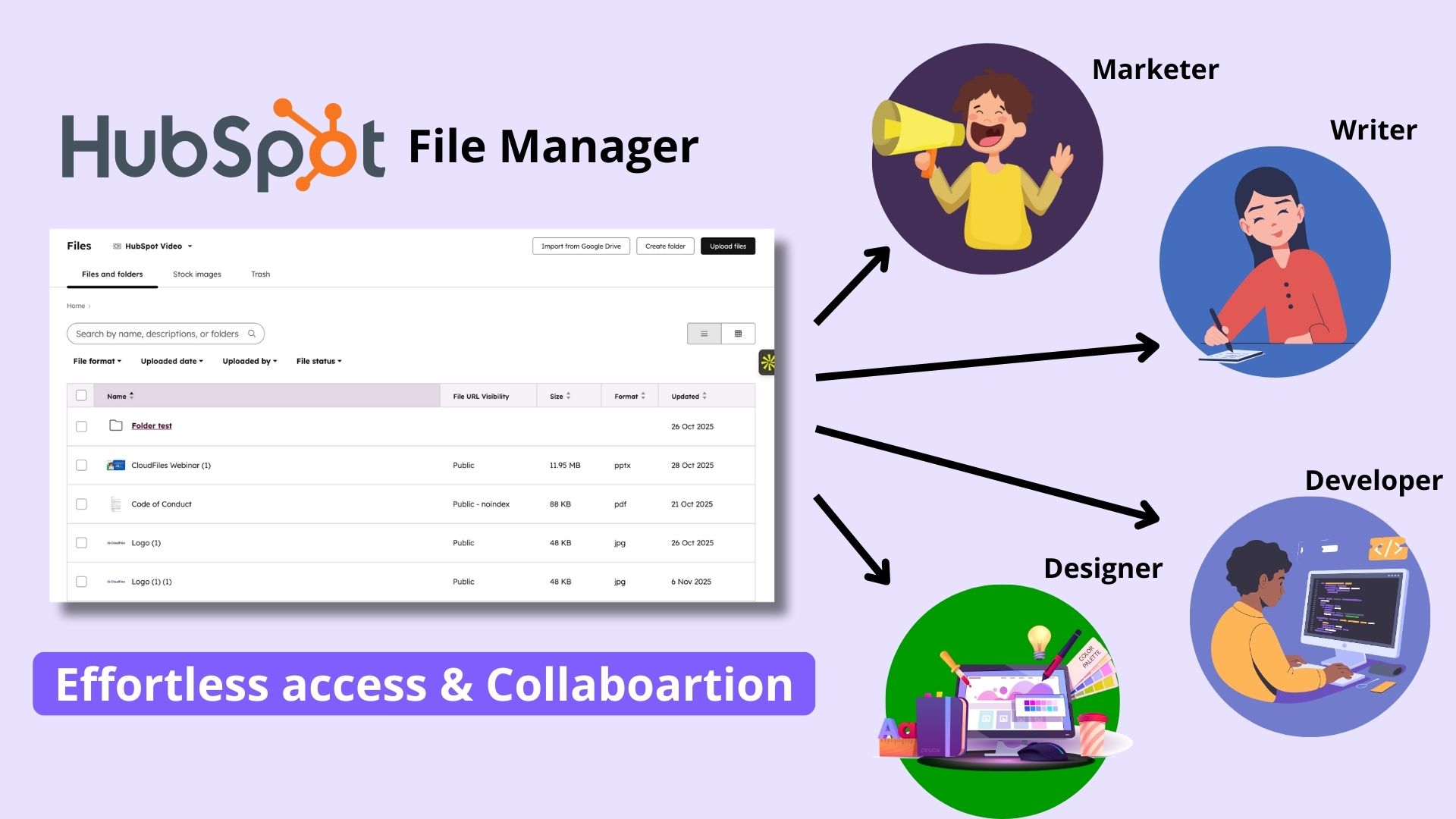
A shared, organised HubSpot File Manager benefits more than just marketers. Designers, writers, and developers all rely on the same assets and when everything lives in one central location, collaboration becomes effortless. Because HubSpot connects the File Manager directly to landing pages, emails, and blog tools, any file updates automatically reflect wherever they’re used. It’s a simple way to keep teams in sync and reduce version-related errors.
Thus, the File Manager is more than just a digital drawer for your assets. It’s a quiet but essential part of how marketing teams maintain order, consistency, and visibility across everything they produce - strengthening overall HubSpot document management across the organisation.
File Governance, Permissions & Compliance
Managing digital assets at scale means more than just uploading and organising files, it also requires governance, correct permission controls, and compliance mechanisms. In the context of the HubSpot File Manager, these elements ensure that files are accessed only by authorised users, handled appropriately over their lifecycle, and stored in line with regulatory or organisational policy.
1. User Permissions and Role-Based Access (4 Levels)
File access in HubSpot is controlled through user permissions, which determine what level of interaction each person has within the HubSpot File Manager. Permissions are assigned through the Users & Teams settings, where admins can enable or disable the Files permission toggle.
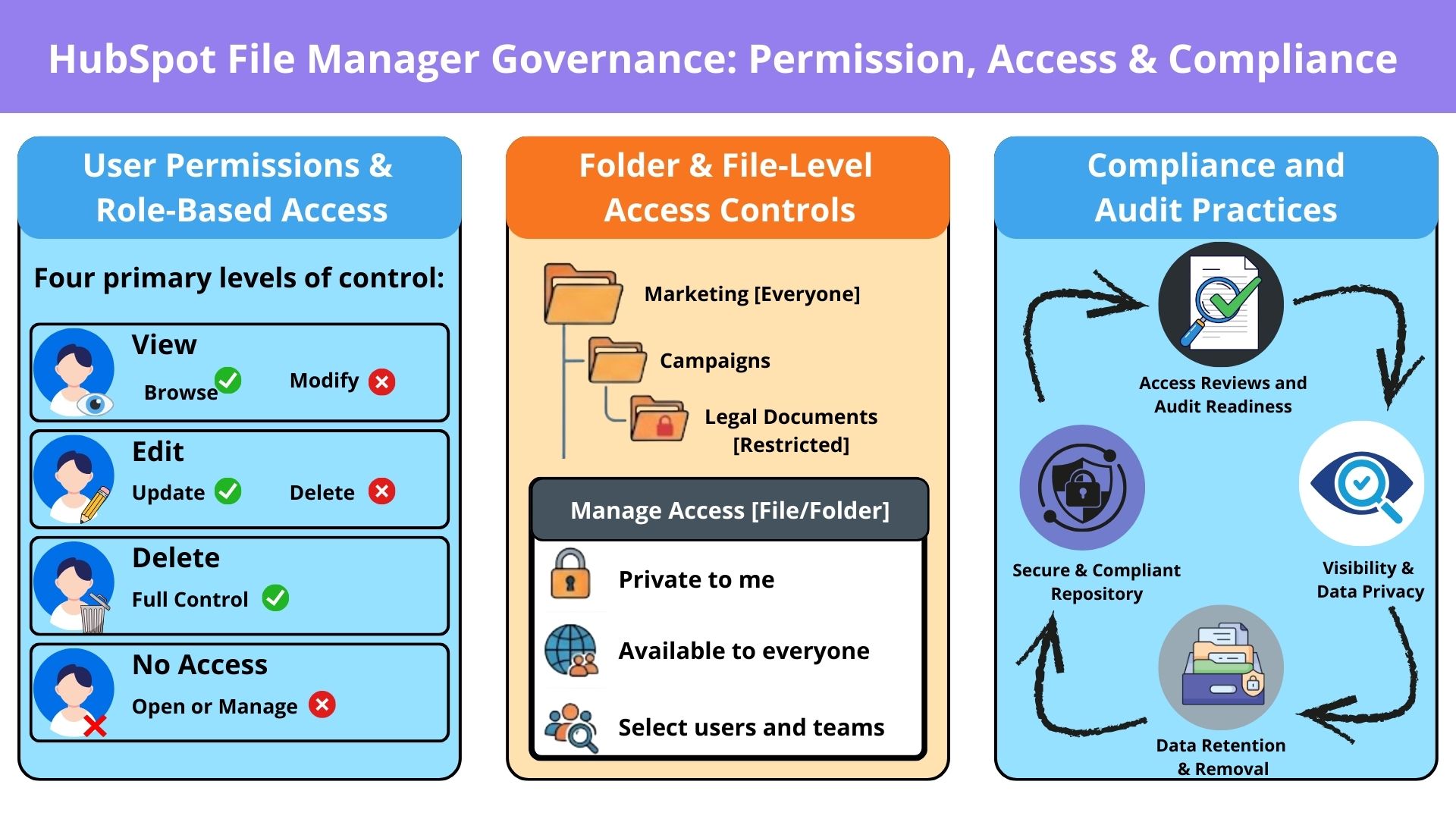
There are four primary levels of control:
- View: Users can browse existing files and upload new ones, but they cannot modify existing file details or delete assets.
- Edit: Users can upload, view, and update file details such as names, alt text, or visibility settings but cannot delete files.
- Delete: Users have full control — they can upload, edit, and permanently remove files.
- No Access: Users without the Files permission cannot open or manage assets within the File Manager. They will still see the Files option in HubSpot’s navigation bar and can access the file picker within editors, but they cannot view or change stored files.
By defining these permissions at the role or individual user level, admins ensure that only the right people can modify or remove shared assets. This system reduces the risk of accidental deletion, maintains accountability, and supports better version control across teams as part of internal document management software practices.
2. Folder and File-Level Access Controls
In addition to global user permissions, HubSpot provides granular access control at the folder and file level, a capability available to Professional and Enterprise subscriptions. This allows organisations to fine-tune who can view or edit specific content areas within the HubSpot File Manager.
Access can be managed for individual files, folders, or subfolders. For example, a company might grant marketing teams full access to campaign visuals but restrict legal or HR documents to specific team members. Folder access is configured directly within the File Manager by selecting Actions → Manage Access next to a folder or file.
The available visibility settings include:
- Private to me: Only the user who set the restriction can view or modify the file or folder.
- Available to everyone: All HubSpot users in the account can access and edit the content.
- Select users and teams: Access is limited to specific individuals or teams. This option enables a layered structure where you can make a main folder open to everyone while restricting access to certain subfolders for sensitive projects.
System-generated folders in HubSpot cannot be restricted, ensuring that essential platform assets remain accessible to all required users. Once configured, these controls allow administrators to manage internal data segregation and safeguard confidential materials without complicating general collaboration - important capabilities within any file management system.
3. Compliance and Audit Practices
File governance in HubSpot also involves maintaining compliance with internal policies and data protection standards. While HubSpot secures the platform itself, account administrators are responsible for how files are shared, retained, and accessed - particularly when handling sensitive HubSpot documents.
Access Reviews and Audit Readiness
Regular permission reviews help ensure that only the right users have access to sensitive files. Administrators can use the Manage Access panel to check folder- and file-level permissions and adjust them as roles or projects change.
Visibility and Data Privacy
Applying the correct visibility setting—Public, Public–Noindex, or Private helps prevent unintentional exposure of confidential assets. Files containing personal or internal data should always remain Private, aligning with privacy regulations such as GDPR and SOC 2.
Data Retention and Removal
Archiving, restoring, and deleting files in HubSpot supports proper data retention practices. Unused or outdated assets can be safely removed to reduce storage risk, and the GDPR delete option permanently erases both content and metadata when required.
Therefore, effective governance of assets in HubSpot’s File Manager is integral to both organisational efficiency and risk management. By applying user and team-level permissions, restricting folders appropriately, managing file visibility settings, and auditing access, you ensure that your digital asset repository remains secure, compliant, and fit for purpose. This, in turn, aligns HubSpot File Manager closely with the needs of a reliable document management system.
Pro Tips & Best Practices: How Do You Keep HubSpot File Manager Organised at Scale?
As your HubSpot account grows, the number of files uploaded by different teams increases quickly. Without a clear structure, it becomes difficult to locate the right version of an asset or maintain consistency across campaigns, as well as sales or service workflows. Here are some practical ways to keep your HubSpot File Manager organised, efficient, and easy for everyone to navigate as part of your overall document management system.
1. Use Consistent and Descriptive File Names
Instead of system-generated names like IMG_001.jpg, use clear, descriptive names that identify both the content and its purpose. For example: product-launch-banner-2025.jpg or q1-marketing-report.pdf. Well-named files can reduce internal search time by up to 60% compared to generic naming conventions.
Follow a consistent pattern across teams, using hyphens instead of spaces, and avoiding special characters. Well-named files improve not only internal search accuracy but also SEO, since file names are included in image and document URLs indexed by search engines.
2. Build a Logical Folder Structure
Start by defining a clear folder hierarchy before uploading large volumes of content. Group files by function or purpose, not by user or upload date.
For instance, use top-level folders such as Images, Videos, Documents, and Campaigns, then create subfolders by project or department. A shallow, well-planned structure prevents duplication and makes it easier for new team members to find what they need, regardless of their role - mirroring the structure of a well-managed file management system.
3. Apply Tags and Metadata for Easier Search
HubSpot’s File Manager supports metadata fields and AI-generated keywords that make searching faster and more precise. After uploading, review and adjust these details so that file descriptions, tags, and keywords accurately represent the asset.
When done consistently, this creates a searchable context layer, making it easy to find assets even when you can’t recall the exact file name or folder.
4. Maintain a Clear Versioning Approach
To avoid confusion between drafts and final assets, include version indicators in file names (for example, landing-page-graphic-v2.png). When replacing an existing file through the Replace option, HubSpot automatically keeps the same URL, so older links remain functional.
This approach maintains consistency across campaigns as well as sales documents, service PDFs, and other shared assets, while ensuring version clarity and supporting smoother HubSpot document management.
5. Archive or Remove Outdated Assets
Regular maintenance is essential to prevent clutter. Review your library periodically and move old or unused files to an Archive folder or delete them entirely if they’re no longer needed. HubSpot retains deleted files for 30 days, giving you a safety window to restore something if it’s removed by mistake.
Keeping only relevant, active files improves visibility and reduces storage bloat, especially for large teams. A consistent, well-maintained HubSpot File Manager helps you find what you need quickly, reduces duplicate uploads, and keeps content workflows efficient.
What Are the Key Limitations of HubSpot File Manager?
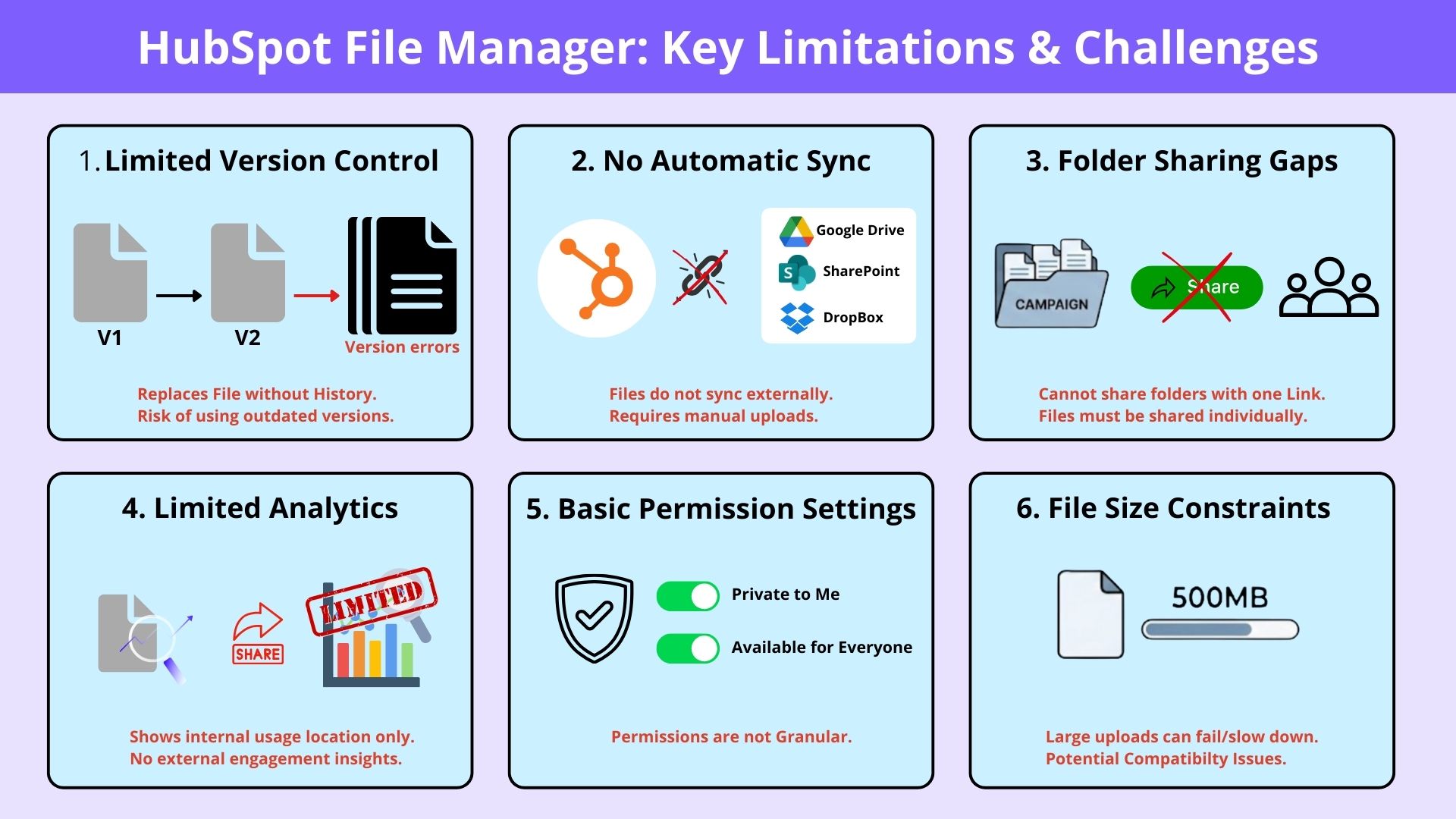
HubSpot File Manager has 6 notable limitations that become more significant as teams scale beyond basic internal asset management.
1. Limited Version Control
Version management is one of the most common challenges. While you can replace a file and keep the same URL, the File Manager doesn’t maintain older versions or show what’s changed. There’s no built-in review or approval workflow either. This becomes especially tricky for sales teams that frequently update pitch decks, proposals, or pricing sheets and for service teams managing documents like FAQs, support PDFs, or troubleshooting guides, where even small version errors can cause confusion or inconsistencies in client communication.
2. No Automatic Sync with External Storage
HubSpot File Manager doesn’t sync automatically with external tools like Google Drive, SharePoint, or Dropbox. That means files often exist in multiple places, and someone has to manually upload new versions each time content changes. Both marketing and sales teams end up wasting time trying to align what’s stored in HubSpot with what’s already in their shared drives. Without two-way sync, organisations spend an estimated 2–3 hours per week on manual file alignment tasks.
3. Folder Sharing and Collaboration Gaps
Sharing files one by one works fine, but the File Manager doesn’t let you share an entire folder of assets with a single link. For sales teams that need to share multiple documents, such as presentations, contracts, and brochures, with a prospect, this limitation slows things down. Similarly, marketing teams working with agencies or partners must share files individually or resort to external sharing tools, which interrupts an otherwise connected HubSpot workflow, and service teams face similar friction when sharing troubleshooting bundles, onboarding packs, or internal SOP documents externally.
4. Limited Analytics and Engagement Insights
The HubSpot File Manager shows where a file is used in HubSpot, but not how people interact with it once shared. There’s no way to see who viewed a document, how long they spent on it, or which pages they focused on. For sales teams, this kind of engagement insight can make a big difference; it helps gauge buyer interest and follow up at the right moment. Service teams also lose visibility into whether customers actually read help documents or onboarding materials they’ve shared, making follow-ups less informed. Without it, teams lose visibility and the document analytics that more advanced file management systems provide.
5. Basic Permission and Access Settings
Permissions in HubSpot File Manager are simple and not very granular. For organisations with larger marketing and sales operations, this lack of fine control can be limiting. It’s hard to separate what’s meant for internal use, like draft collateral, from what’s client-facing without extra coordination or custom processes.
6. File Size and Performance Constraints
HubSpot supports a wide range of file types, but large uploads can slow down or fail, especially with videos or interactive files. Files hosted on HubSpot’s default domain may also run into compatibility issues, particularly if they contain scripts or embedded code. For teams sharing detailed presentations or product demos, this can cause performance hiccups, reduce the overall experience and limit HubSpot’s ability to act as a robust cloud document management solution.
To sum up, HubSpot File Manager is a dependable tool for everyday marketing assets, but it isn’t designed to handle complex versioning, external collaboration, or detailed engagement tracking across marketing, sales, and service workflows - capabilities typically found in more advanced document management systems.
How Does CloudFiles Extend HubSpot File Manager?
The HubSpot File Manager provides a strong foundation for storing, organising, and managing internal assets. But as teams begin sharing materials with clients, partners, and external stakeholders, they often need more flexibility and insight. That’s where CloudFiles extends the experience, offering advanced management, sharing, tracking, and security features that work within HubSpot.
What is CloudFiles?

CloudFiles is the all-in-one document platform for HubSpot, helping teams manage, share, and gain insights from documents without leaving the CRM. It connects cloud storage services like Google Drive, OneDrive, SharePoint, Dropbox, and AWS directly to HubSpot, enabling automated folder creation, secure file sharing with customizable links, and detailed engagement tracking on HubSpot timelines - acting as a powerful cloud document management extension.
2 Ways Teams Use CloudFiles With HubSpot File Manager
HubSpot File Manager works well for storing and organising assets inside HubSpot, but many teams eventually need features that go beyond internal file storage, such as secure external sharing, access control, analytics, or connecting multiple cloud storage libraries.CloudFiles helps fill those gaps. Depending on how your team works, CloudFiles can extend the capabilities of HubSpot File Manager or act as an alternative library for teams who prefer relying on Google Drive, SharePoint, or other external storage platforms instead of uploading files into HubSpot.
Below are the two ways teams typically use the tools together.
Option 1. Extending HubSpot File Manager with CloudFiles
For teams that already rely on HubSpot’s File Manager for storing marketing assets such as images, PDFs, videos, or website visuals, CloudFiles adds a layer of functionality that File Manager does not offer on its own. Instead of replacing HubSpot’s internal library, CloudFiles works alongside it.
What CloudFiles adds on top of File Manager?
- External storage access inside HubSpot
If your files live in Google Drive, SharePoint, Dropbox, Box, or AWS, CloudFiles allows those folders to appear inside HubSpot without needing to upload a second copy. This helps keep a single source of truth while still making assets accessible in the CRM. - Secure and controlled external sharing
HubSpot File Manager isn’t designed for sending materials to clients or partners. CloudFiles allows you to share single files or entire folders or both with controls such as: password protection, restricted downloads, link expiration, email-based access verification - meeting the needs of secure file sharing software and trackable document links.
This makes sharing campaign assets, sales documents, or partner kits more controlled. - Brand-consistent sharing links
CloudFiles lets you use branded domains (e.g.,files.company.com) for external links, helping maintain a professional appearance outside HubSpot. - Engagement tracking and insights
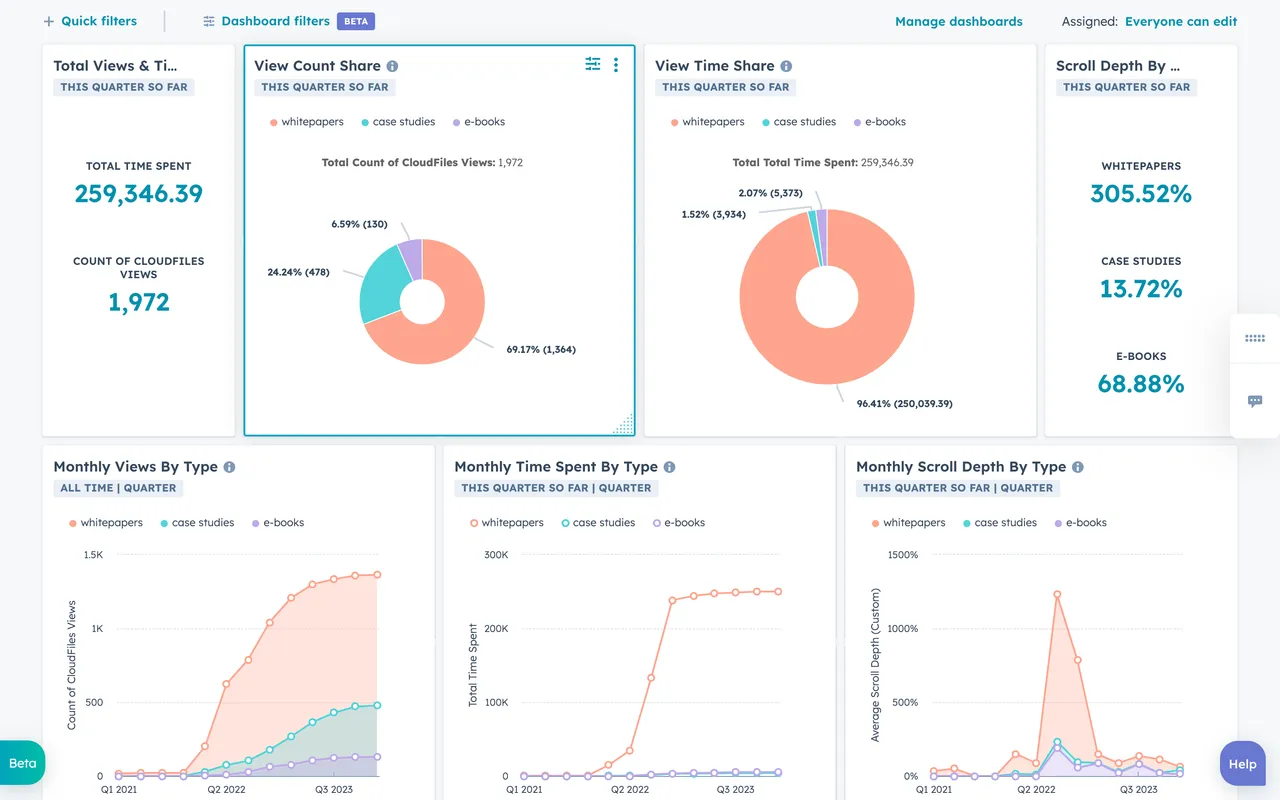
While HubSpot File Manager tells you where a file is used, CloudFiles shows how people interact with it, like who viewed it, how long they engaged, and what they clicked. These insights appear directly on HubSpot timelines and dashboards, enabling rich document analytics.
Option 2. Using CloudFiles as the Primary File Management System
Some teams prefer not to upload files to HubSpot at all. If most documents already live in cloud storage, CloudFiles can function as the primary file system for HubSpot users without depending on HubSpot File Manager.
When does CloudFiles act as the main library?
- CRM-connected folder access
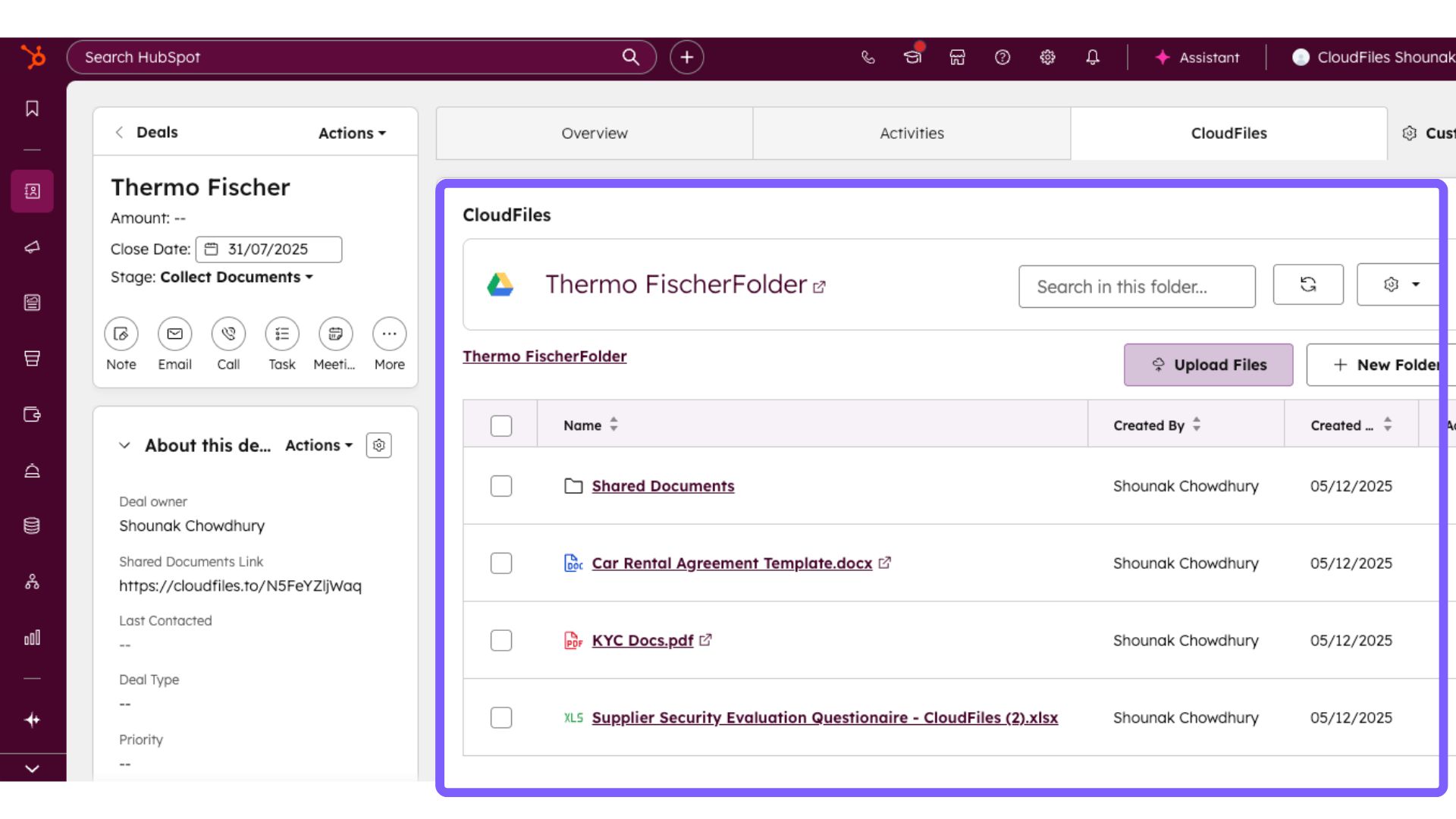
CloudFiles adds a dedicated panel to Contacts, Companies, Deals, and Tickets, allowing teams to browse folders and manage files directly inside each record. This is useful for sales or service teams handling contracts, agreements, client files, or onboarding materials.
- Bi-directional sync with cloud storage
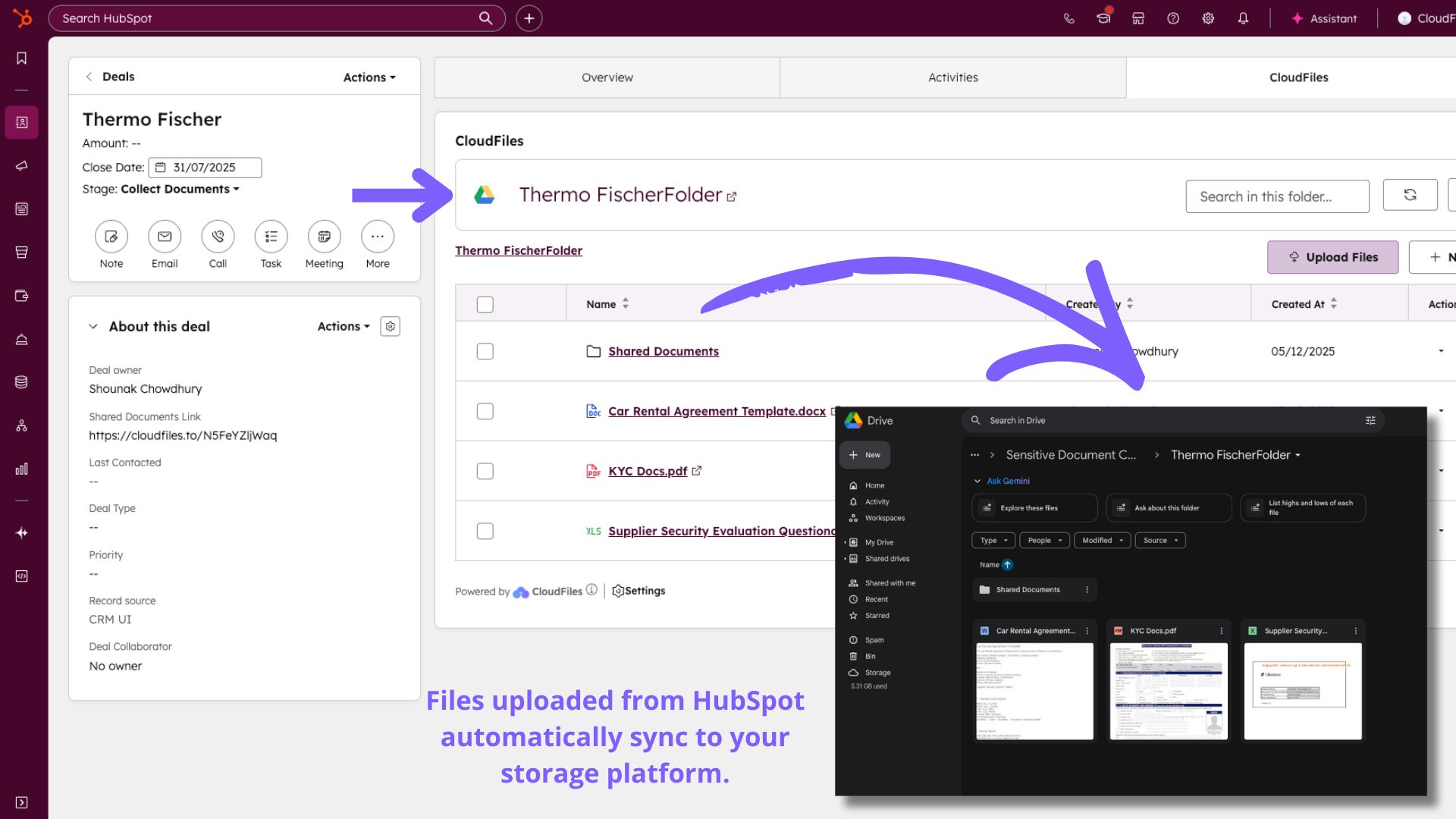
Changes made in external storage (e.g., rename a folder in Google Drive) automatically reflect in HubSpot thereby eliminating the need to upload or maintain duplicate versions in File Manager.
- Full external file-sharing workflow
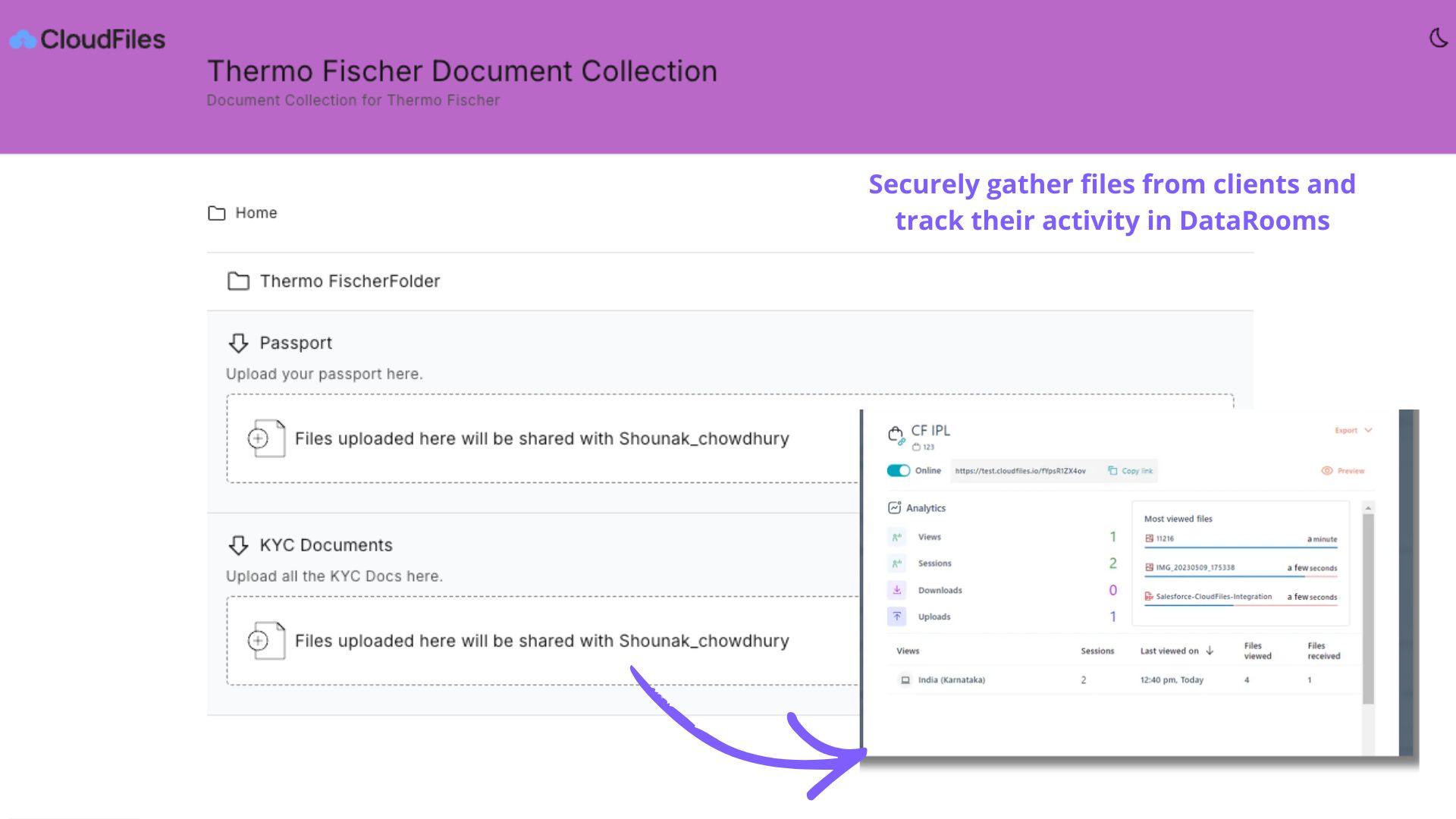
Teams can use CloudFiles alone to share files/folders, create client portals to collect documents from them, control access and track engagement without storing anything in HubSpot’s File Manager.
- Workflow automation
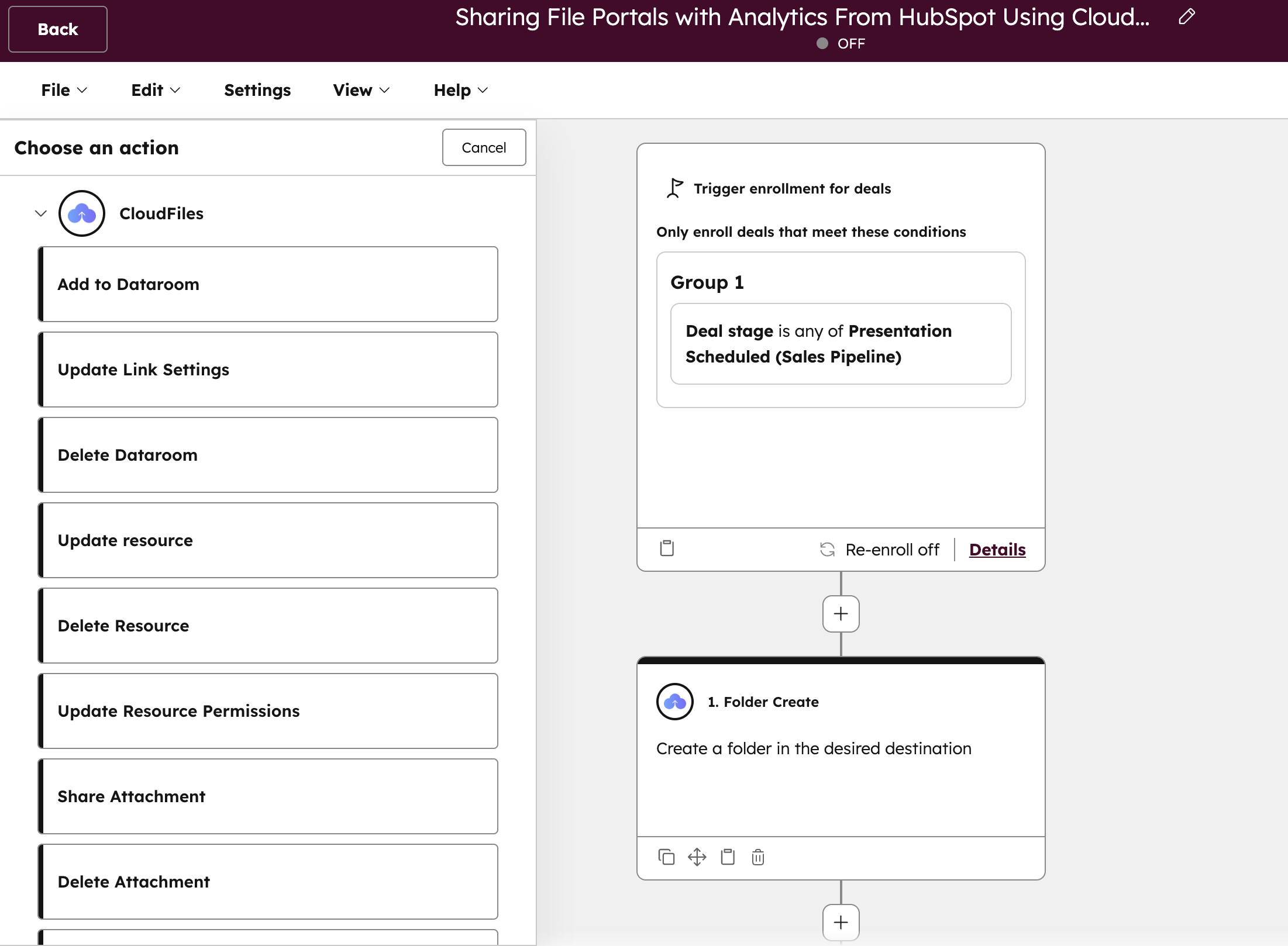
CloudFiles actions, such as uploads, views, and shares, can trigger HubSpot workflows. Teams automate tasks like sending follow-up emails, creating folders, or sharing documents based on CRM changes.
- Consistent permissions and compliance
Since files stay in cloud storage, you keep the same permission structure, audit trails, and compliance controls provided by your storage provider.
What are the key capabilities of CloudFiles that enhance File Management?
1. Integration with External Storage
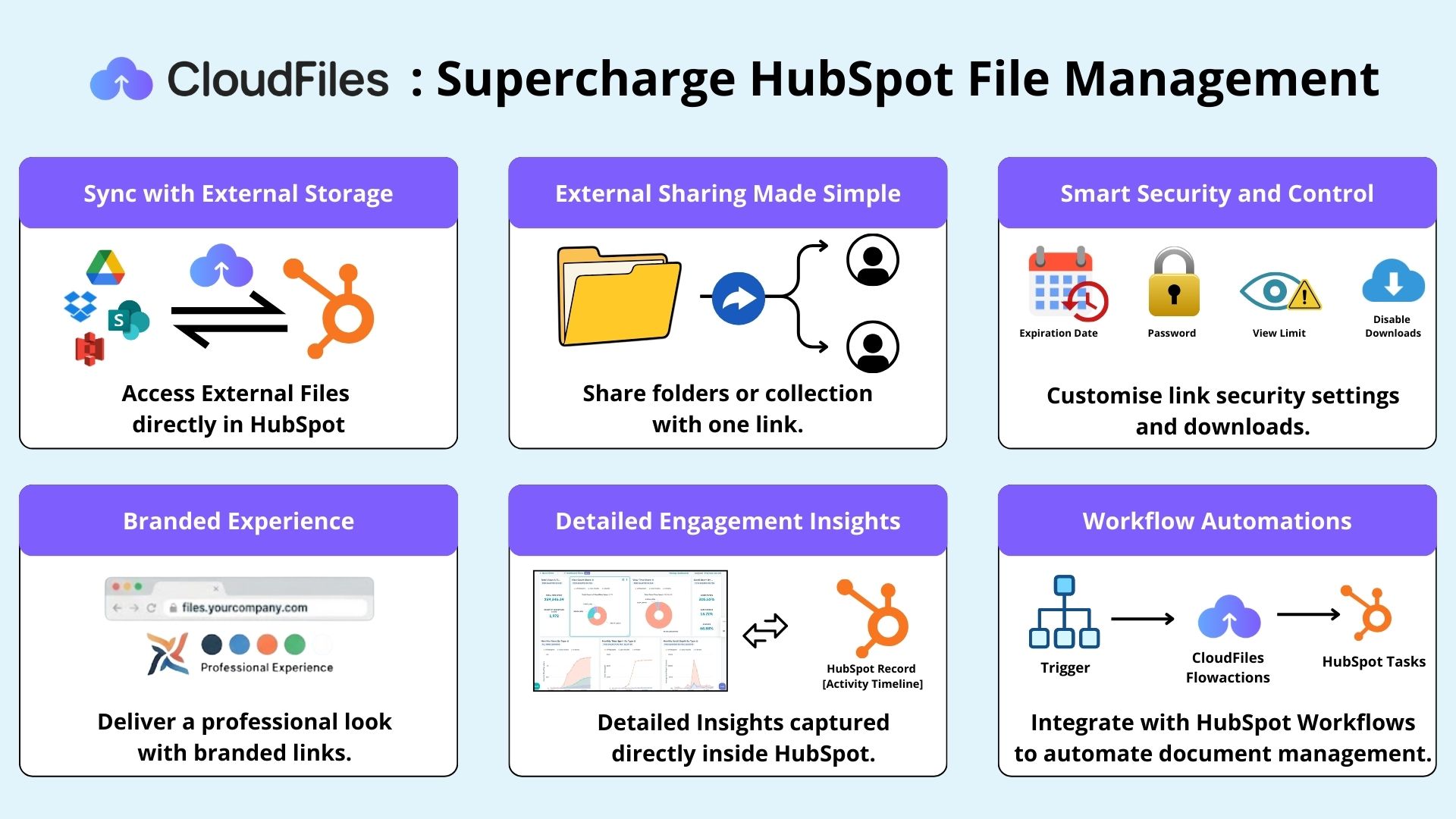
CloudFiles provides 2-way sync and connects with storage platforms like Google Drive, SharePoint, and Box, etc. This ensures a unified document storage solution and removes the need for re-uploads to HubSpot
2. External Sharing Made Simple
While HubSpot excels at managing internal files, CloudFiles makes external distribution just as smooth. Teams can share entire folders, collections, or “datarooms” of assets through a single link, which is ideal for sending campaign materials, media kits, or proposal bundles, service documentation to clients and agencies.
3. Smart Link Controls and Expiration Settings
Every shared link can be customised with expiration dates, view limits, password protection, and email-based access verification. This ensures that assets remain accessible for exactly as long as needed while keeping sensitive information secure. Teams can even disable downloads or printing for added control.
4. Consistent Branding and Custom Domains
CloudFiles lets you deliver a professional experience with branded links that reflect your company’s look and feel. Links can run through a custom domain (for example, files.yourcompany.com), maintaining brand continuity even outside your HubSpot environment.
5. Engagement Analytics and Insights
Unlike traditional file sharing, CloudFiles provides detailed insights into how people interact with your content. You can see who viewed a file, how long they spent on it, and which pages they engaged with most, **** all captured directly inside HubSpot records and dashboards for advanced document analytics. This information helps both marketing and sales teams understand interest levels and take timely follow-up actions.
6. Workflow Automations
CloudFiles integrates deeply with HubSpot workflows. You can automate folder creation, file sharing, create links when certain triggers occur (like a new lead or campaign launch), or send assets automatically when a deal reaches a specific stage. This saves manual effort and keeps processes consistent across the team.
How Teams Use CloudFiles in Practice?
Marketing teams often use HubSpot File Manager as the internal library for approved content, then use CloudFiles to share those same materials externally. For example:
- A campaign folder stored in HubSpot can be turned into a CloudFiles sharing link for agencies or distributors, complete with download limits and expiry settings.
- Sales teams can send proposals, brochures, or onboarding documents directly from HubSpot while tracking how prospects interact with them.
- Engagement data feeds back into HubSpot, helping both marketing and sales measure content performance and identify warm leads.
Here’s how the two tools compare in function and focus:
| Feature | HubSpot File Manager | With CloudFiles |
|---|---|---|
| Centralised file repository | ✅ Native centralized library for all uploaded assets | ✅ CloudFiles unifies external storage (Google Drive, SharePoint, etc.) inside HubSpot. |
| Integration with external storage | ❌ No | ✅ Connects directly with Google Drive, SharePoint, and Box |
| Access from HubSpot content & marketing tools (emails, blogs, CMS, pages) | ✅ Yes | ❌ No |
| Asset upload and CDN hosting | ✅ Yes | ✅ Uses the same HubSpot-stored or linked files |
| Access from CRM Records | ⚠️ Partial- You can add any file from the File Manager via Attachments/ Email Attachment | ✅ CloudFiles lets you link files/folders directly to CRM records. |
| Folder structure sharing | ❌ No | ✅ Adds folder-level external sharing |
| Advanced Security Settings | ❌ No | ✅ Adds customizable access, passwords, and expiry |
| Replace, rename, clone files | ✅ Yes | ✅ Yes |
| Brand control | ❌ No | ✅ Branded links |
| File engagement analytics | Basic usage data | ✅ In-depth engagement insights inside HubSpot |
| Permissions and access flexibility | Internal visibility settings | ✅ Adds controlled sharing, viewer authentication, and access expiration |
Thus, CloudFiles make document management and sharing easier within HubSpot. CloudFiles brings flexibility and control to how teams share and track their content. It helps marketing, sales and service professionals move beyond simple file storage toward smarter distribution, secure access, and actionable insights.
Conclusion
Managing marketing, sales and service assets effectively comes down to having the right systems in place, ones that balance structure, control, and flexibility. HubSpot File Manager offers that foundation. It helps teams organise, store, and maintain brand consistency across every campaign, sales cycle, and service workflow, while keeping assets accessible and easy to manage inside HubSpot, as part of a centralised document management system.
As those needs expand, especially around external sharing, engagement tracking, and secure access, CloudFiles builds on that foundation by enabling confident sharing, measurable performance insights, and automated distribution inside HubSpot. It extends what the native HubSpot file manager offers with deeper document analytics and more secure document storage solutions.
A well-governed File Manager paired with CloudFiles's advanced capabilities can reduce file-related inefficiencies by up to 40%, giving every team a faster, more professional way to manage and distribute content.
FAQs
1. What is HubSpot File Manager used for?
HubSpot File Manager is the central storage tool inside HubSpot where you can upload, organise, and manage all your marketing, sales and service assets, including images, PDFs, videos, and design files. It helps maintain consistency across campaigns by keeping all approved assets in one place.
2. Can I control who sees my files in HubSpot?
Yes. You can set visibility levels for each file as Public, Public-Noindex, or Private. You can also manage folder access by team within your HubSpot account, ensuring the right people see and use the right files.
3. Does HubSpot File Manager track who views shared files?
Not in detail. It shows where files are used in your HubSpot content, but it doesn’t provide viewer-specific analytics. If you need engagement insights like who viewed a file or how long they spent on it, CloudFiles can provide that level of tracking.
4. How is CloudFiles different from HubSpot File Manager?
HubSpot File Manager focuses on internal organization and asset management. CloudFiles adds integration with external storgaes, advanced external sharing, security settings, branding, and engagement analytics. Together, they create a complete system for managing both internal and external content.
5. Can I share a whole folder of files through HubSpot?
HubSpot currently supports sharing individual files through URLs, but not entire folders. CloudFiles allows you to share entire folders or collections through a single branded link, making external collaboration much easier.
6. Can CloudFiles work with external drives like Google Drive or SharePoint?
Yes. CloudFiles connects directly with external storage tools such as Google Drive, SharePoint, and Box. You can manage, share and track files from these sources without re-uploading them to HubSpot.
7. Is CloudFiles secure for client-facing content?
Absolutely. CloudFiles supports password protection, link expiry, download restrictions, and access verification. These controls help teams share assets safely while maintaining full control over who can view or download them.