

Introduction
External storage is no longer a secondary concern in Salesforce architectures. For many organizations, systems like Google Drive, OneDrive, SharePoint, or even cloud object storage such as AWS S3 are the primary homes for business documents. Salesforce, meanwhile, acts as the system of engagement—where files are referenced, generated, shared, and governed through business processes.
Salesforce Files Connect was created to bridge this gap. It allows Salesforce users to access externally stored files without pulling them into Salesforce storage. But as file-driven workflows become more complex, Files Connect is often only the first layer in a broader external storage integration strategy.
This blog explains how Salesforce Files Connect fits into external storage–heavy orgs, where it works well, where it falls short, and how modern teams extend it using platforms like CloudFiles.
What to expect in this Blog
You can explore this guide in the order above, or jump straight to any section that interests you most.
What Is Salesforce Files Connect?→ An introduction to Salesforce Files Connect and how it surfaces external documents inside Salesforce without duplicating storage.
Why External Storage Still Dominates Enterprise File Management → Why enterprises continue to rely on SharePoint, Google Drive, and object storage as systems of record for documents.
Where Salesforce Files Connect Fits in the Salesforce File Ecosystem → How Files Connect compares to Salesforce Files, Attachments, and other content options—and when to use each.
Using Files Connect Effectively in External-Storage–Heavy Orgs → Best practices for using Files Connect as a visibility layer in SharePoint-, Drive-, and OneDrive-first environments.
How to Set Up Salesforce Files Connect (High-Level Overview) → A high-level look at Files Connect setup, authentication models, and key configuration considerations. Explore the video guide here - Files Connect Setup Video guide
External Storage Systems Commonly Used with Salesforce → How Files Connect works with SharePoint, OneDrive, Google Drive, AWS S3, and other external repositories.
Salesforce Files Connect Permissions: What Salesforce Controls (and What It Doesn’t) → A breakdown of Files Connect permissions, external access control, and common “view-only” issues.
How Modern Orgs Extend Files Connect → How organizations extend Files Connect with automation, governance, and document workflows using complementary platforms.
Files Connect vs Other Salesforce & External File Options → A comparison of Files Connect with native Salesforce Files and other external file integration approaches.
What Is Salesforce Files Connect?
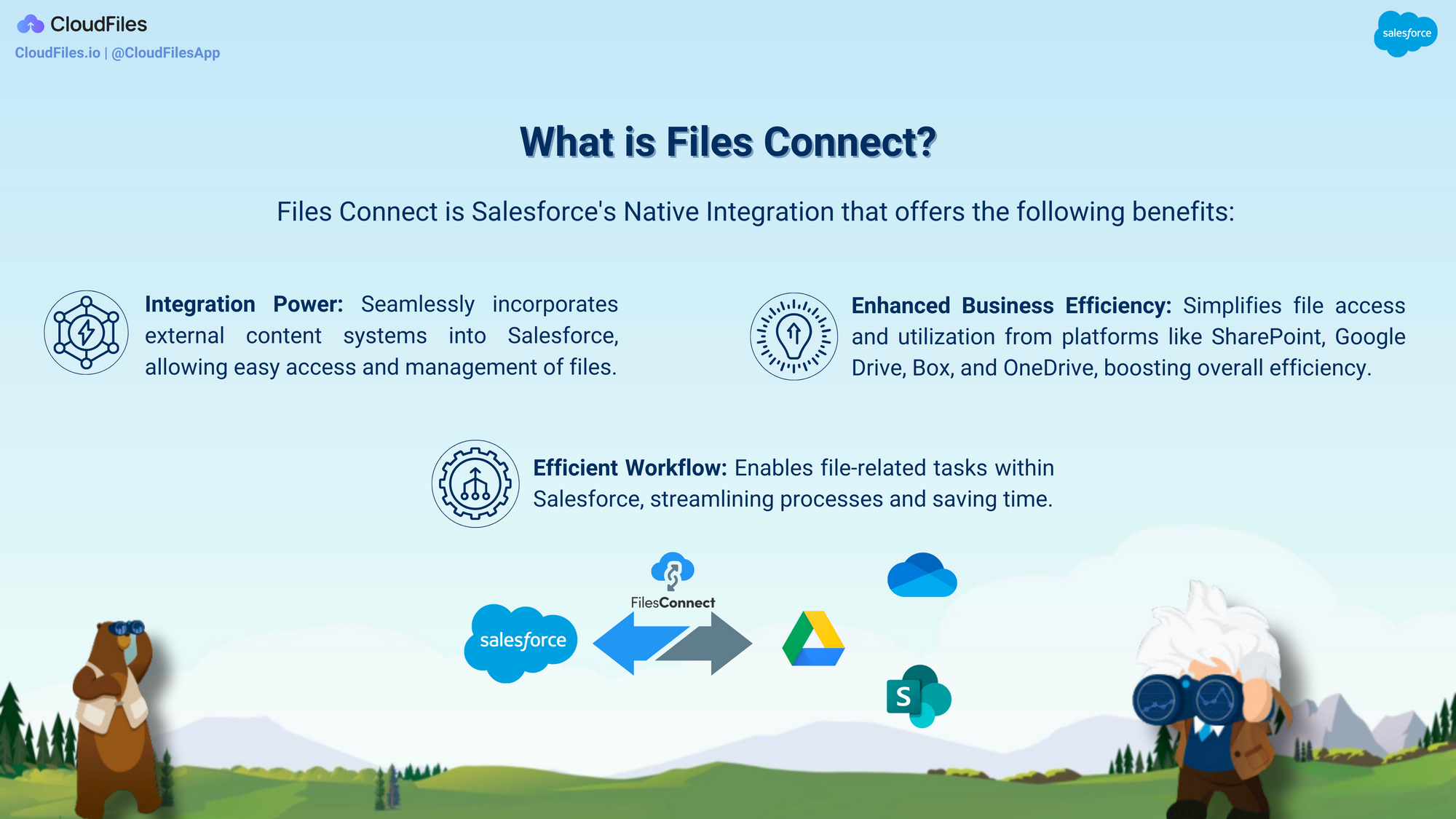
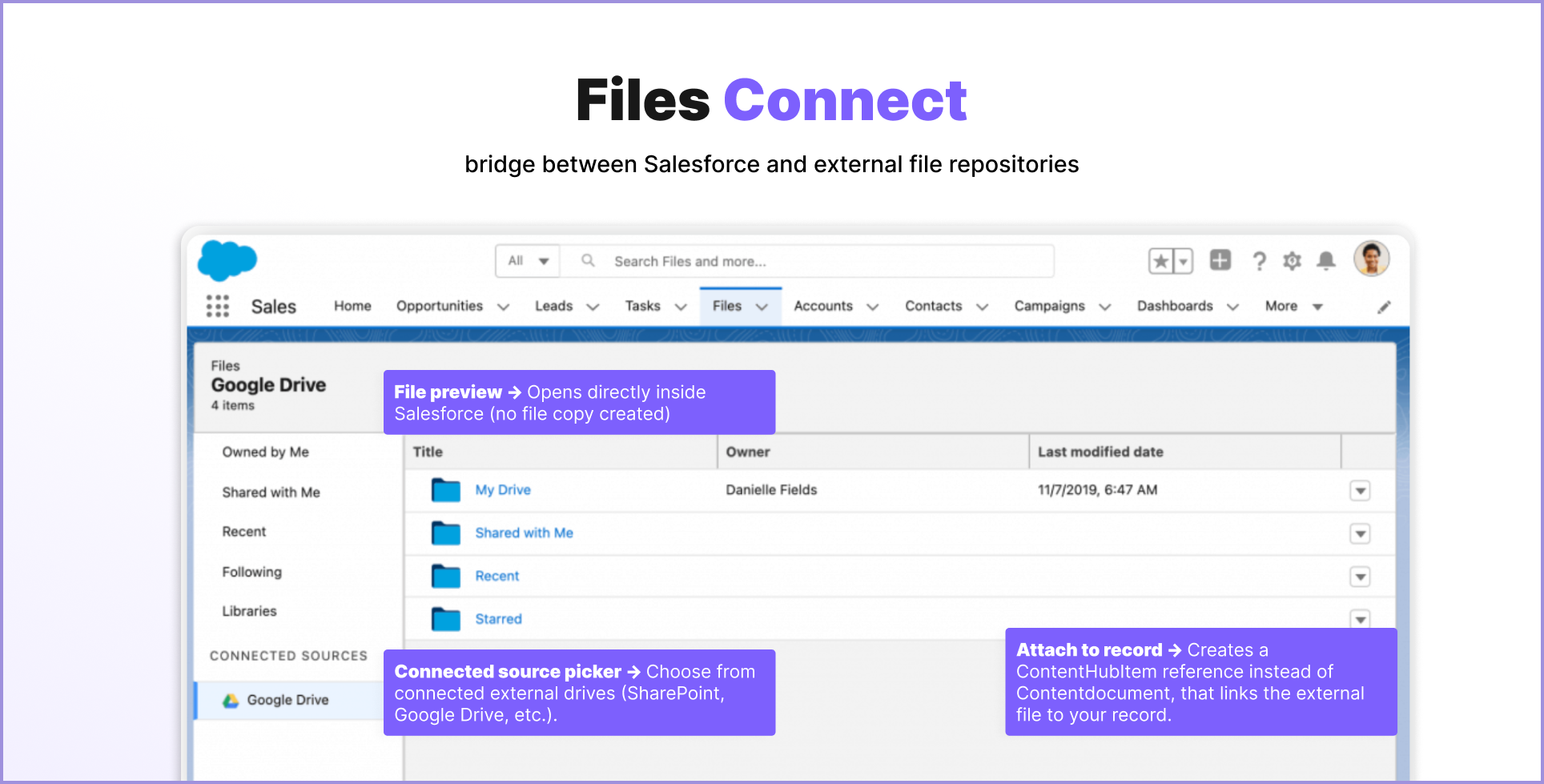
Salesforce Files Connect allows Salesforce users to access and reference files stored in external systems directly from Salesforce. Instead of uploading documents into Salesforce storage, Files Connect surfaces them from repositories such as SharePoint or Google Drive while keeping those systems as the source of truth.
From Salesforce’s perspective, these files appear alongside records and libraries, but they are never truly “owned” by Salesforce. Permissions, versioning, and storage policies remain external, which is often a hard requirement in enterprise IT environments.
Why External Storage Still Dominates Enterprise File Management
Despite Salesforce Files being the modern default for CRM-native documents, most enterprises still rely heavily on external storage platforms. The reasons are structural rather than technical. External storage systems are optimized for scale, cost control, collaboration across non-Salesforce users, and long-term retention. They also integrate deeply with operating systems, productivity tools, and compliance frameworks that Salesforce does not replace.
As a result, Salesforce rarely becomes the only file system. Instead, it becomes one of several systems that must work together.
Where Salesforce Files Connect Fits in the Salesforce File Ecosystem
Salesforce today offers multiple ways to work with files: Salesforce Files, Notes & Attachments (legacy), Documents (Classic), CRM Content, and Files Connect. Within Salesforce’s file options, Files Connect occupies a very specific role. Unlike Salesforce Files or CRM Content, it does not attempt to manage document lifecycles or automate file behavior. Its purpose is to expose external storage inside Salesforce without duplicating it.
That simplicity is intentional. Files Connect works best when Salesforce needs to see files, not own them. When Salesforce needs to generate documents, enforce governance, or automate movement across systems, additional layers are usually required.
How Salesforce Files Connect Works Under the Hood
Technically, Files Connect relies on Salesforce’s external data framework. External repositories are configured as data sources, authenticated via OAuth or service accounts, and surfaced inside Salesforce as external objects.
Salesforce can search, preview, and reference these files, but cannot enforce naming conventions, trigger Flows, or govern lifecycle events. This architectural boundary explains both Files Connect’s stability and its limitations.
Migration, Coexistence, and Modern Architecture
Very few orgs fully migrate away from Files Connect. Instead, they evolve toward coexistence architectures: Files Connect for visibility, Salesforce Files for CRM ownership, and tools like CloudFiles for orchestration across systems.
This layered approach aligns with how Salesforce is actually used at scale, and avoids forcing everything into a single storage model.
Using Files Connect Effectively in External-Storage–Heavy Orgs
In SharePoint-, Google Drive–, or OneDrive-first environments, Salesforce Files Connect works best as a visibility layer, not a workflow engine. It lets Salesforce users view and reference external documents directly from records without duplicating storage, altering folder structures, or weakening IT controls. This model fits organizations that already manage ownership, compliance, and document lifecycles outside Salesforce, keeping the external system as the source of truth.
When Salesforce needs to go beyond visibility - such as generating documents, routing files, or selectively syncing content - additional tools naturally come into play. Platforms like CloudFiles are often layered alongside Files Connect to extend Salesforce’s ability to work with external files without disrupting existing storage architectures.
Practical Usage Patterns and Guardrails
In practice, Files Connect is most effective for read-heavy, reference-driven use cases. Teams commonly surface contracts, proposals, policies, or marketing assets next to Salesforce records to improve context and accessibility, without copying files into Salesforce storage.
Where Files Connect intentionally stops is workflow execution. It doesn’t handle document creation, approvals, lifecycle automation, or controlled ingestion back into Salesforce Files. In these cases, complementary platforms such as CloudFiles help bridge the gap, enabling Salesforce-driven file generation, governance, and orchestration while leaving the external system in control.
Used this way, Files Connect provides reliable visibility, with layered integrations expanding Salesforce’s ability to operate on external content rather than merely reference it.
How to Set Up Salesforce Files Connect (High-Level Overview)
Salesforce Files Connect setup is largely about establishing a secure bridge between Salesforce and your external storage system so users can browse and reference files without moving them into Salesforce storage. While the exact configuration varies slightly by provider, the overall setup pattern remains consistent.
At a high level, setting up Salesforce Files Connect involves enabling Files Connect in Salesforce, configuring authentication between Salesforce and the external system, defining how external folders are exposed inside Salesforce, and assigning user permissions so files are visible in the right contexts. Most admins discover that the complexity isn’t in Salesforce itself, but in aligning identity, permissions, and folder structures between Salesforce and the external storage platform.
In practice, the setup flow typically looks like this:
- Enable Salesforce Files Connect in Setup and choose the external storage type
- Register Salesforce as a trusted app in the external system (for example, SharePoint or OneDrive)
- Configure authentication (OAuth or named credentials, depending on provider)
- Define external data sources and root folders
- Assign Files Connect permissions to users and profiles
- Validate access and test file visibility from Salesforce records
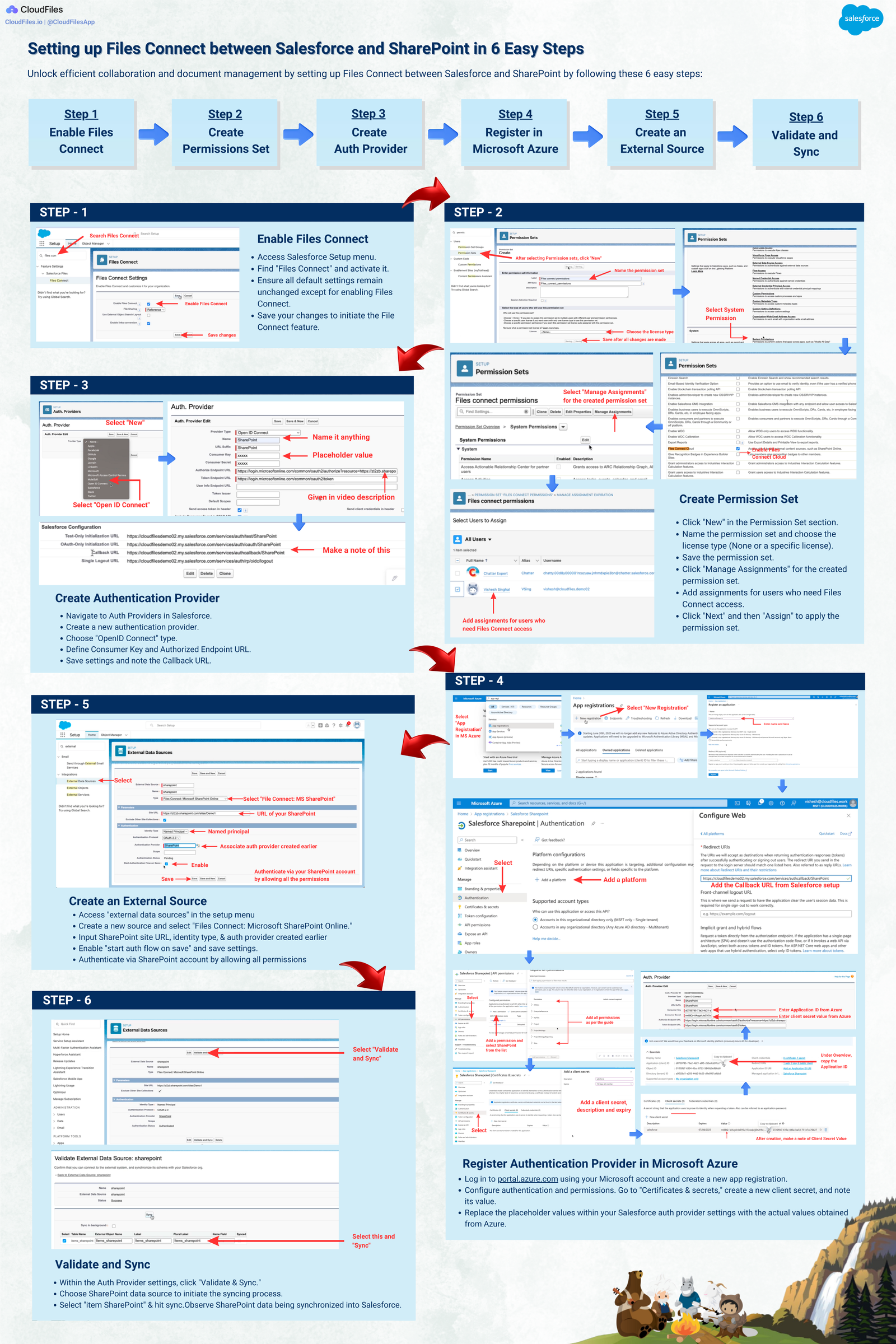
Rather than duplicating each configuration step in detail here, we recommend following the step-by-step walkthrough already published in our SharePoint-focused guide: Setting up Files Connect between Salesforce and SharePoint in 6 Easy Steps
That section includes screenshots, permission caveats, and common setup pitfalls that apply broadly, even if you later adapt the approach for Google Drive or other supported systems.
Files Connect Setup Video Guide
Watch the instructional video for step-by-step guidance and deeper insights into Salesforce SharePoint integration using Files Connect. Whether you're a beginner or need clarification, this video has you covered.
External Storage Systems Commonly Used with Salesforce
SharePoint
SharePoint is the most common external storage system used with Salesforce, particularly in enterprise and compliance-heavy orgs. Files Connect works well for browsing and previewing SharePoint documents inside Salesforce, allowing files to remain governed by Microsoft.
However, Files Connect is limited to visibility. It doesn’t handle folder creation, metadata mapping, or document lifecycle automation in SharePoint. Salesforce users can see files but can’t control how they’re created or organized.
To fill this gap, many orgs layer CloudFiles alongside Files Connect. Salesforce data can then drive document generation, structured folder placement, and governance in SharePoint, while Files Connect continues to provide in-Salesforce visibility.
For a deeper look at setup, permissions, and automation patterns, read The Ultimate Guide to Salesforce–SharePoint Integration
OneDrive
OneDrive is typically used for personal or small-team storage. Files Connect allows Salesforce users to reference OneDrive files, but access and structure are tied to individual user ownership.
This makes OneDrive suitable for lightweight collaboration, but less effective for Salesforce-driven workflows that require shared ownership or standardized structures. In practice, CloudFiles is often used to route system-generated or finalized documents into more controlled storage while Files Connect remains a read-only access layer.
Google Drive
Google Drive is widely used in organizations that prioritize collaboration and speed. Files Connect enables Salesforce users to reference Drive documents, but governance and automation remain external.
For Salesforce-driven workflows such as generating contracts, proposals, or onboarding packets, CloudFiles allows Salesforce data to drive how documents are created and stored in Drive while keeping Drive as the system of record.
AWS S3 and Object Storage
Some enterprises rely on object storage platforms like AWS S3 for scale, cost efficiency, or compliance reasons. These systems are not collaboration tools; they are storage infrastructure.
Files Connect can expose metadata and previews where supported, but it does not manage document flows. In these environments, tools like CloudFiles are often used to orchestrate file movement between Salesforce, object storage, and downstream systems while enforcing policies programmatically.
Other External Repositories
Box, network file systems, and industry-specific repositories often appear in Salesforce architectures as well. The pattern remains consistent: Files Connect provides visibility, while orchestration and automation are handled elsewhere.
Strengths and Natural Limits of Files Connect
Files Connect excels at one thing: safe access to external files from Salesforce. It avoids duplication, respects external governance, and requires minimal maintenance.
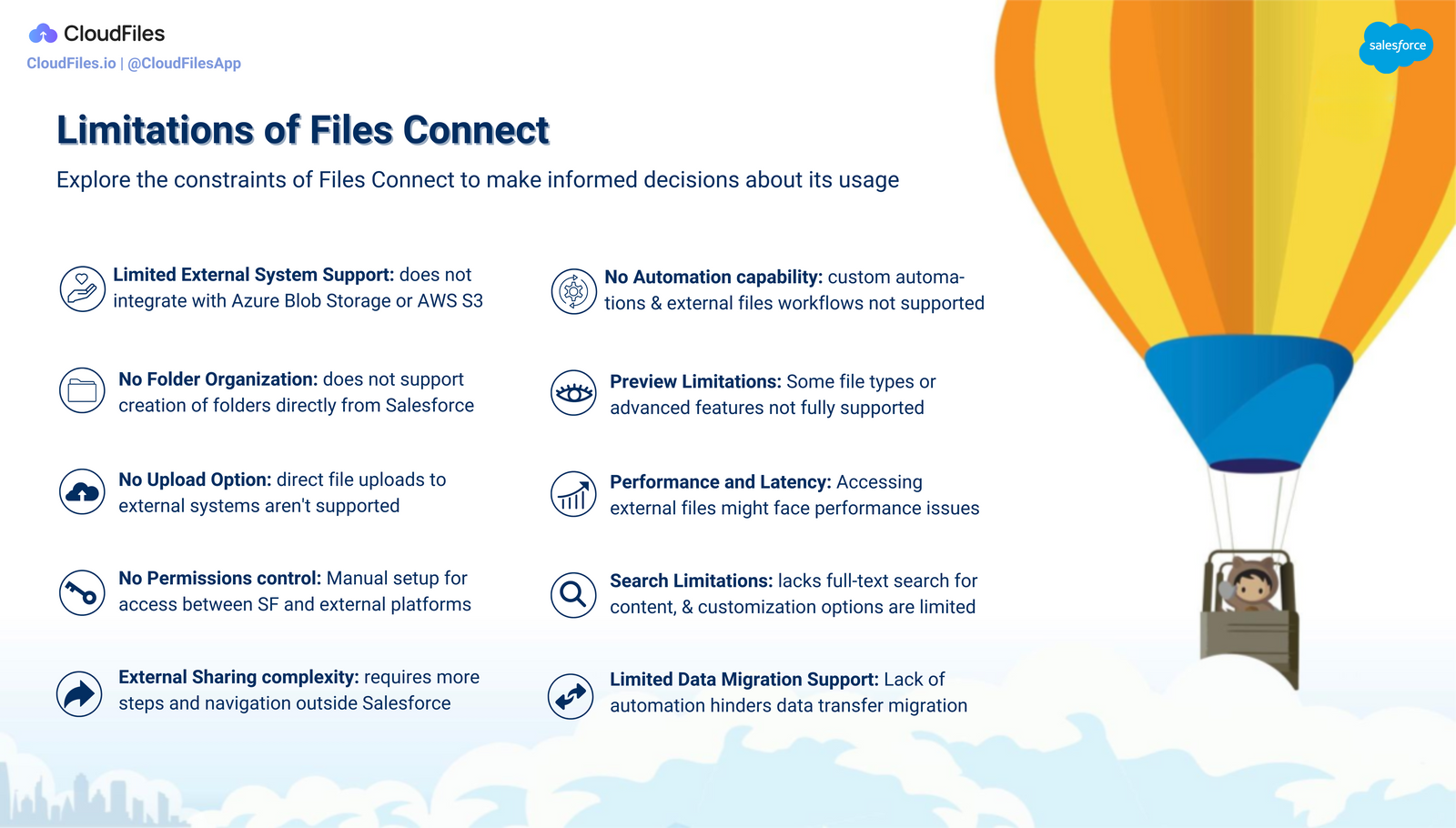
Its limitations emerge when Salesforce becomes an active participant in document workflows. Files Connect does not generate files, enforce naming standards, trigger automation, or synchronize content back into Salesforce Files. These are not flaws; they are boundaries. And most large orgs design around them rather than fight them.
Salesforce Files Connect Permissions: What Salesforce Controls (and What It Doesn’t)
One of the most misunderstood aspects of Salesforce Files Connect is permissions. While Files Connect makes external content feel like native Salesforce Files, access control is split across two systems. Salesforce manages visibility and context, while the external storage platform controls actual file authority. Understanding this distinction is critical for orgs relying heavily on external storage integration.
At a high level, Salesforce decides who can see an external file, where it appears, and how it’s referenced across records and libraries. The external system - such as SharePoint, Google Drive, OneDrive, or other storage providers - decides what users can do with the file.
What Permissions Are Controlled by Salesforce
Salesforce governs the discovery and placement of external files. Admins can control which users can access Files Connect objects, view files linked to records, or surface them through search and libraries. From a Salesforce perspective, these files behave similarly to standard Salesforce Files.
However, Salesforce never takes ownership of the file itself. It does not grant edit, delete, or resharing rights, even if the user has broad access within Salesforce.
What Remains Controlled by External Storage
All file-level permissions remain external. Editing, versioning, folder inheritance, and sharing rules are enforced entirely by the connected storage system. If a user lacks edit rights in SharePoint or Drive, Salesforce cannot override that access. This design makes Files Connect effective as a reference layer, but not a full content management solution inside Salesforce.
Why Users Can “See but Not Edit” Files
The common “view-only” issue is usually the result of permission mismatches rather than a configuration error. Typical causes include read-only access in the external system, folder-level permission changes made outside Salesforce, identity mismatches between Salesforce and external accounts, or files shared via links instead of direct user access.
From Salesforce’s perspective, everything is working as intended, but for users, the experience often feels inconsistent.
Permission Challenges at Scale
As organizations scale their use of external storage, these permission gaps become harder to manage. Access changes made directly in SharePoint, Drive, or OneDrive don’t always align with expectations inside Salesforce, leading to admin overhead and fragmented troubleshooting.
This is where many teams start complementing Salesforce Files Connect with solutions that add governance, synchronization, and clearer control across systems. Tools like CloudFiles are often layered alongside Files Connect to help close these gaps, especially in external-storage–heavy orgs where Salesforce needs stronger visibility, consistency, and operational control without replacing existing storage investments.
How Modern Orgs Extend Files Connect
In practice, Files Connect is rarely used alone. It is typically combined with Salesforce Files for CRM-owned documents and with external storage orchestration tools for automation.
CloudFiles is commonly introduced at this layer. It allows Salesforce to generate documents, route them to the correct external storage system, apply metadata, and optionally sync selected files back into Salesforce Files. Edge further supports high-volume and policy-driven file operations across systems. This creates a layered architecture rather than a forced migration.
Files Connect vs Other Salesforce & External File Options
Understanding where Files Connect fits becomes much clearer when viewed alongside other options.
Salesforce Files Connect vs Salesforce Files
Salesforce Files is built for ownership and automation. Files live inside Salesforce, participate in Flows, approvals, and sharing rules, and behave like CRM data. Files Connect, by contrast, is about access without ownership.
Most large orgs use both: Salesforce Files for operational documents, Files Connect for externally governed repositories.
Salesforce Files Connect vs Native SharePoint Integrations
Native SharePoint integrations outside Salesforce often provide deep file management but lack CRM context. Files Connect adds Salesforce visibility but stops short of orchestration. CloudFiles bridges this gap by allowing Salesforce data and automation to drive how files are created, stored, and managed in SharePoint, all without replacing SharePoint as the system of record.
Salesforce Files Connect vs CloudFiles
Files Connect answers “Can users see external files in Salesforce?”
CloudFiles answers “How do those files move, evolve, and stay governed across systems?”
CloudFiles enables document generation from Salesforce, structured uploads to external storage, controlled syncing back into Salesforce Files, and automation via Flows. Edge further extends this by enabling high-scale, policy-driven file operations for complex enterprise environments. Together, they complement Files Connect rather than replacing it, especially in orgs where external storage is non-negotiable.
Detailed Comparison Table
| Capability | Files Connect | Salesforce Files | CloudFiles |
|---|---|---|---|
| External storage integration | ✅ Native | ❌ | ✅ Deep, bi-directional |
| External system as source of truth | ✅ | ❌ | ✅ |
| Salesforce automation (Flows, approvals) | ❌ | ✅ | ✅ |
| Document generation from Salesforce data | ❌ | ❌ | ✅ |
| Controlled sync (external ↔ Salesforce) | ❌ | ❌ | ✅ |
| Governance & lifecycle controls | External only | Salesforce only | Hybrid (external + SF) |
| Best suited for | Read-only access | CRM-native docs | External-storage–heavy orgs |
Conclusion
Salesforce Files Connect is not obsolete, rather, it’s specialized. It works best when used intentionally, alongside tools designed to handle automation, generation, and governance across external storage platforms. For orgs deeply invested in external storage systems like SharePoint, Drive, or OneDrive, the most resilient architectures don’t replace Files Connect. They extend it with Salesforce Files for CRM-native needs and tools like CloudFiles to unify Salesforce automation with external storage realities.
Frequently Asked Questions (FAQs)
1. What are the main limitations of Salesforce Files Connect?
Salesforce Files Connect is primarily a visibility and access layer, not a full document management or automation solution. Its key limitations include lack of document generation, limited support for Salesforce automation (Flows, approvals, triggers), and minimal lifecycle control. Files Connect also doesn’t allow Salesforce to truly “own” the file, which can restrict reporting, governance, and advanced sharing scenarios.
2. How does Salesforce Files Connect support external storage integration?
Salesforce Files Connect enables external storage integration by allowing users to browse, preview, and reference files stored outside Salesforce such as SharePoint, Google Drive, or OneDrive, directly from the Salesforce UI. The files remain in the external system, helping organizations reduce Salesforce storage usage while still keeping content accessible in CRM workflows.
3. What external storage systems work best with Salesforce Files Connect?
Salesforce Files Connect works best with enterprise-grade content platforms that support stable APIs and permission models, including SharePoint Online, OneDrive for Business, and Google Drive. These systems integrate most smoothly because they align well with Salesforce’s authentication and file-access patterns. Object storage platforms like AWS S3 are typically less suitable for native Files Connect use and often require middleware or complementary tools for effective Salesforce integration.
4. Salesforce Files Connect vs Salesforce Files: what’s the difference?
Salesforce Files is designed for CRM-native content that fully participates in sharing rules, automation, reporting, and record relationships. Salesforce Files Connect, on the other hand, references files that remain externally stored. Most mature Salesforce orgs use Files for system-generated or transactional documents, while relying on Files Connect to surface externally governed content.
5. Does Salesforce Files Connect support Salesforce automation or document workflows?
No. Salesforce Files Connect does not support document generation, automated file movement, or workflow-driven file updates. Salesforce Flows and approval processes cannot directly act on Files Connect–referenced files. This limitation is often a deciding factor for teams that need end-to-end document workflows tied to Salesforce data.
6. When should you use CloudFiles alongside Salesforce Files Connect?
CloudFiles is commonly used alongside Files Connect when organizations need active Salesforce-to-external-storage workflows, such as generating documents from Salesforce records, syncing files across systems, enforcing structured folder hierarchies, or bringing selected files back into Salesforce Files. In external-storage–heavy orgs, CloudFiles complements Files Connect by filling automation and governance gaps without replacing existing storage investments.
Further Reading and References
Deepen your understanding of Salesforce Files Connect and related external storage strategies with these curated resources:
- Salesforce Files Connect Official Overview — Learn how Files Connect lets Salesforce access external file repositories like SharePoint, Google Drive, OneDrive, and more.
- Salesforce Files Connect Setup Guide (Admin) — Official Salesforce explanation of enabling Files Connect, configuring external data sources, and setting permissions.
- Salesforce Files Connect Permissions & Access — Official guidance on how access to external sources and user permissions are managed in Salesforce.
- Salesforce Files Connect External File Access & Sharing — Salesforce documentation on how users access and share external files once Files Connect is enabled.
- CloudFiles: Salesforce SharePoint Integration Guide — A detailed CloudFiles blog explaining how Salesforce can integrate with SharePoint, including practical patterns and limitations of Files Connect.
- The Ultimate Guide to Salesforce Files: Architecture, Features Walk-Through, & Real-World Best Practices — A practical Salesforce Files guide covering architecture, UI walkthrough, sharing rules, versioning, Files Connect, APIs, and reporting for efficient file management.
- Salesforce Google Drive Integration Made Easy — Deep dive into cloud storage use cases for sales, service, and partner portals.